One Time Setup Guide
Signzy DSC Utility One Time Setup Guide
To sign documents using a DSC token, you need to install the Signzy Utility on your computer.
This is a one-time setup. Once the Sign Utility is installed, you will be able to sign documents easily using your DSC token.
Please follow the steps provided below to complete the installation before proceeding with the signing process.
1. Click here to download the Signzy utility file. Click on the download button
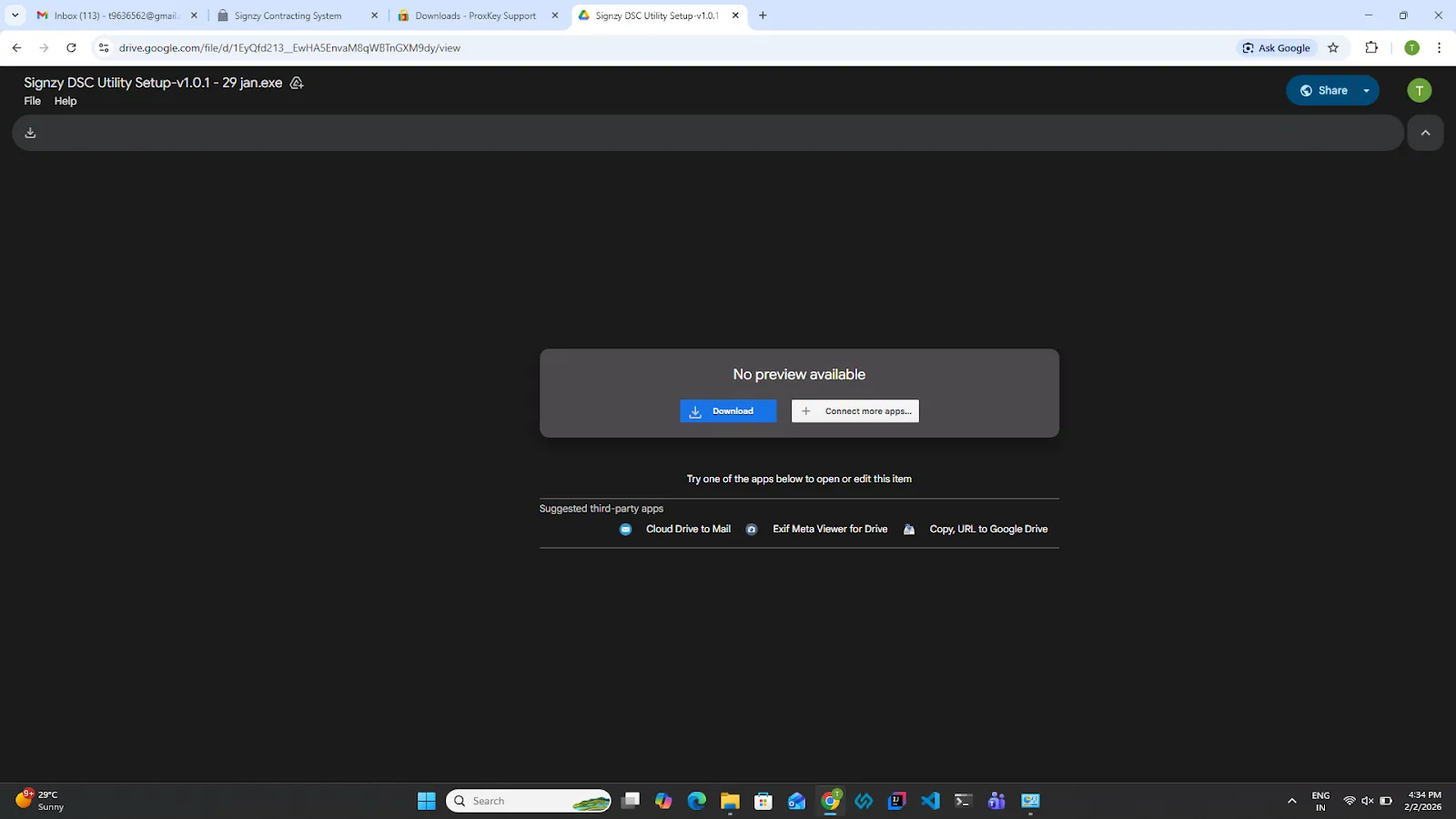
2. Click on the download anynow button.
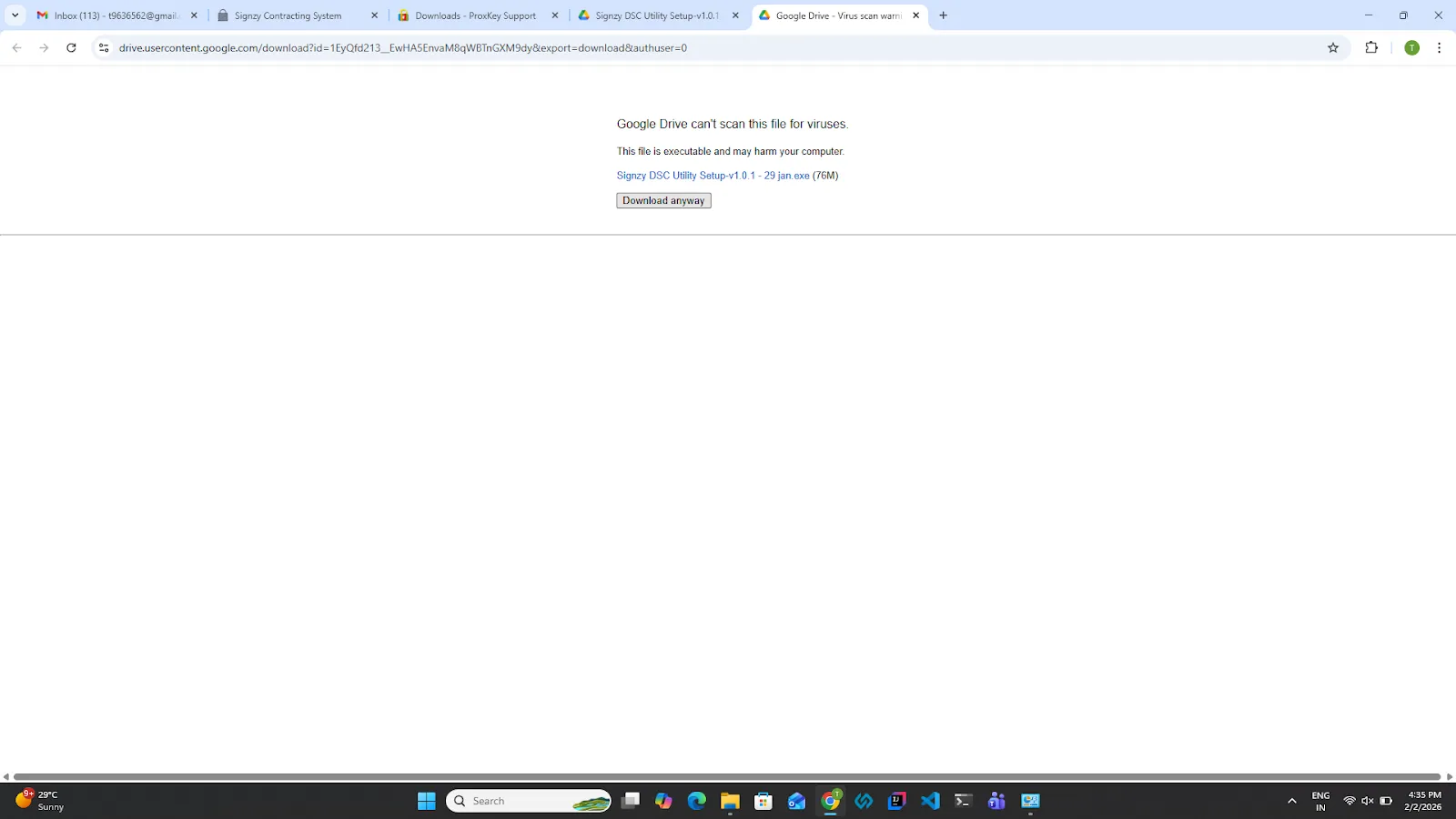
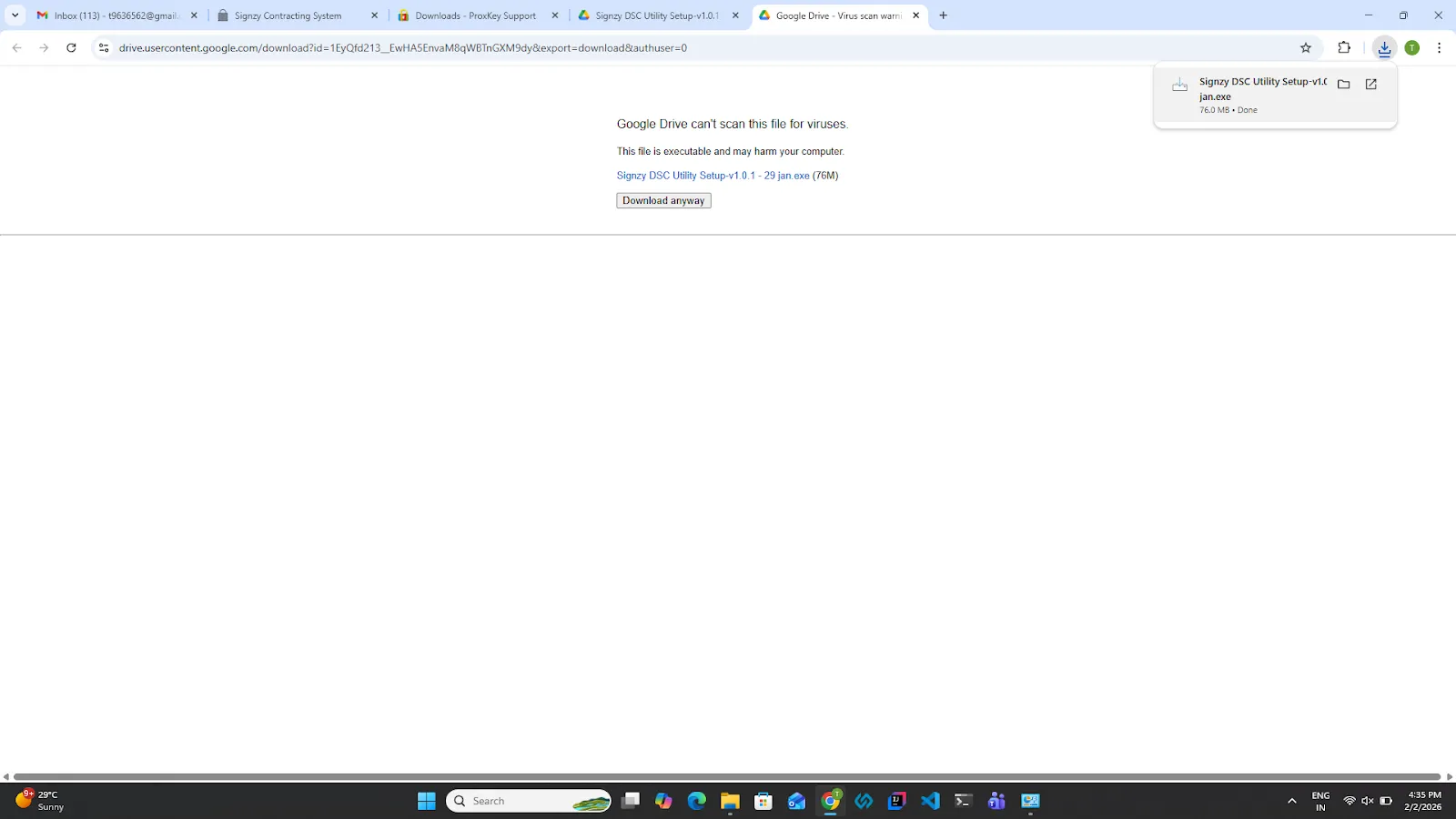
3. The Signzy Utility setup will be downloaded. Double-click on the downloaded file.
4. A Windows prompt will appear. Click on the More Info button.
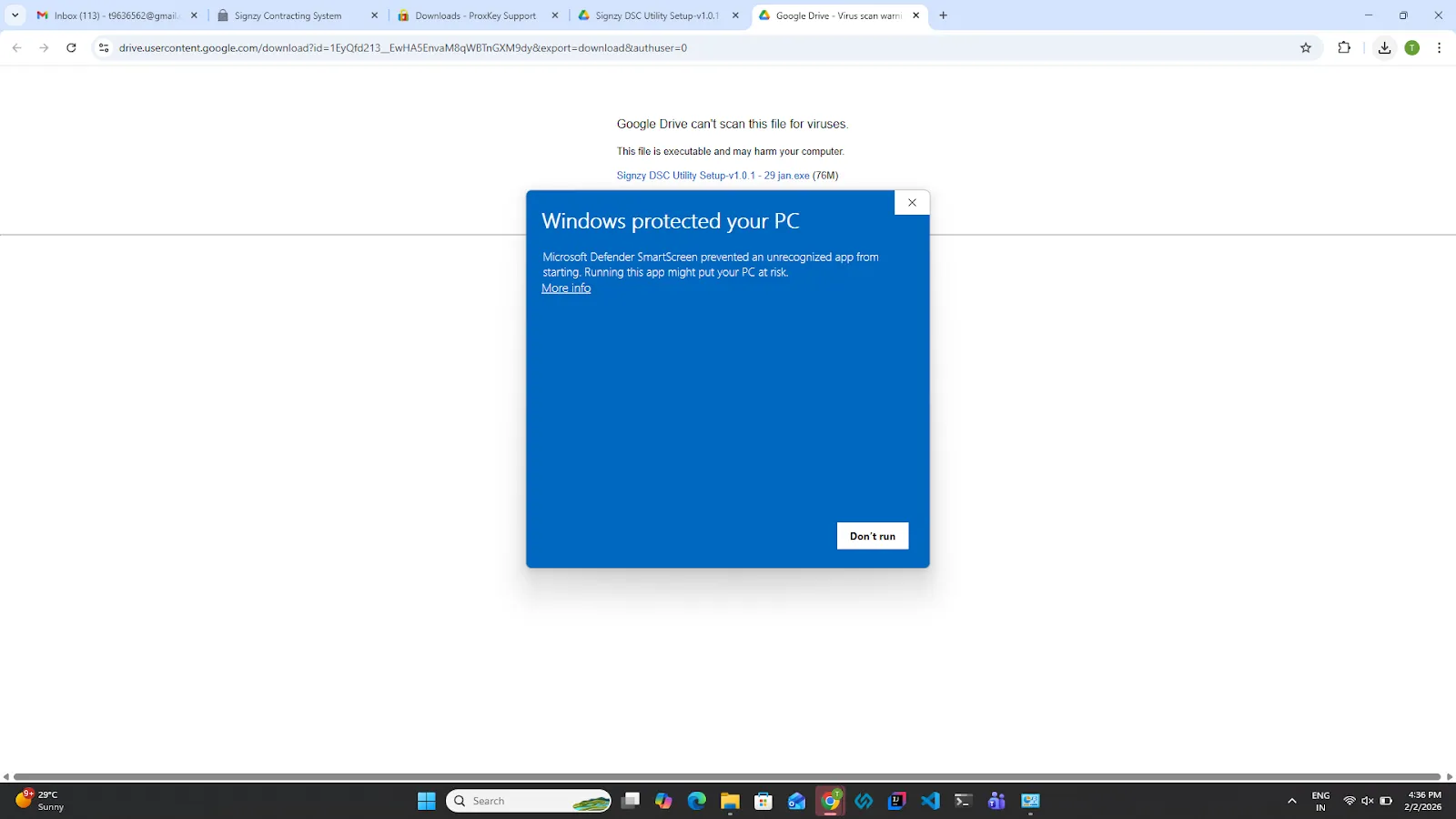
5. Click on the Run anyway button.
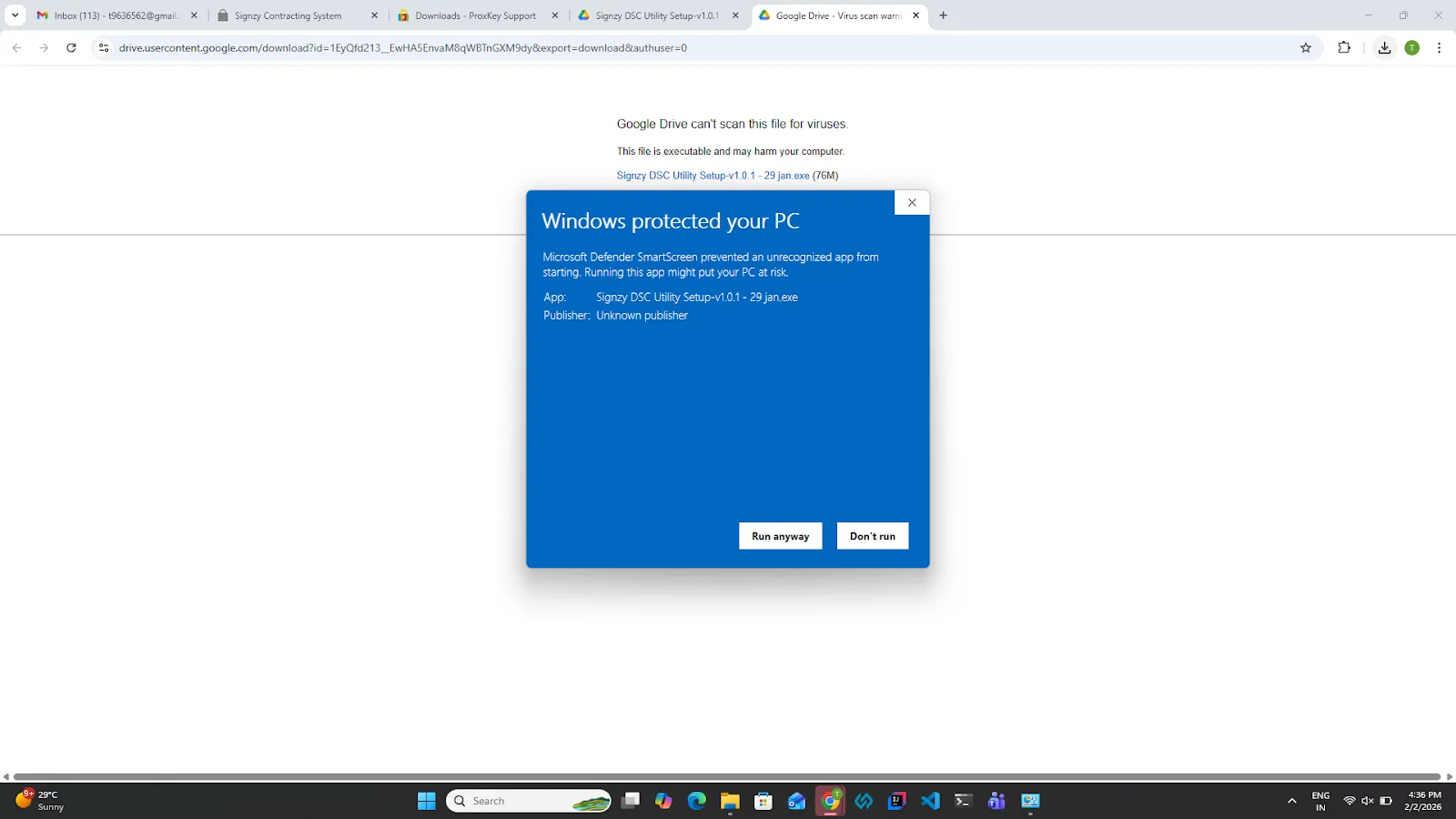
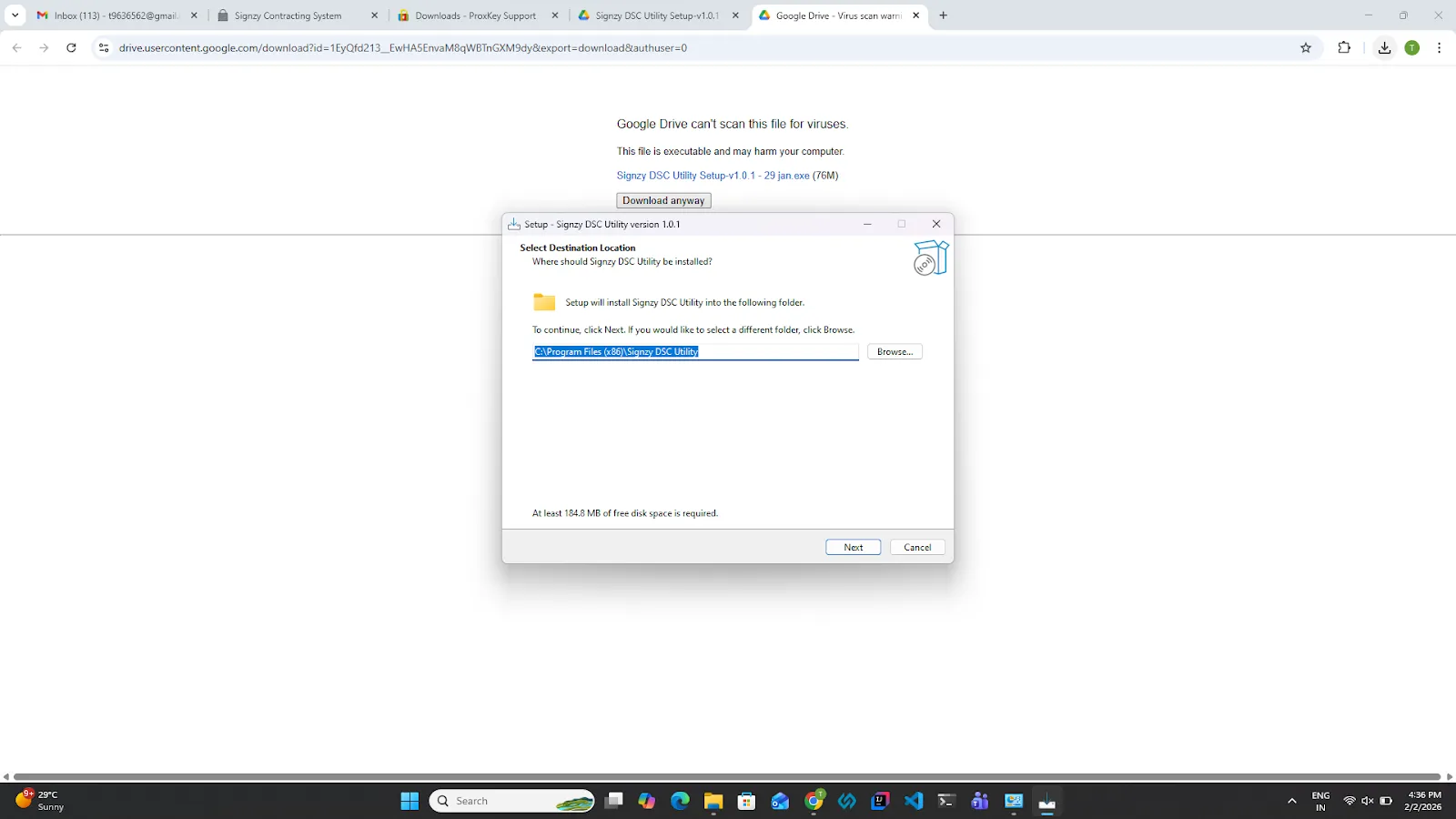
6. Keep the default path as it is and click on the next button.
7. Click on the next button.
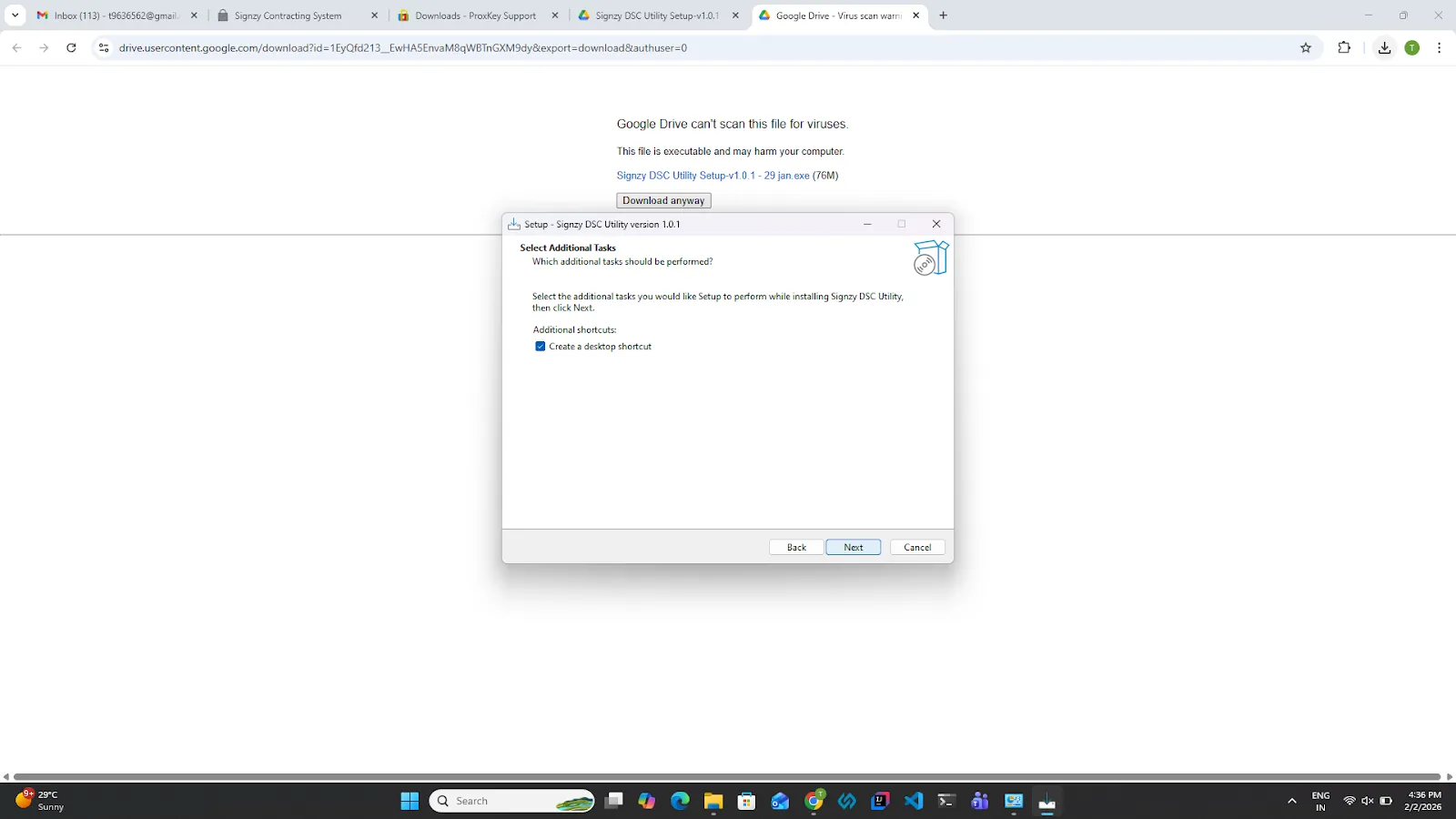
8. Click on the install button to start the installation of the setup
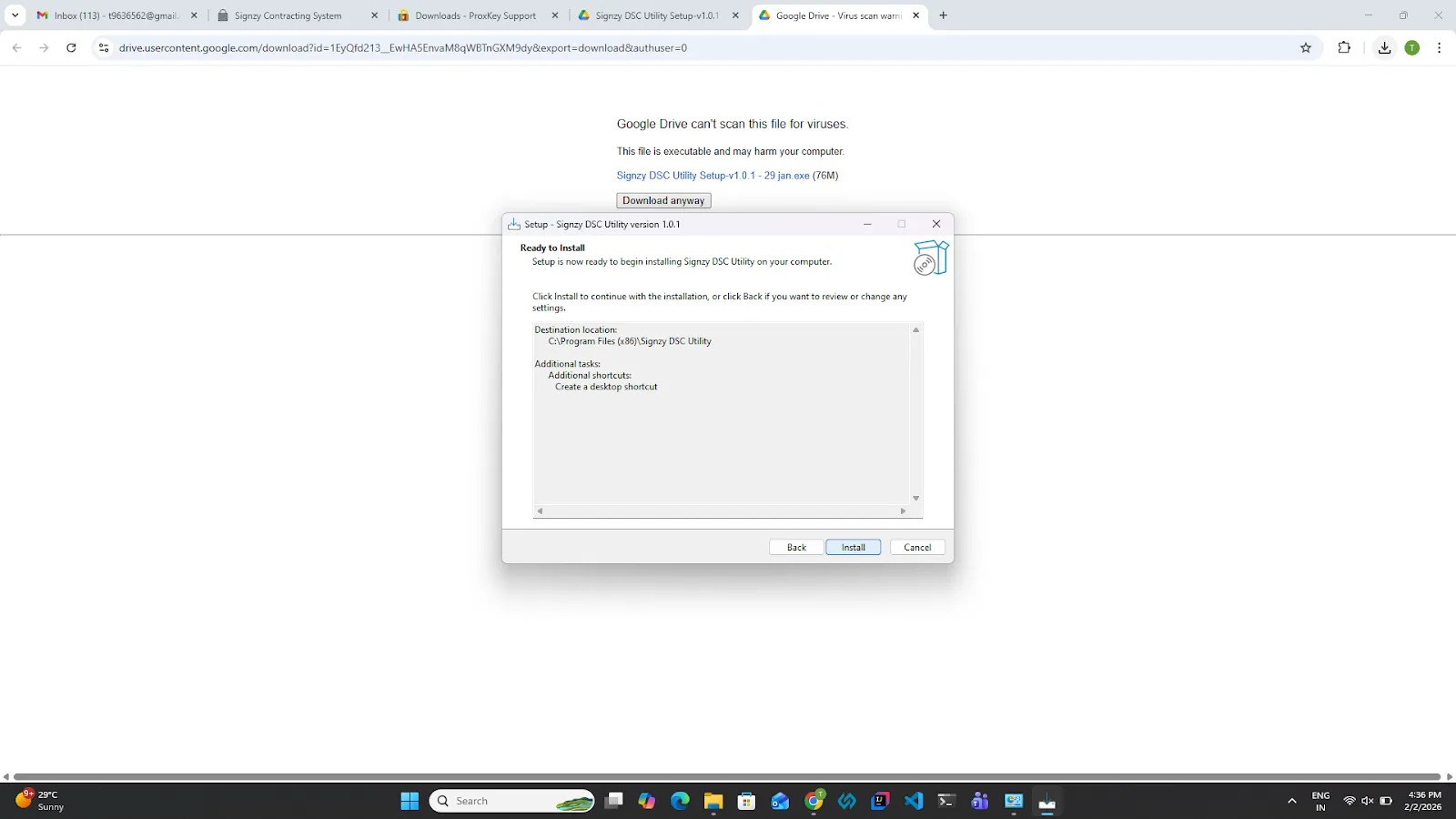
9. Please wait for a couple of seconds while the installation is in progress.
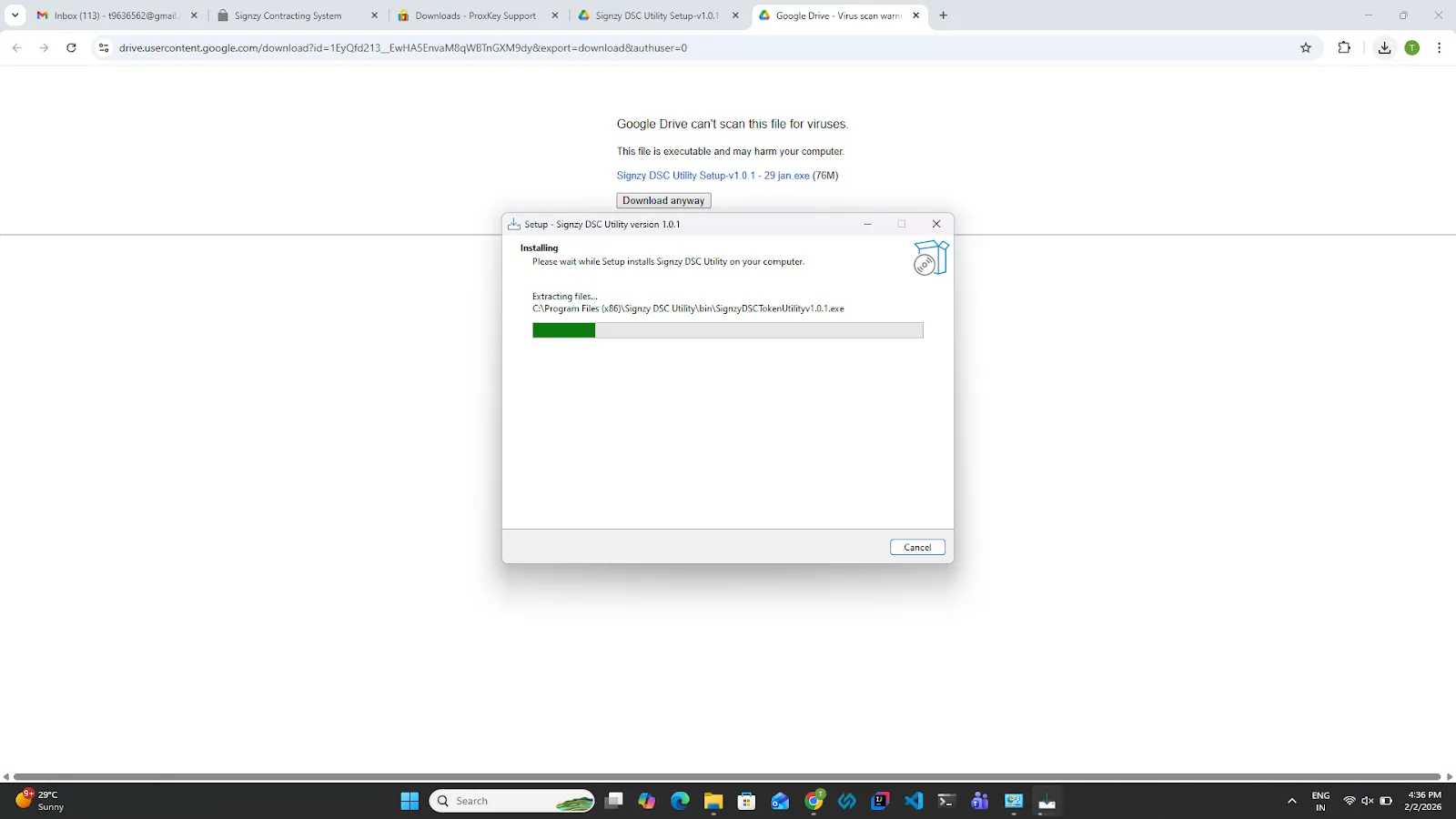
10. Once the installation is completed. Click on the finish button.
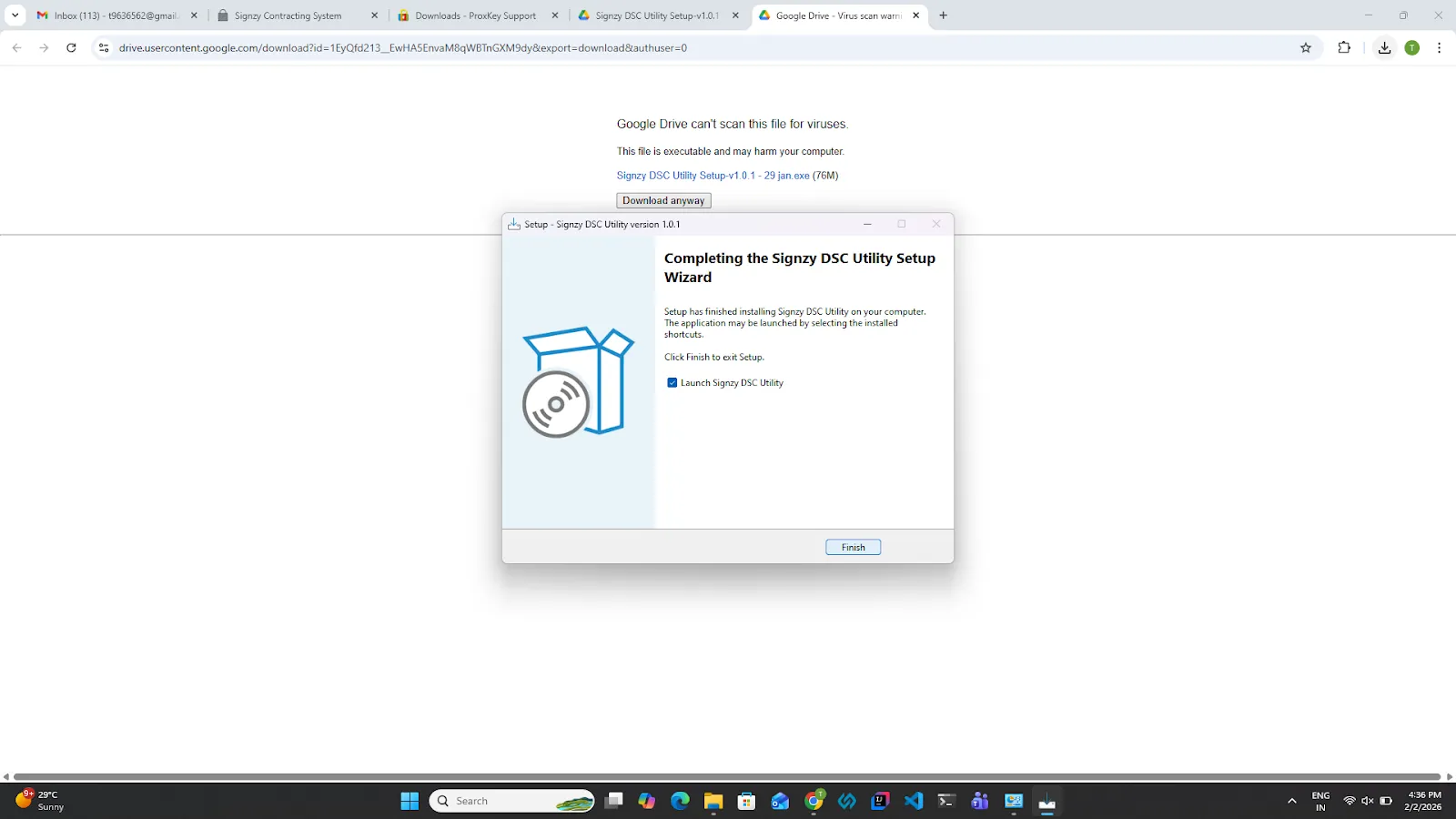
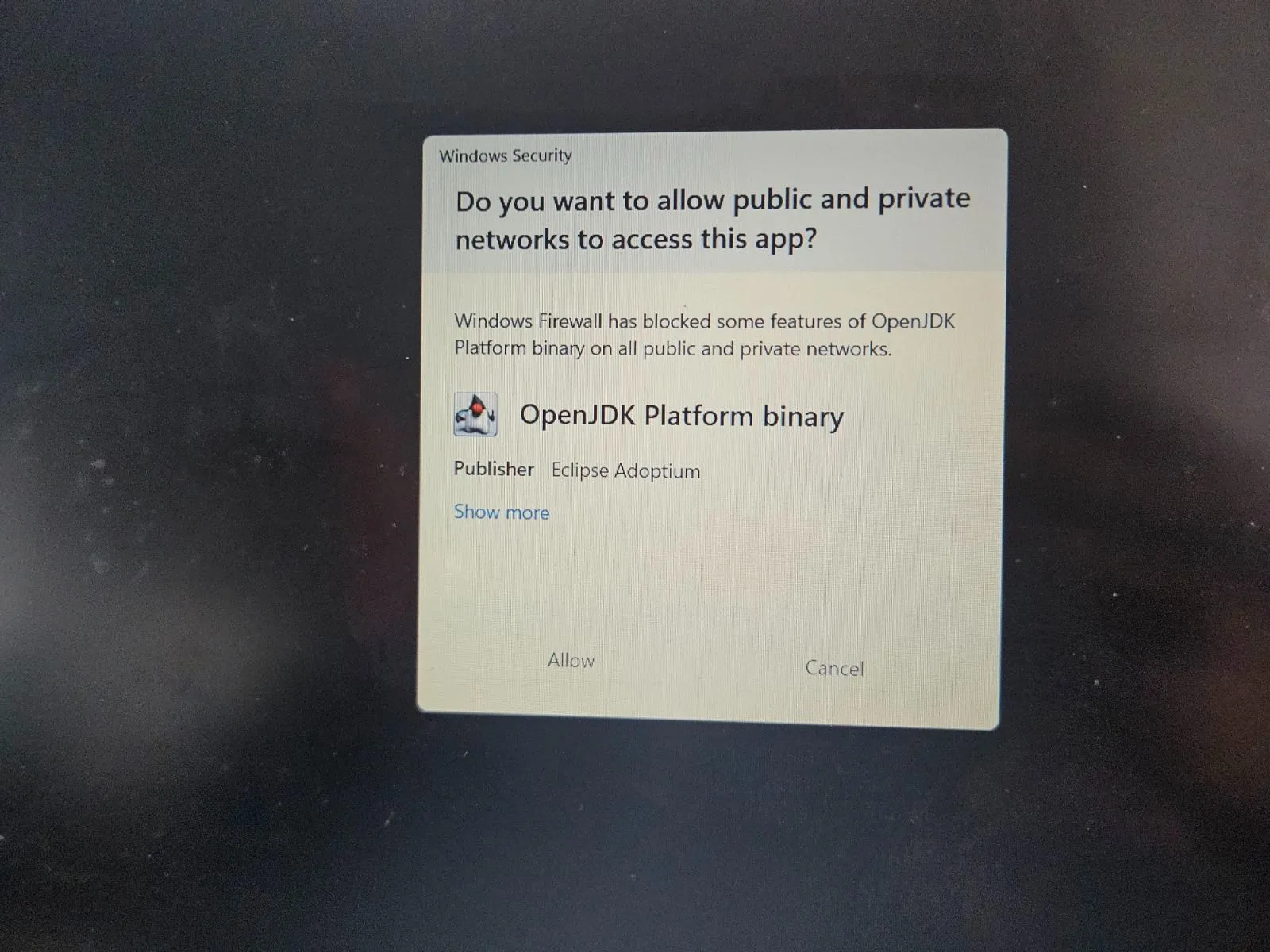
11. A Windows Defender firewall pop-up window will appear. This is asking for access to install the JRE setup. This is a runtime access required to perform the signing. Click on Allow access and enter the admin password. Additionally, an Eclipse Adoptium permission will appear allow the permission.
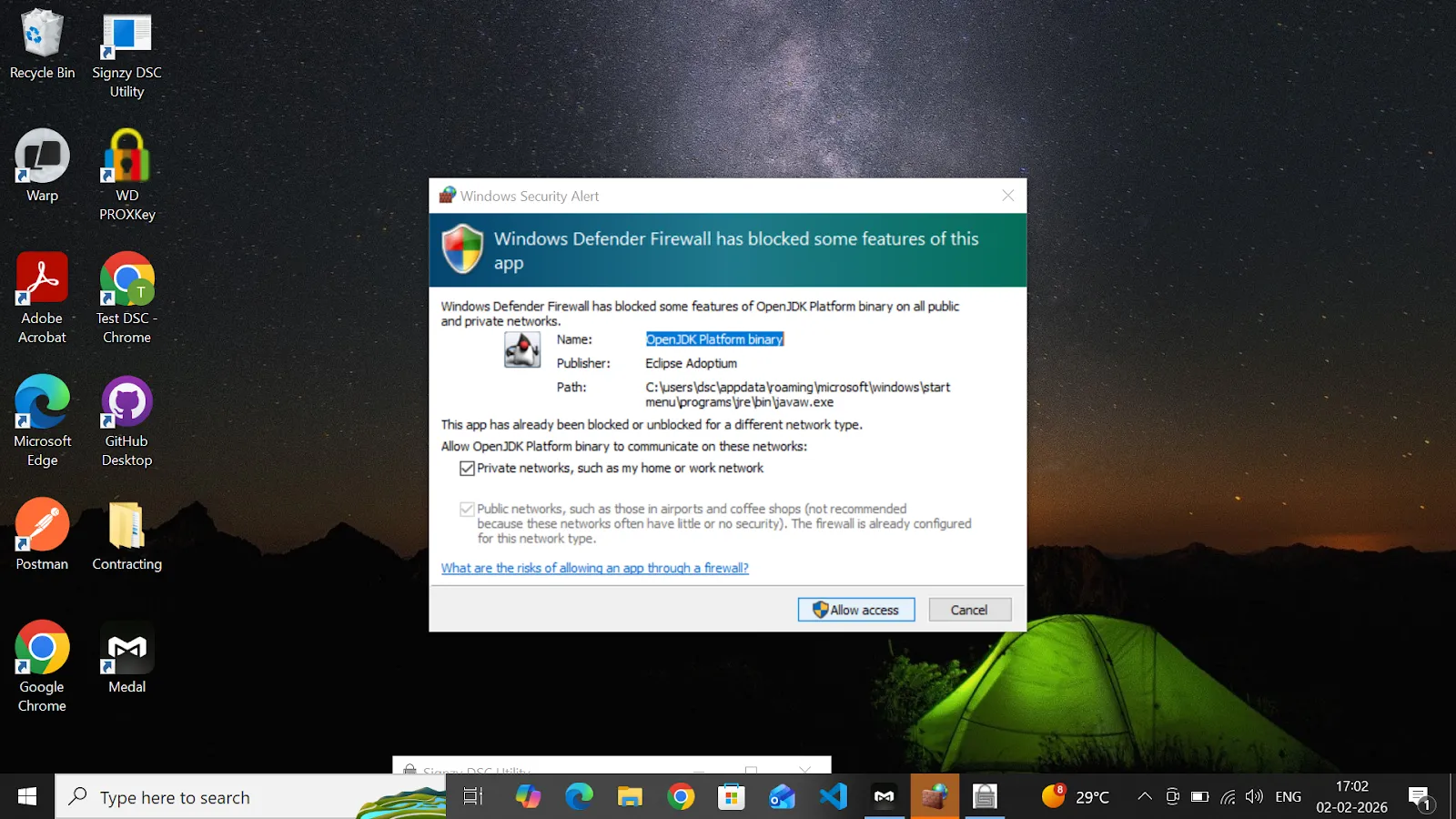
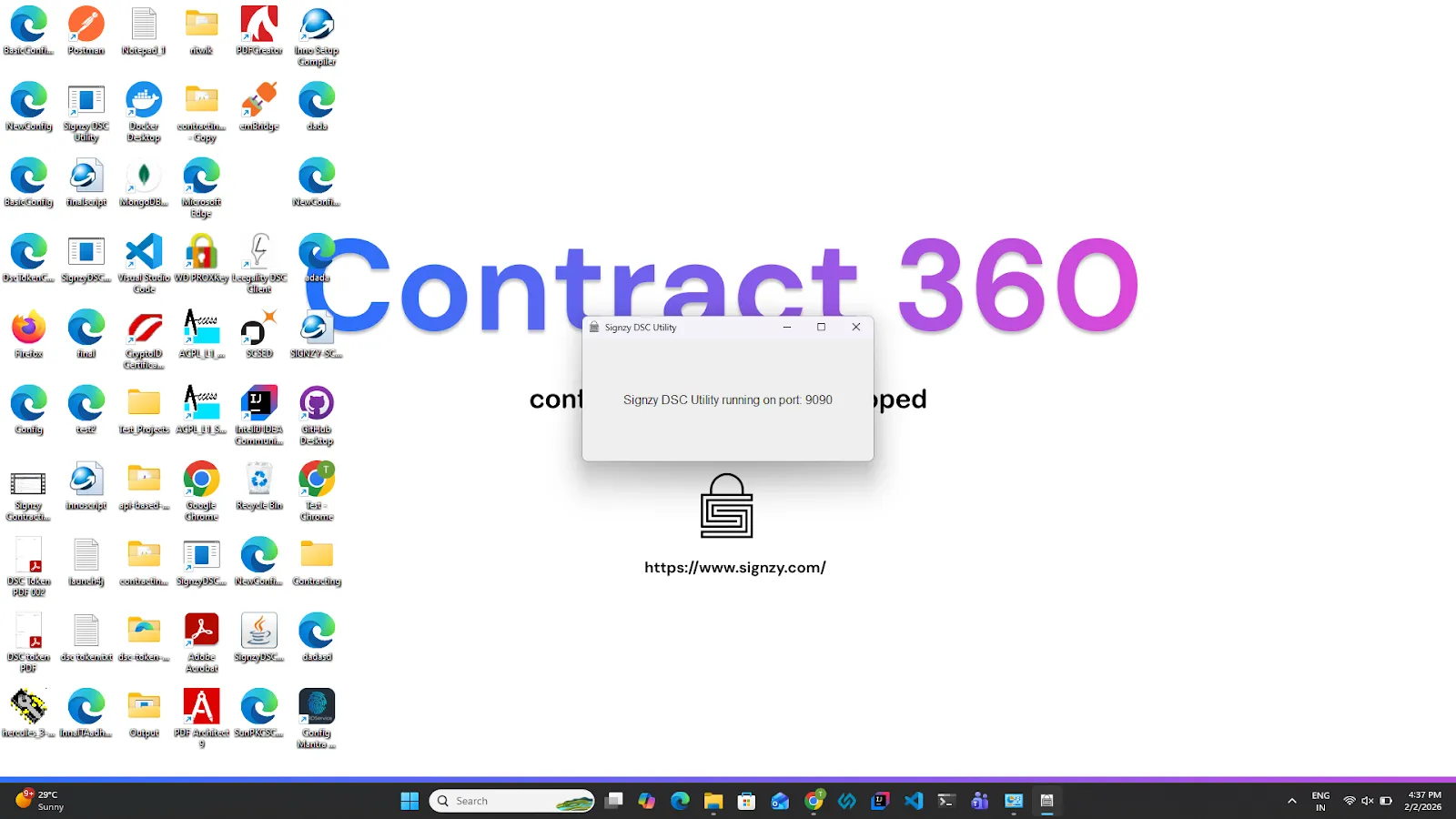
12. Please wait for a couple of seconds. A Signzy Utility running confirmation window will appear, which will confirm the utility is running along with the port on which it is running. Signzy utility can run on any of these 4 ports (9090,9093,9094,8009).
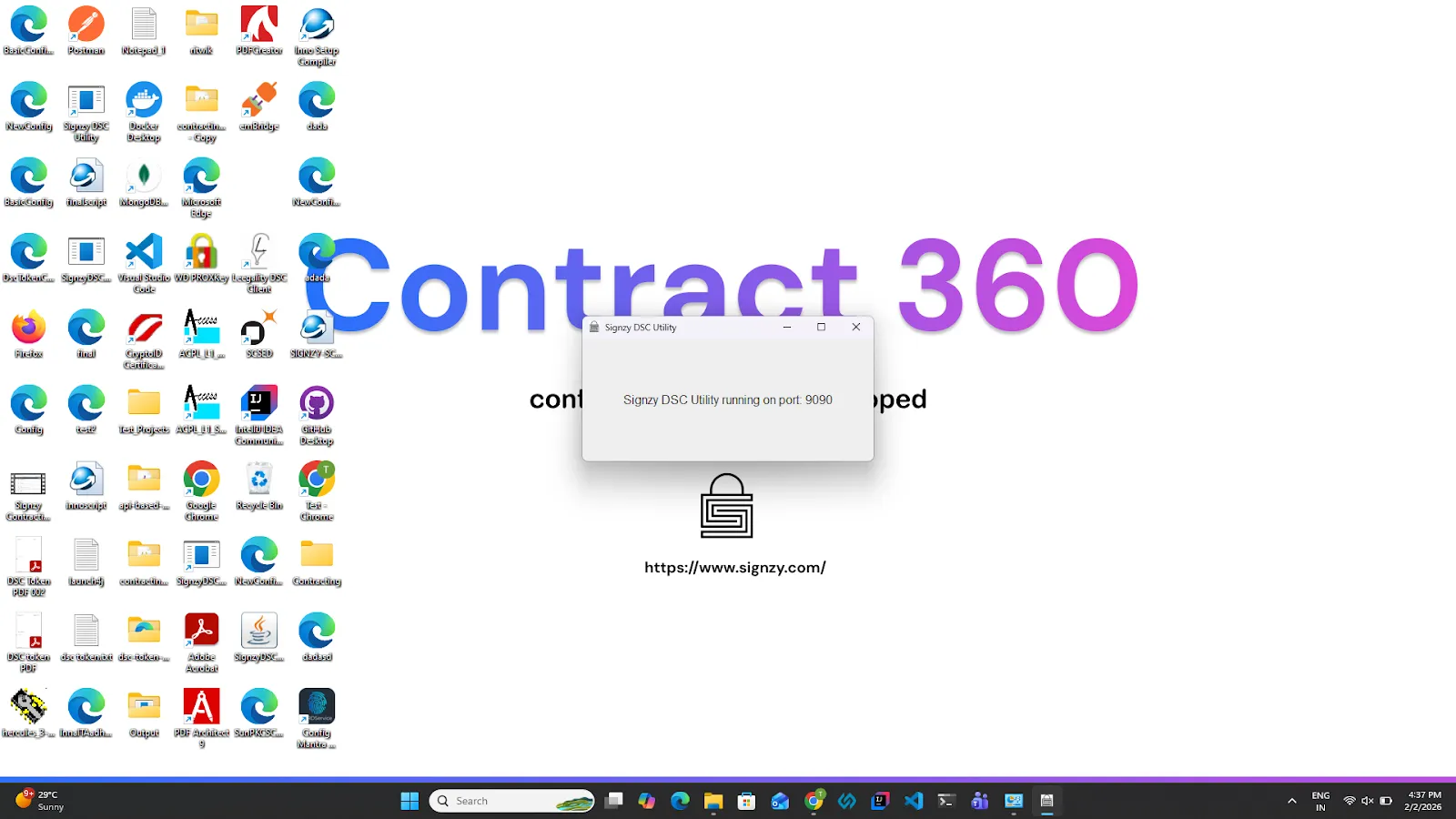
13. Close the minimize button of the utility. Don't click on the cross button.
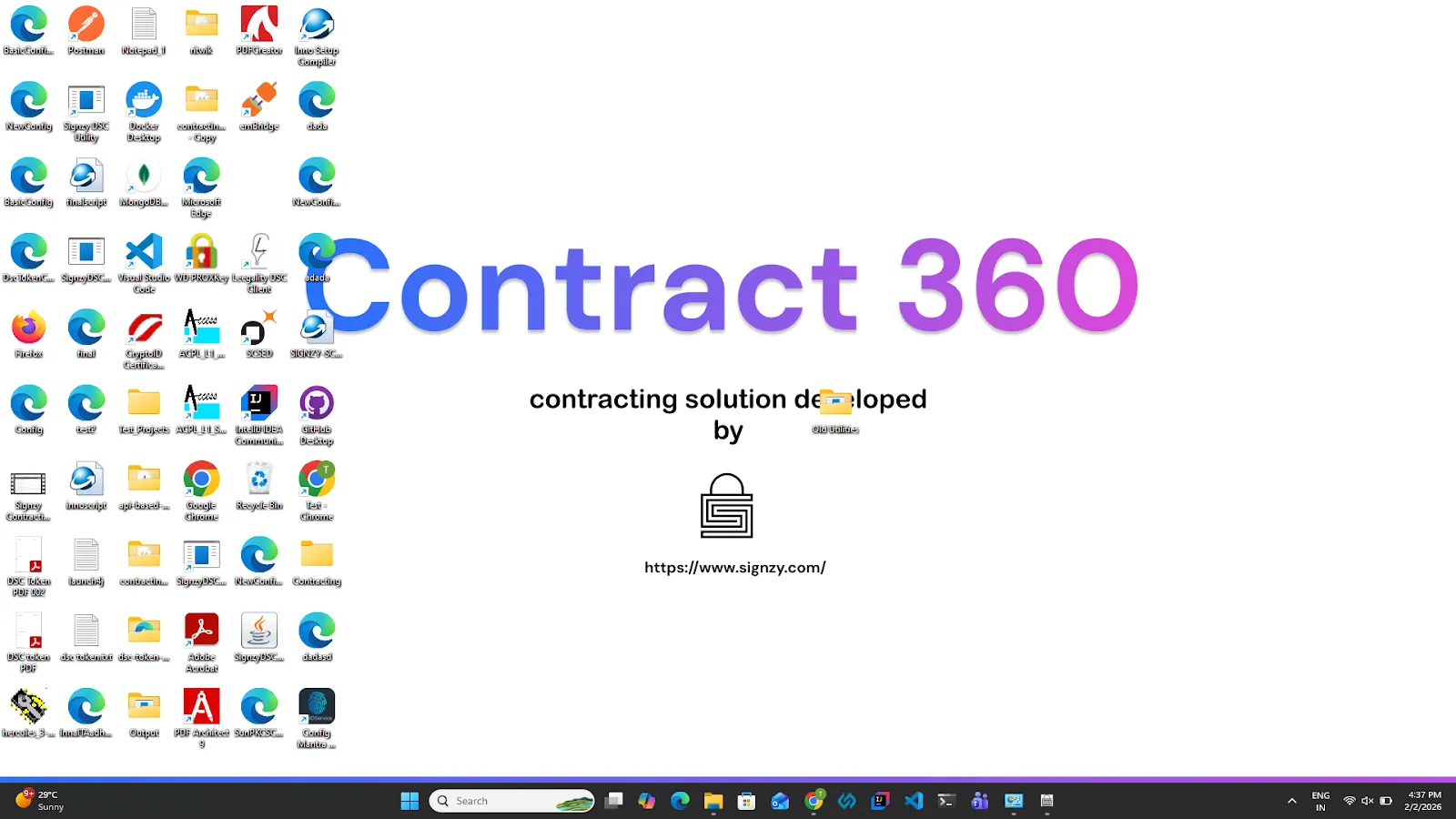
14. Once the utility is minimized, you will be able to see the utility at the bottom of the window bar. Now you can proceed to perform signing using the DSC based token with Signzy.
15. Open the Home screen
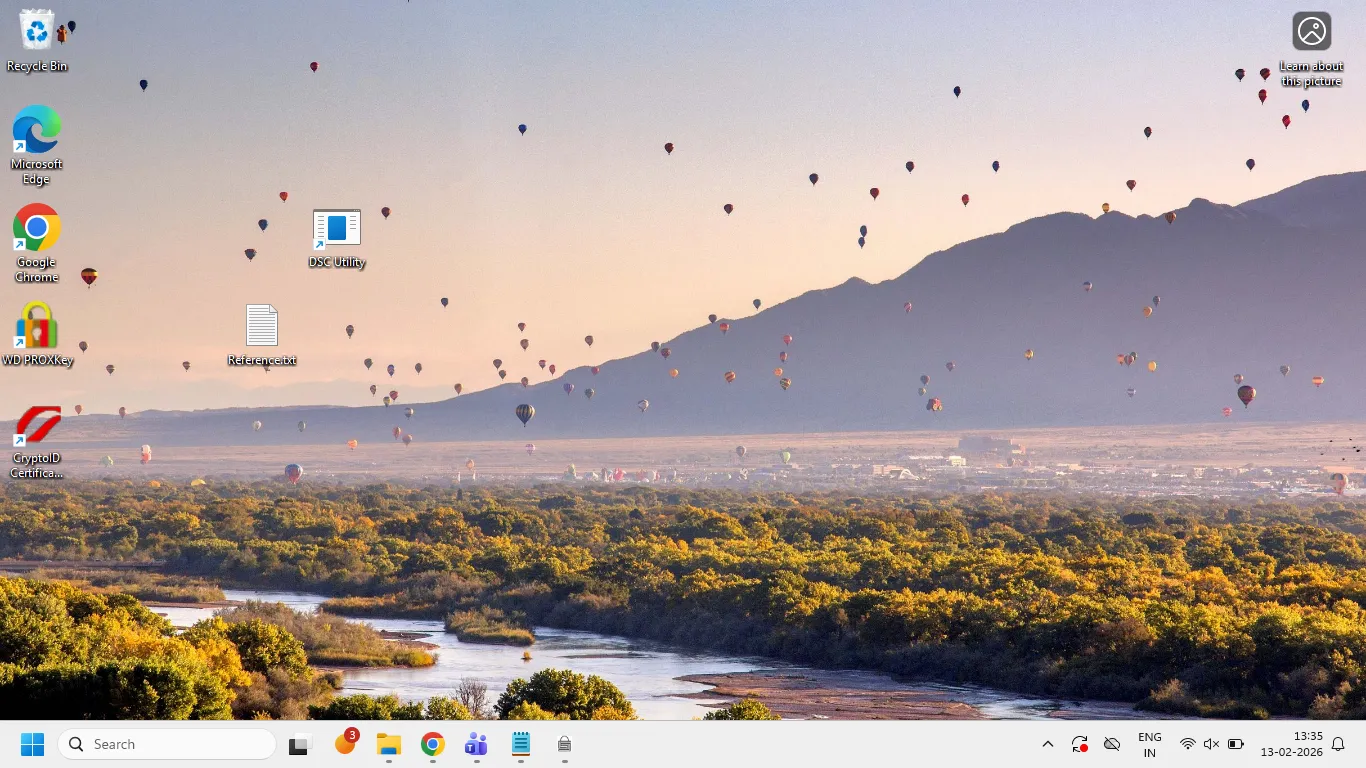
16. Right click on it and menu will appear.
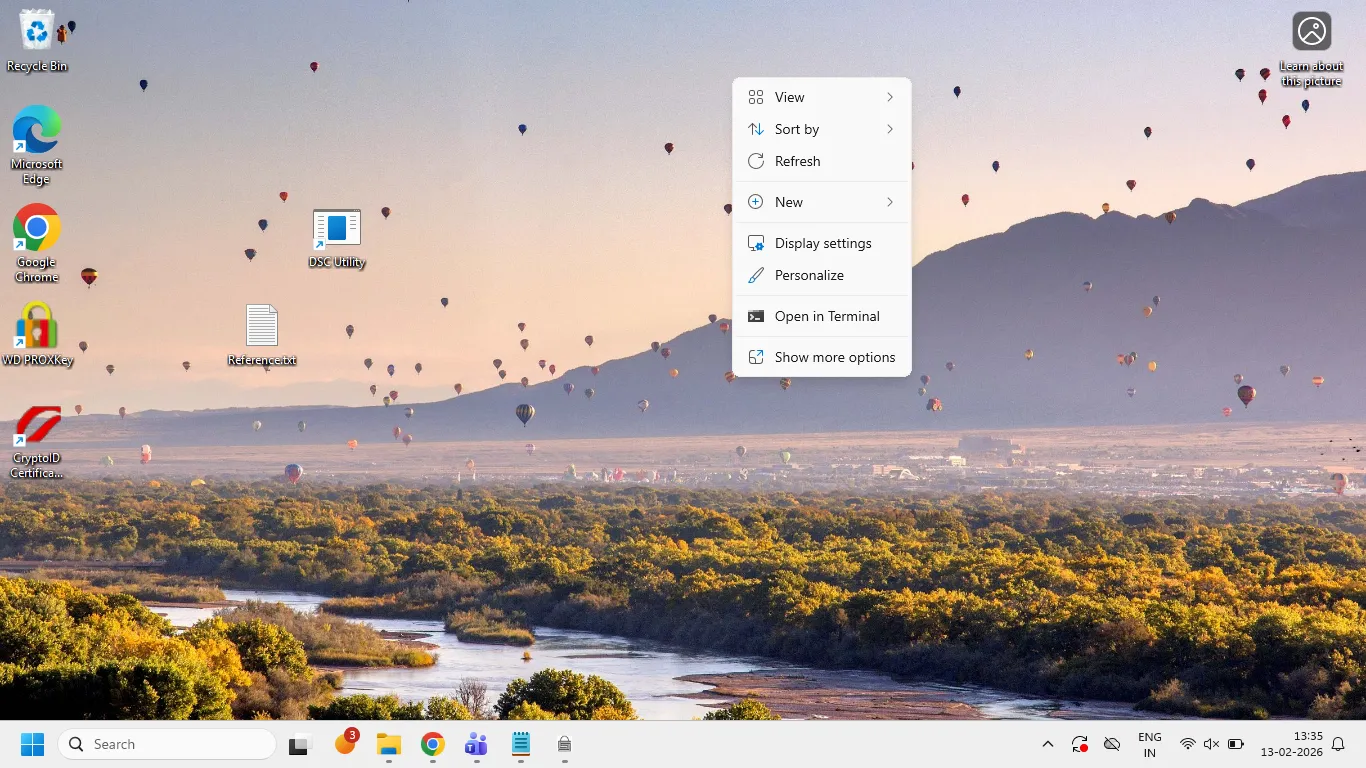
17. Click on New and then click on the shortcut
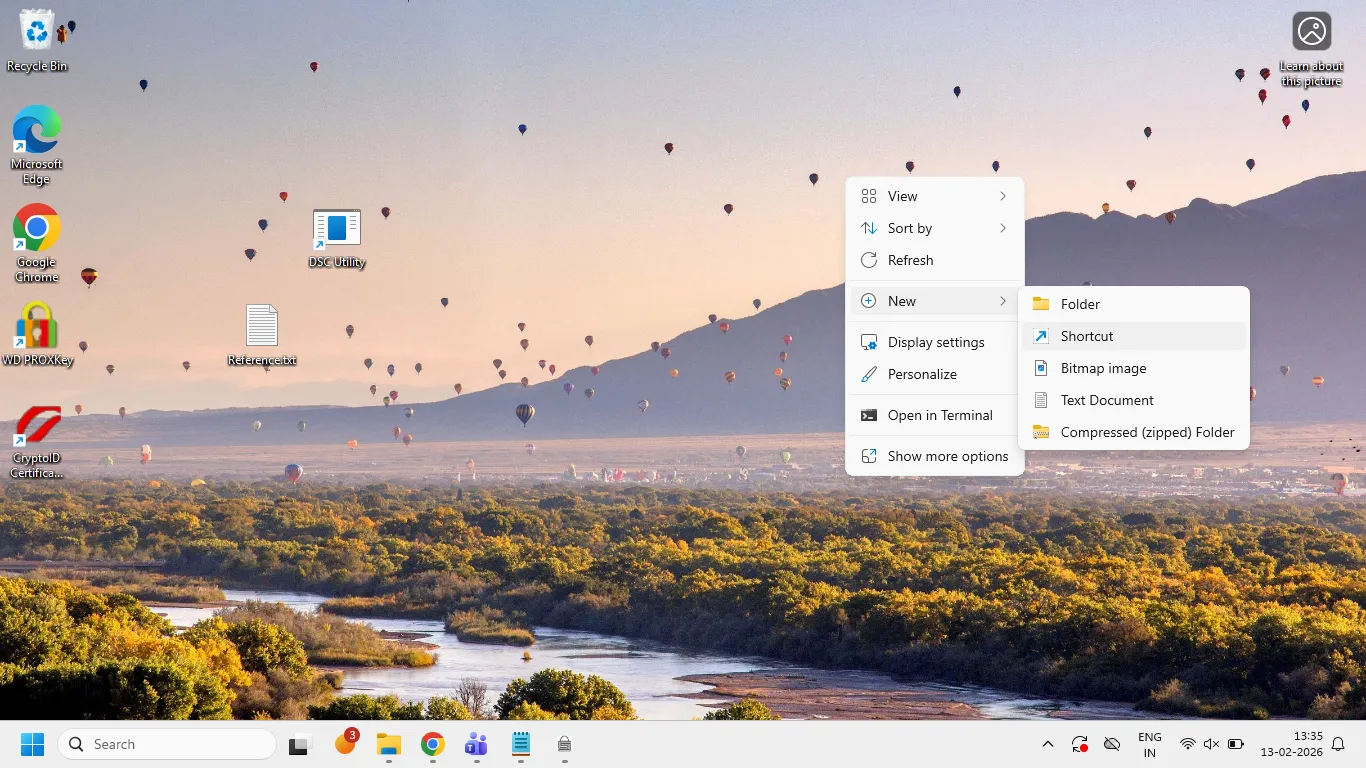
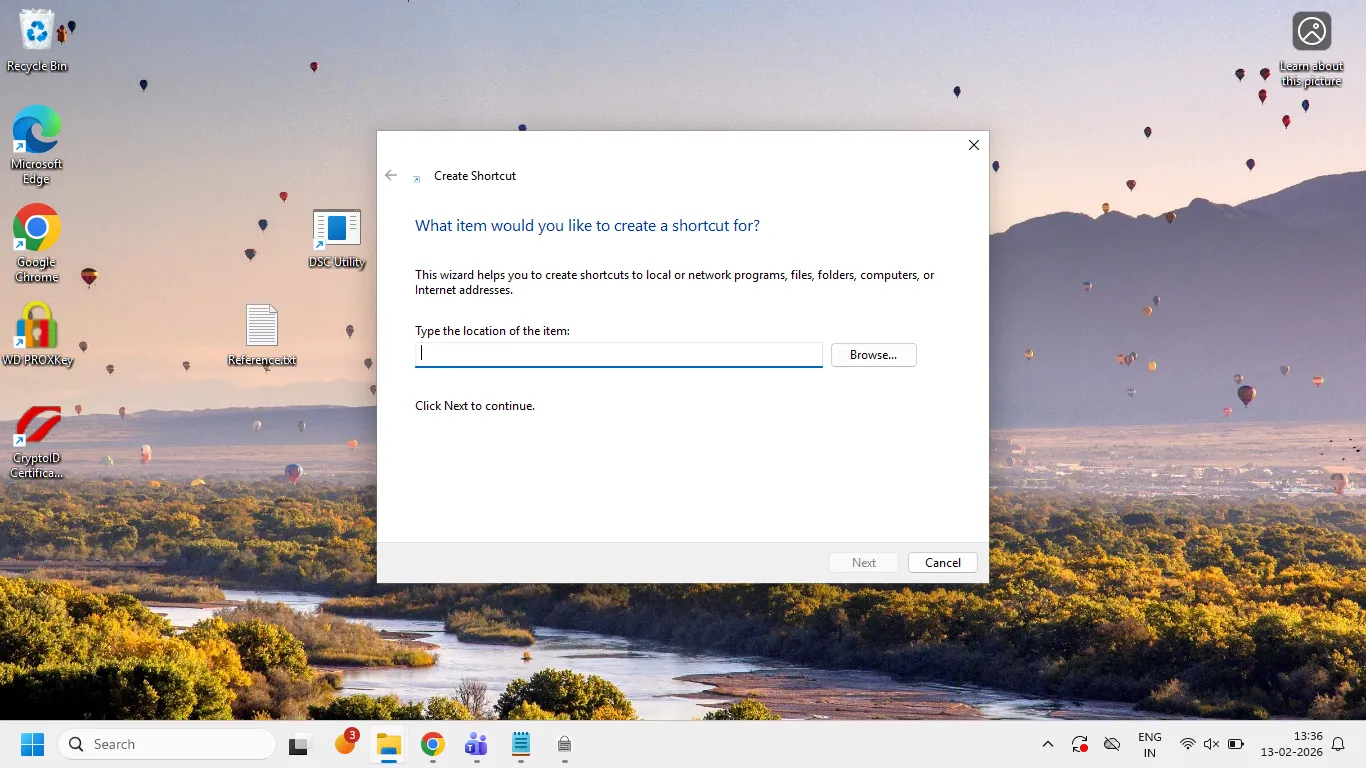
18. A create shortcut menu will appear and click on the browse button
19. A modal will appear. Look for This PC and Click on it
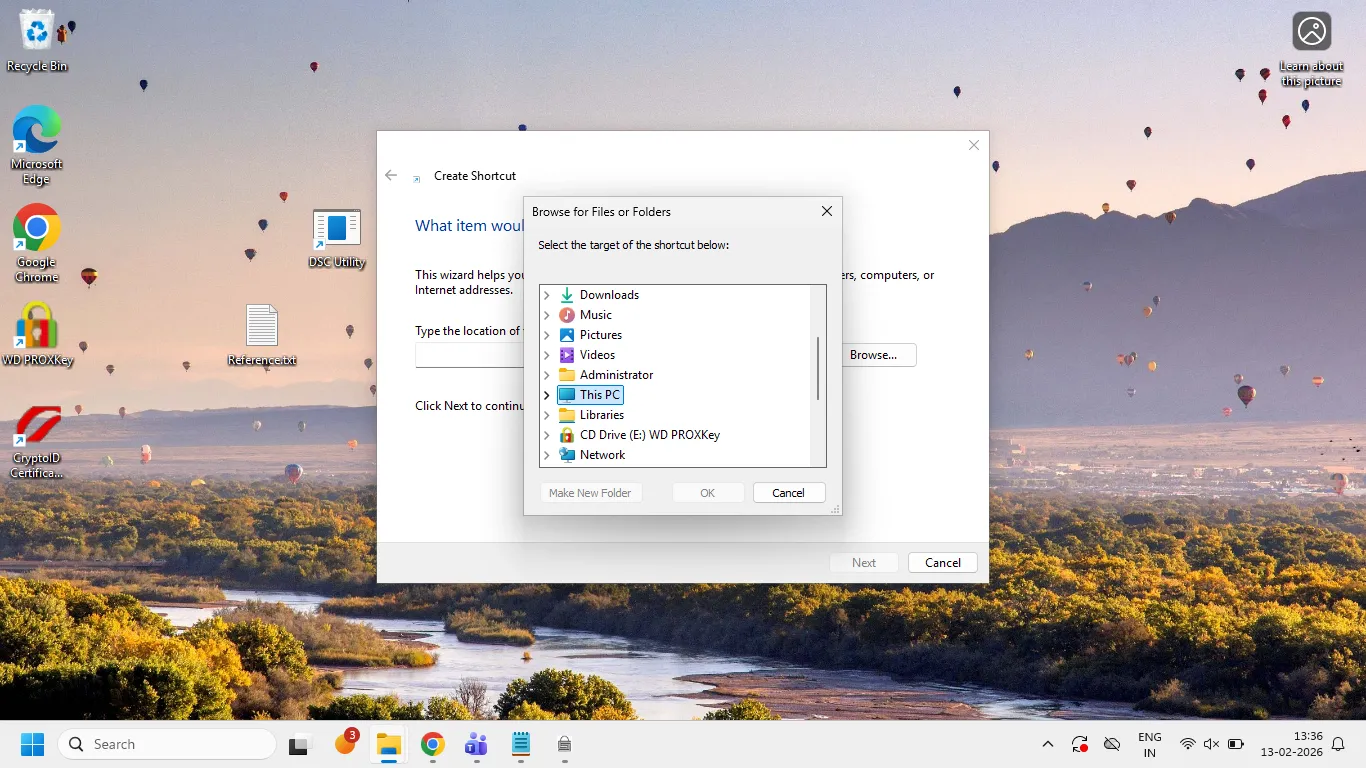
20. The Local Disk (C:) folder will open, look for the Program files (x86) and click on it.
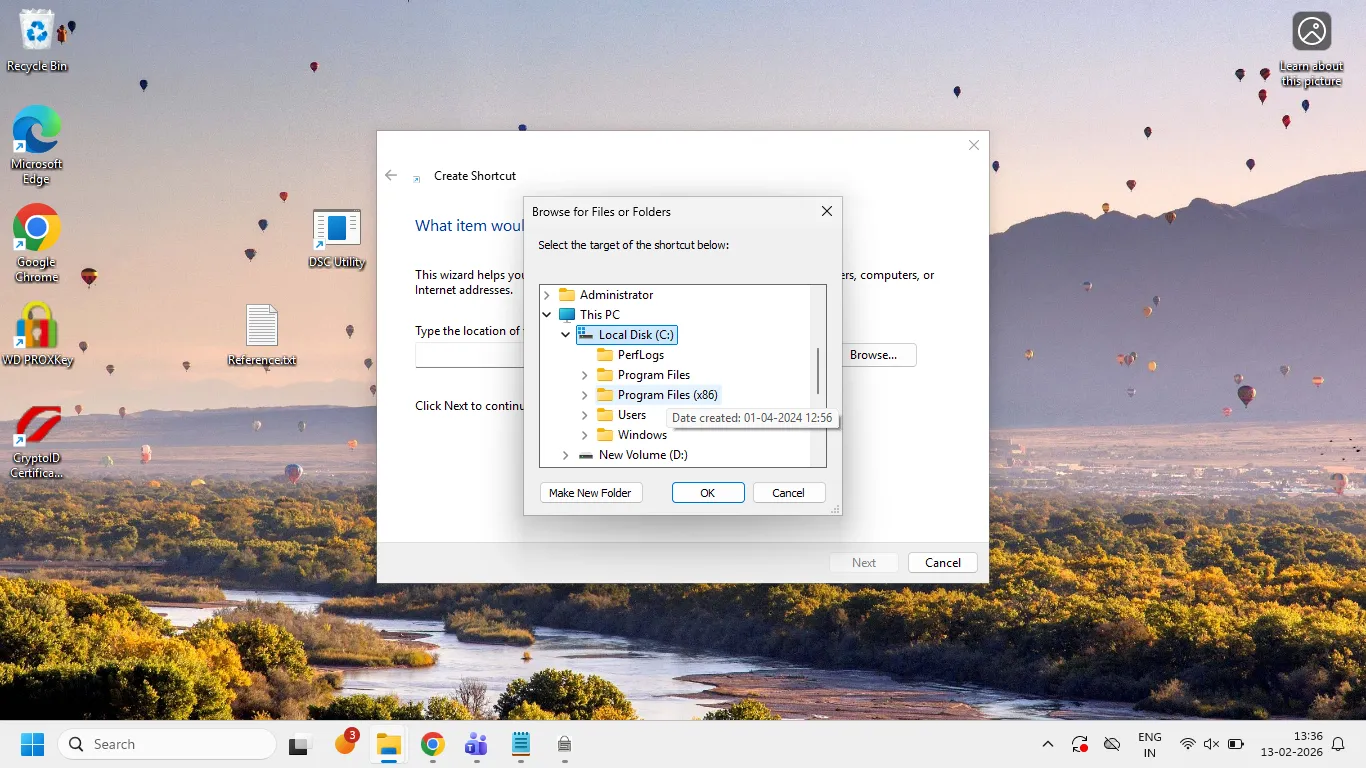
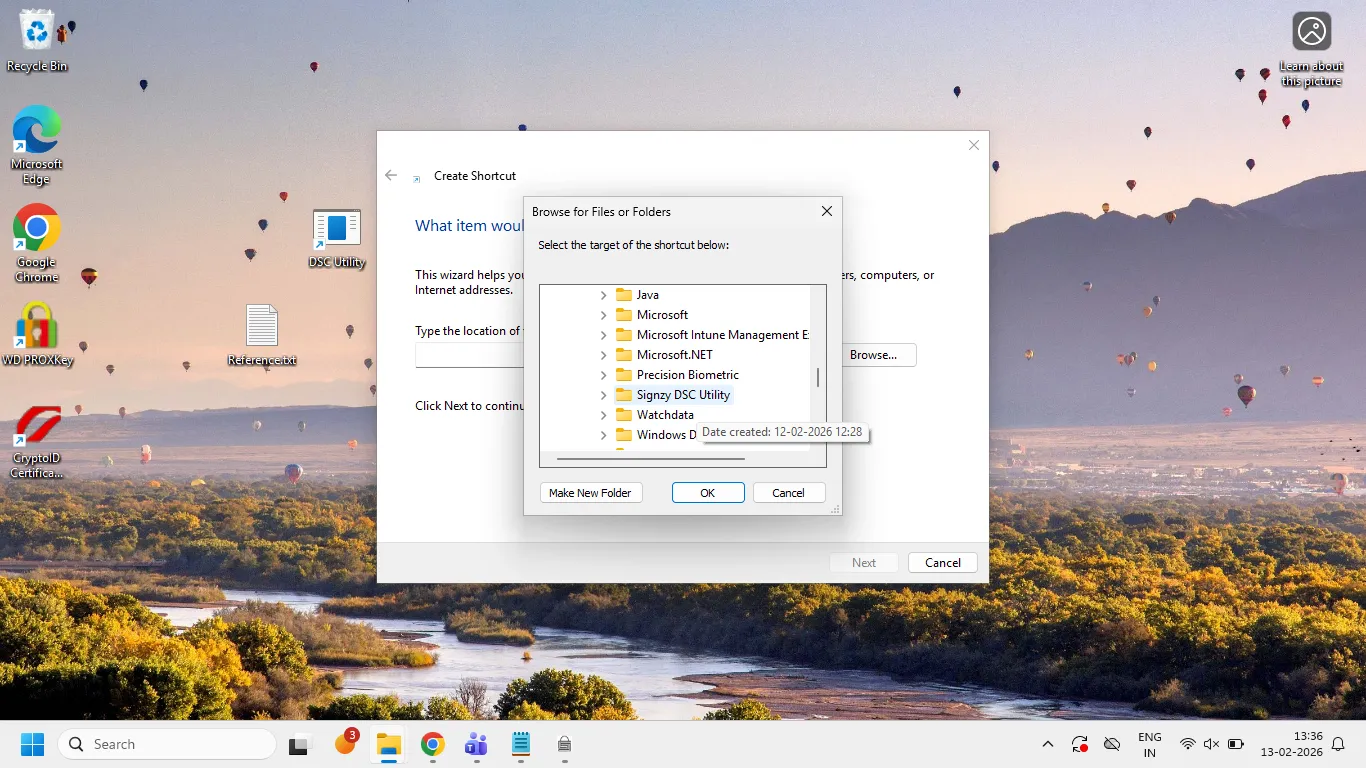
21. Look for Signzy DSC Utility and click on it
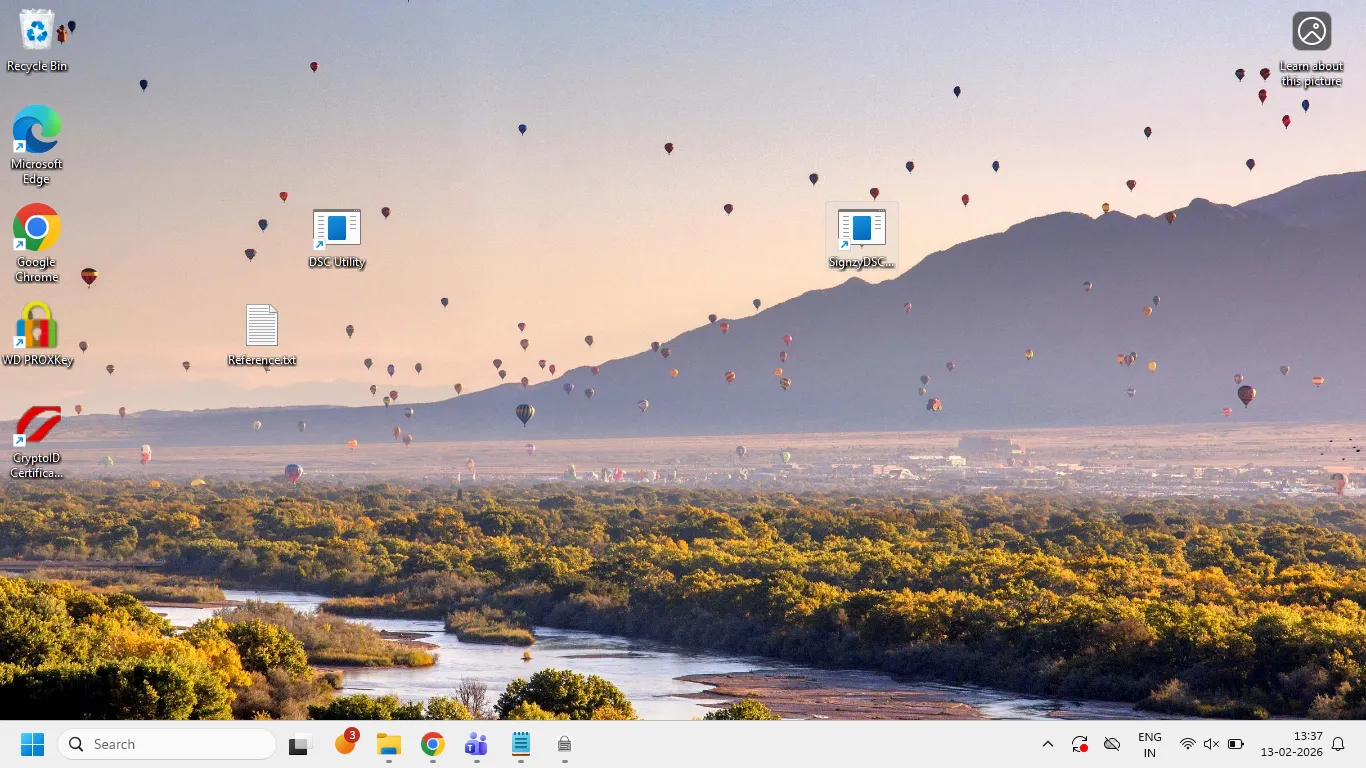
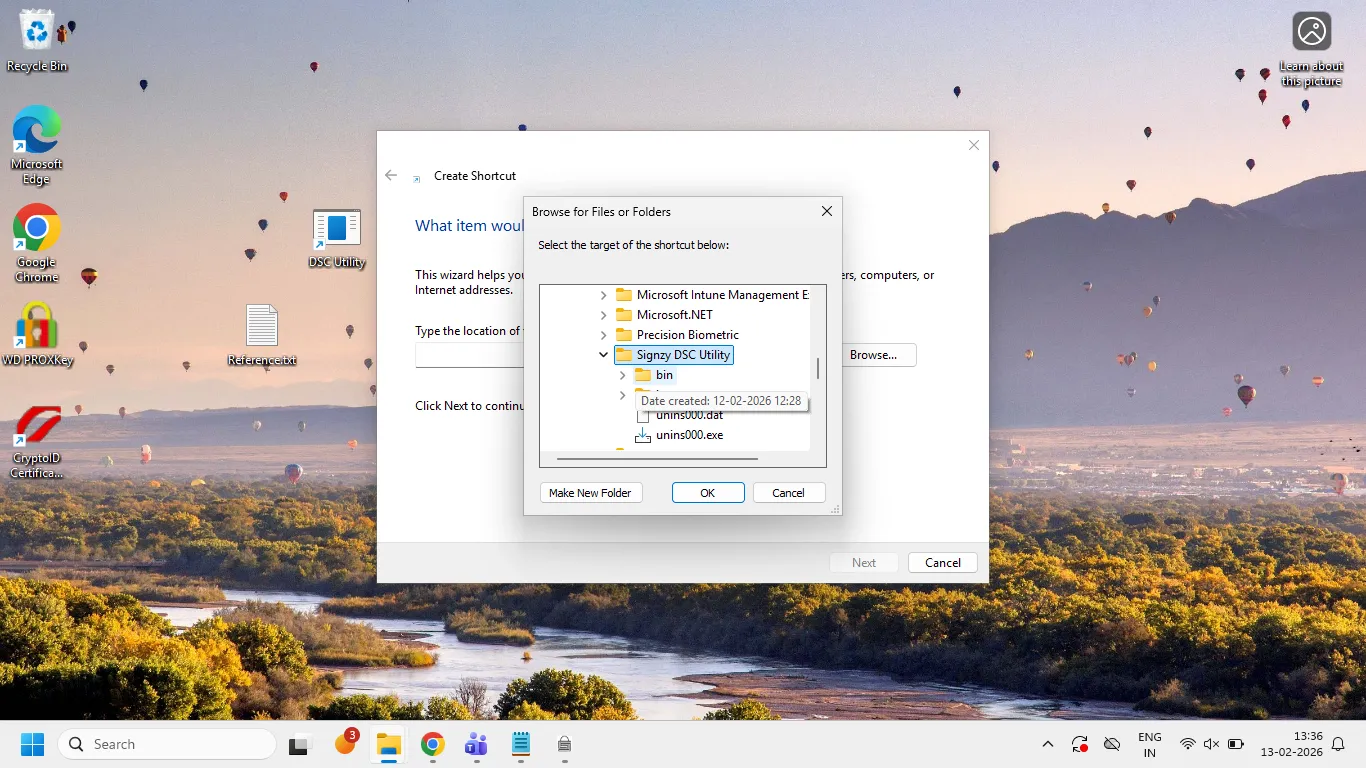
22. Look for the bin folder and click on it
23. Click on the SignzyDSCTokenUtility and Click the OK button
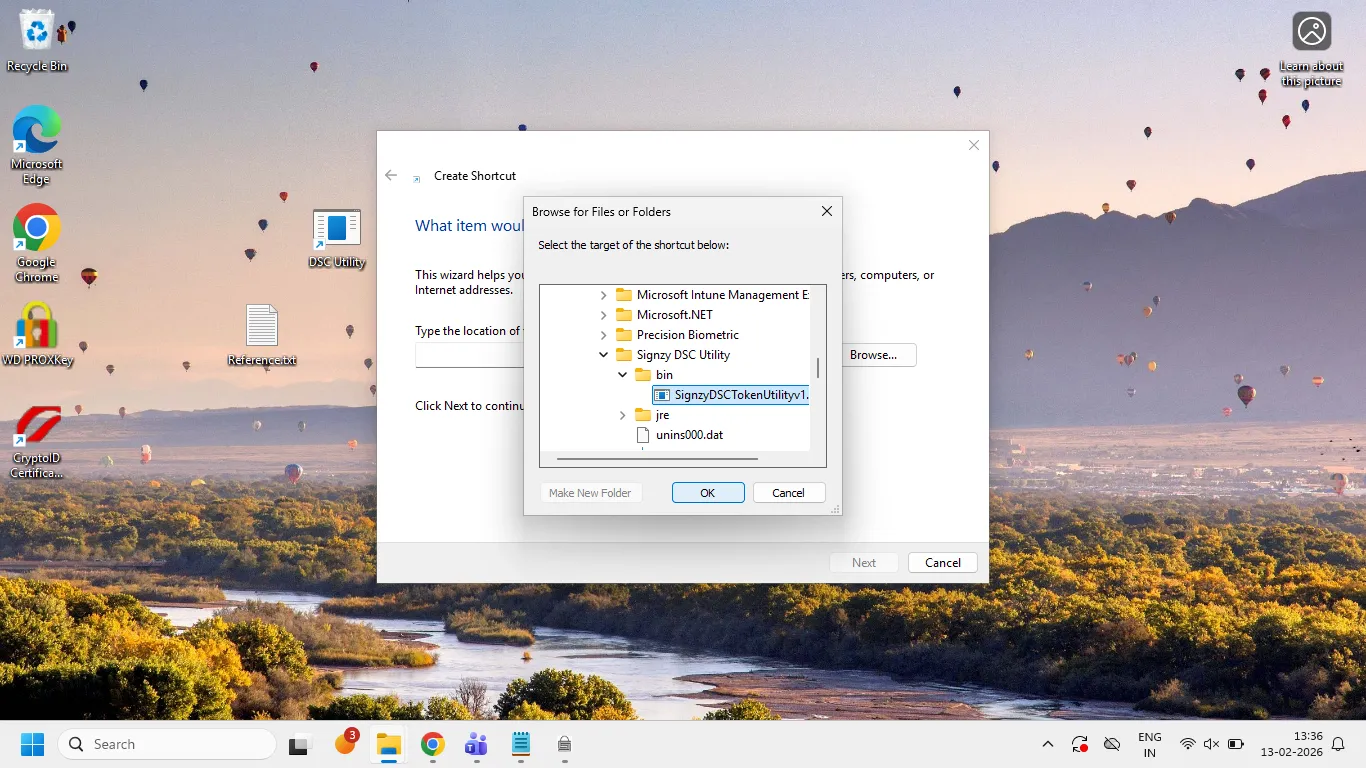
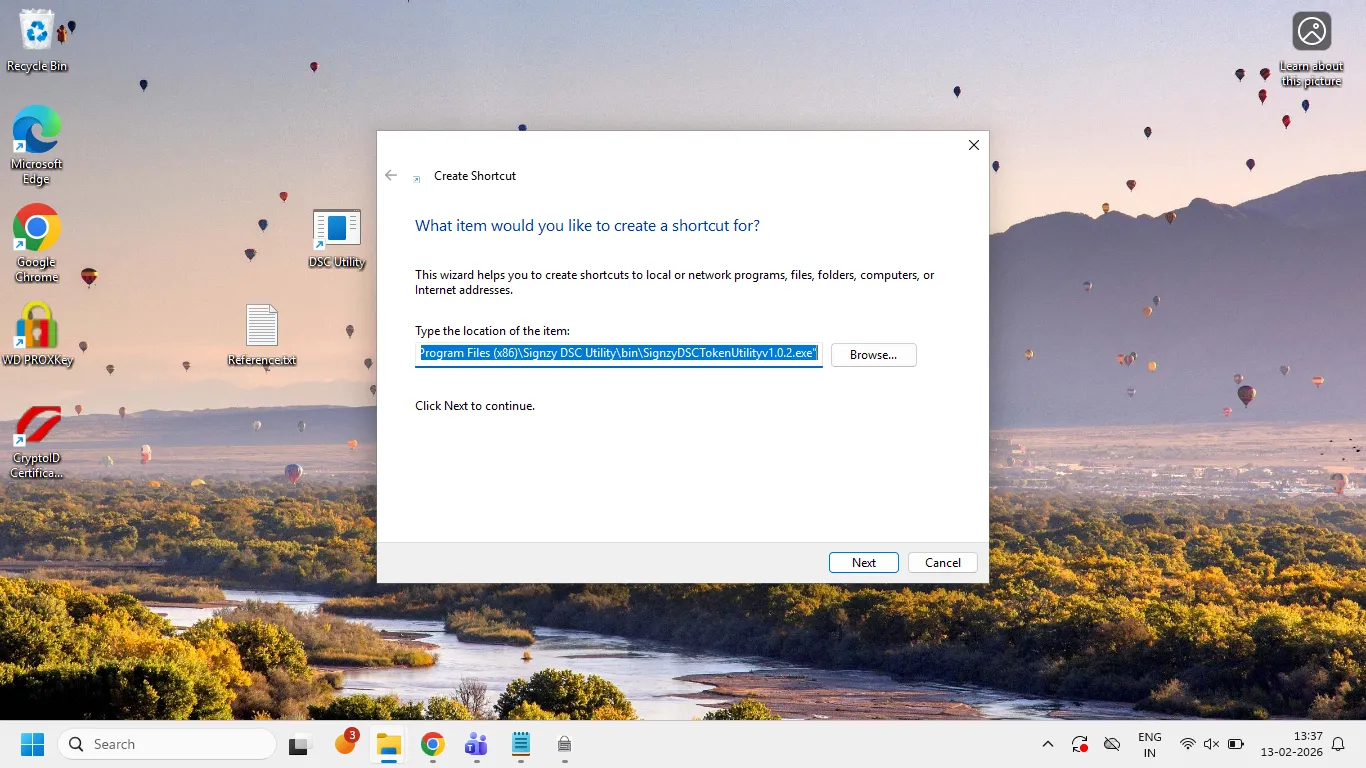
24. The path will be selected, click on the next button
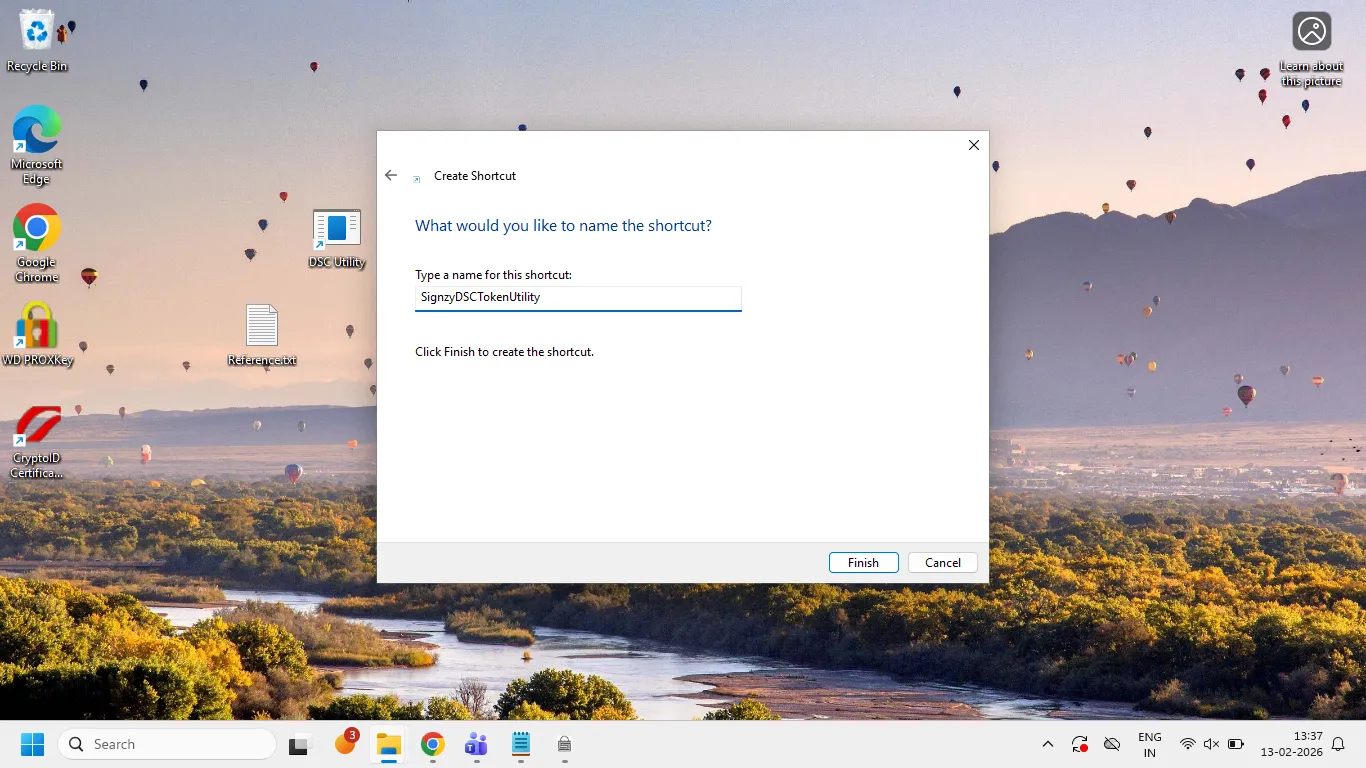
25. Type the name for the shortcut like SignzyDSCTokenUitility and click on the Finish button.
26. The shortcut will be created with the name. If the utility is not running click on this shortcut to run the utility for signing.