MToken Signing Manual
MToken/CryptoID - Signing User Manual
To successfully perform the DSC signing with the help of the MToken/CryptoID token in the Windows system, the user needs to have the following prerequisites :
One-Time Installation Setup
- Please ensure that the one-time installation setup has been completed.
- If it has not been completed, click here to view the one-time installation guide.
Driver Installation
- Please ensure that the driver is installed on your system.
- If the driver is not installed, click here to view the driver installation guide for the MToken/CryptoID DSC Token.
Signing Journey
1.Before starting the signing process, please ensure that the Signzy Utility is running on your system.
You can verify this by checking the Windows taskbar (bottom navigation bar) for the Signzy Utility icon.
2.If the Signzy Utility is not running:
A.Open File Explorer.
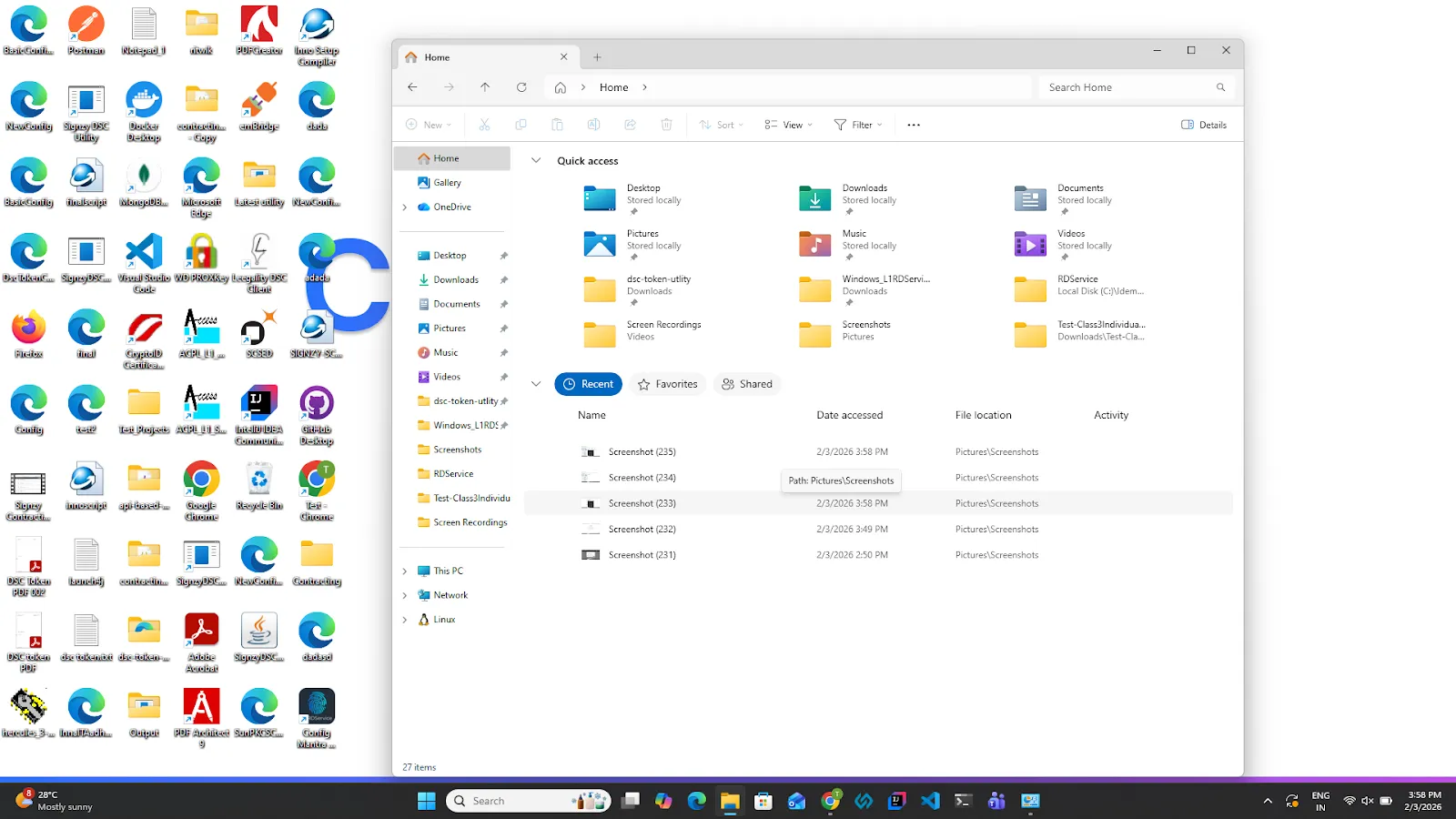
B. Click on This PC.
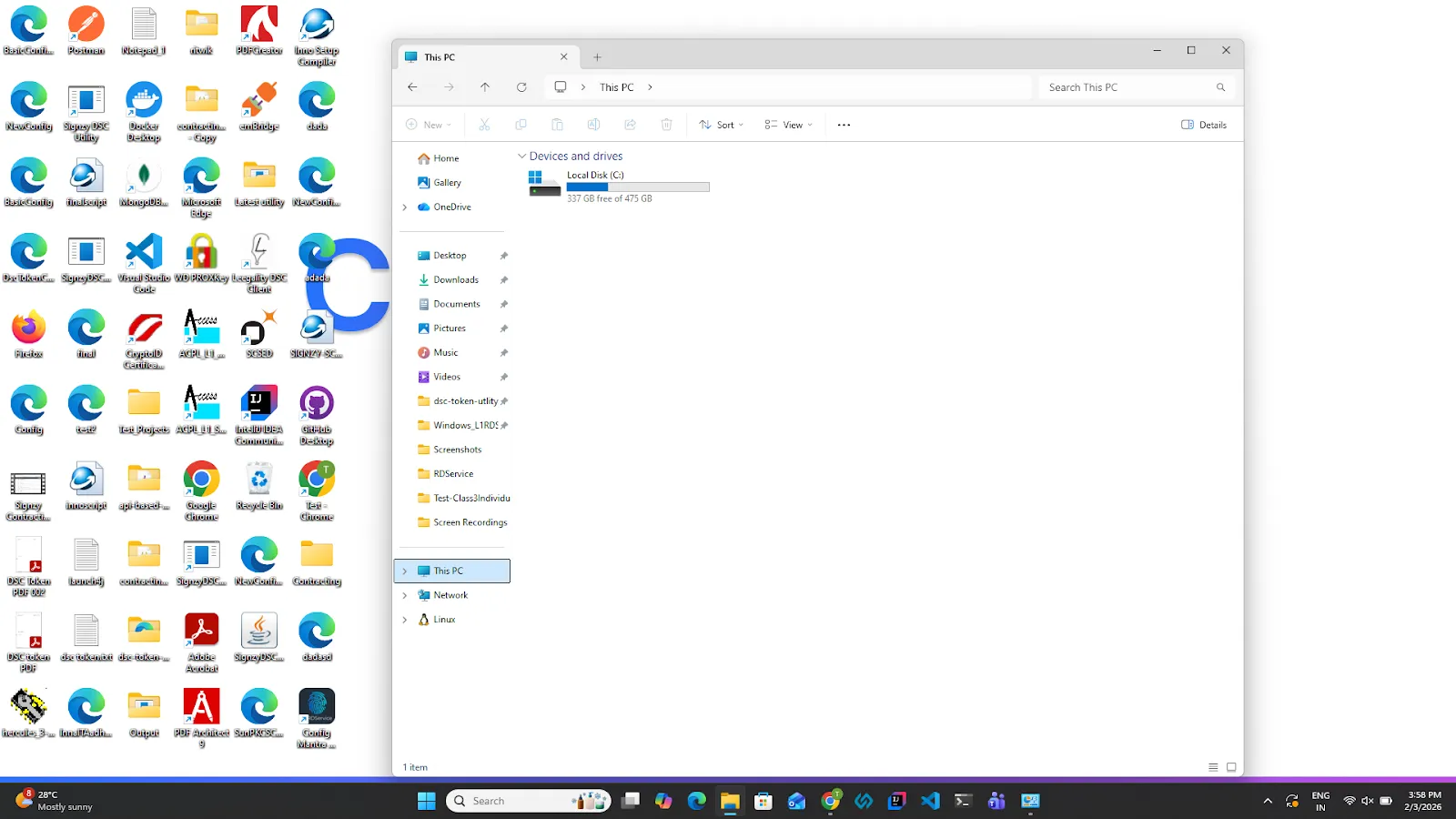
C. Open Local Disk (C:)
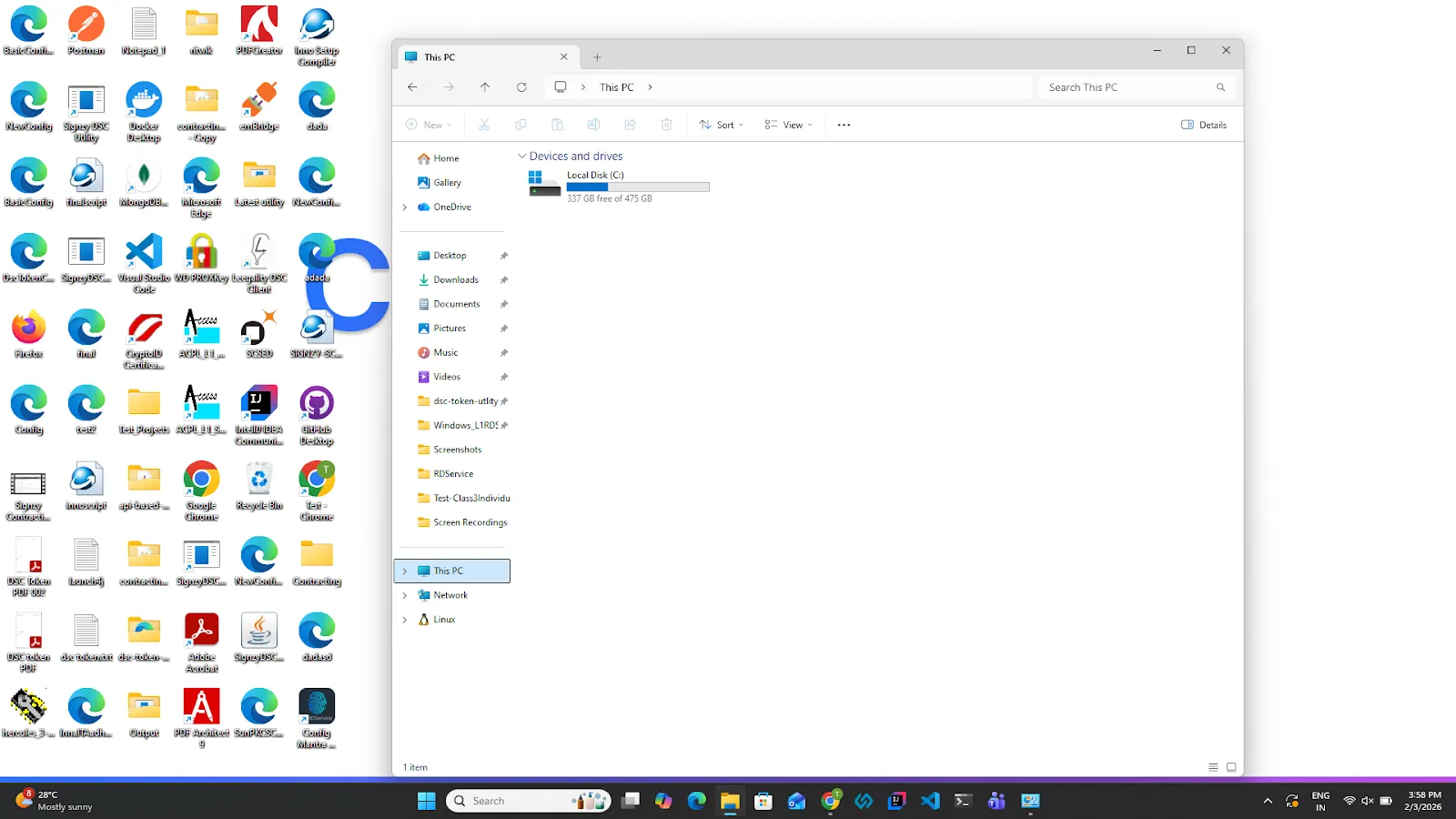
D. Navigate to Program Files (x86)
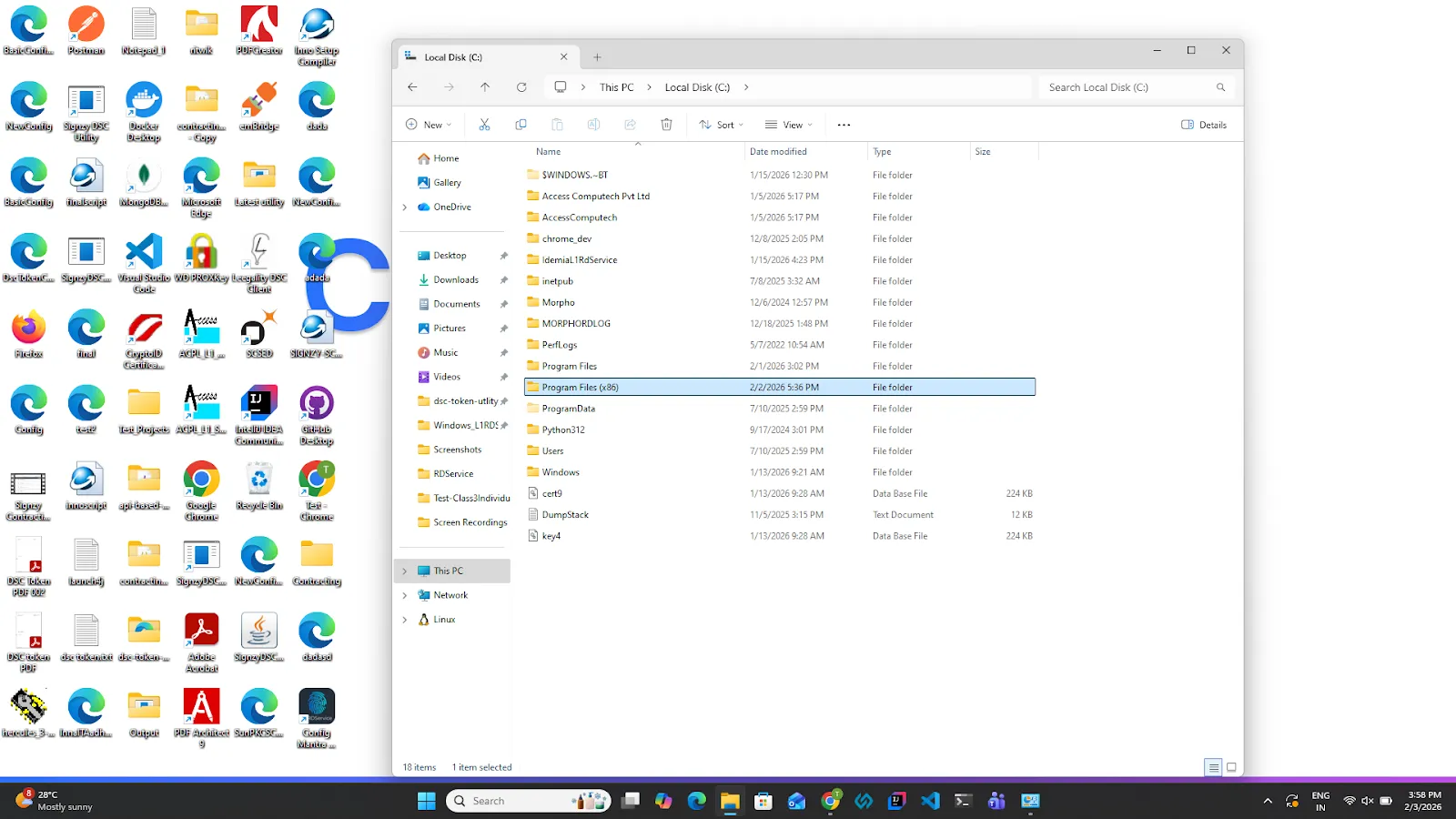
E. Locate and open the Signzy DSC Utilityfolder.
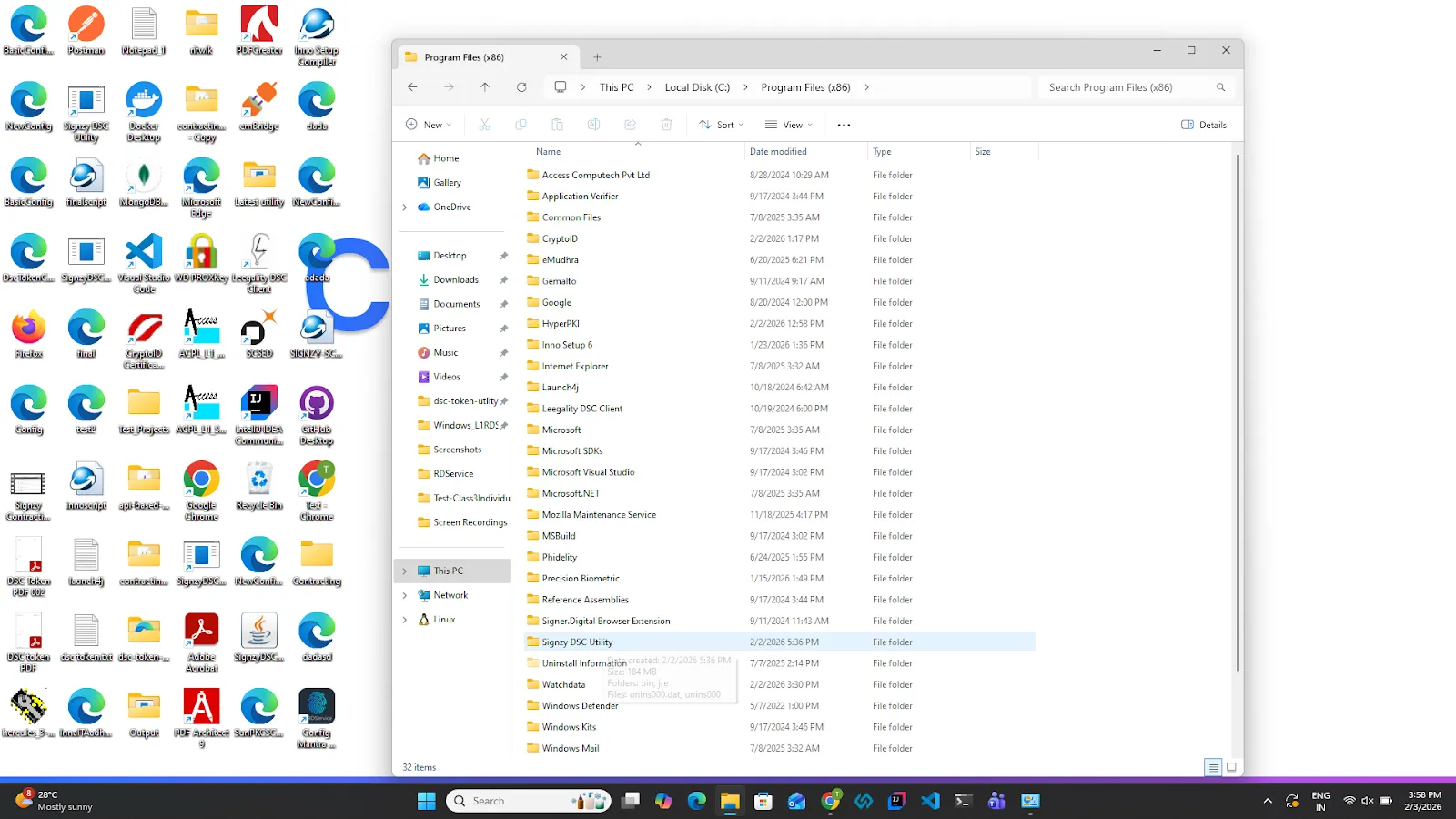
F. Open the bin folder.
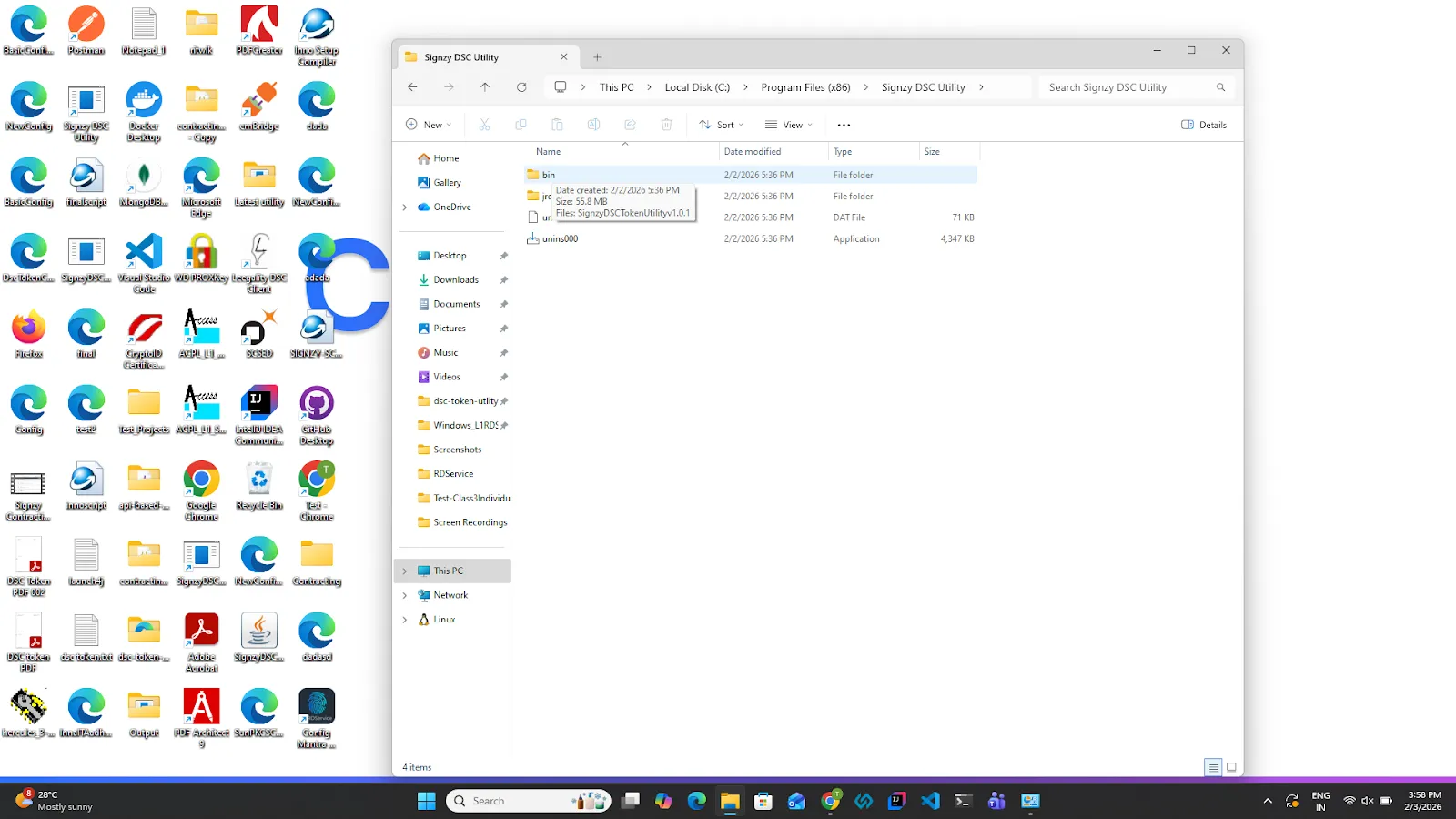
G. Double-click on the SignzyDSCUtility application.
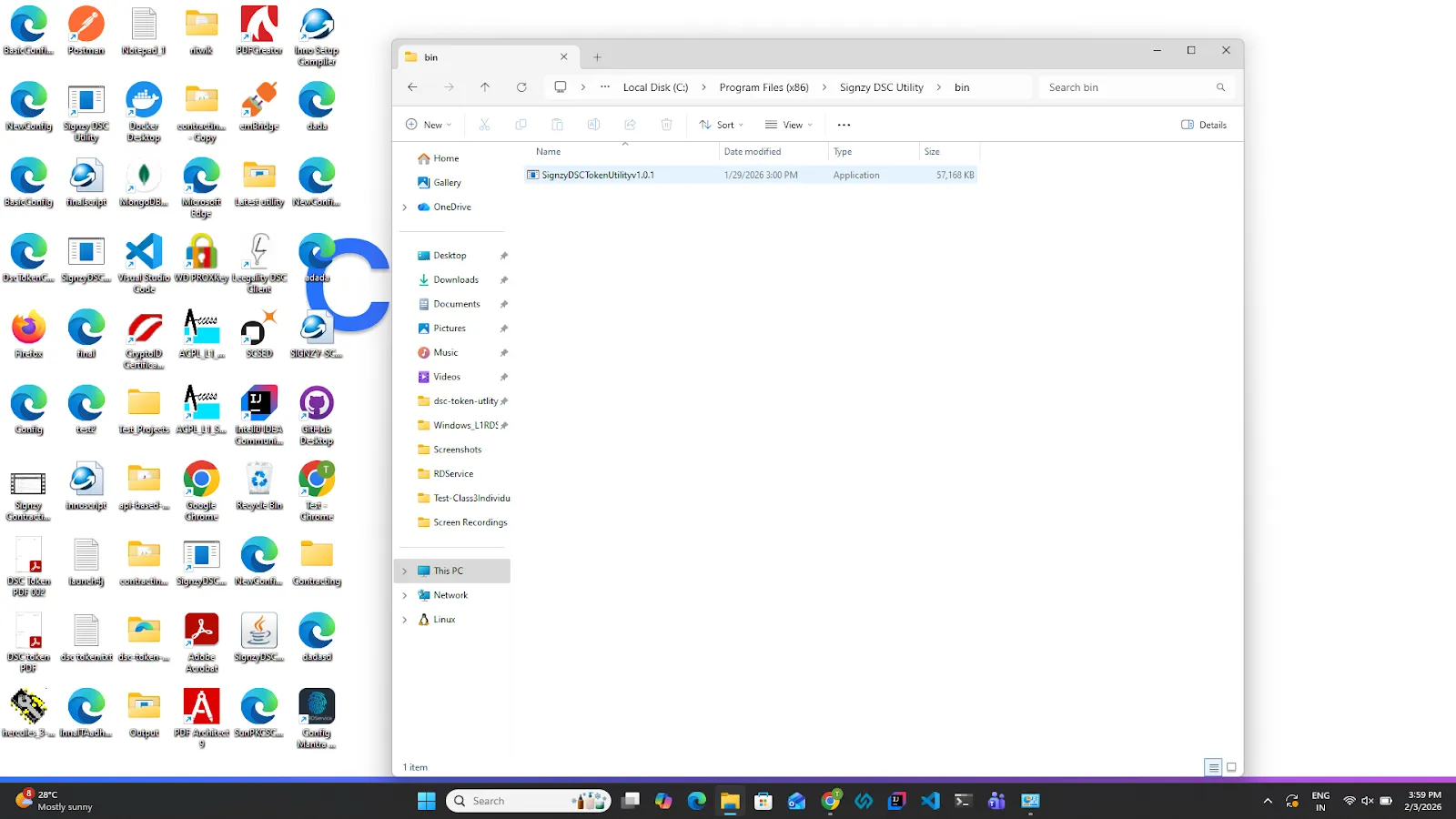
H.The Signzy DSC Utility will start, and a popup message will appear.
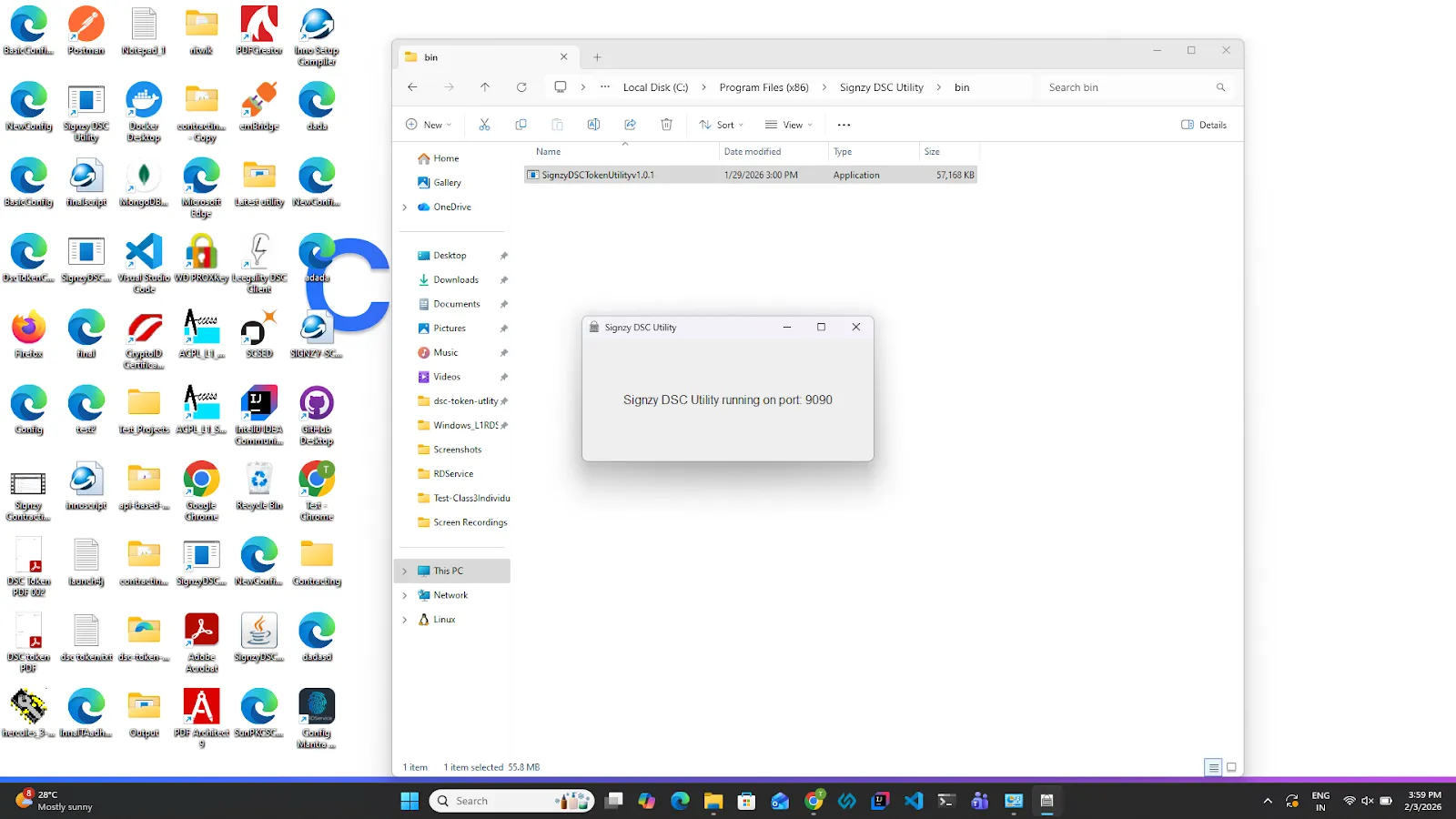
I.Click the Minimize button on the popup window.
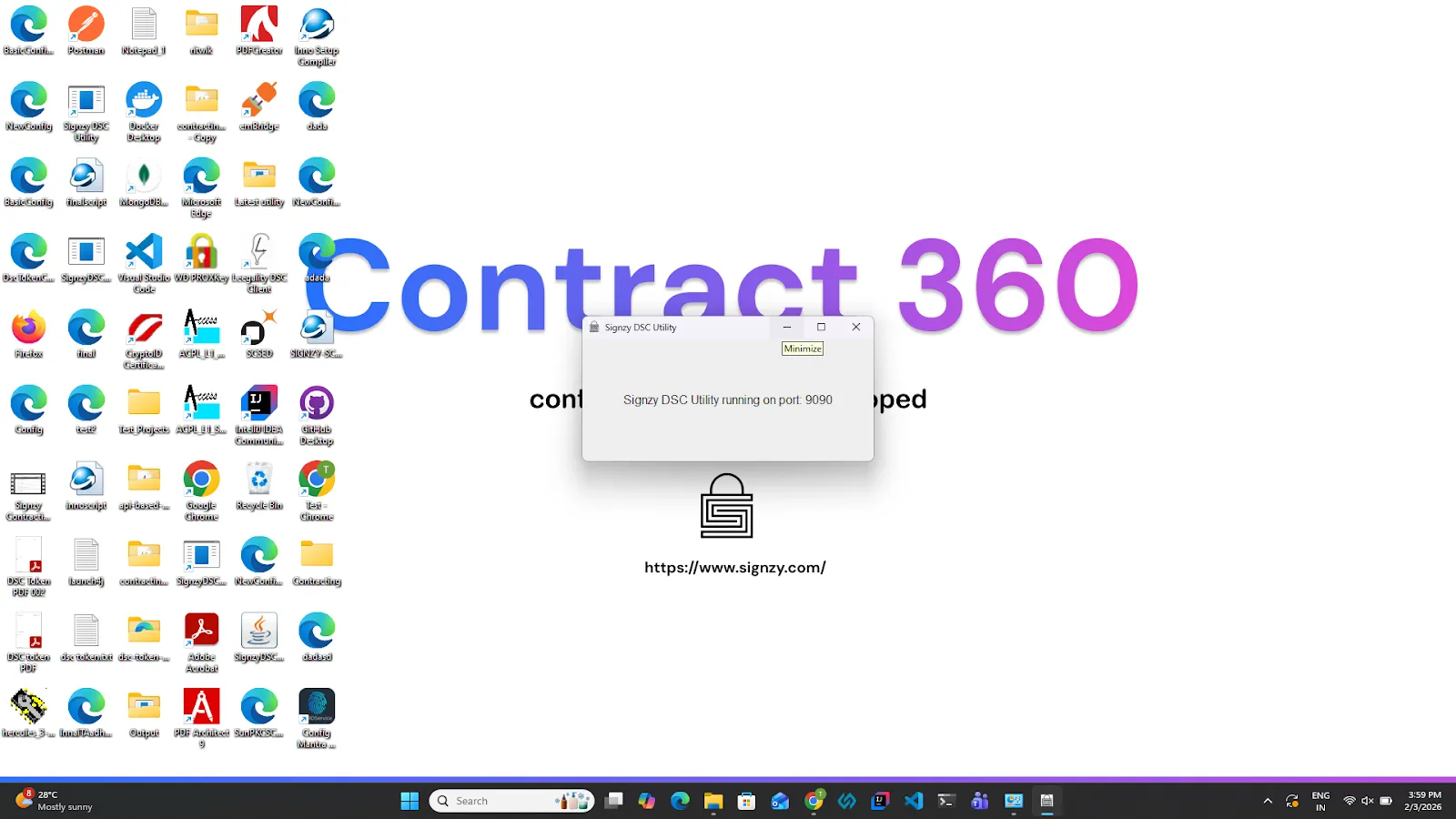
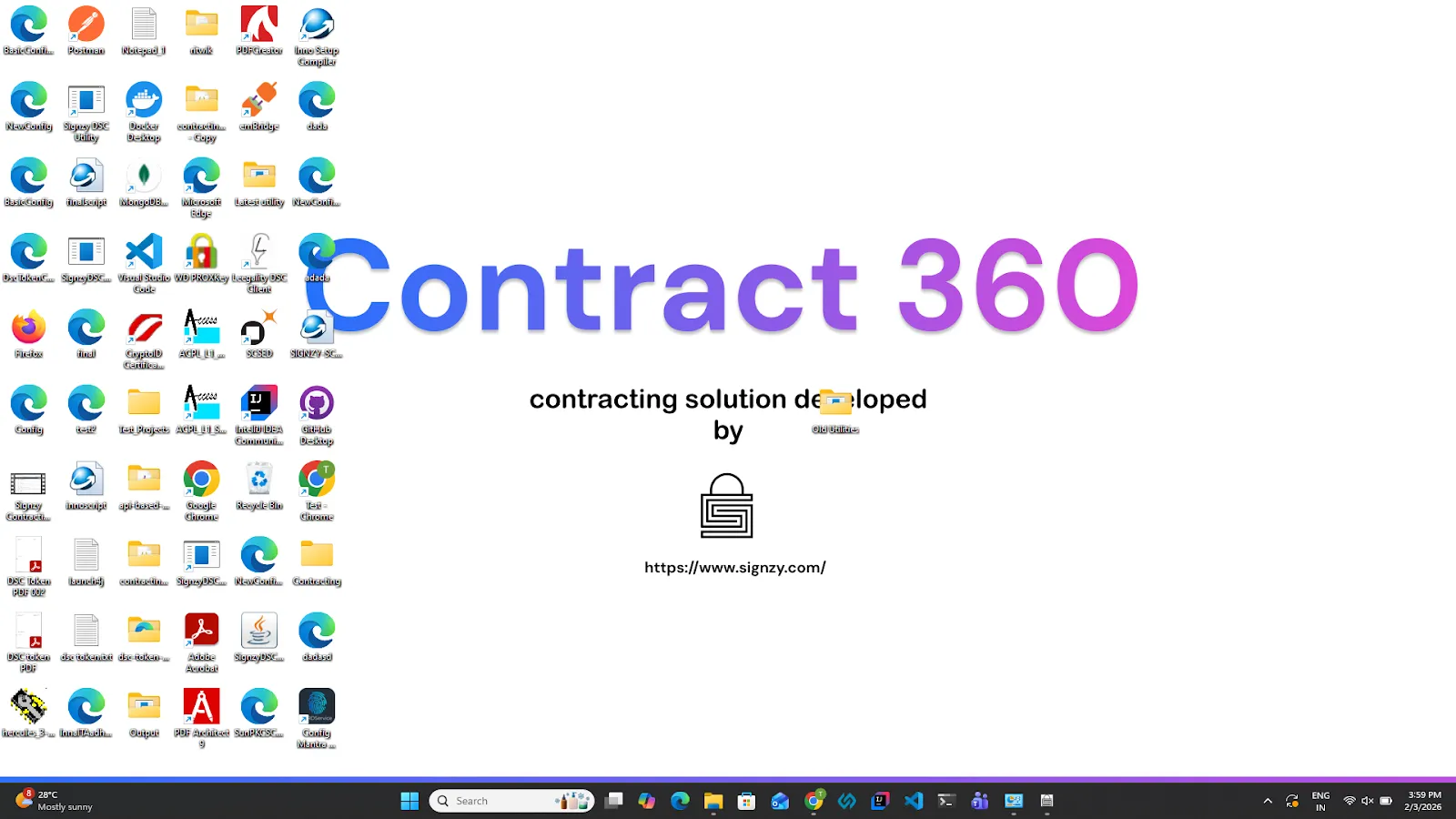
J.The utility will continue running in the background. You can verify this by checking the Windows taskbar (bottom navigation bar)
3.Open the signing link and click on “I want to sign now.”
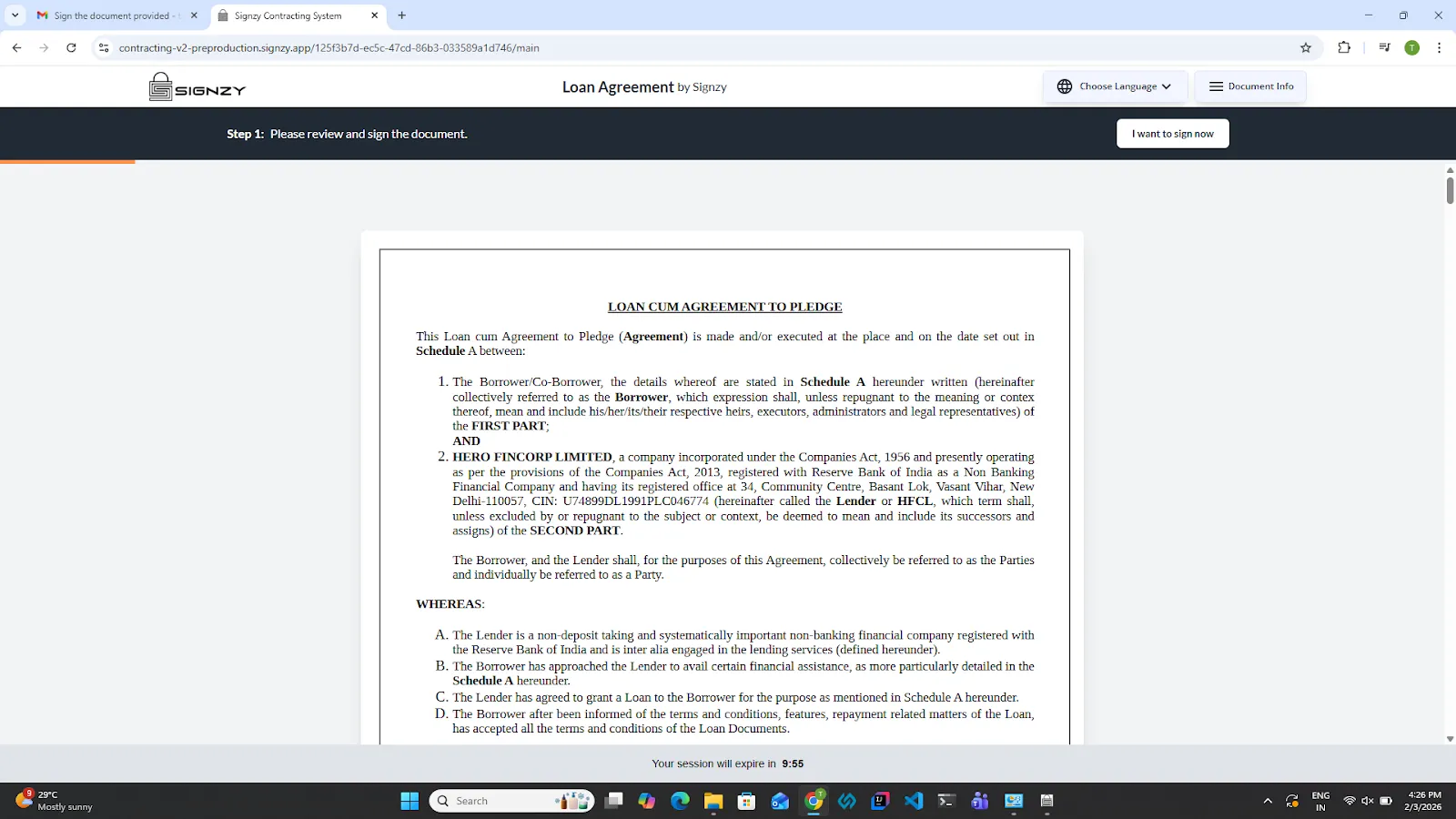
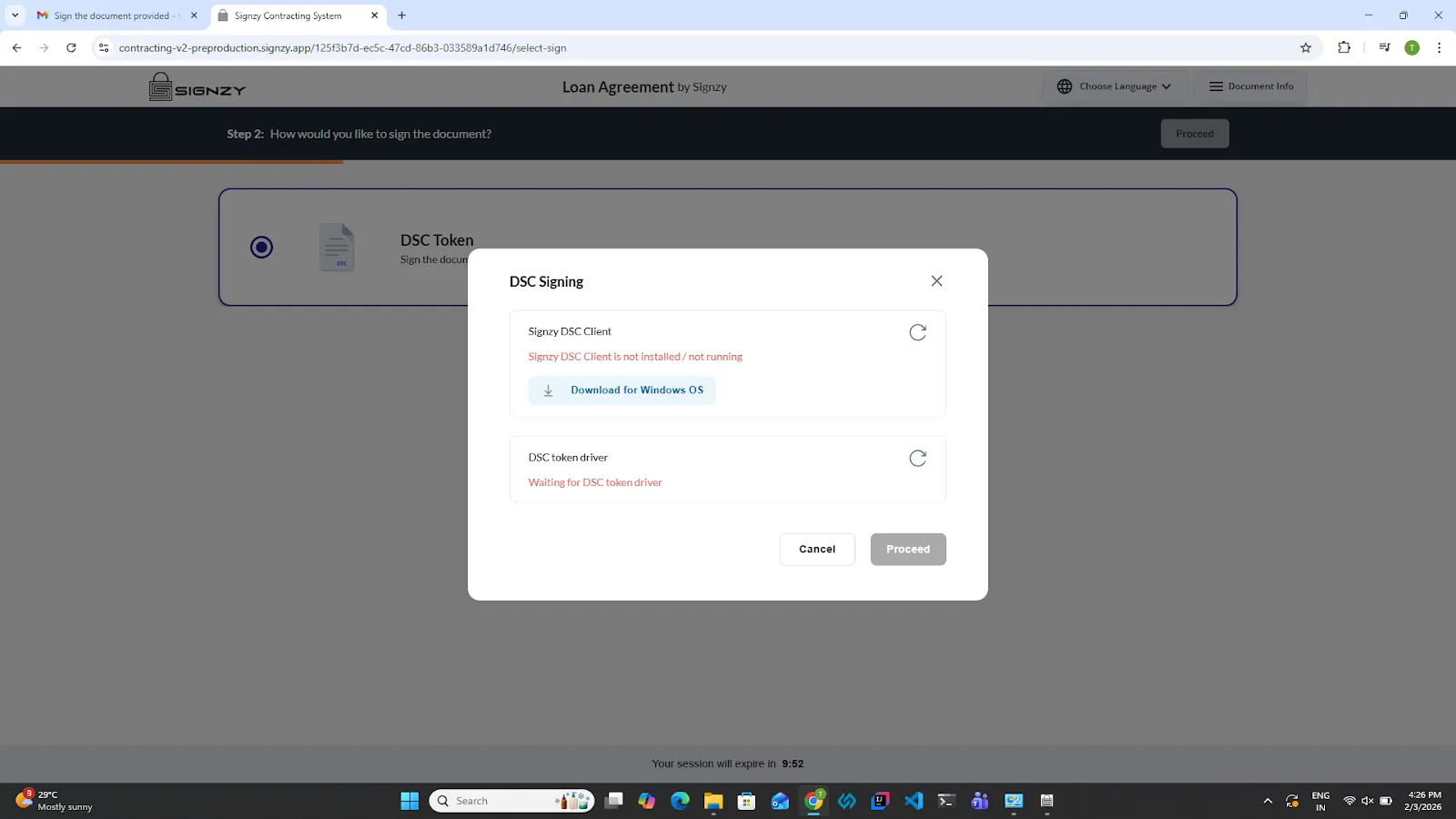
4.A pop-up will appear. Click on Detect Utility to detect the Signzy Utility.
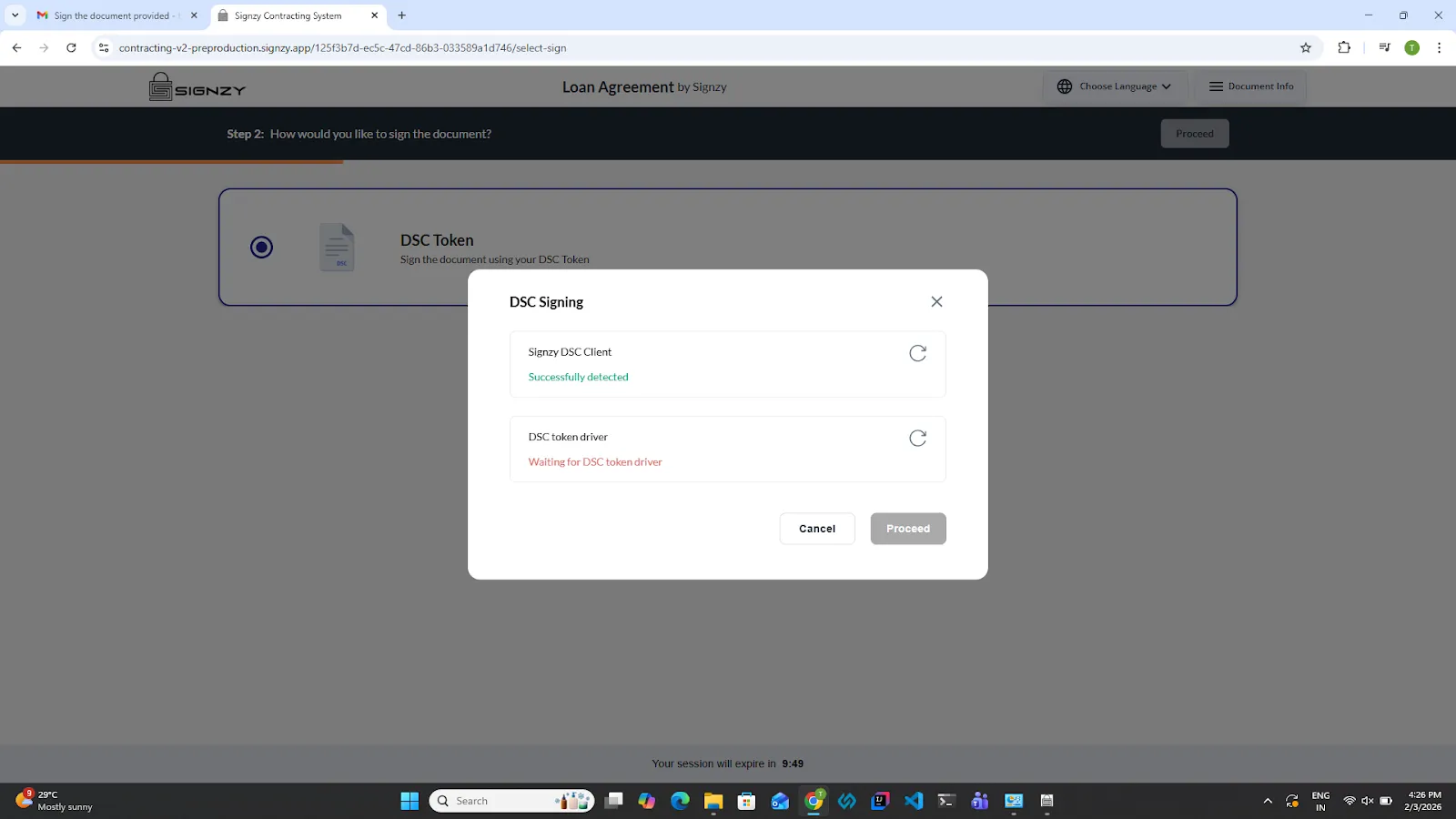
5.Once the utility is detected, connect the token click on Detect Driver to detect the token driver.
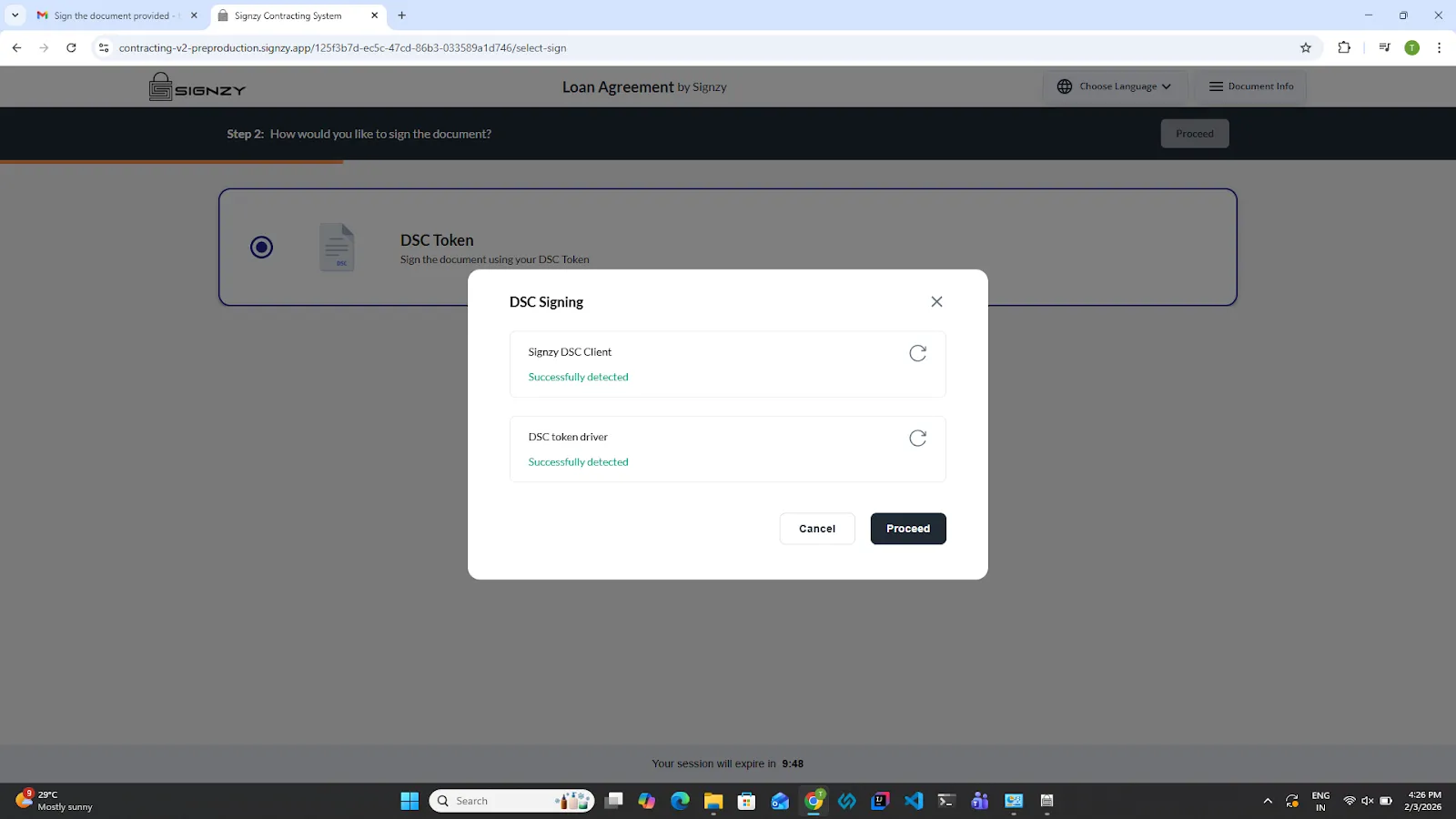
6.Click on Proceed.
7.Enter the name you want to appear on the signature (optional).
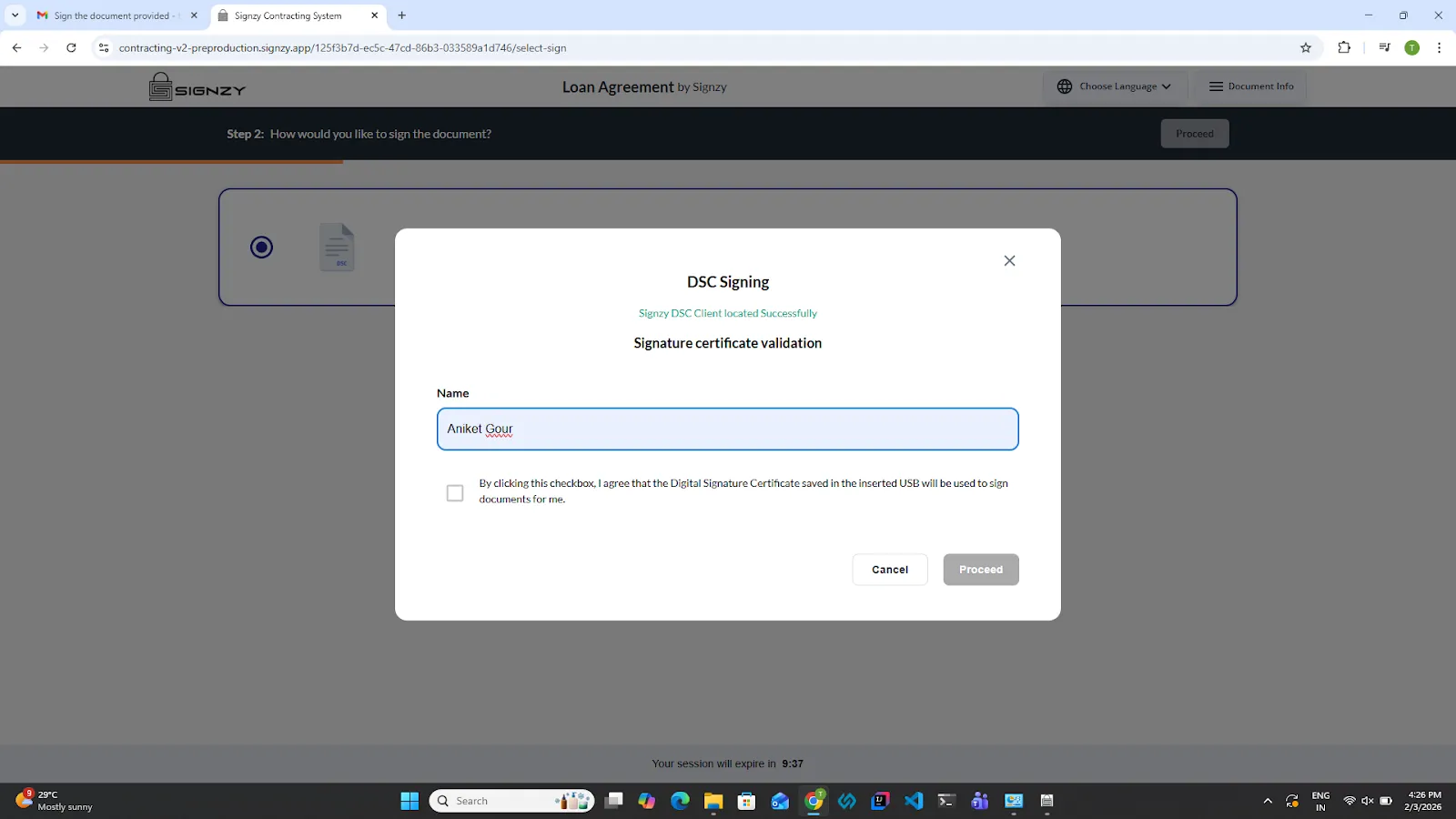
Note: If no name is entered, the name available in the token will be used by default.
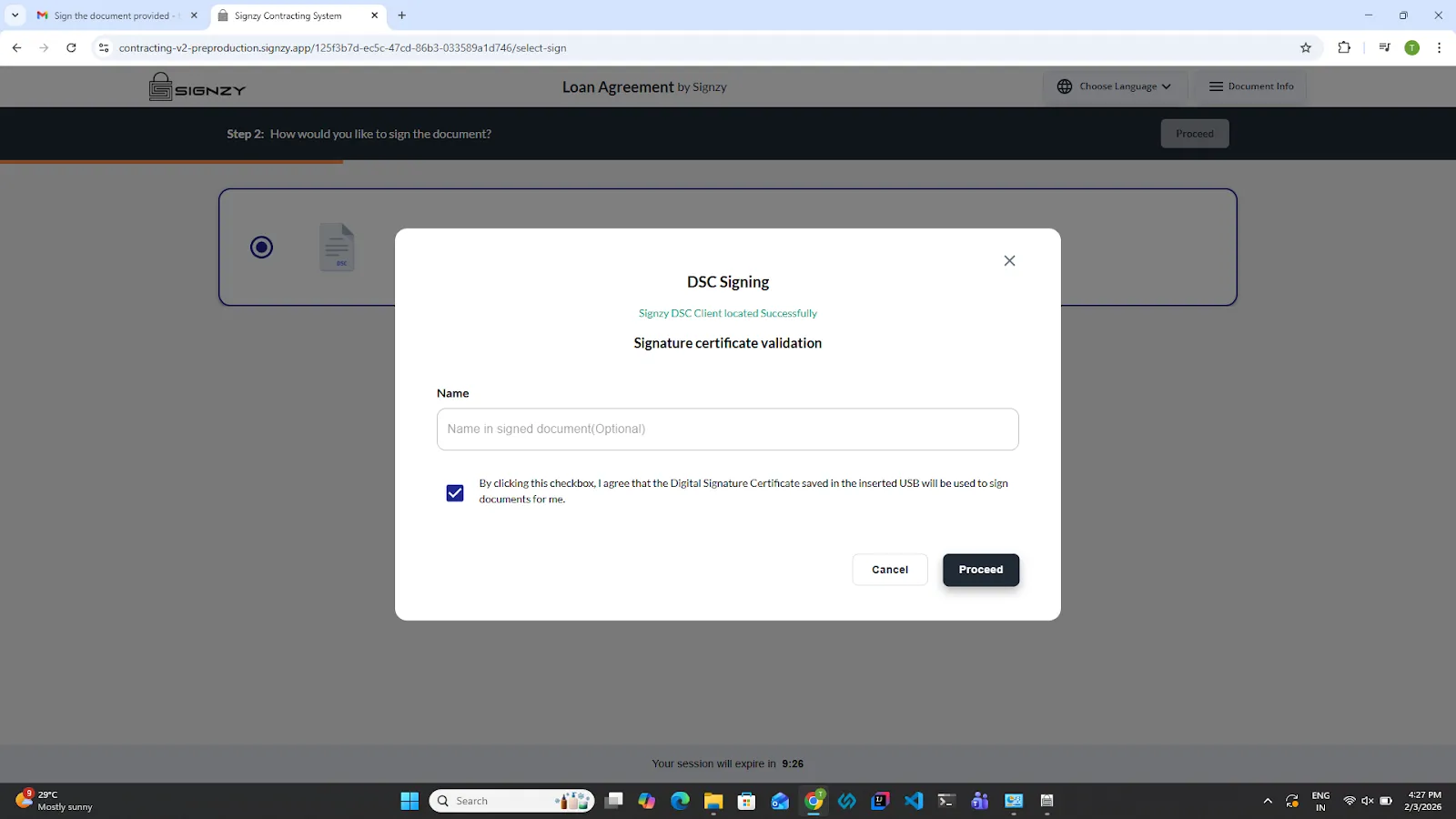
8.Select the consent checkbox and click on Proceed.
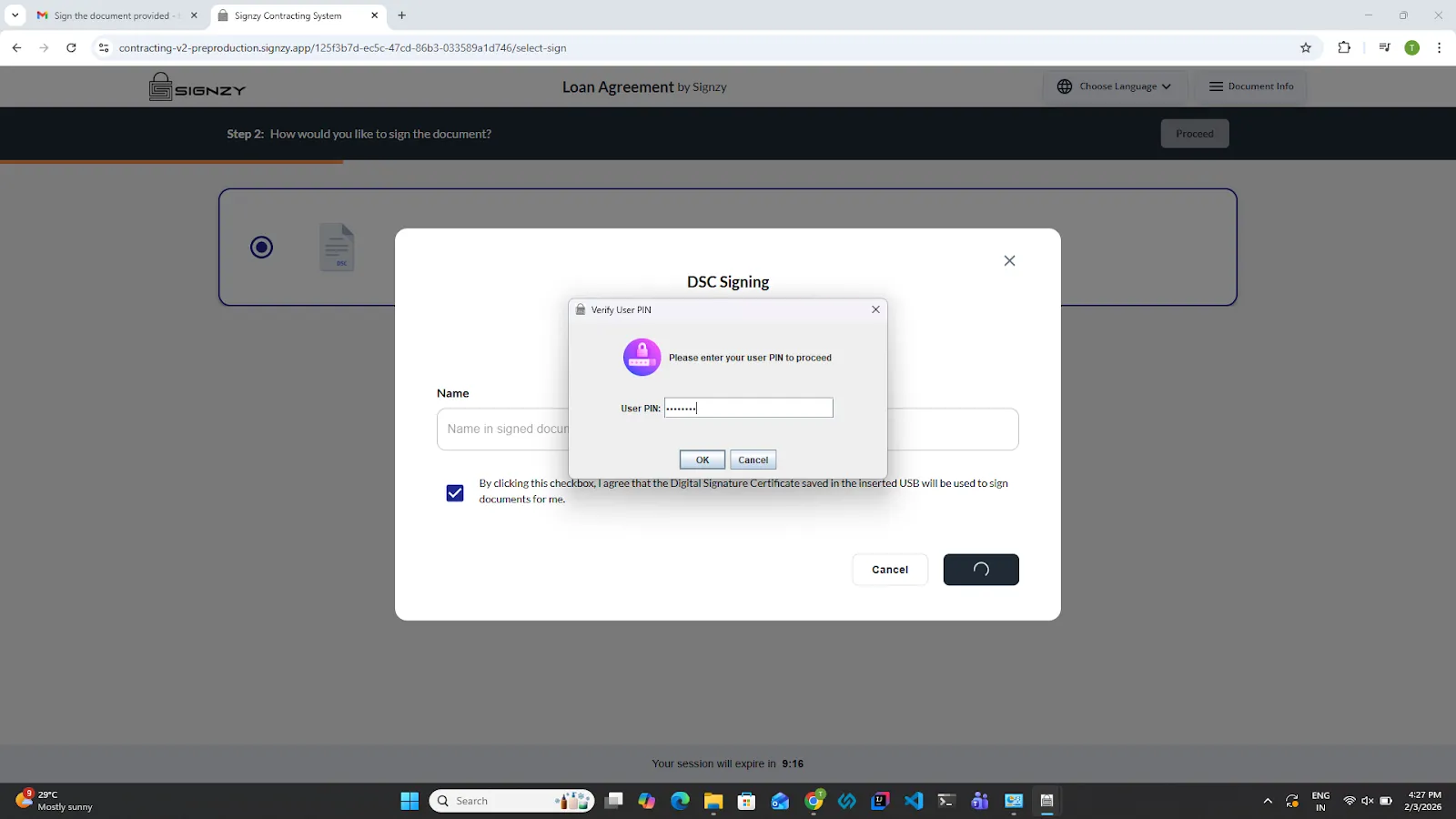
9.A pop-up will appear asking for the token PIN. Please enter the PIN.Enter the token PIN with caution. The token will be permanently locked after 10 incorrect PIN attempts during its lifecycle.
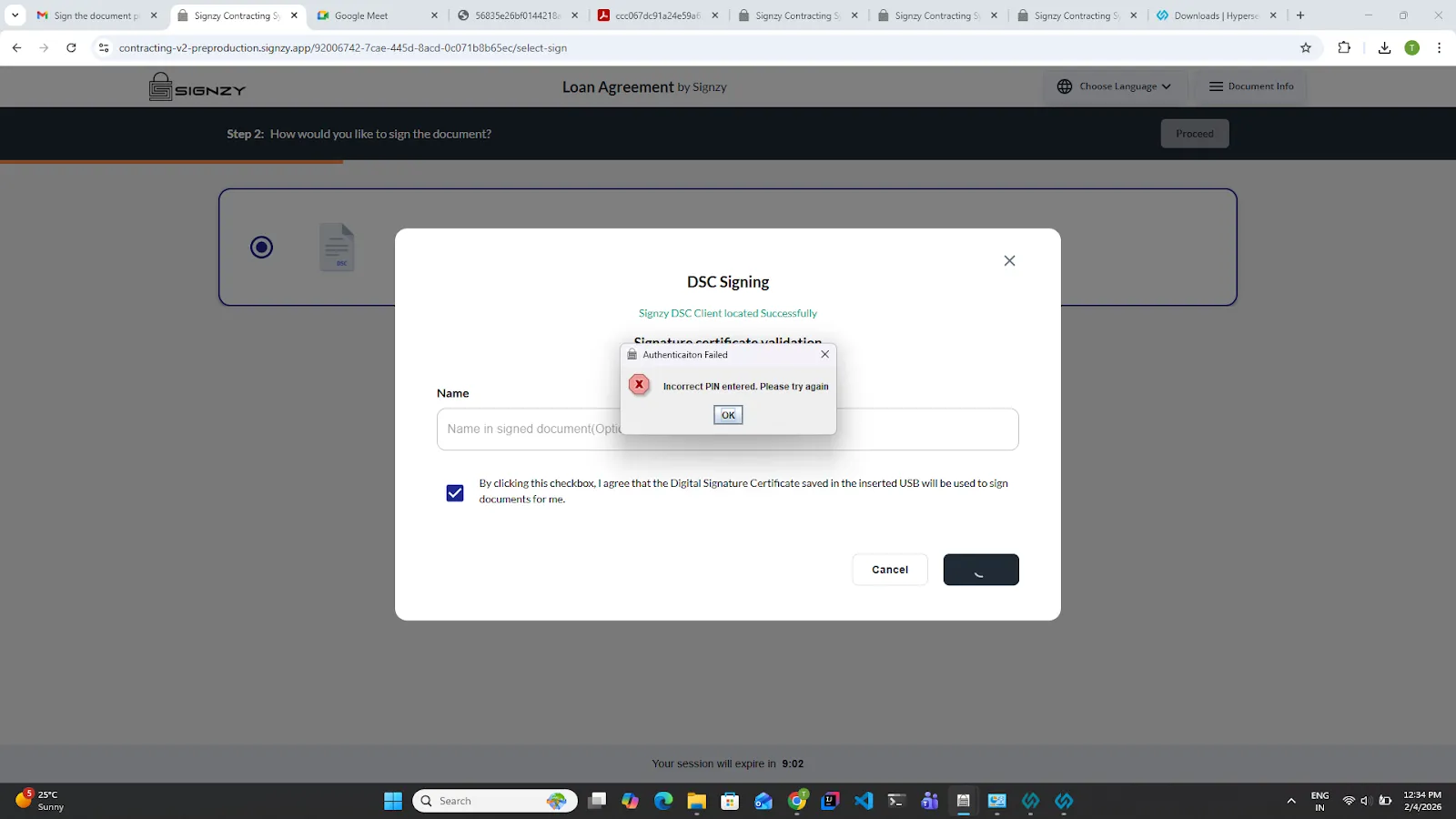
If the wrong password is entered, a pop-up will appear with the message “Incorrect PIN entered. Please try again”. Click the OK button and re-enter the correct PIN.
10.Another pop-up will appear to select the certificate.
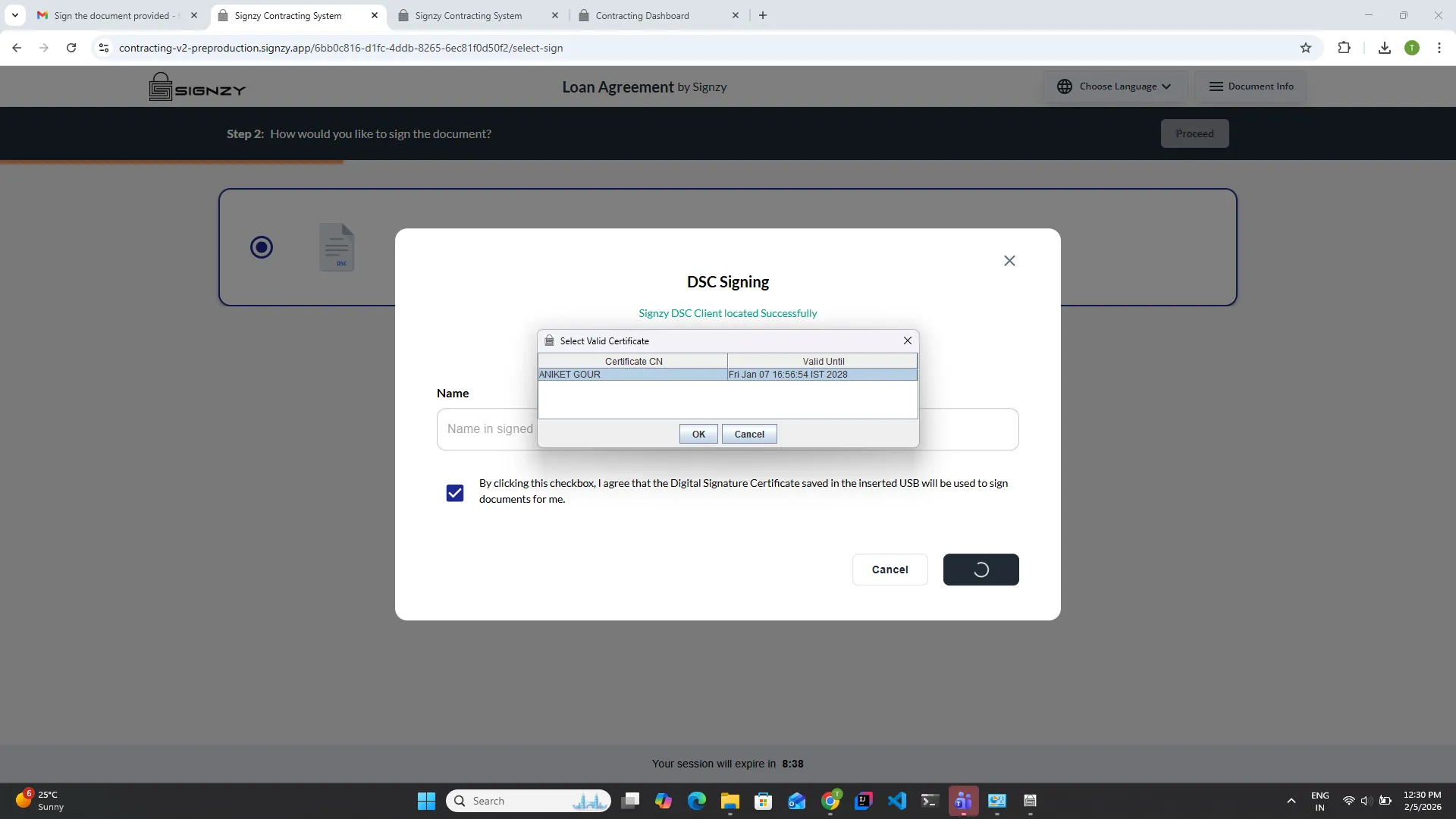
11.Choose the signer certificate you want to use and click OK
.
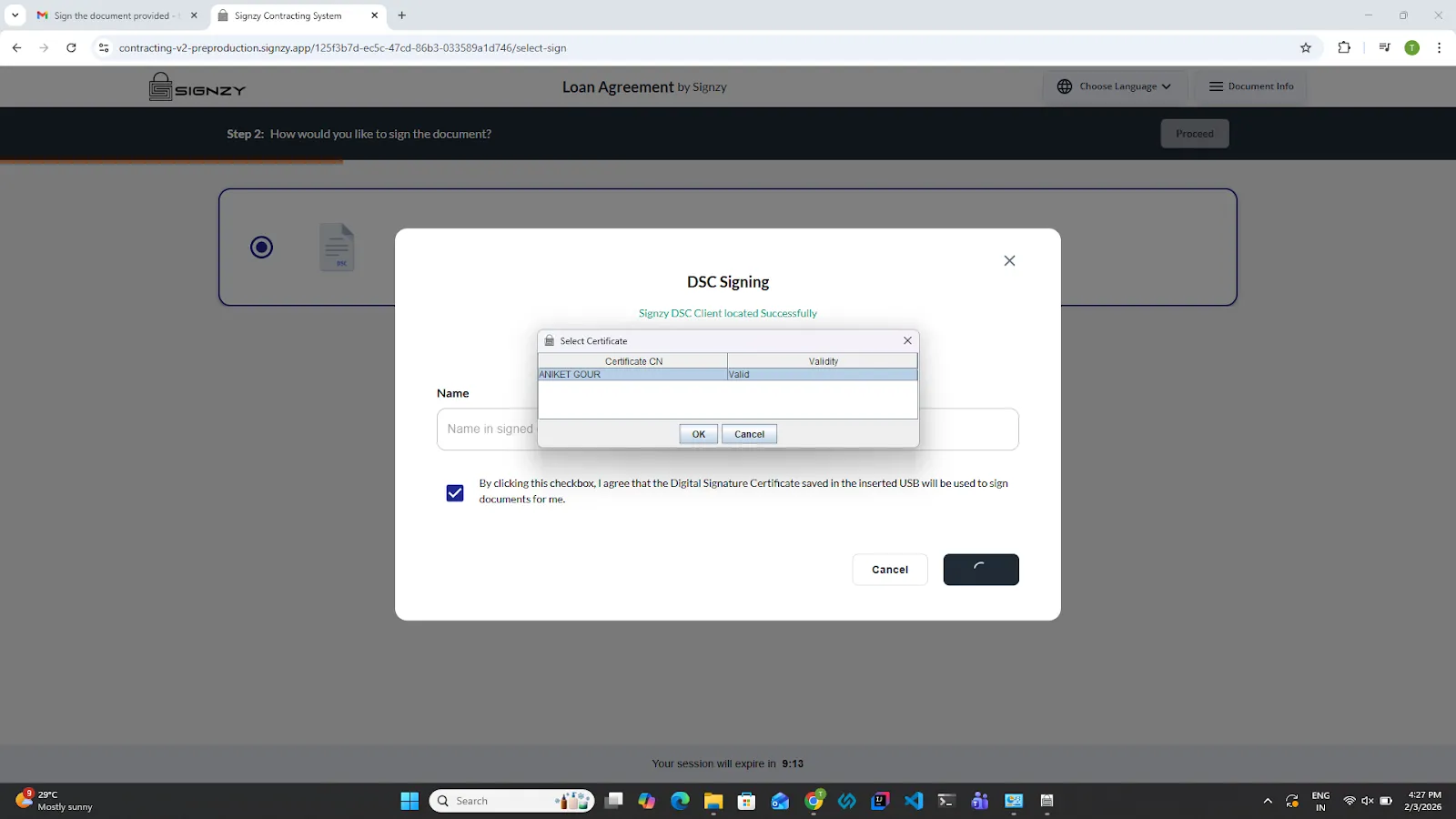
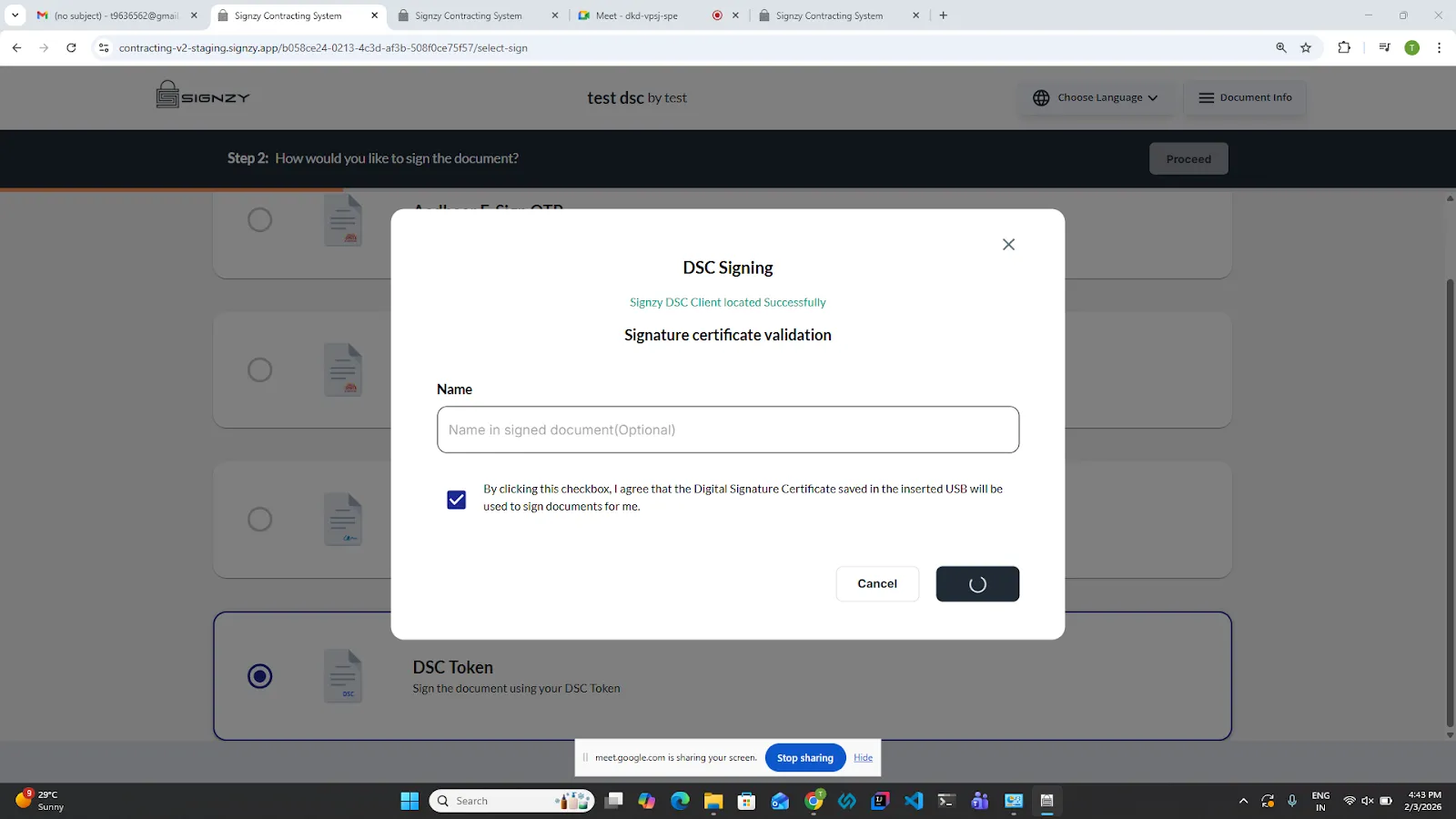
12.Please wait for a few seconds while the signing is in progress.
13.Once signing is completed, the signed PDF will be displayed.
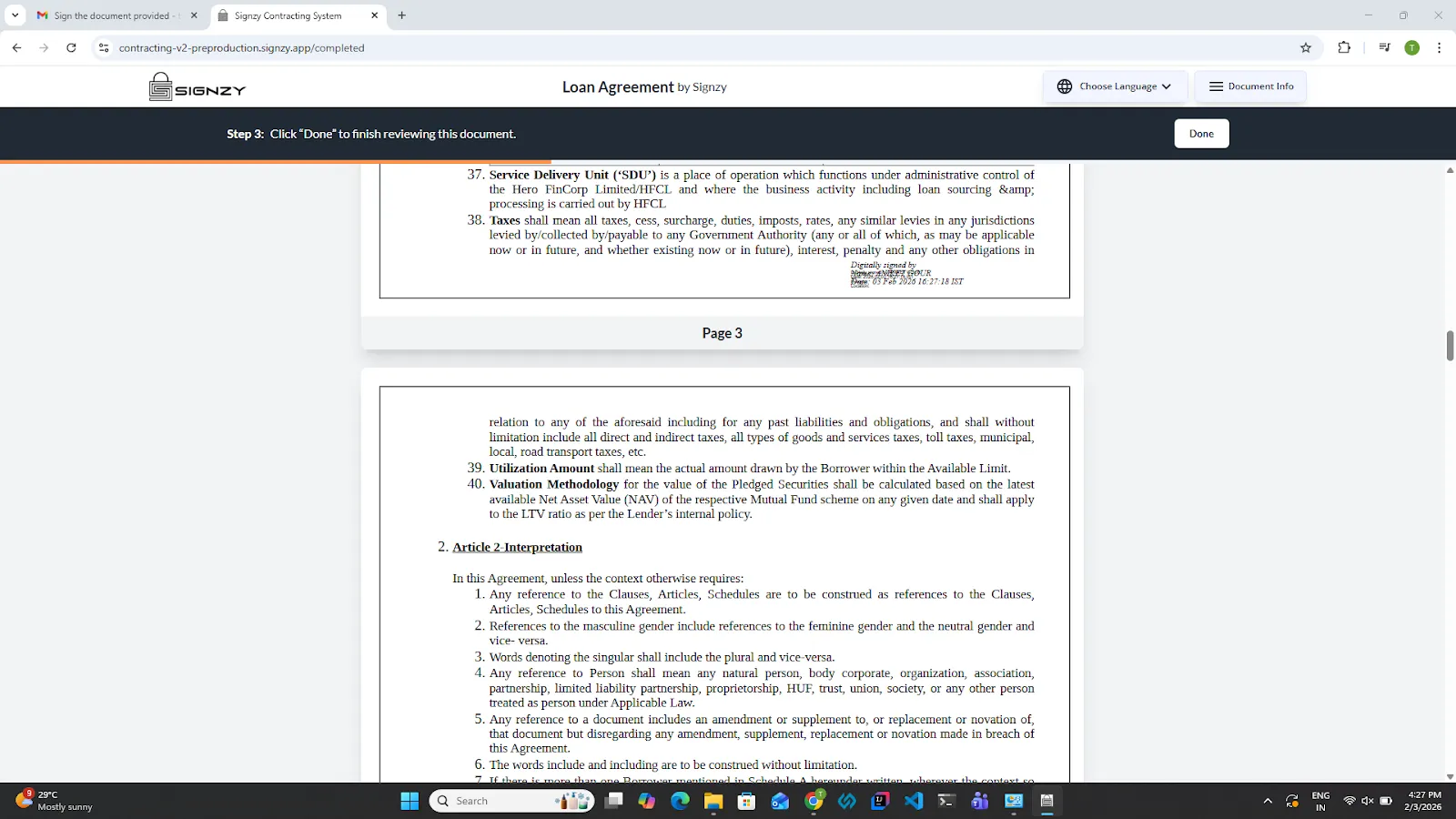
14.Click on Done to complete the signing journey.
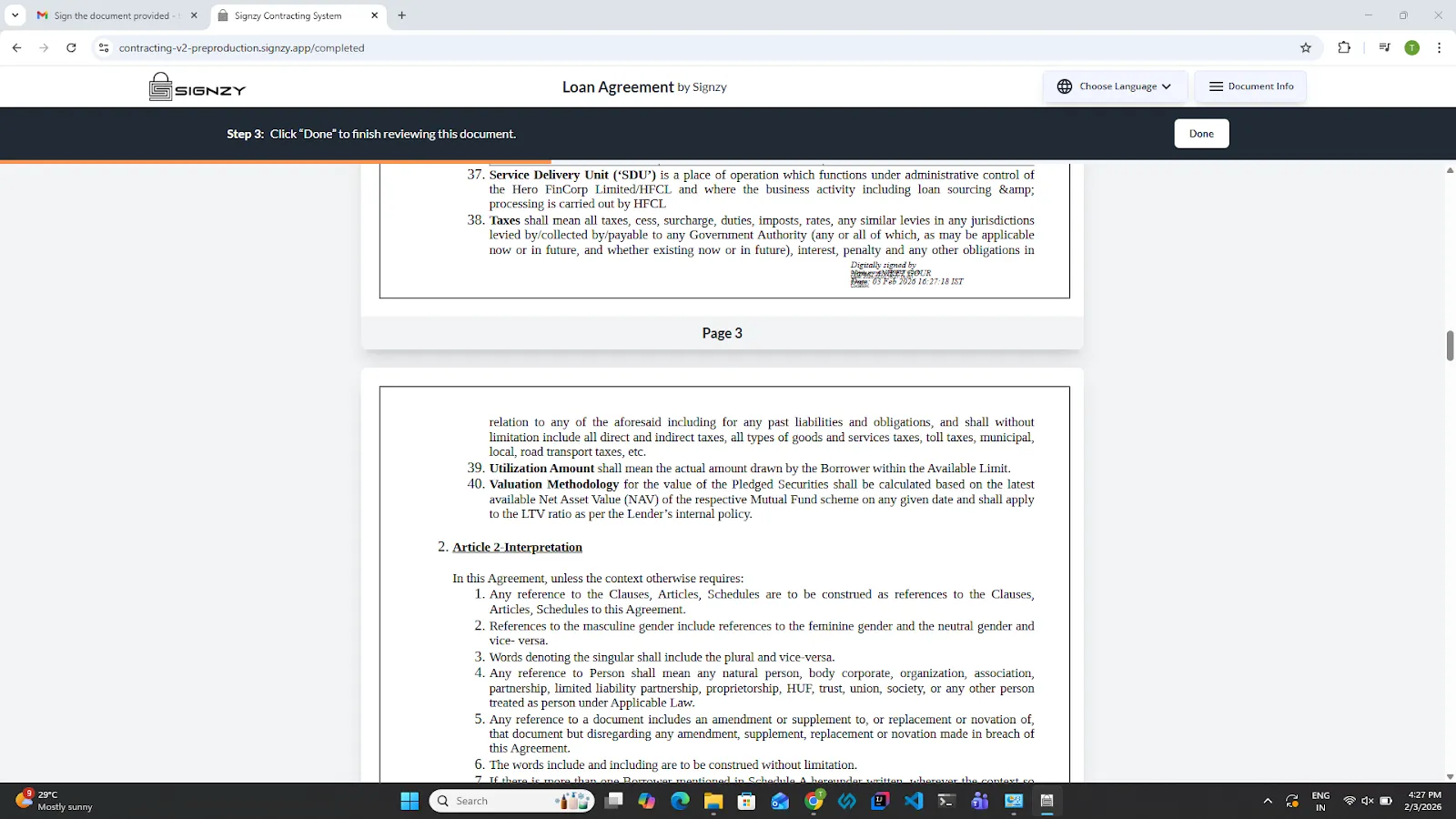
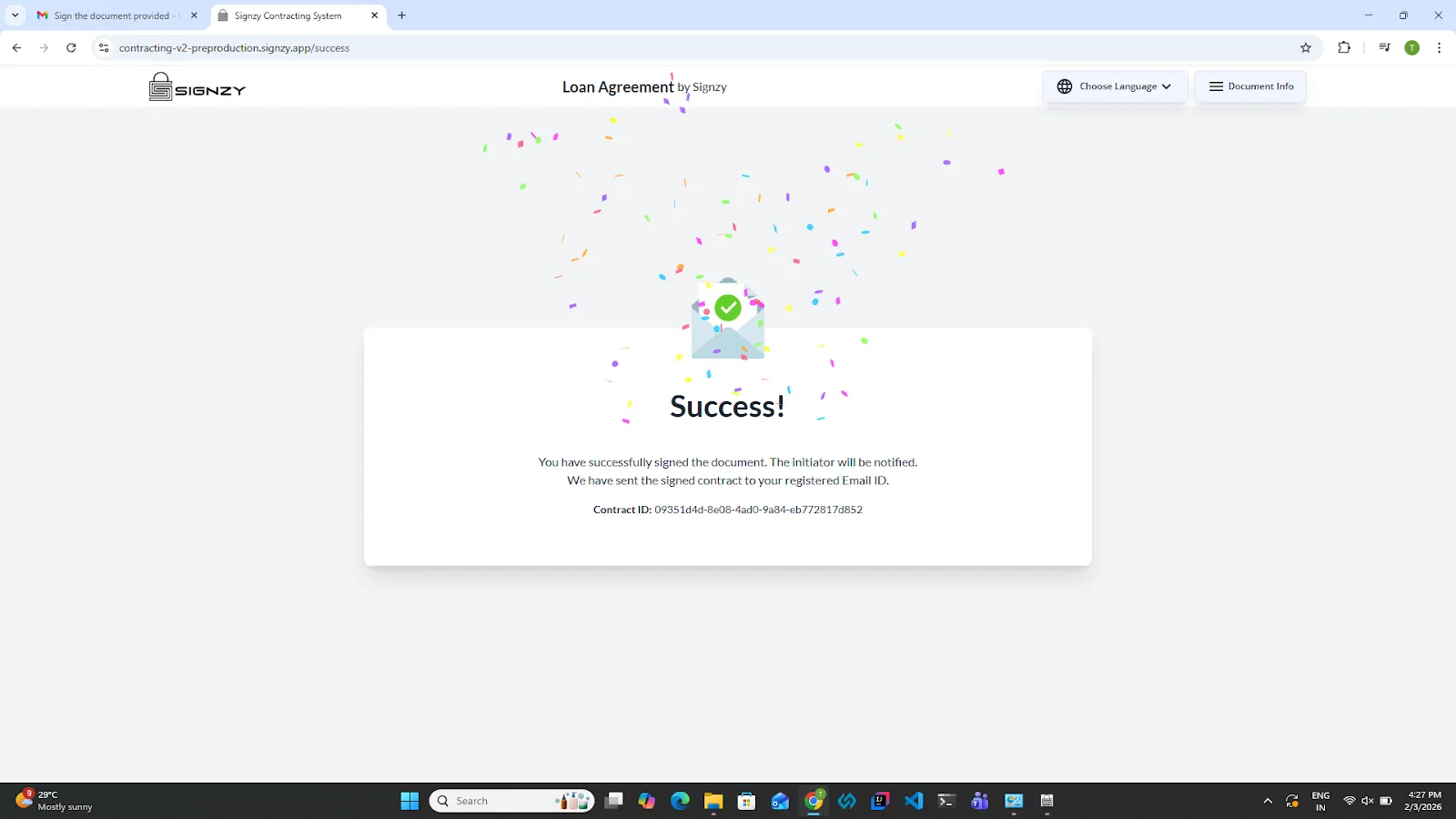
15.A success page will appear confirming the successful end of the signing journey.