DSC Driver Installation Guide
Installation Guide
Please refer to the appropriate driver installation guide based on your DSC token type:
- Mtoken
- InnaIT Precision Key
- WatchData ProxKey
- HYP2003
1. MToken/CryptoID
1.Click here to open the website to download the mtoken driver to perform the DSC based signing.
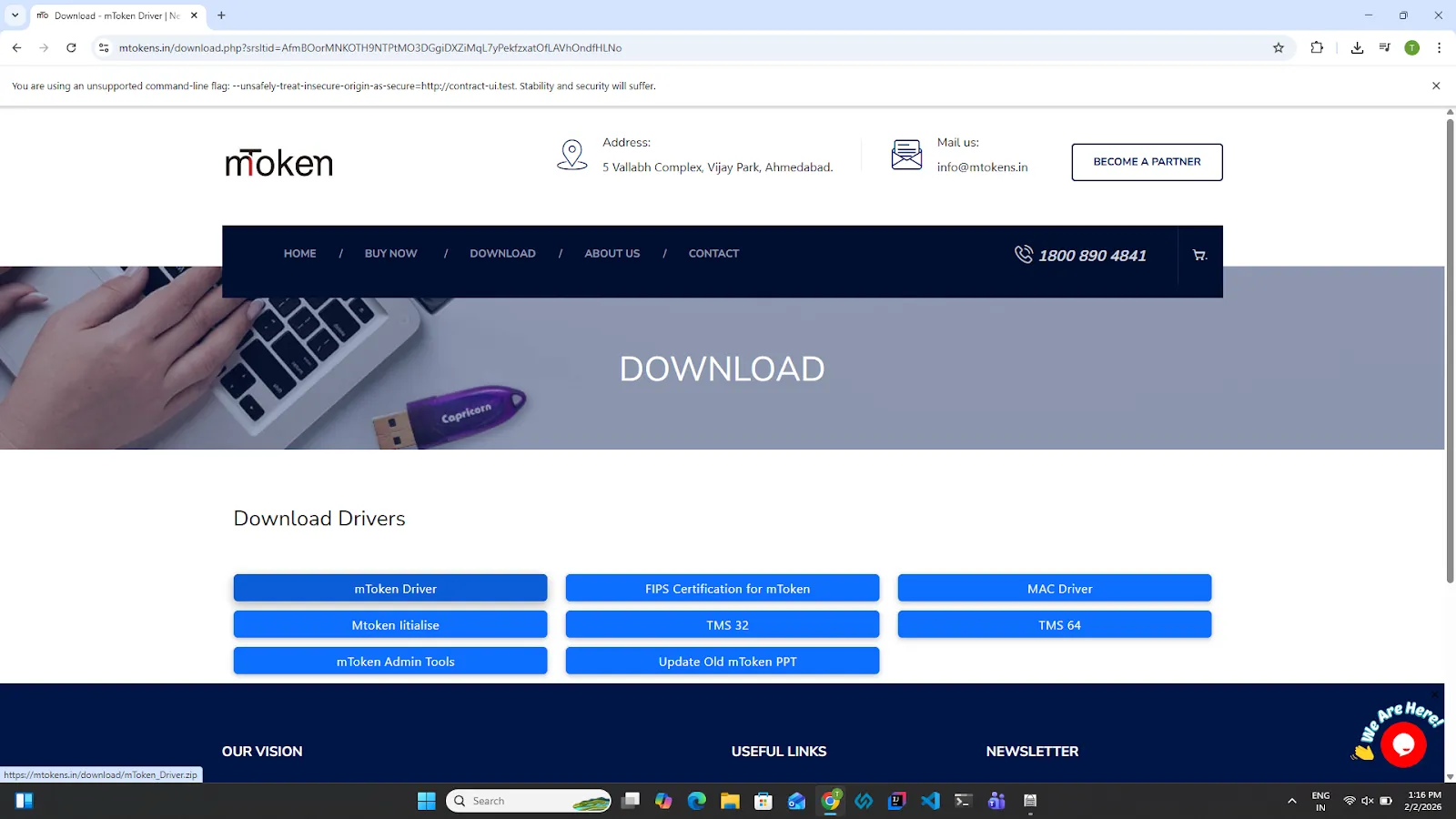
2.Click on the mToken Driver, and a zip file will be downloaded. Double-click on the zip file
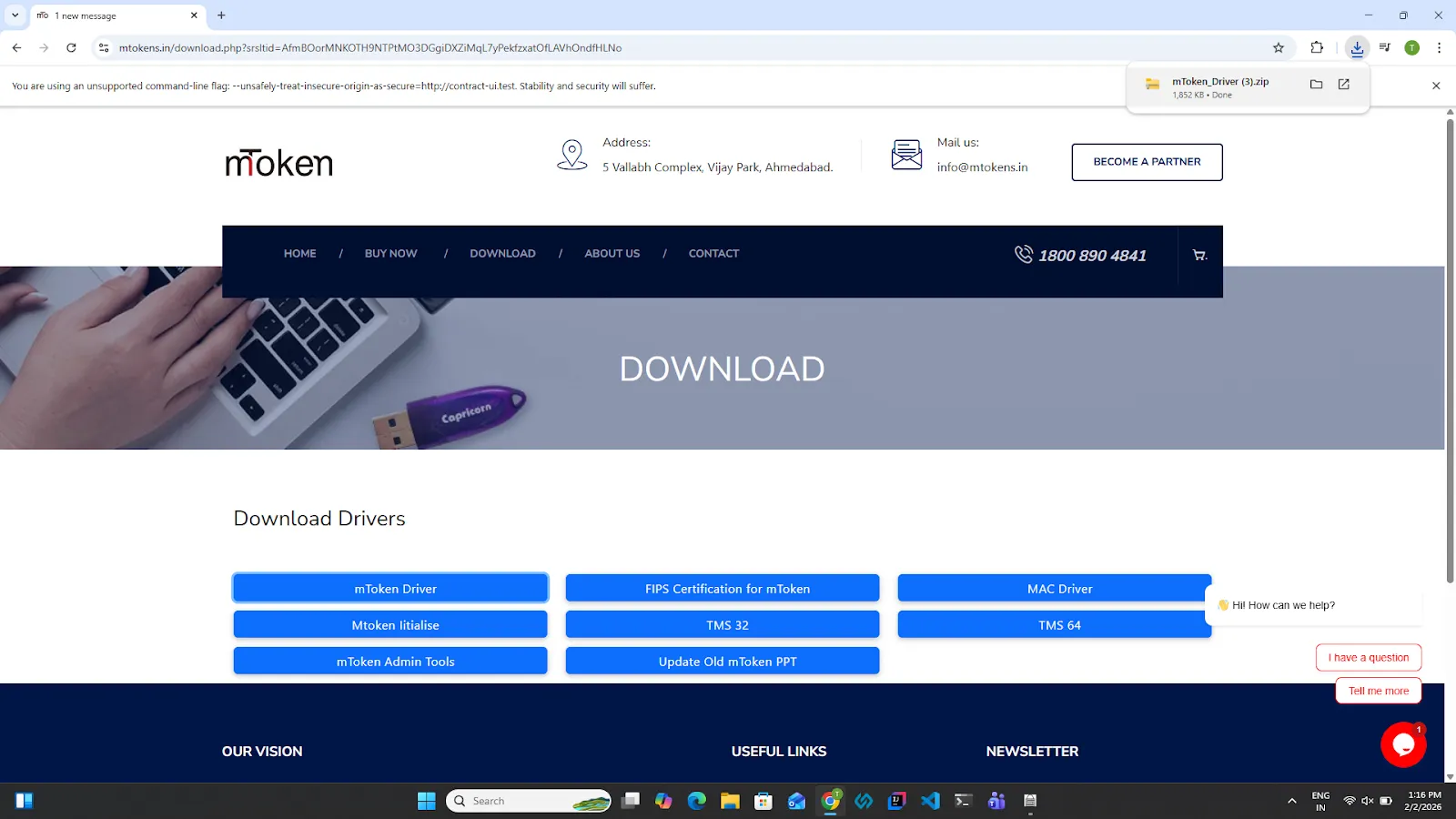
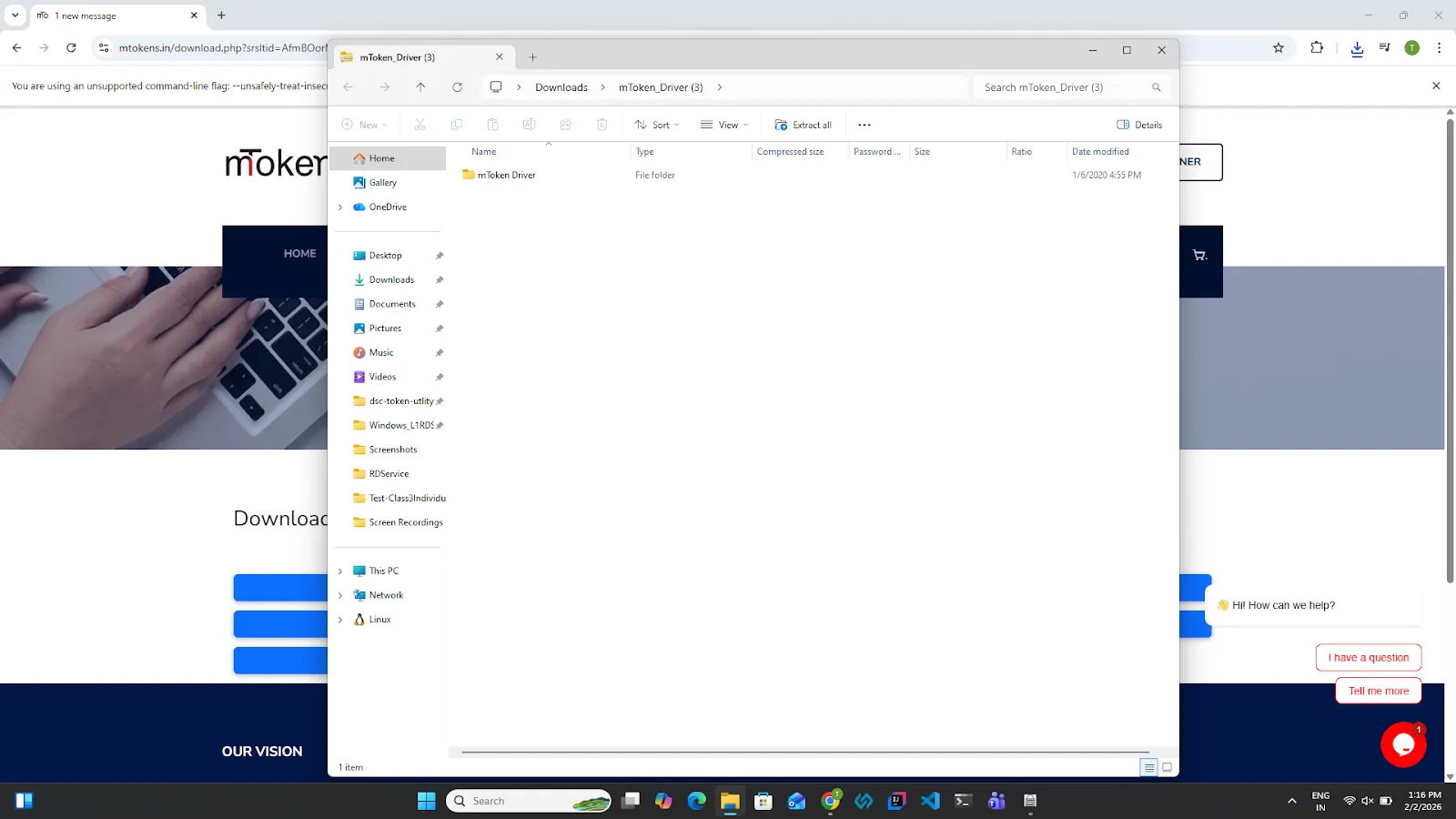
3.A folder will be open. Click on the mtoken driver folder.
4.Click on the CryptoID_Setup Folder.
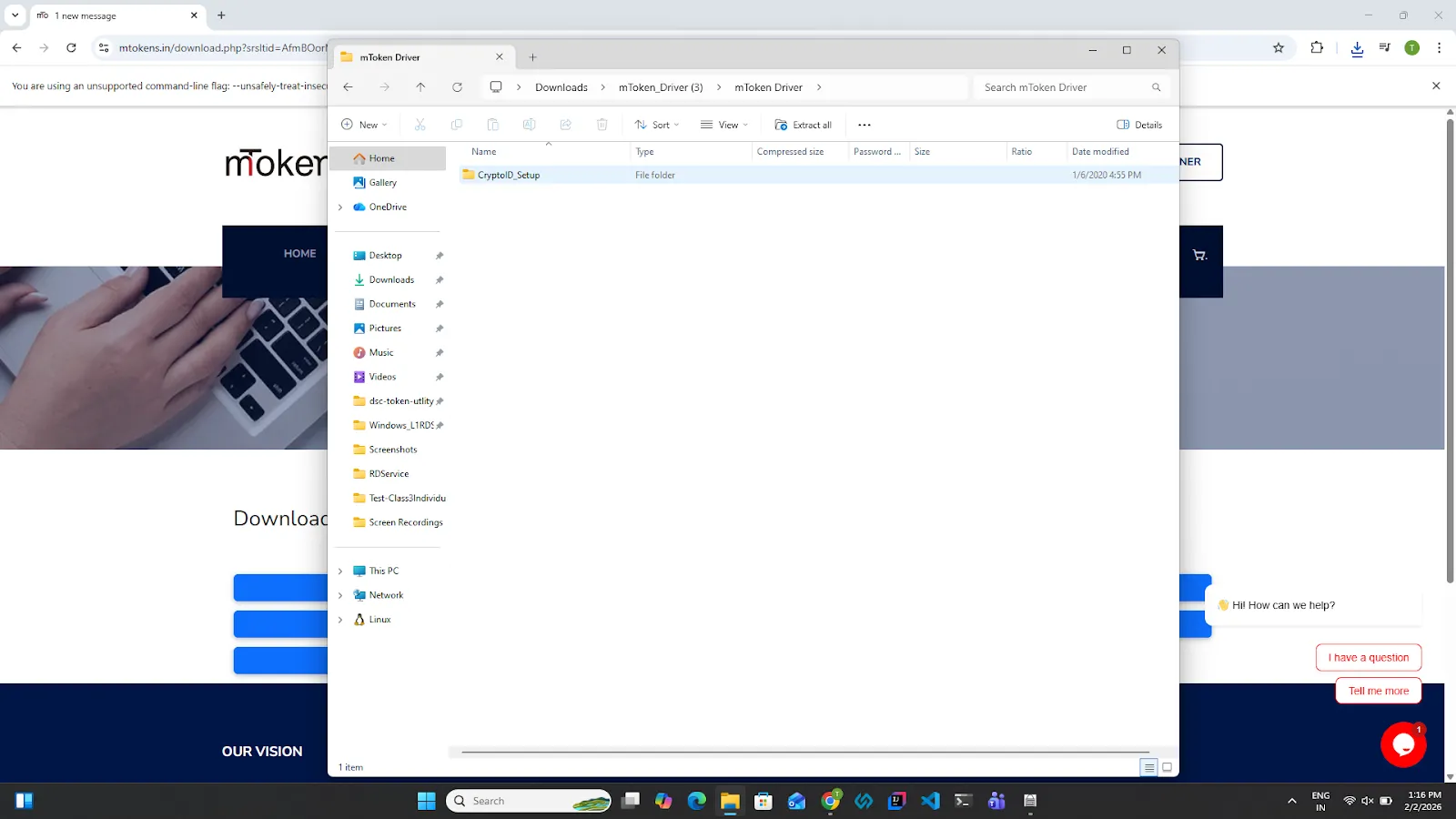
5.A list application will appear. Double-click on the CryptoID_Setup
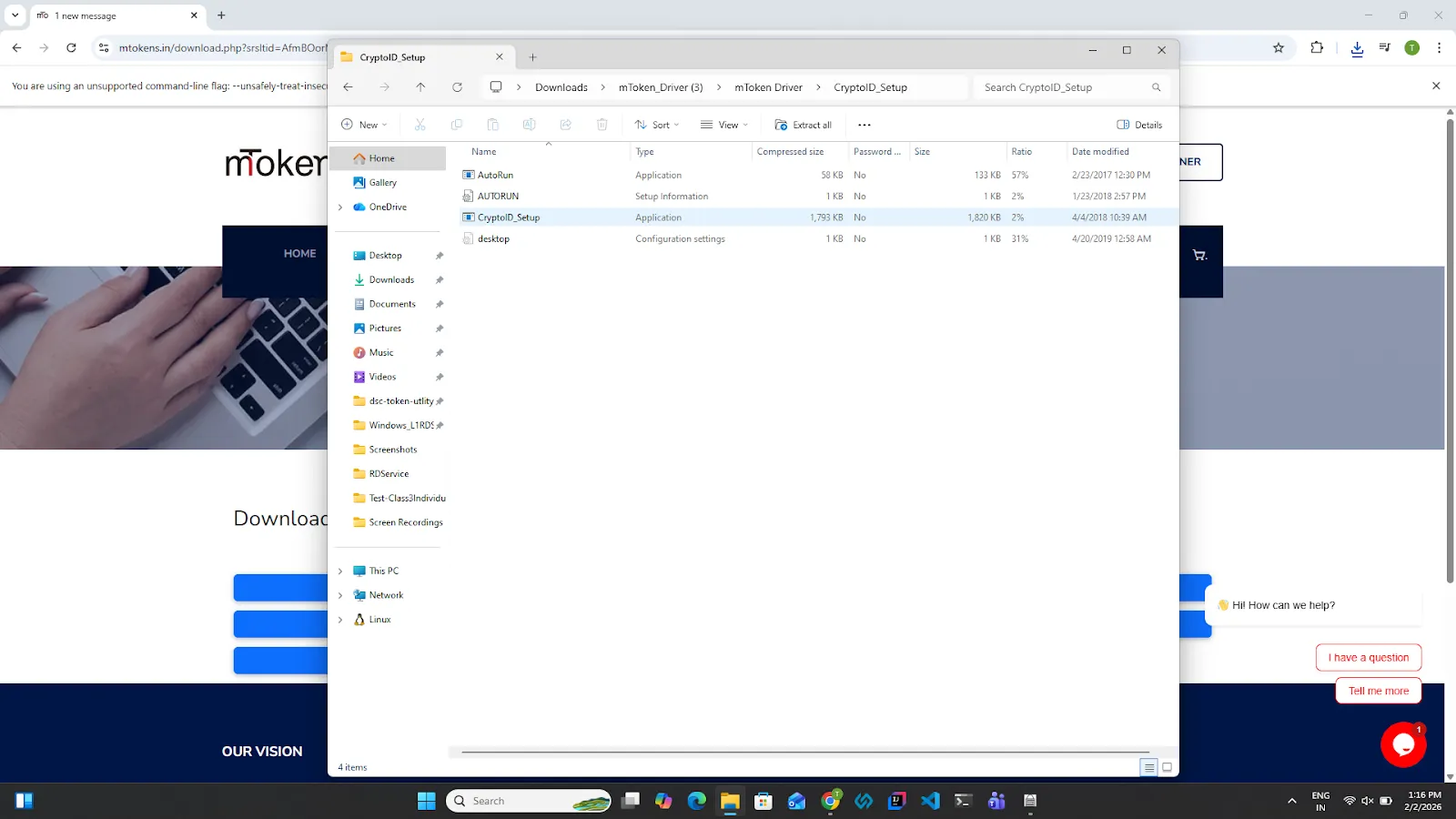
6.Click on the Extract All button
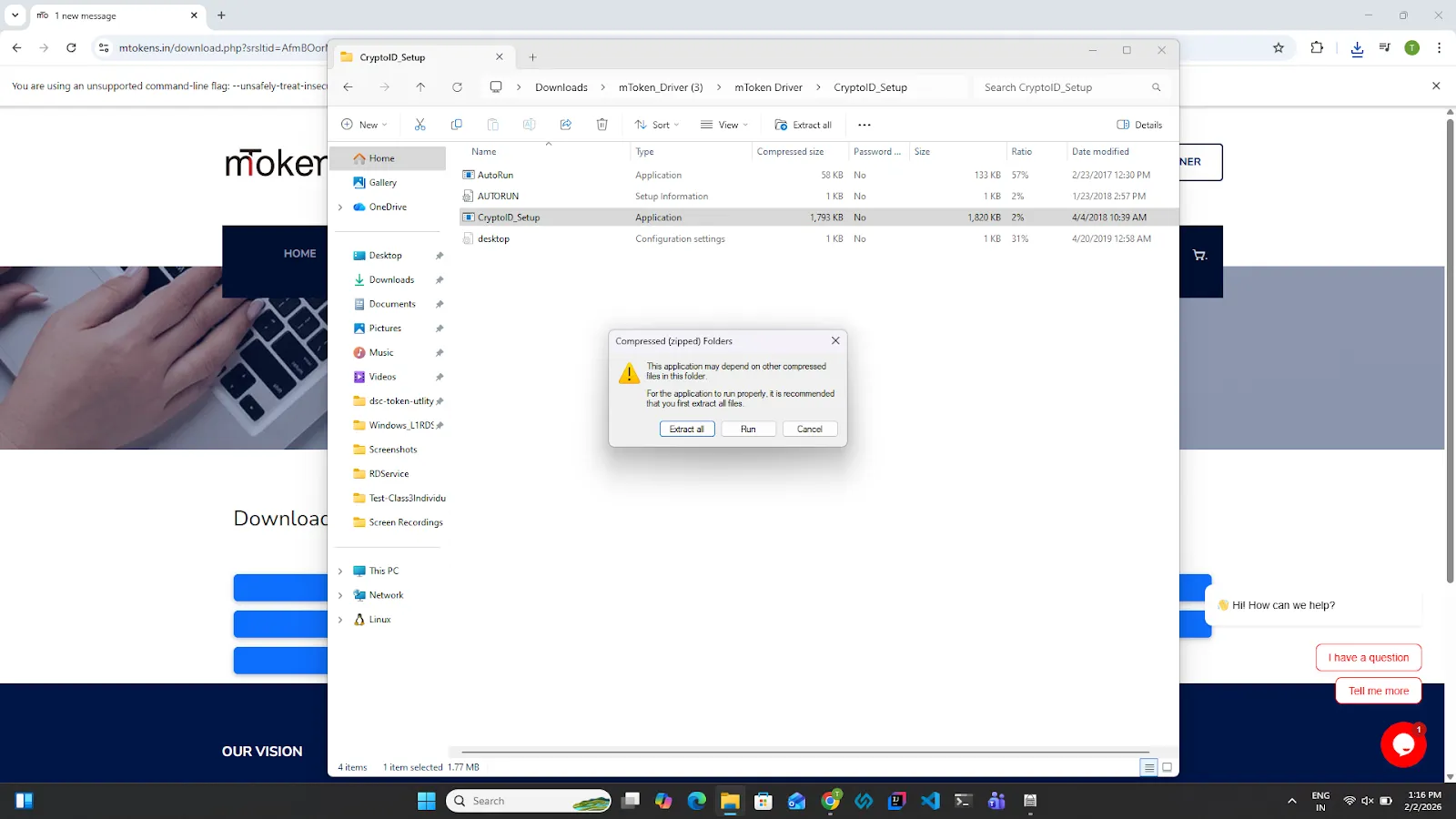
7.Keep the path as default and click on the Extract button.
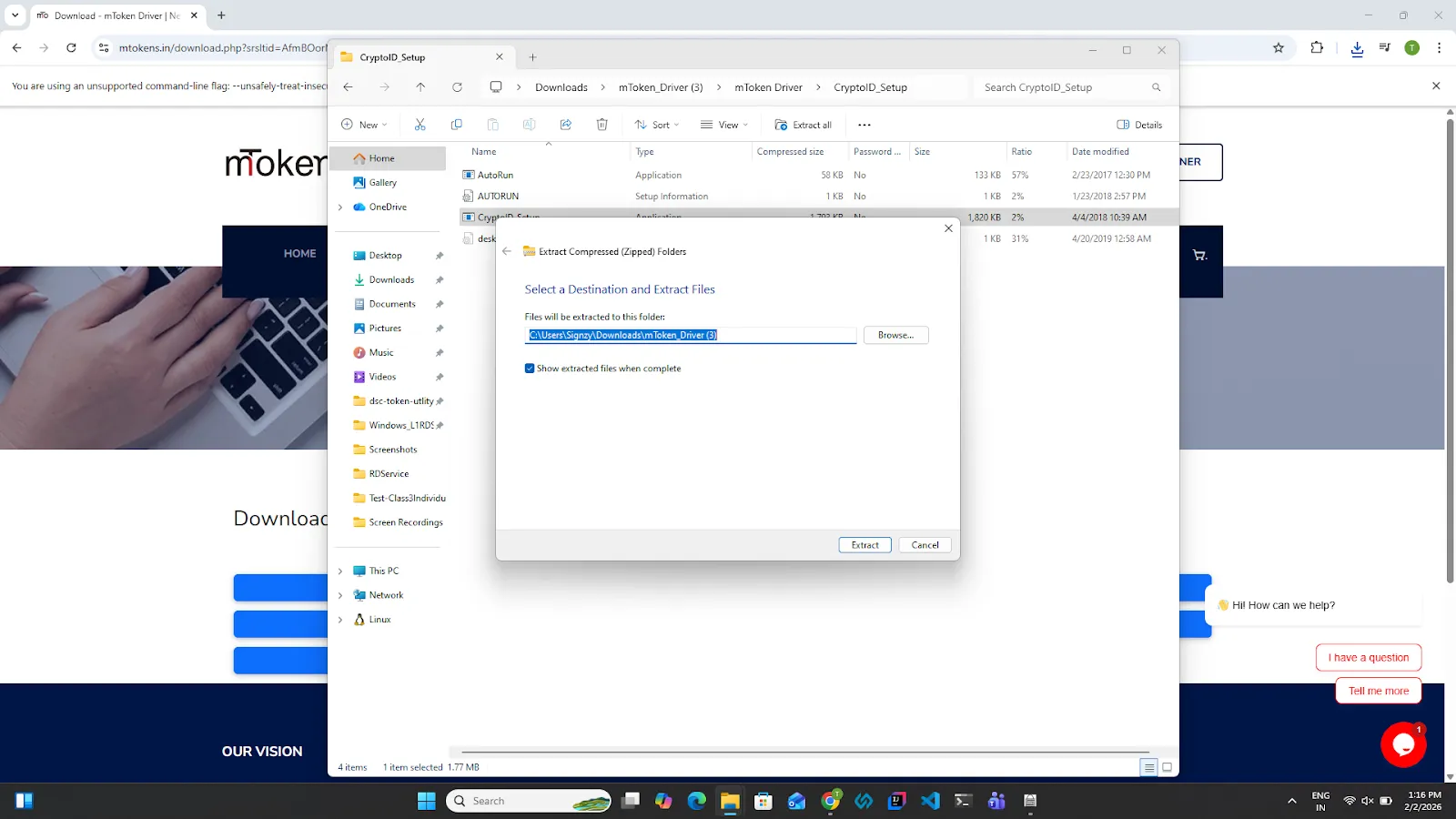
8.Click on the mtoken driver folder
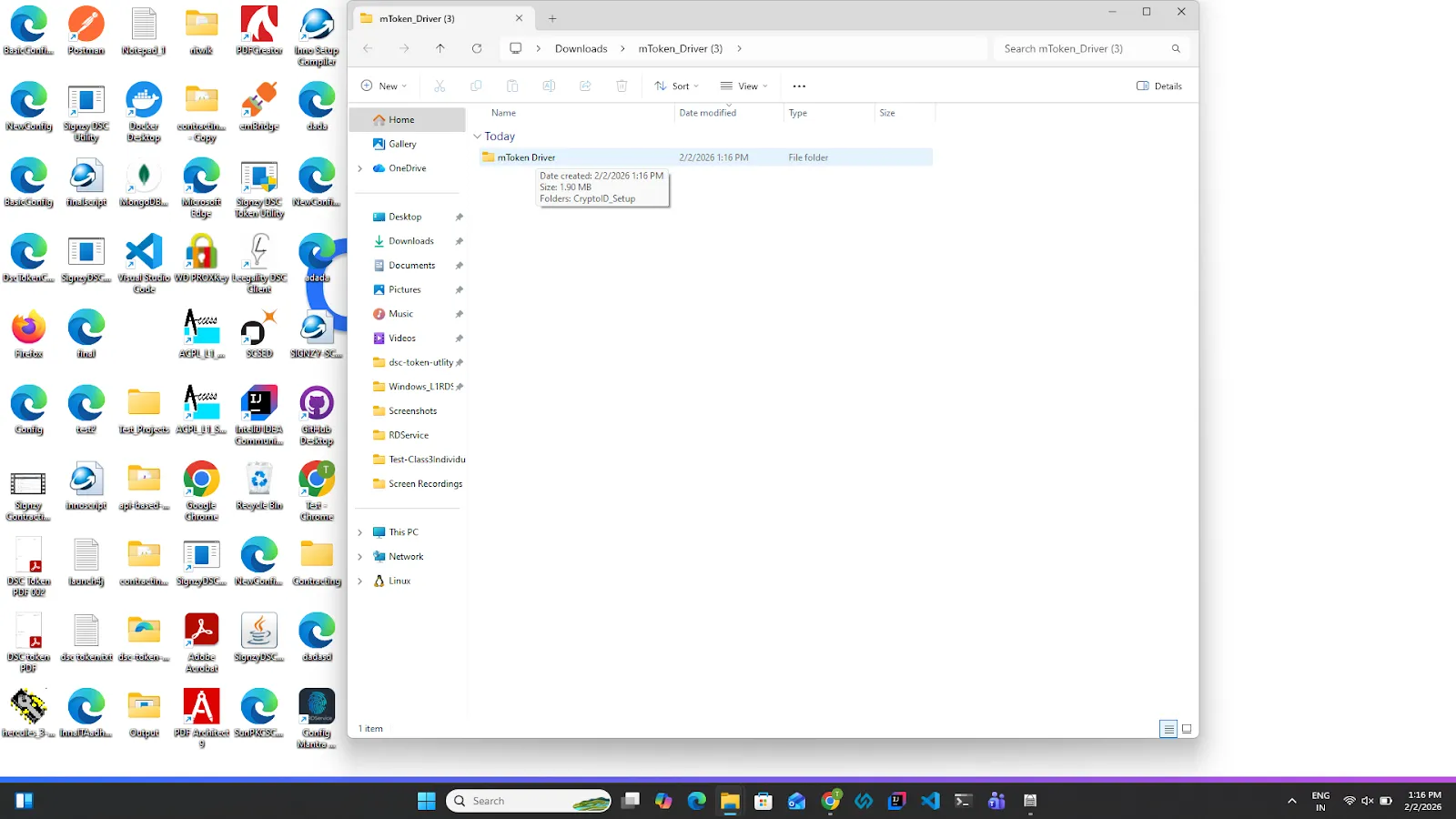
9.Click on the cryptoID_Setup.
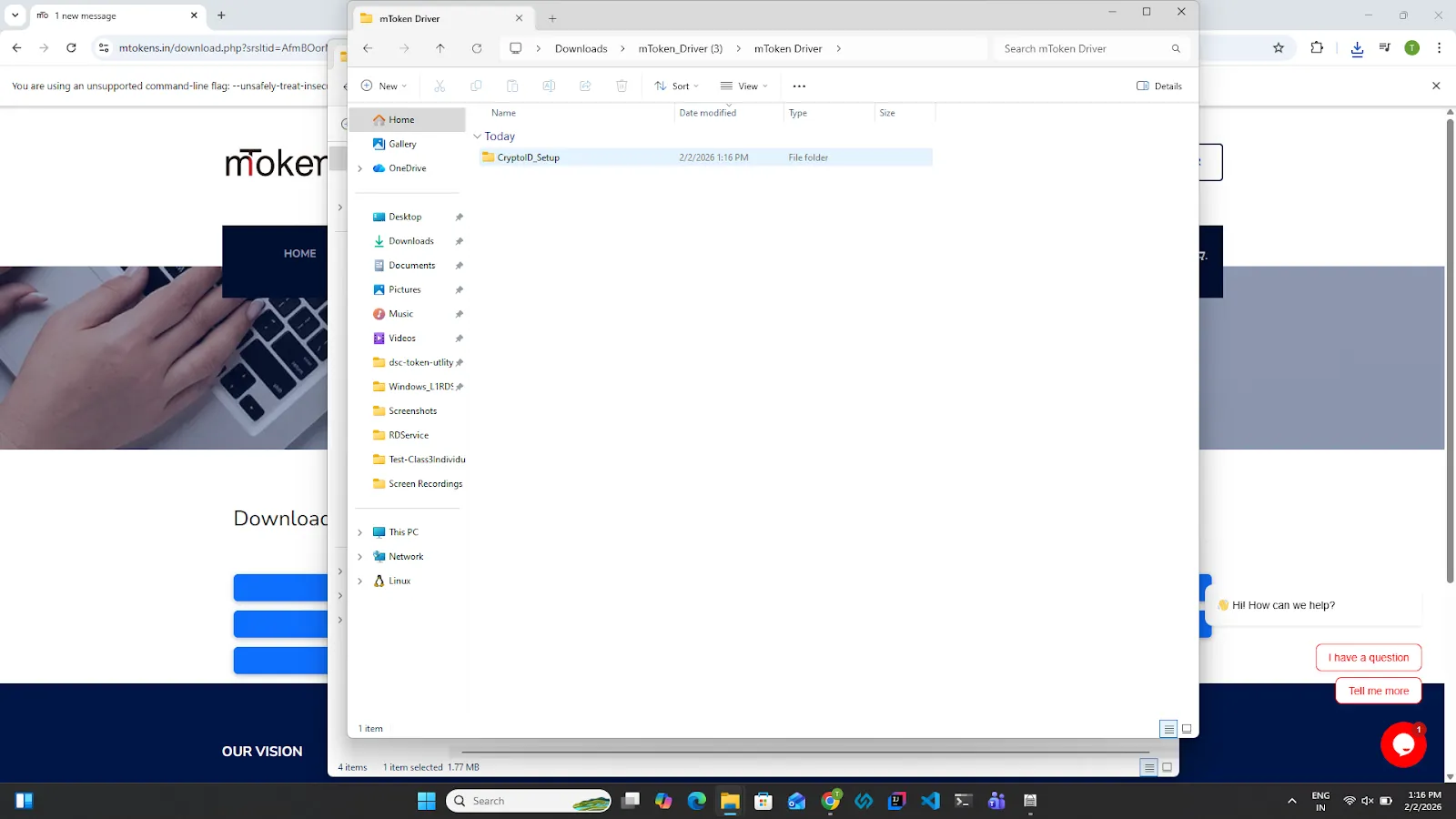
10.Click on the CryptoID_Setup.
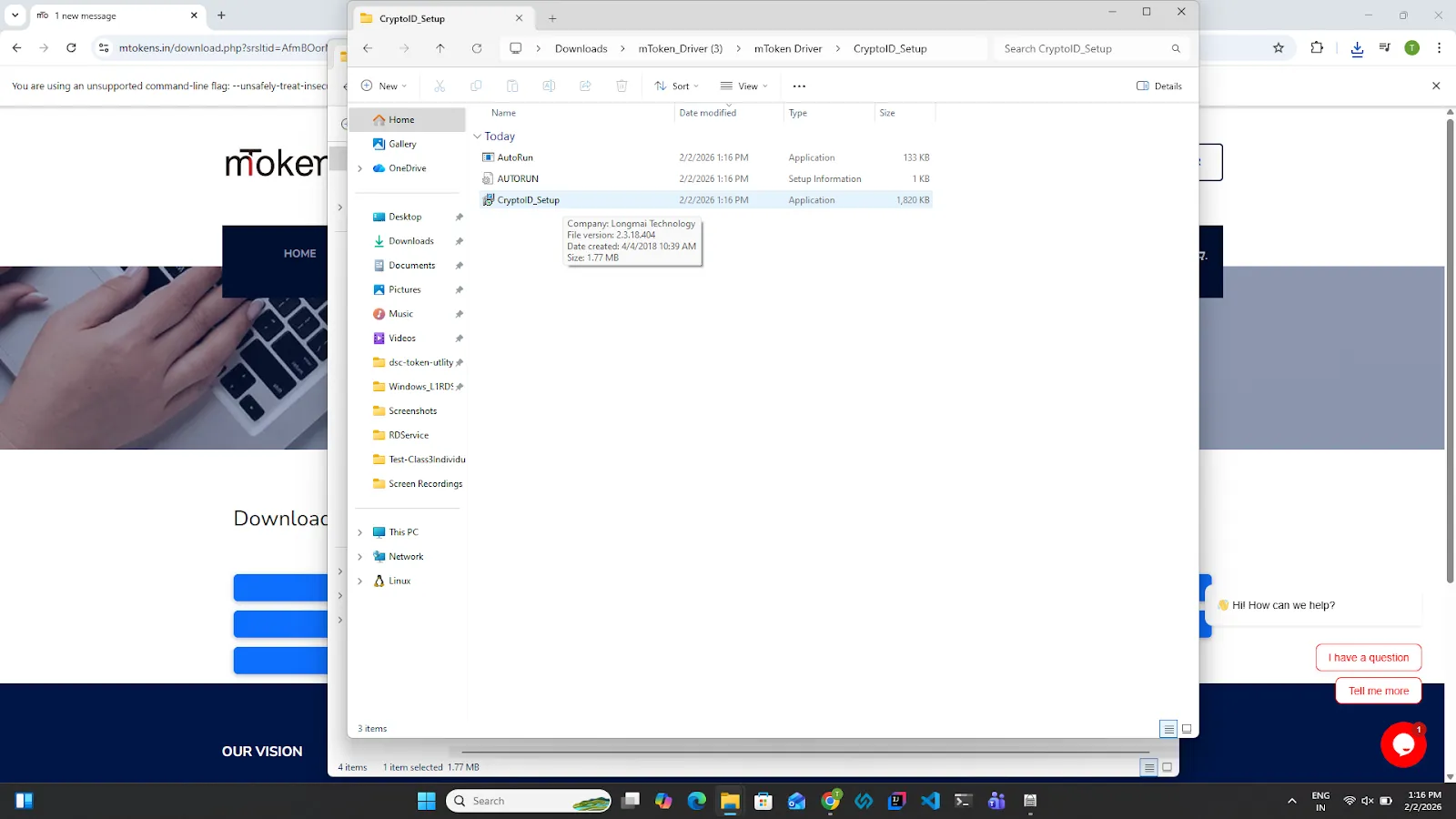
11.An installation wizard will open. Click on the Next Button.
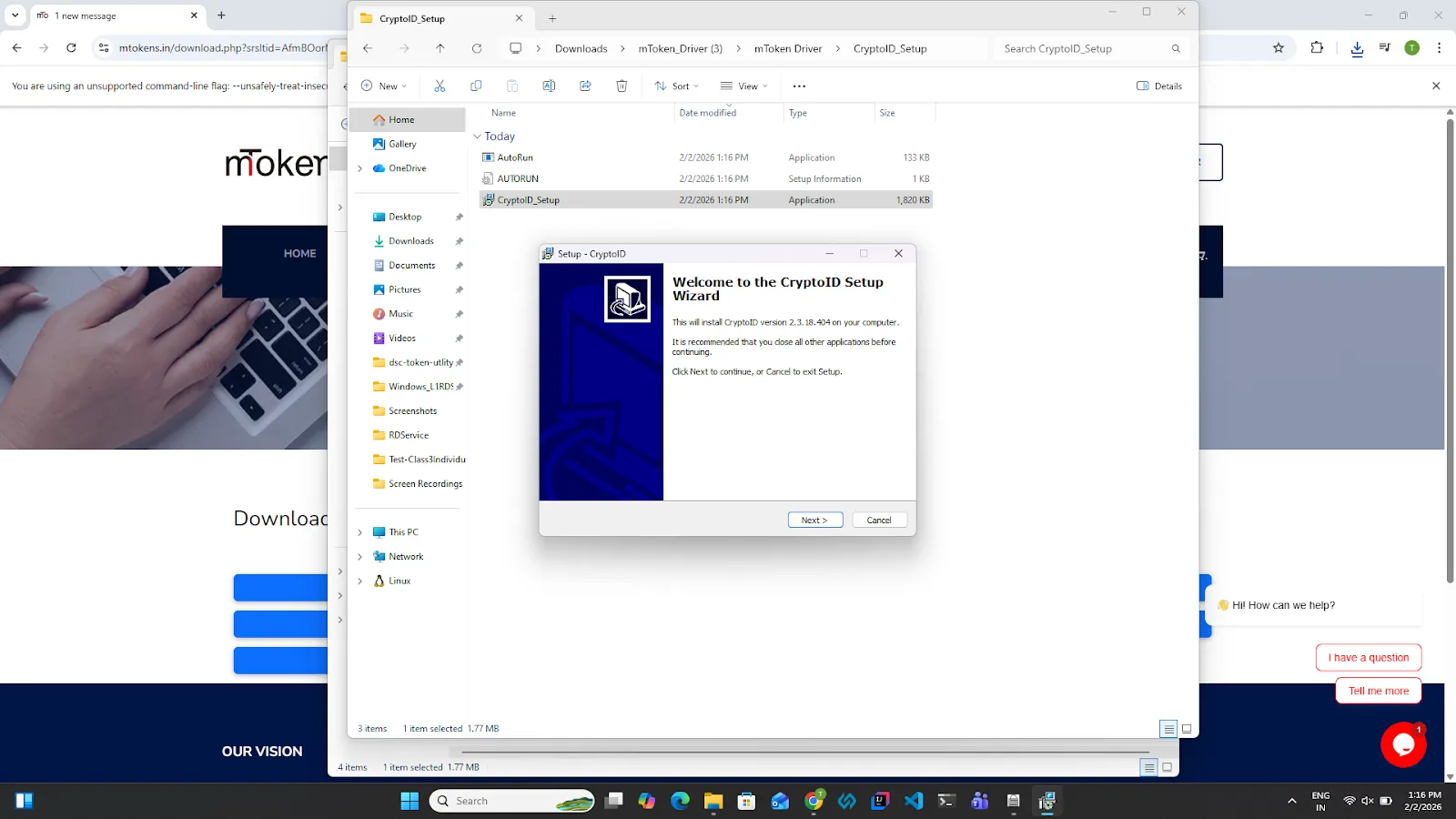
12.Keep the destination as the default and click on the next button.
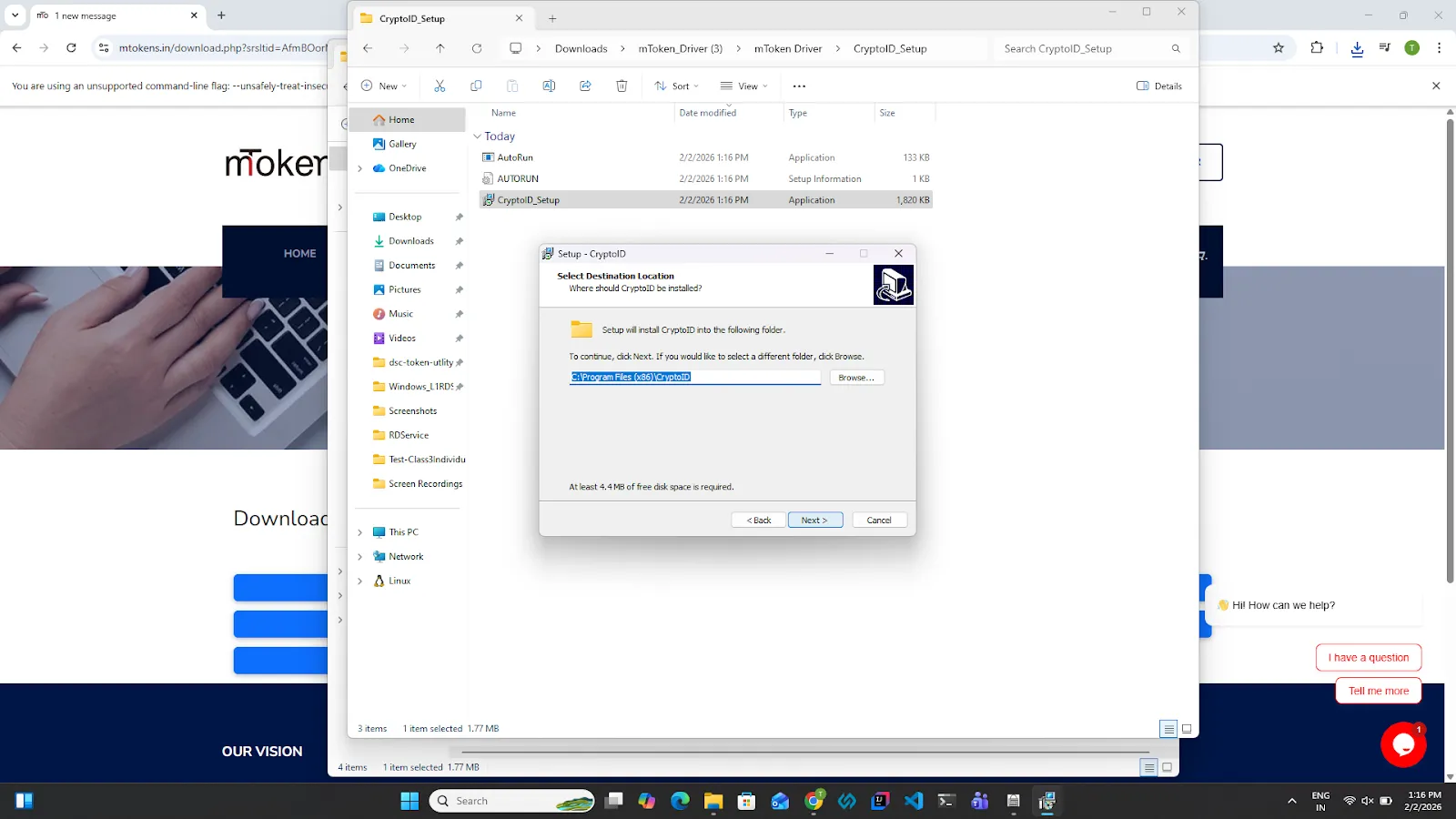
13.Keep the folder name as by default and click on the next button.
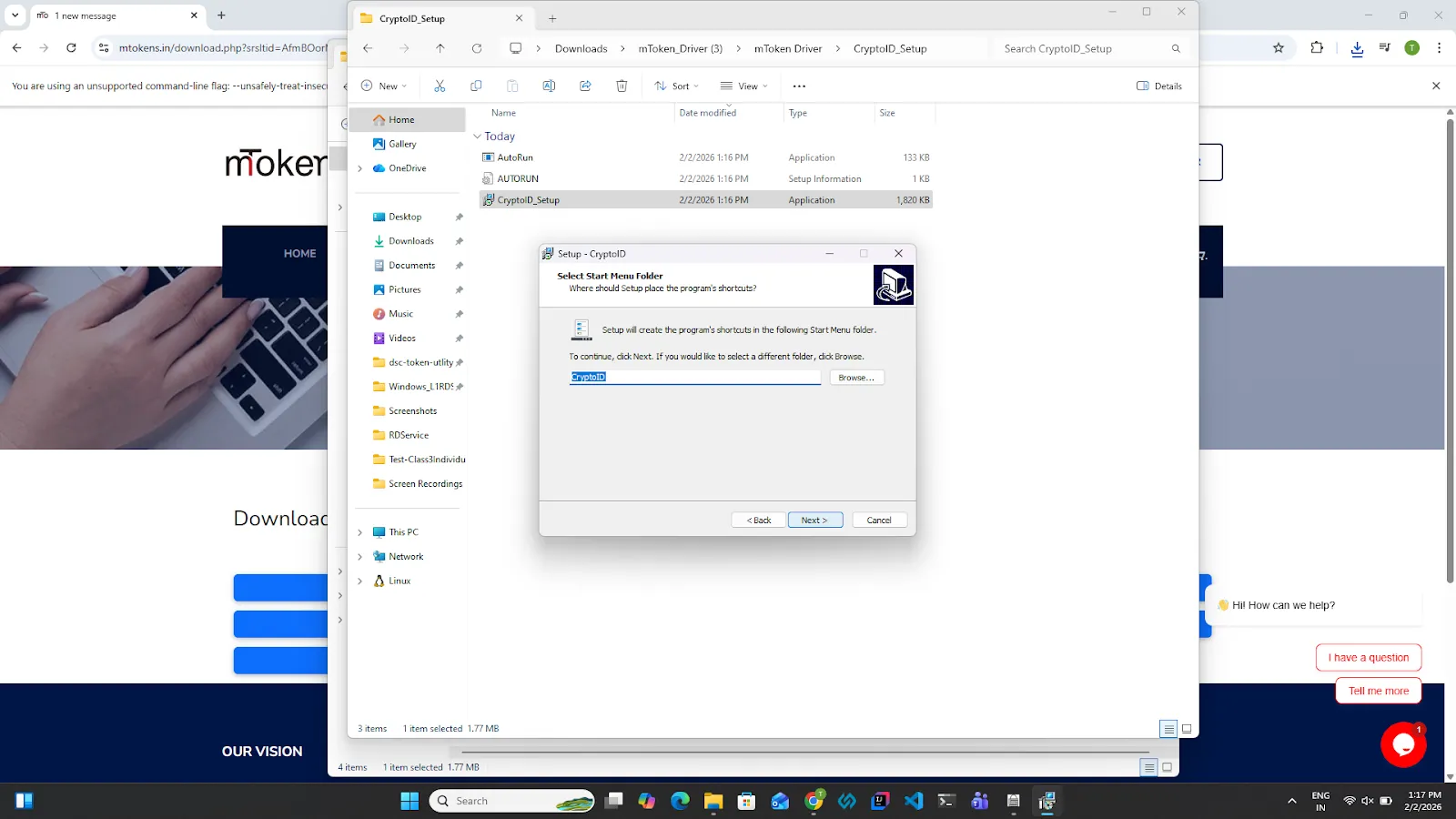
14.Click on the Next button.
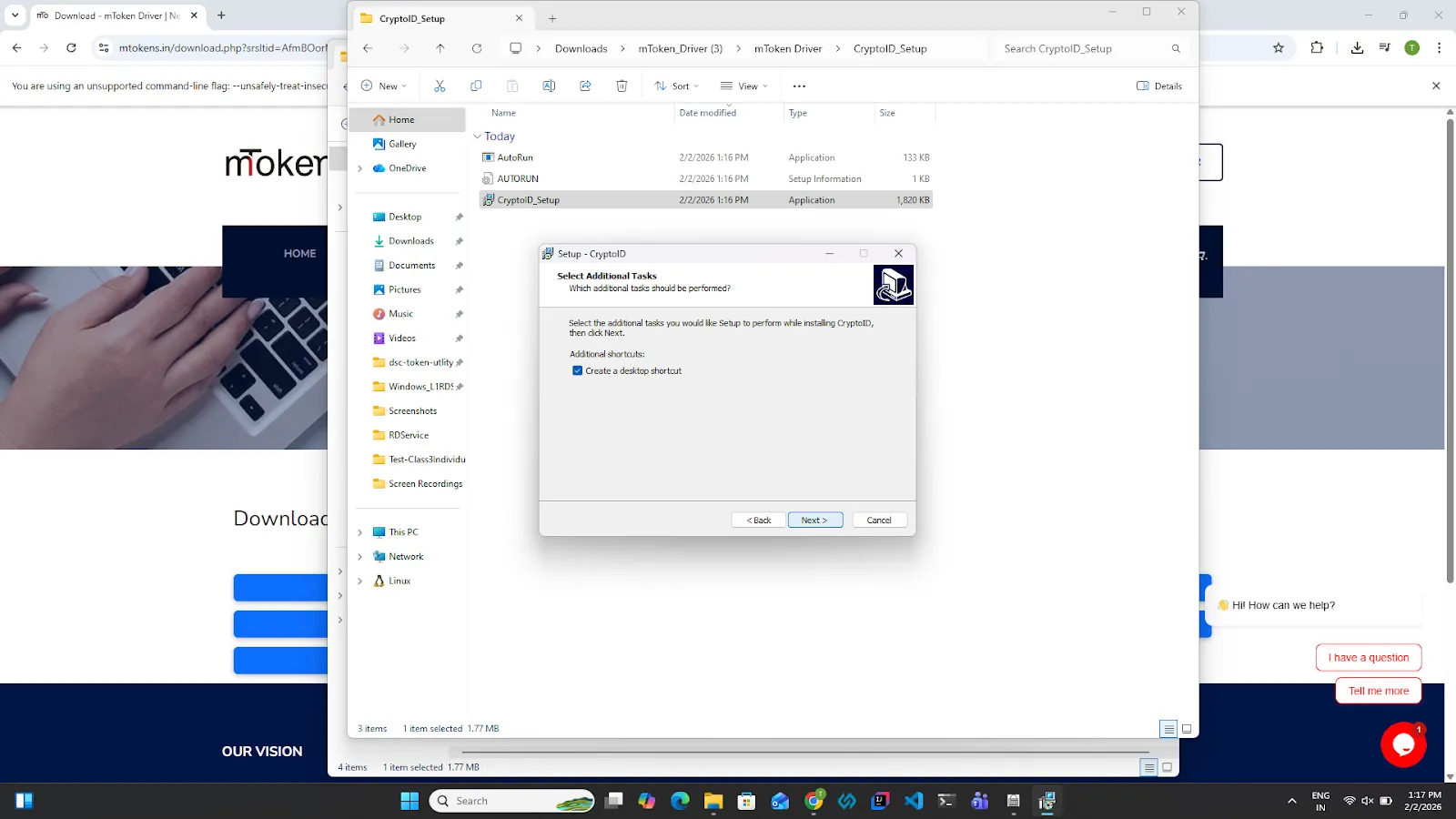
15.Click on the install button to install the driver.
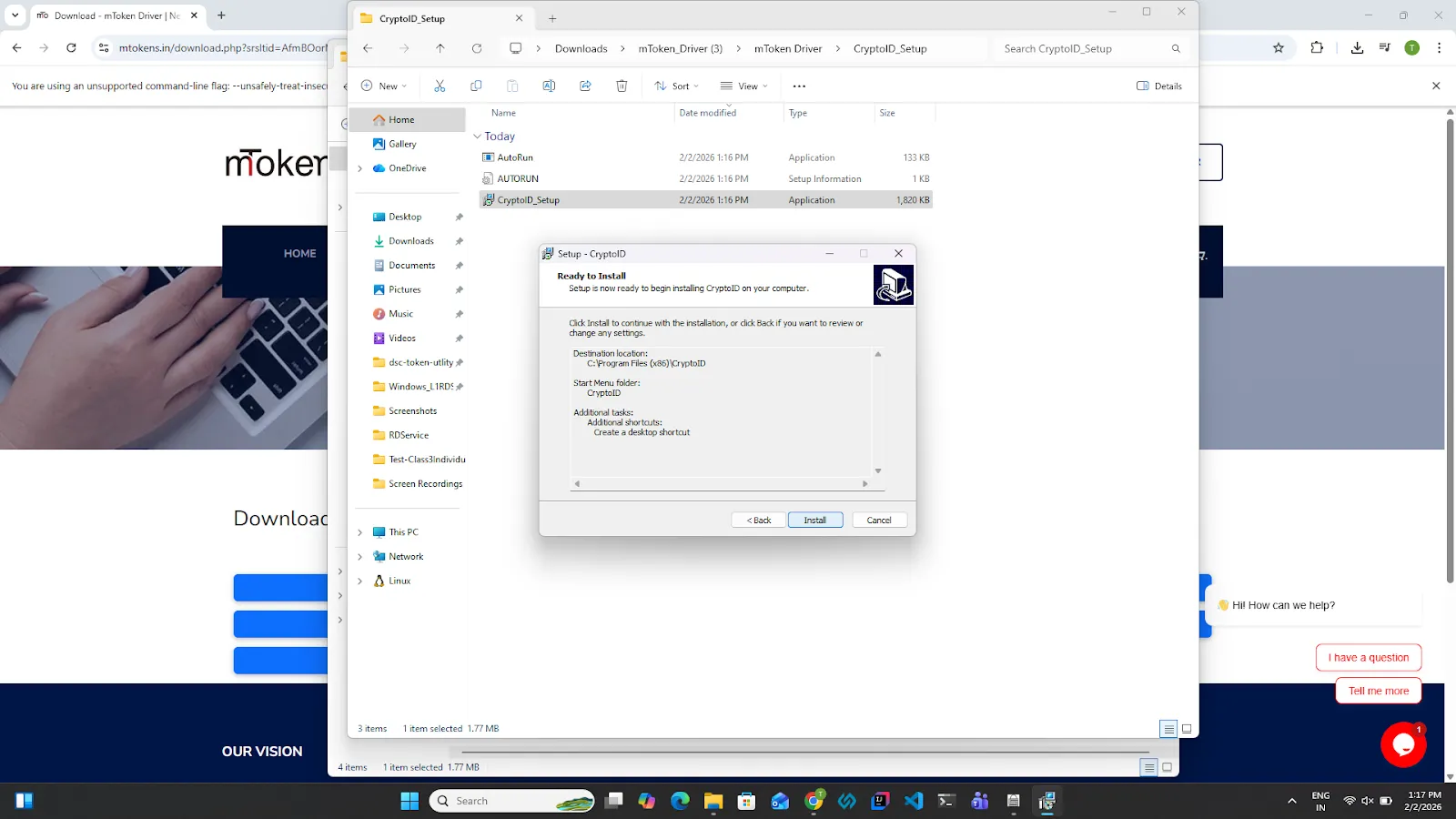
16.The installation will be done automatically, please wait for couple of seconds.
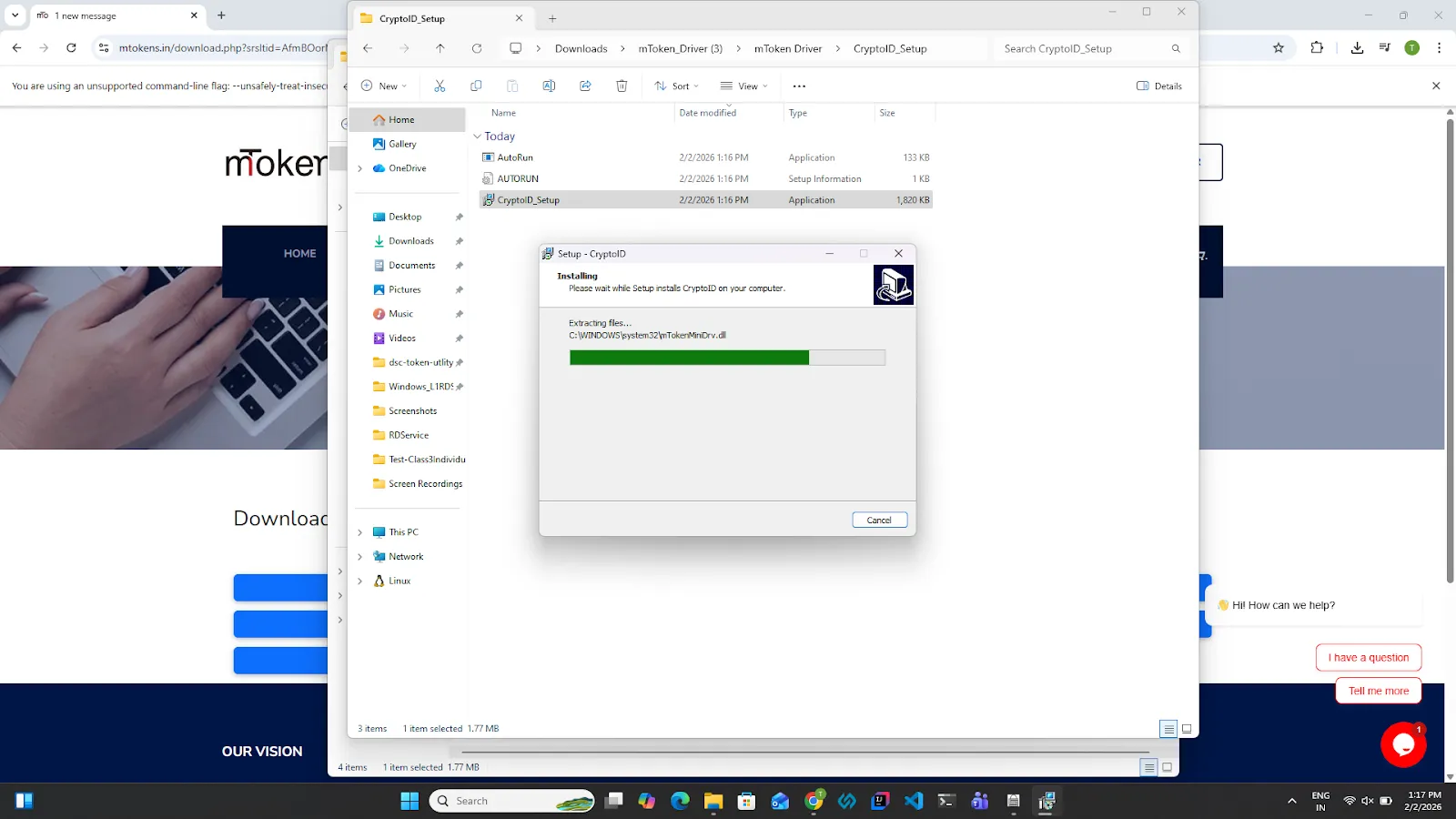
17.Click on the finish button. The system will be restarted once you click on the finish button.
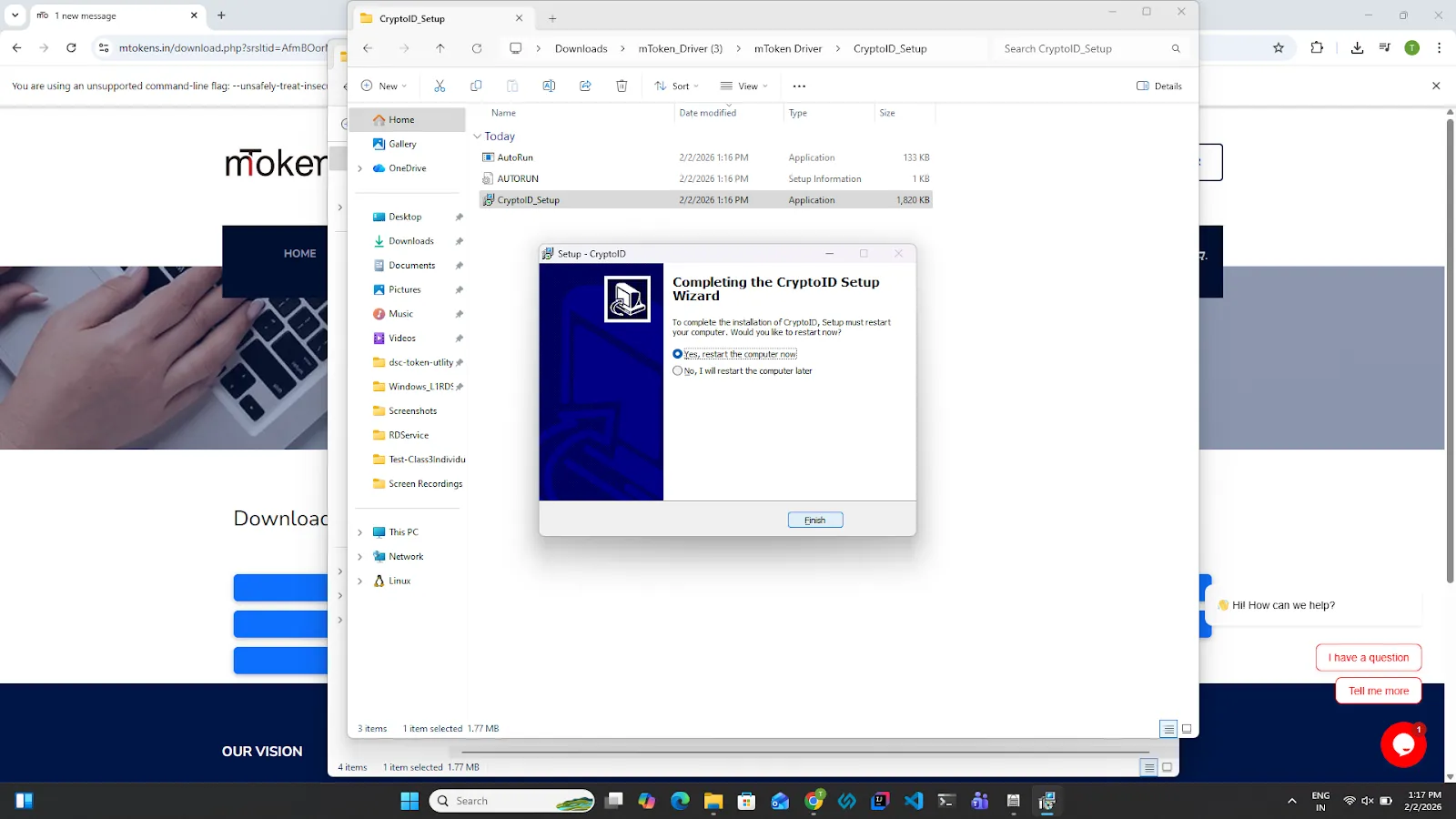
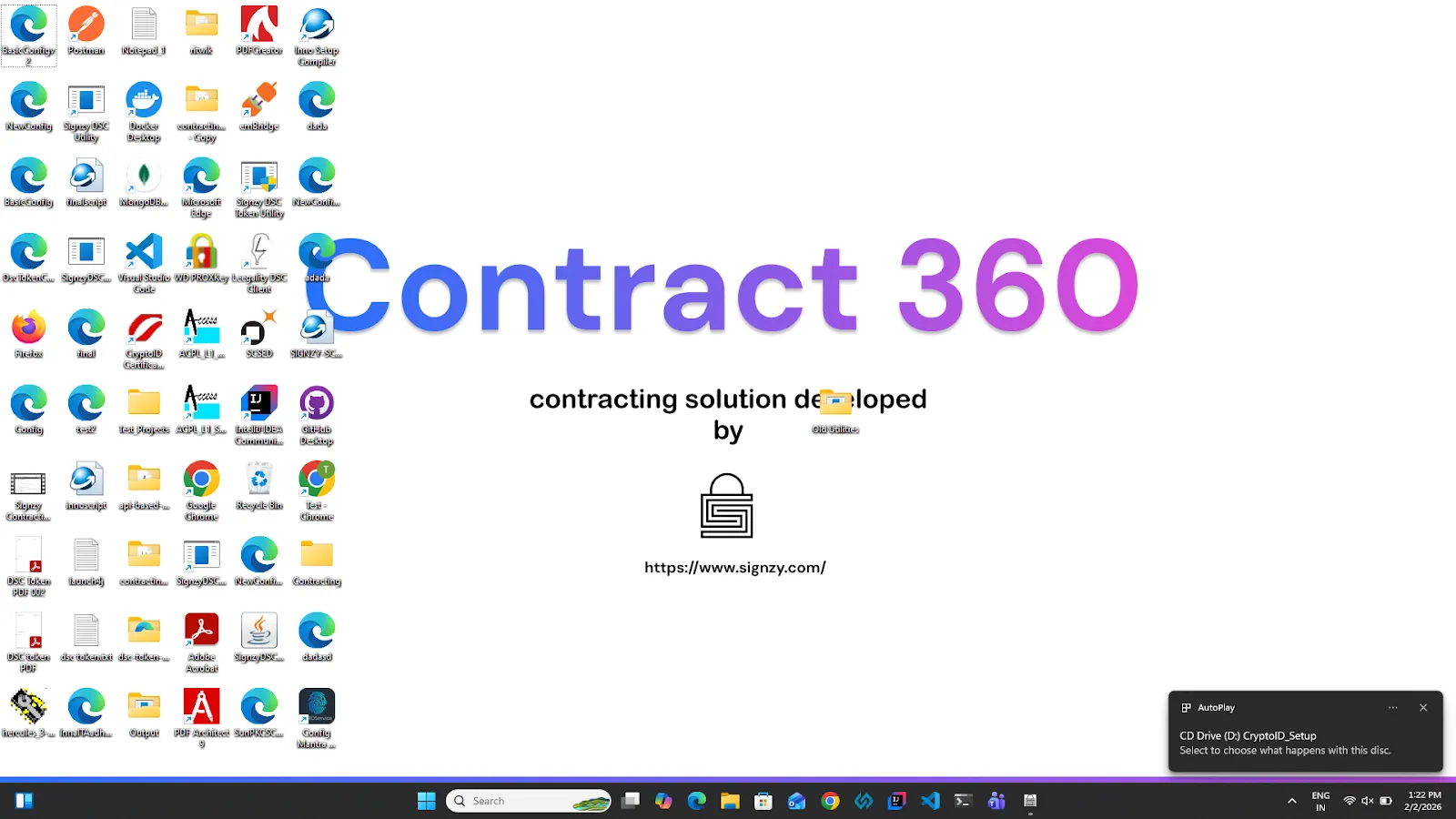
18.Once the system is restarted. Connect the mtoken to the system. A pop-up will appear at the bottom right of the screen. Click on the pop-up.
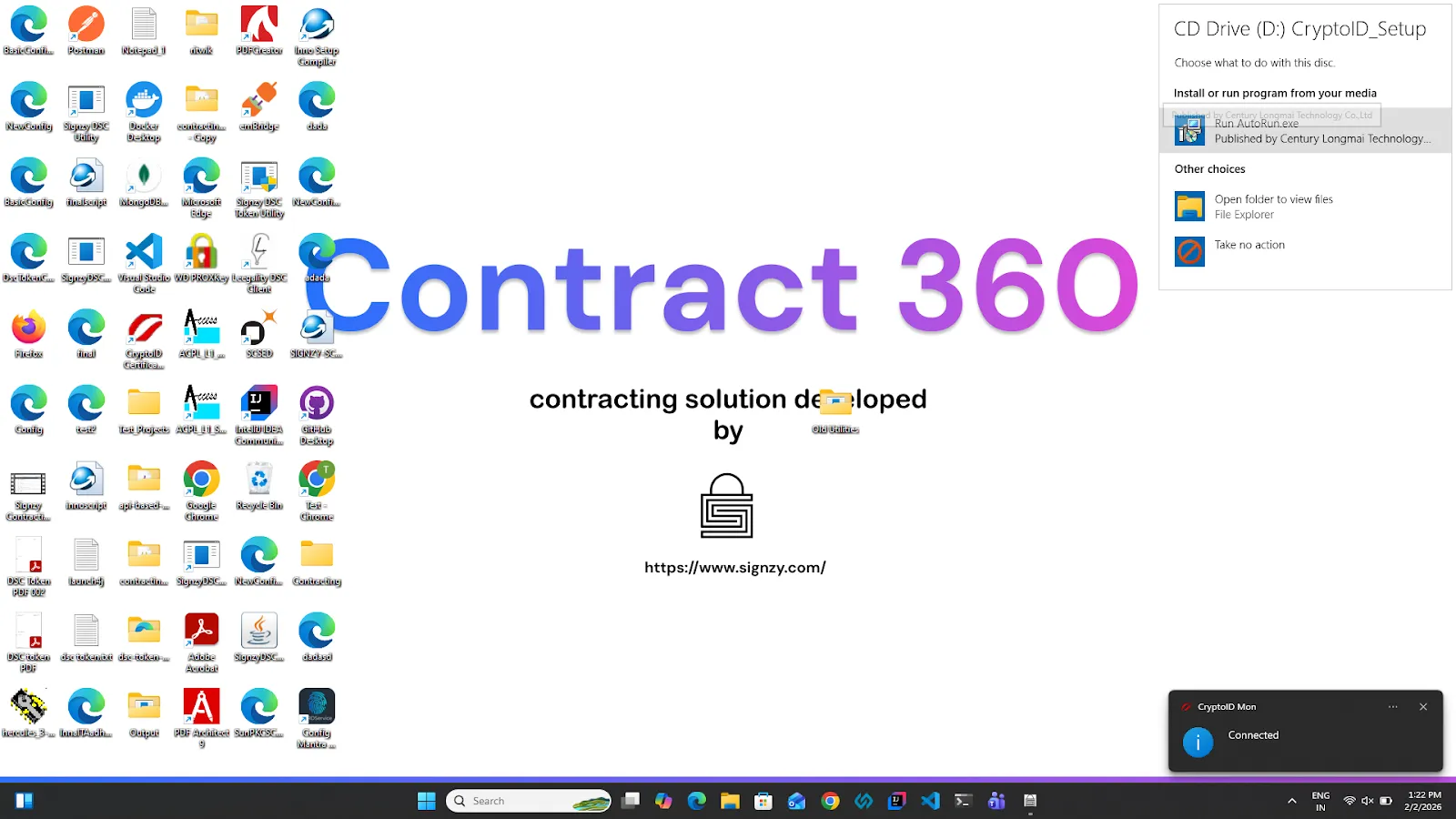
19.A pop-up will appear at the top right of the screen. Click on Run AutoRun.exe. A confirmation pop-up at the bottom right of the screen will appear stating that the token is connected.
2. InnaIT Precision Key
1.Click here to download the Inaat token driver to perform the DSC based signing.
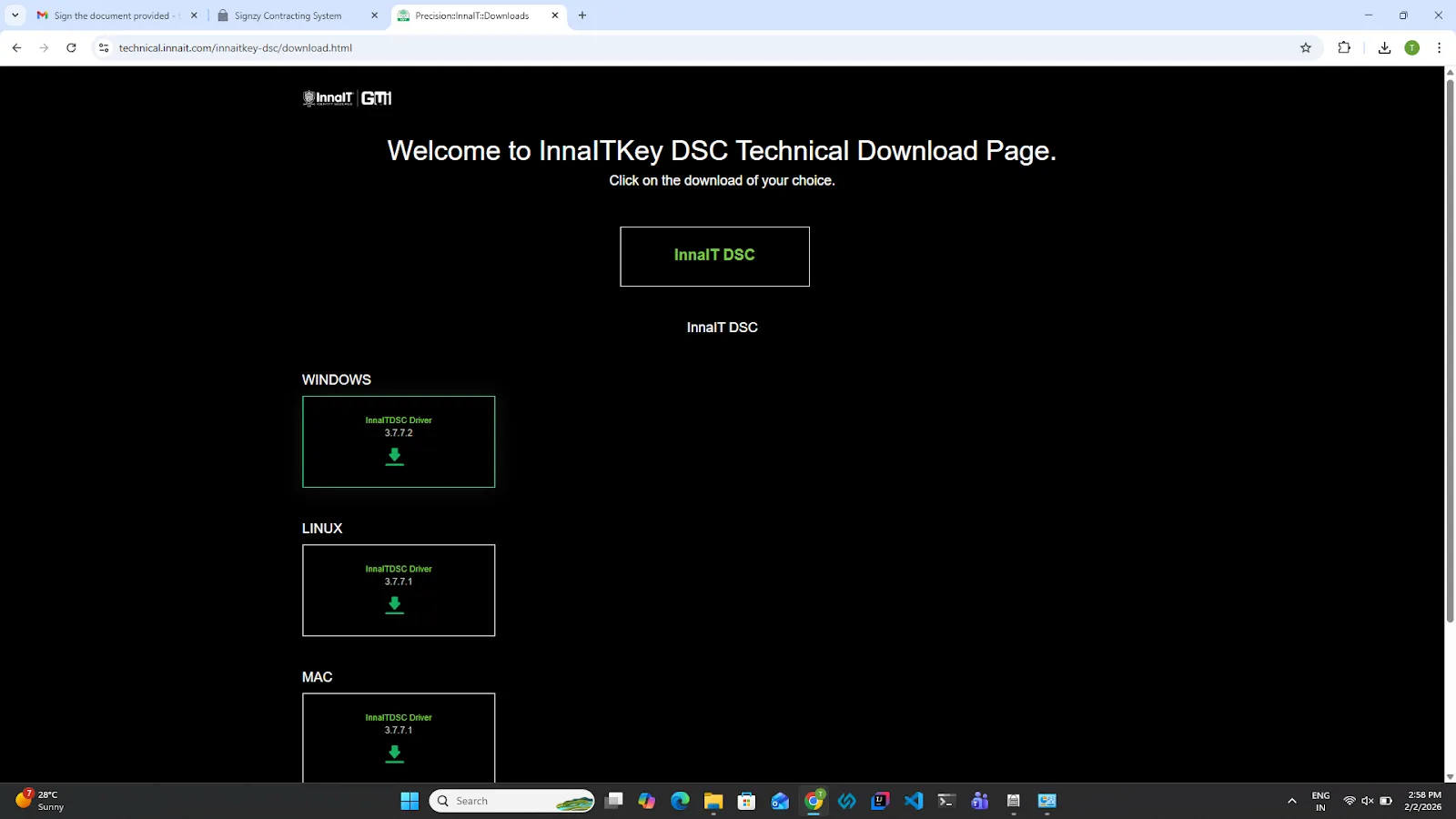
2.Click on the Windows Driver, and an executable file will be downloaded. Click on the download file.
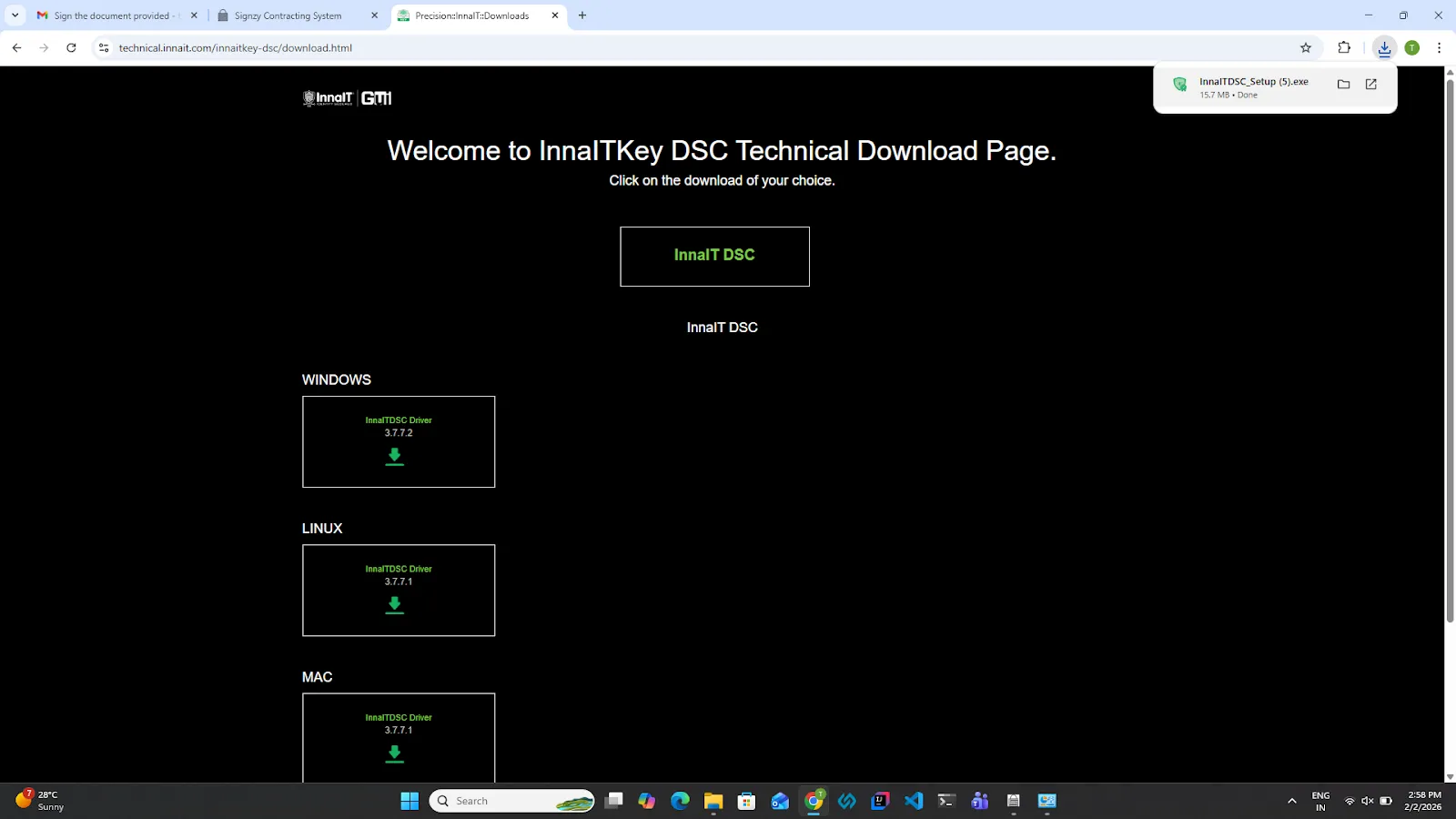
3.The installation process will start. Please wait till the installation in completed.
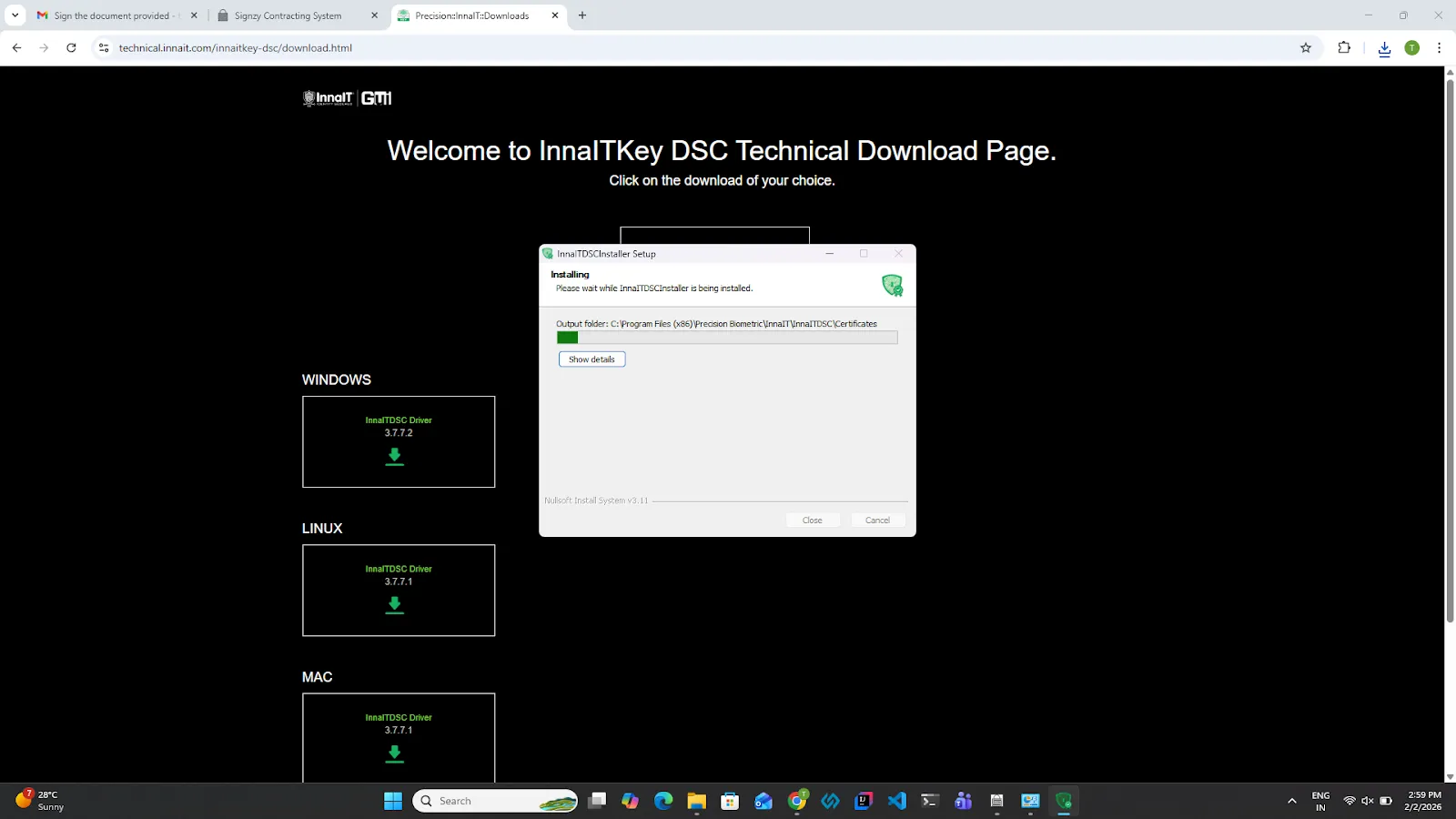
4.Once the installation is complete. Click on the close button.
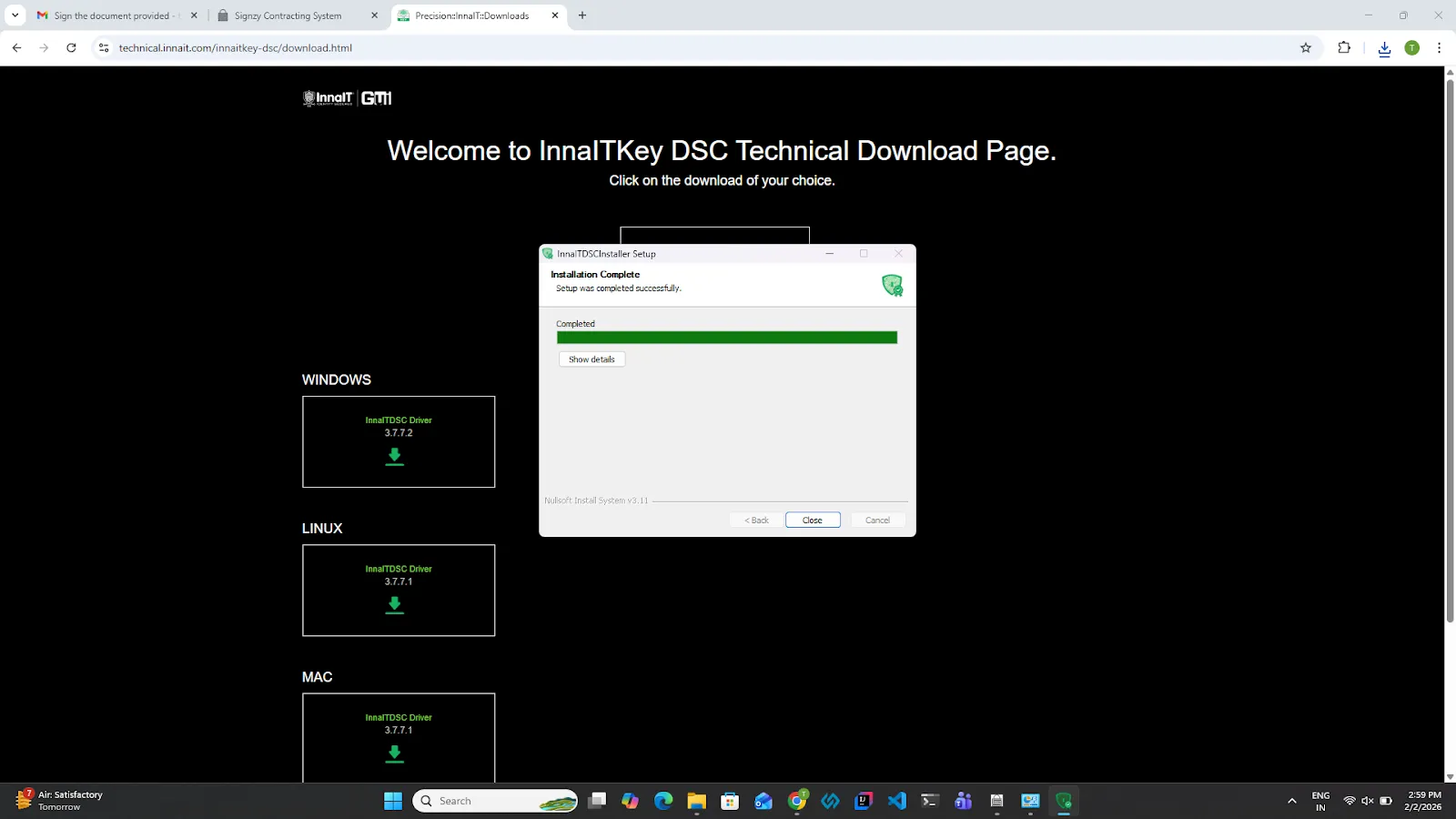
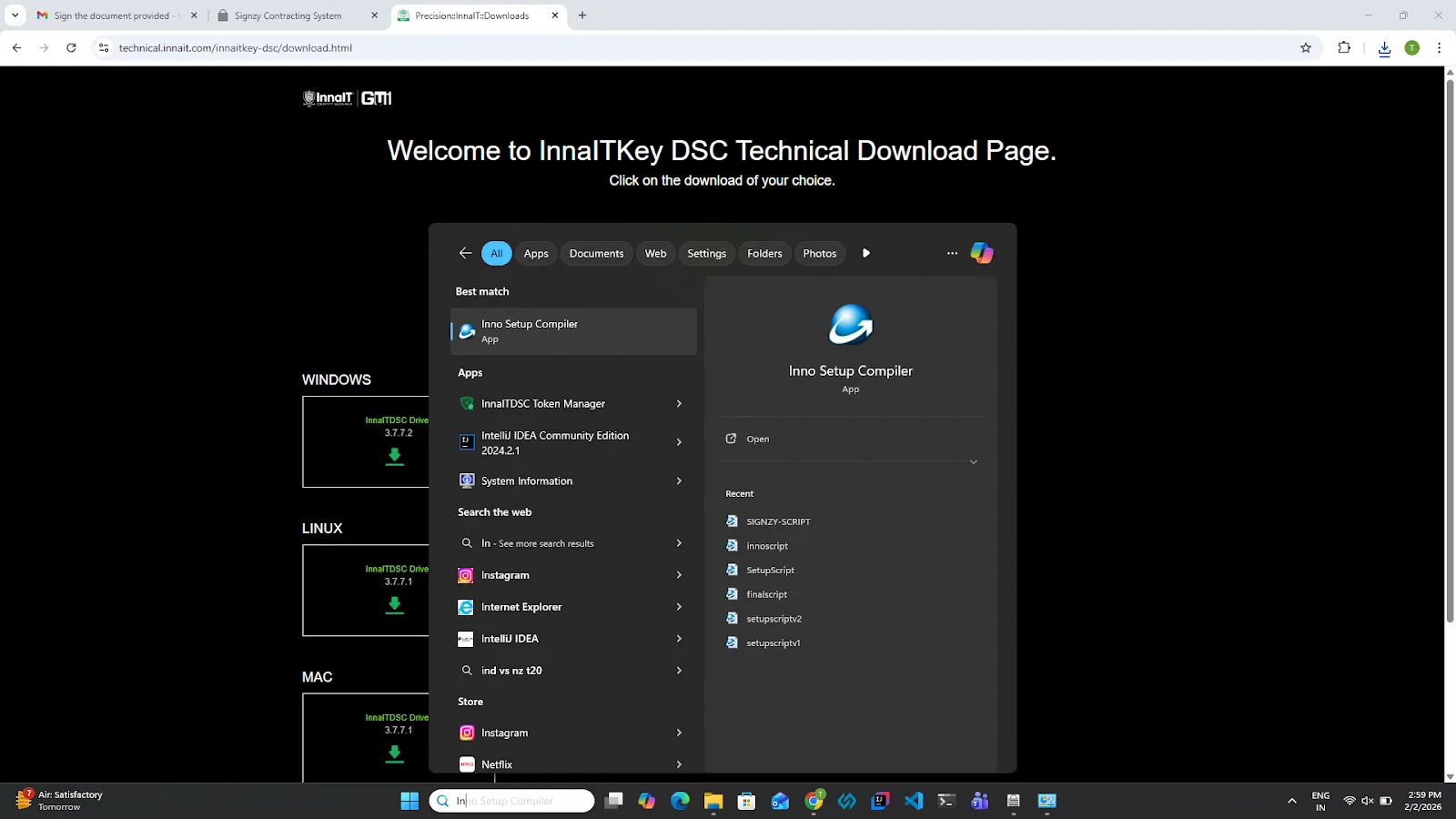
5.In the Windows search bar, search for the Inaat, and the Inaat Token Manager will appear. This ensures that the token manager is downloaded.
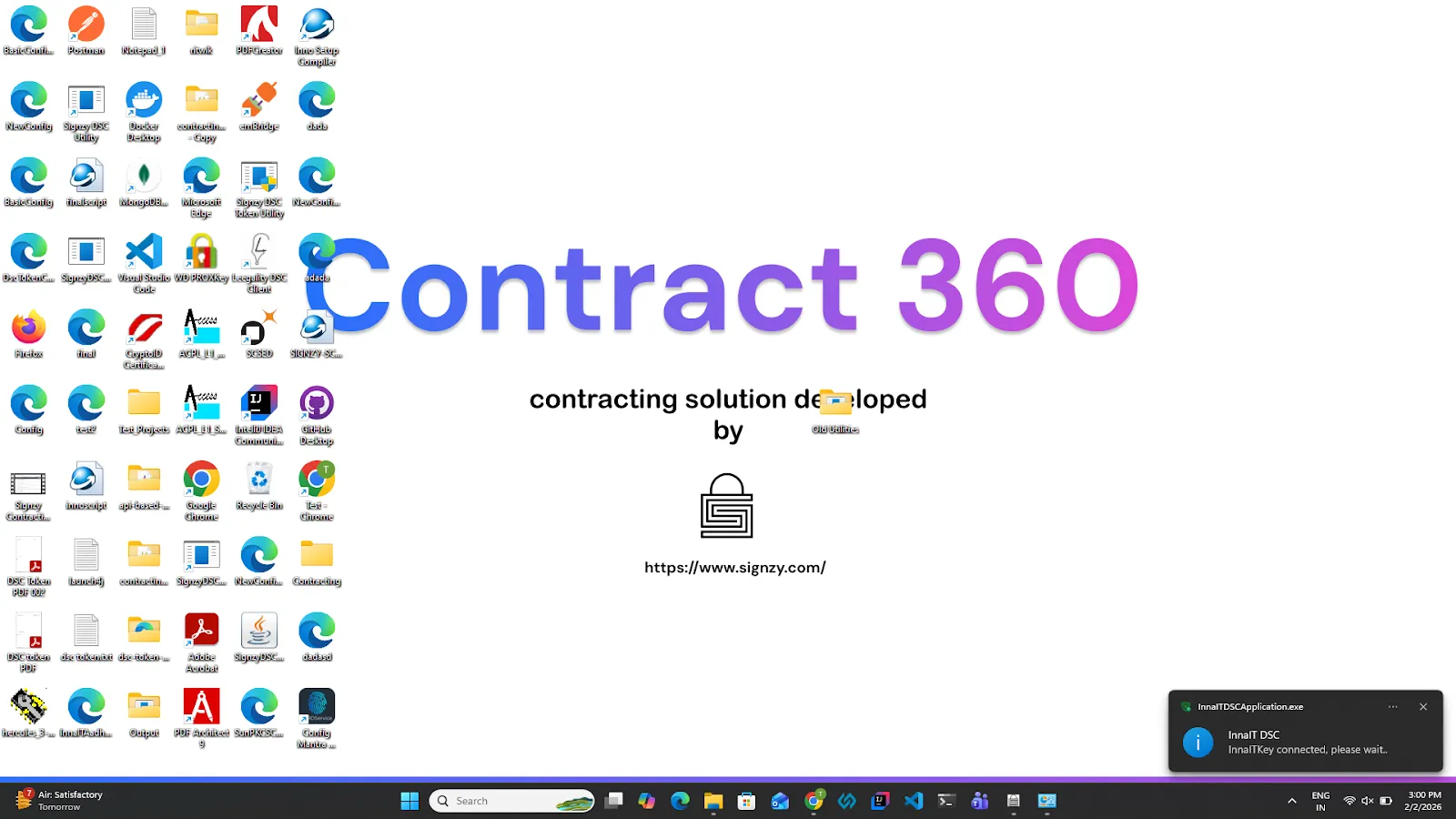
6.Connect the Inaat toke, a message will be displayed at the bottom right window stating “Inaat key connect. Please wait”.
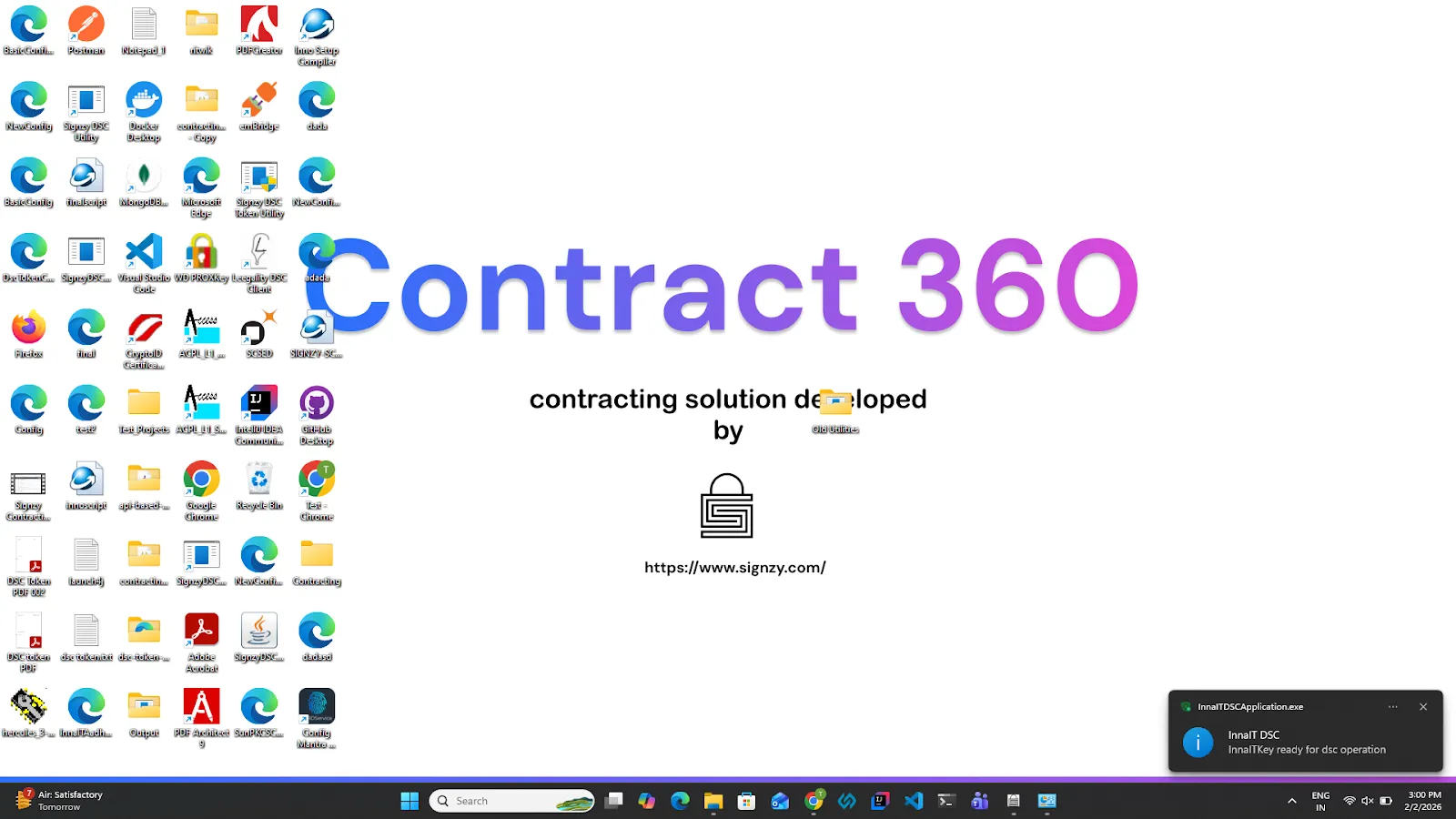
7.Please wait for a couple of seconds. A final message will be displayed stating, “Inaatkey is ready for dsc operations.”
8.Once the driver is installed, restart the system.
3. WatchData Proxkey Token
1.Click here to download the driver required to use Proxkey for dsc signing.
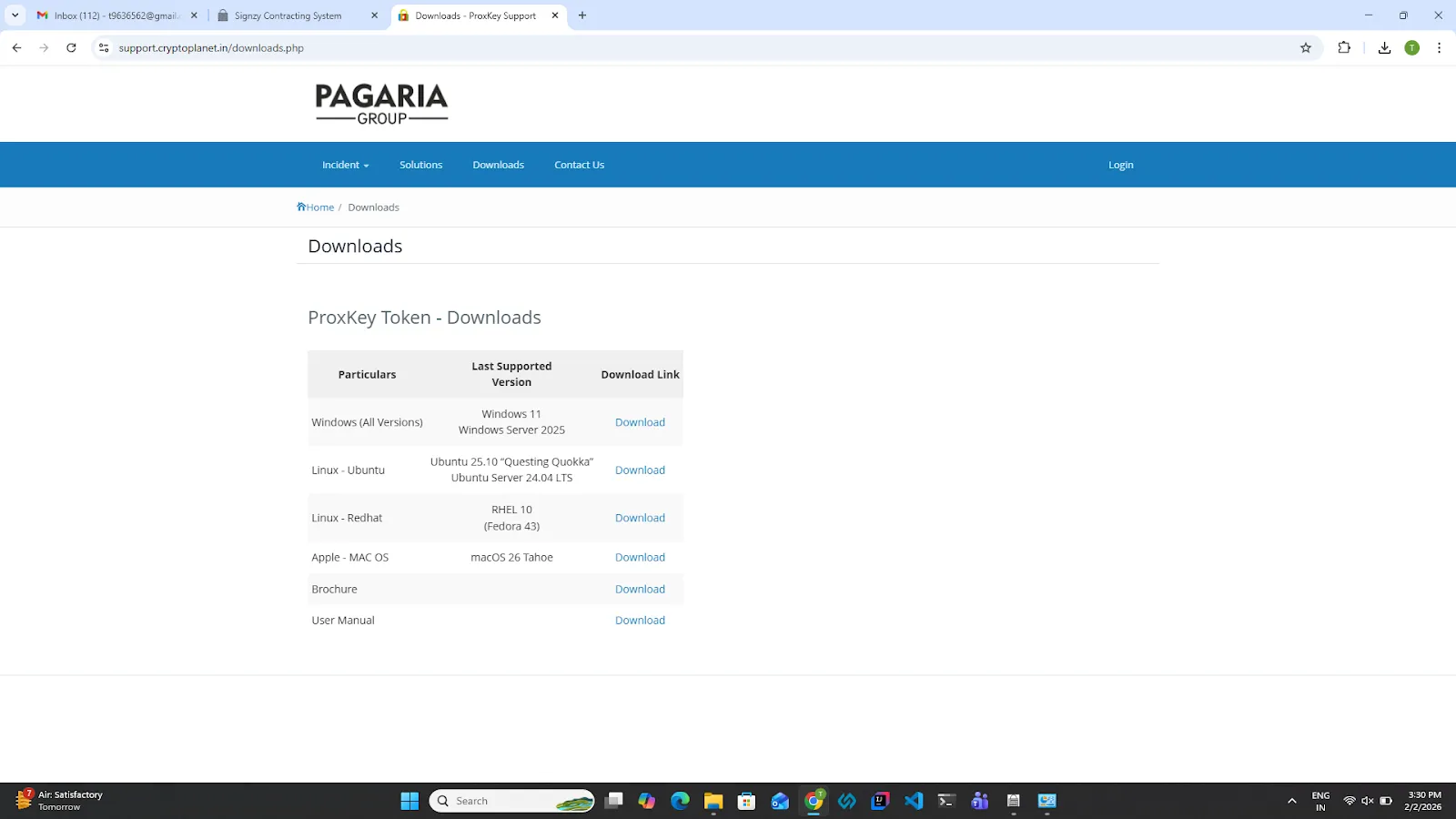
2.Click on the Windows (All Version) download driver button. A zip file will be downloaded.
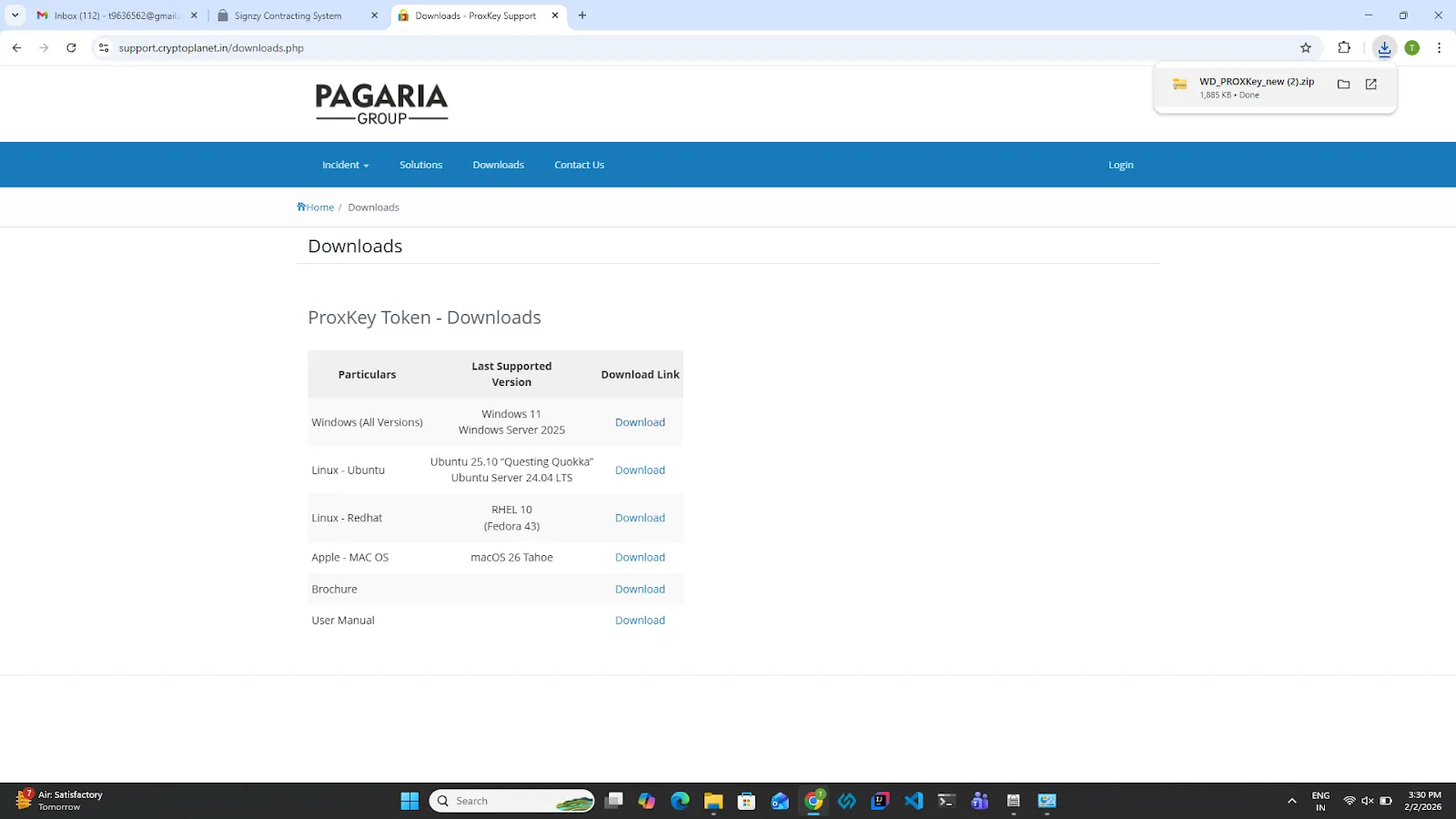
3.Double-click on the downloaded zip file. The WD_Proxkey_new application file will appear.
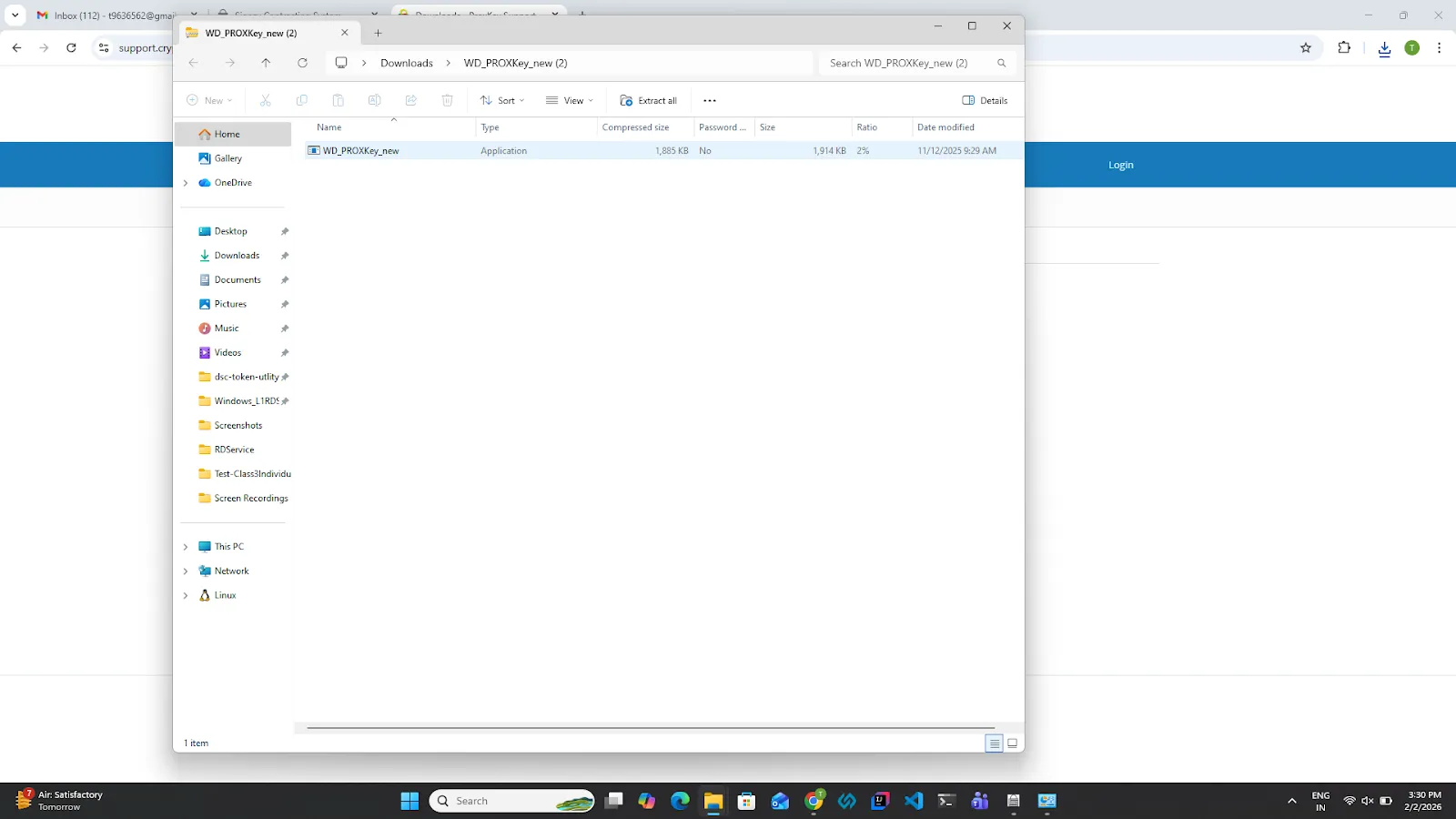
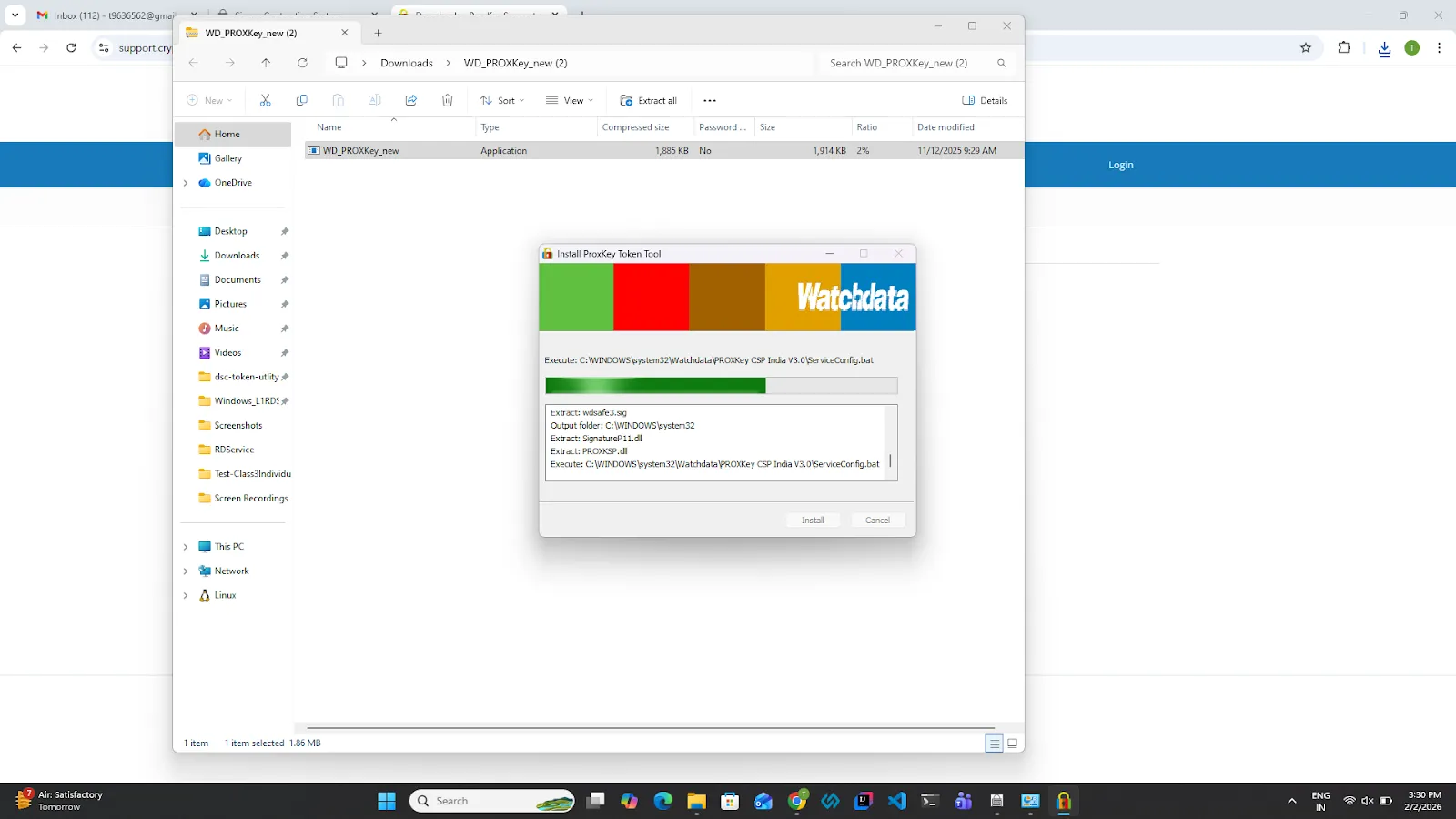
4.The installation process will start automatically. Please wait while the installation process is completed.
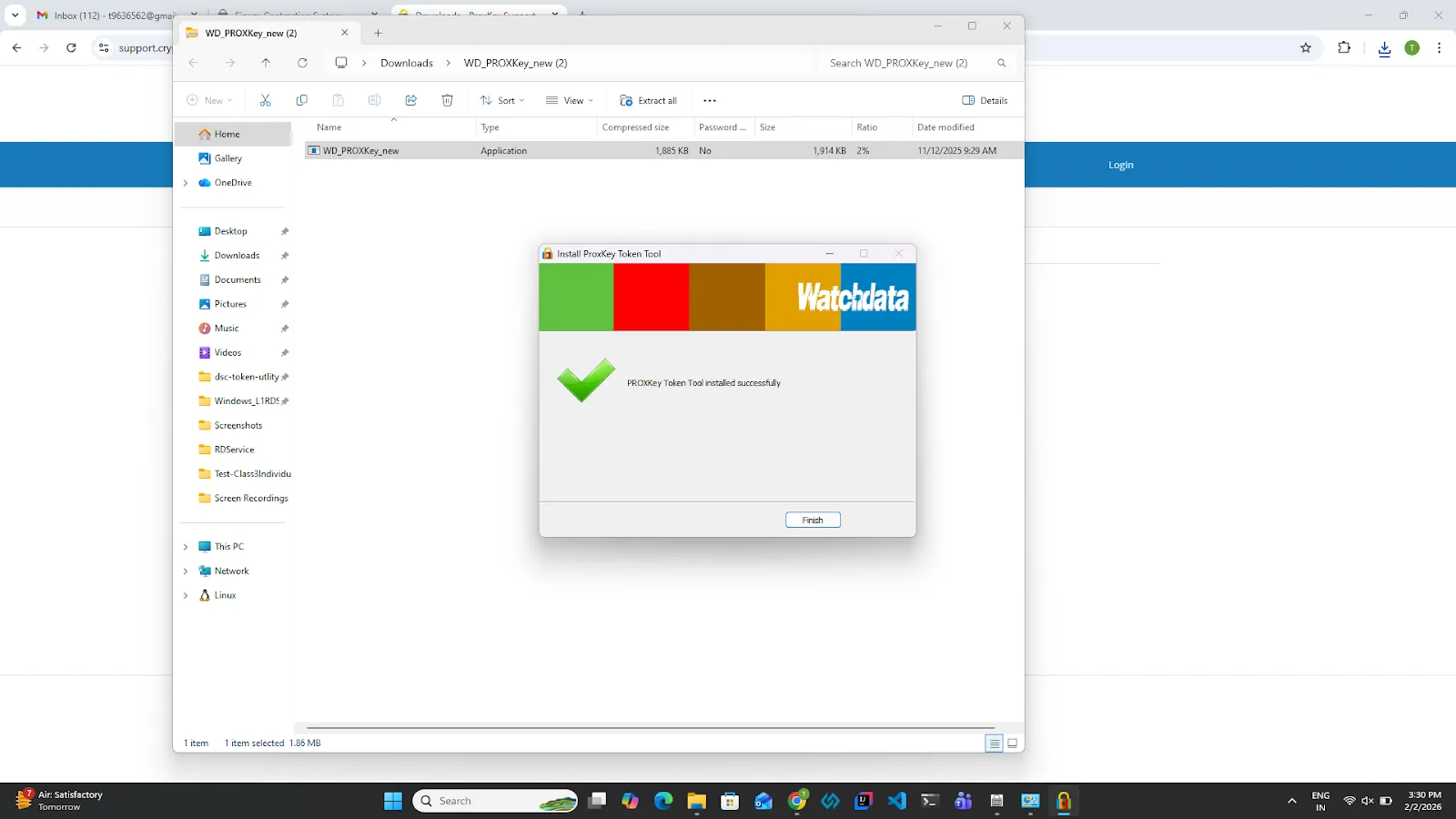
5.Once the installation process is completed, click on the Finish button.
6.Connect the token, and a message will appear at the bottom right corner of the screen. Click on the message.
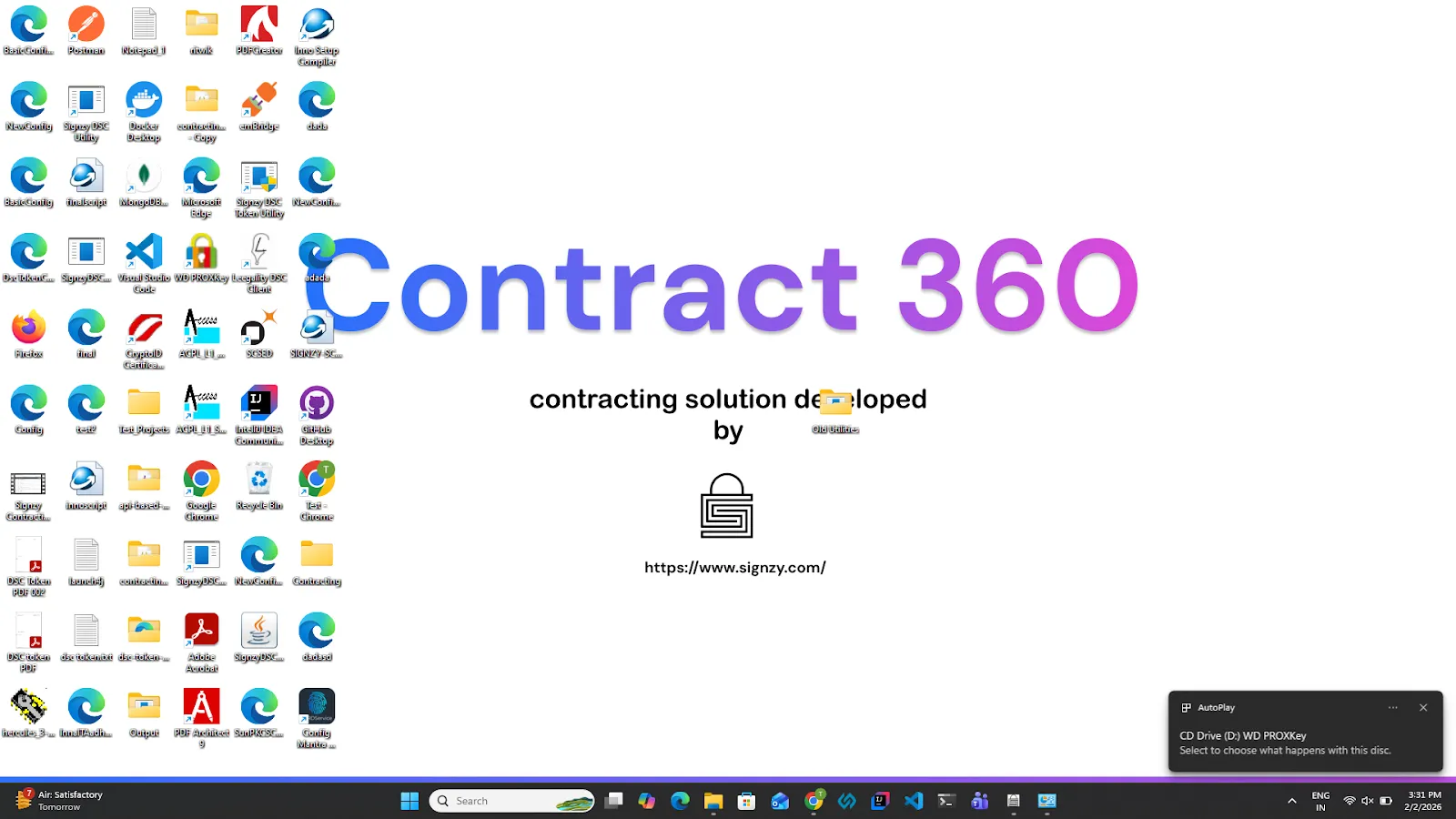
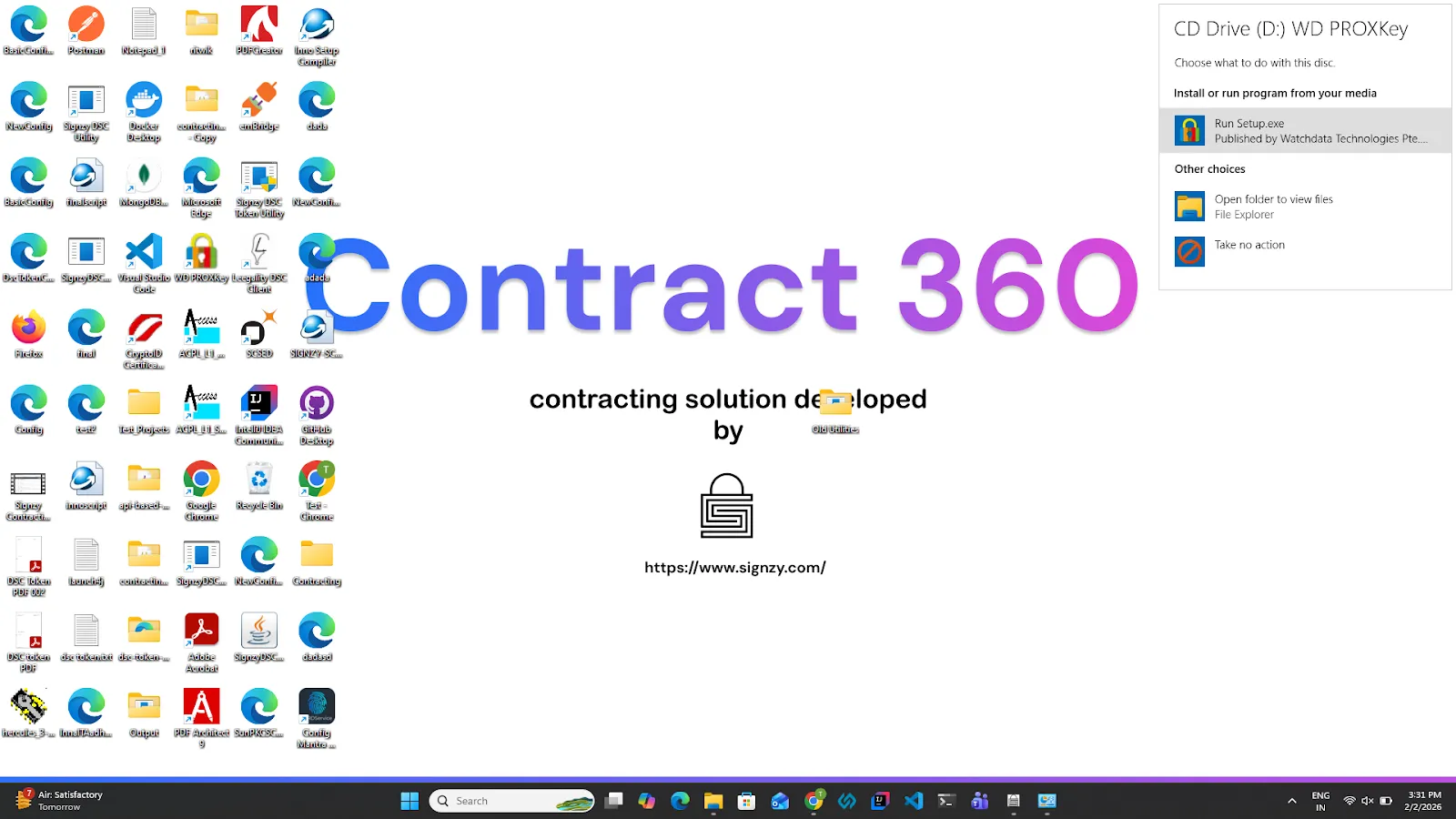
7.Click on the Run Setup.exce and wait for the setup.
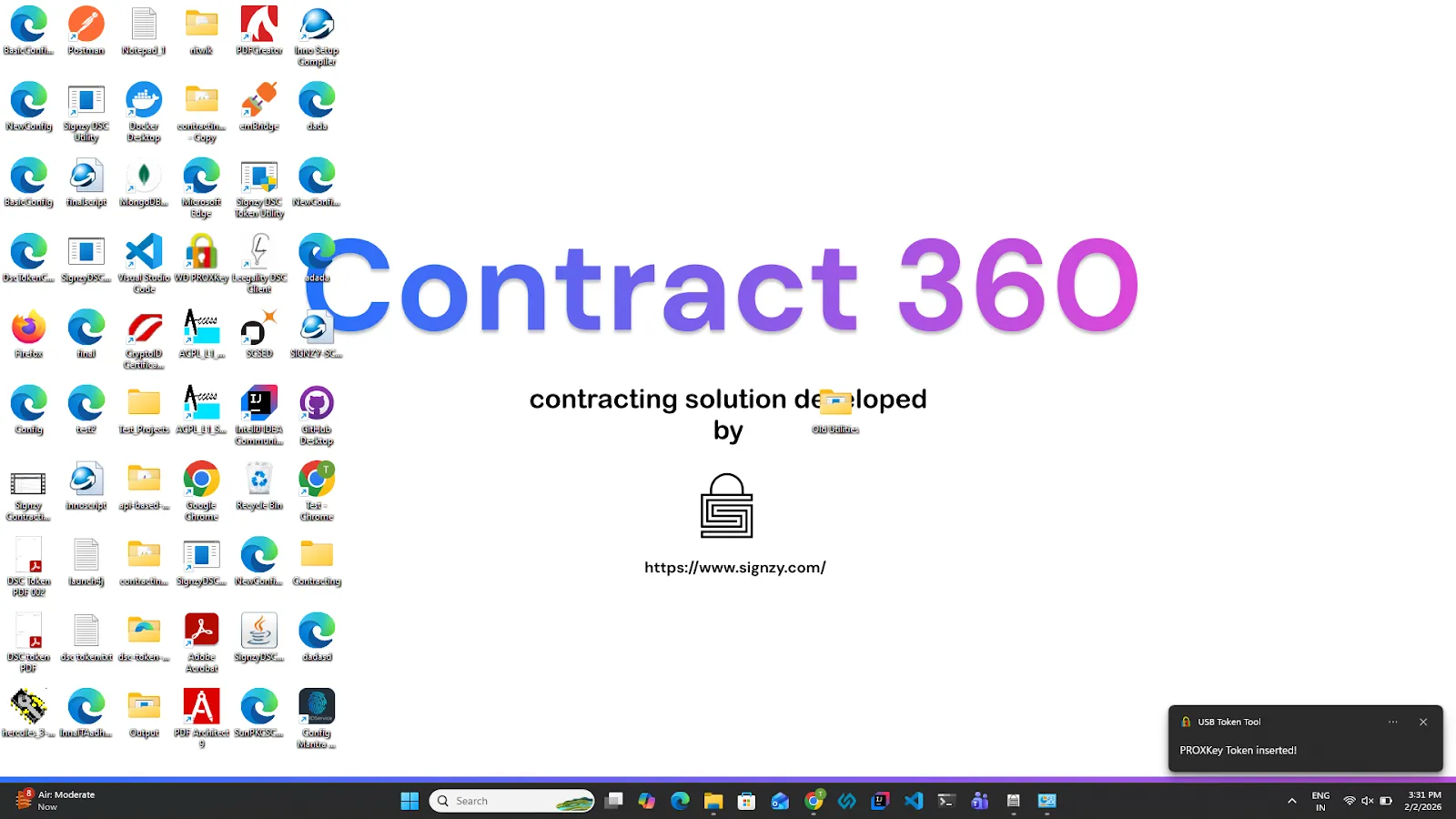
8.A proxkey token inserted message will appear; if it has not appeared, reinsert the token into the system.
4. HYP2003 Token
1.Connect the HYP2003 token to your Windows system. Once the token is connect and pop-up will appear at the bottom right corner of the screen.
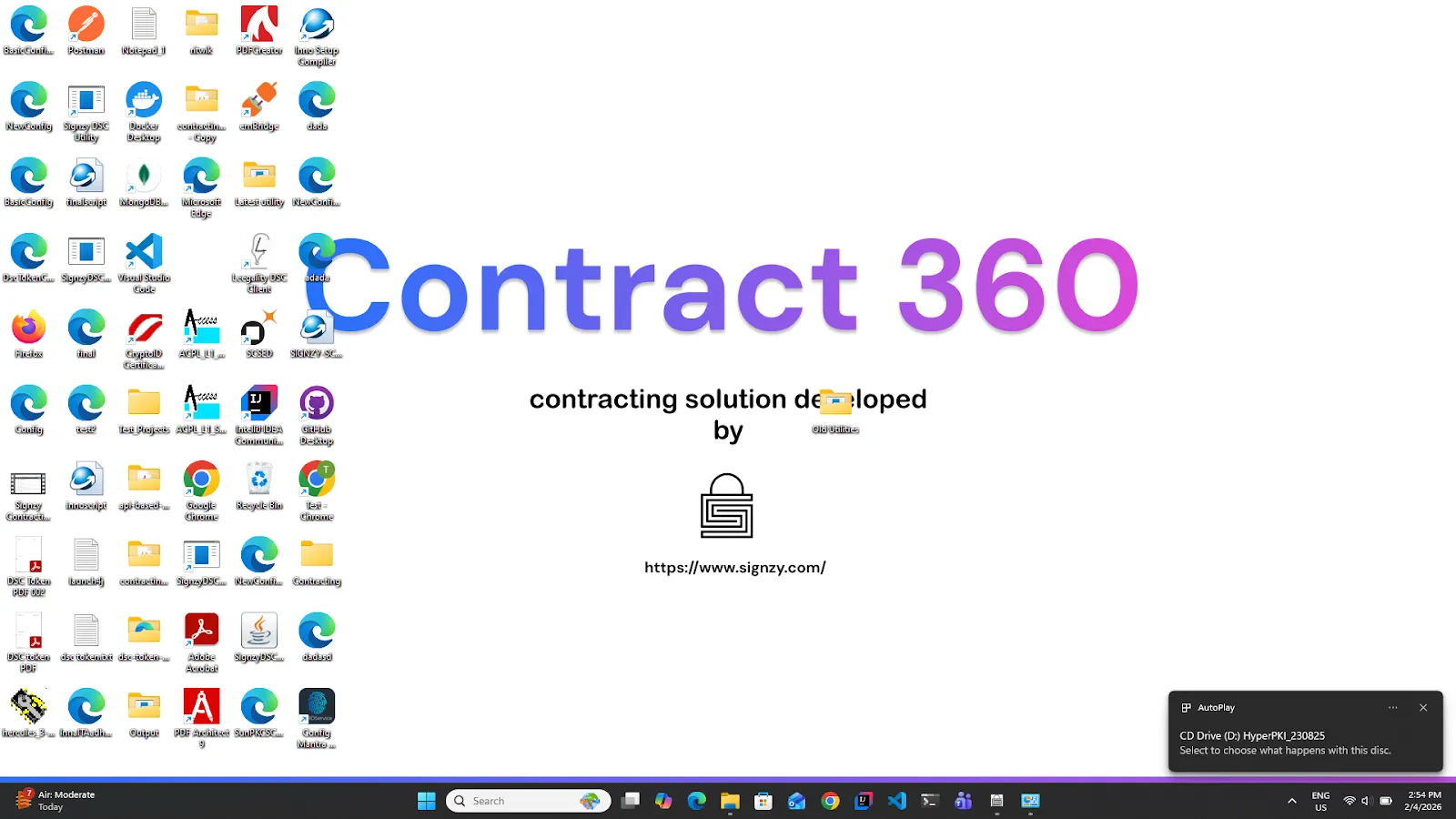
2.Open the file manager.
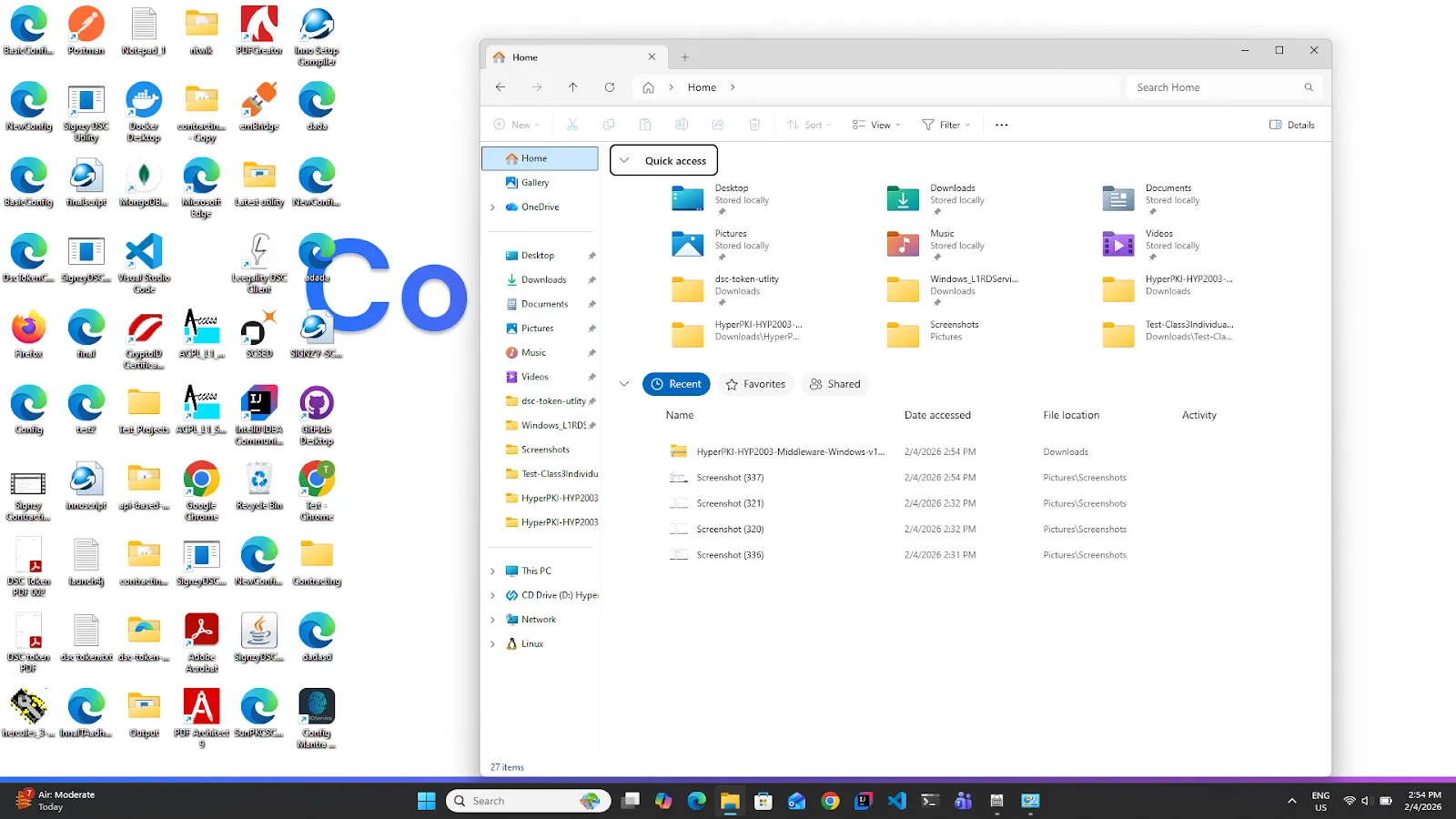
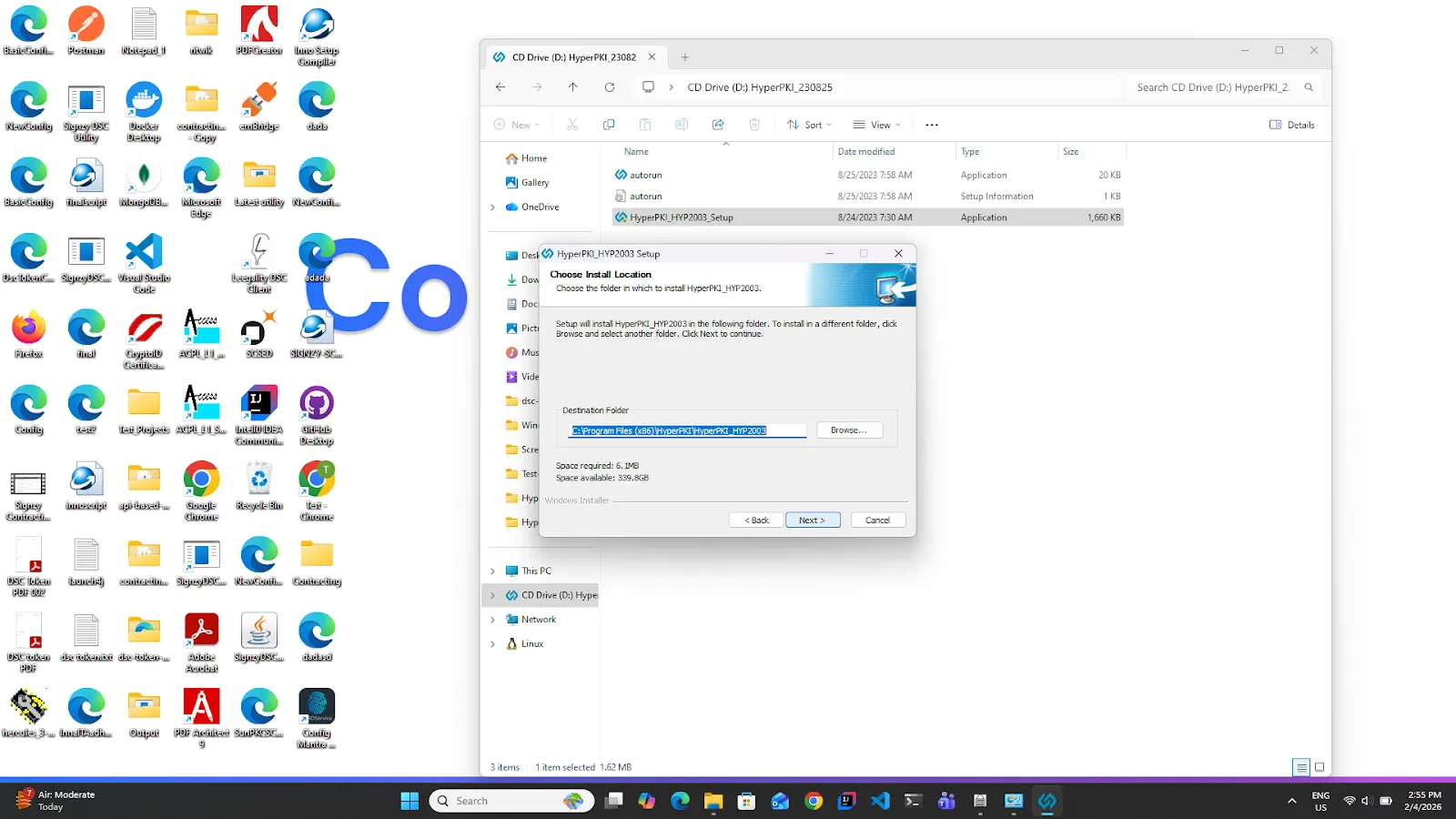
3.A new folder will appear with the Name CD Drive (D:) HyperPKI_2003. Click and open that CD Drive.
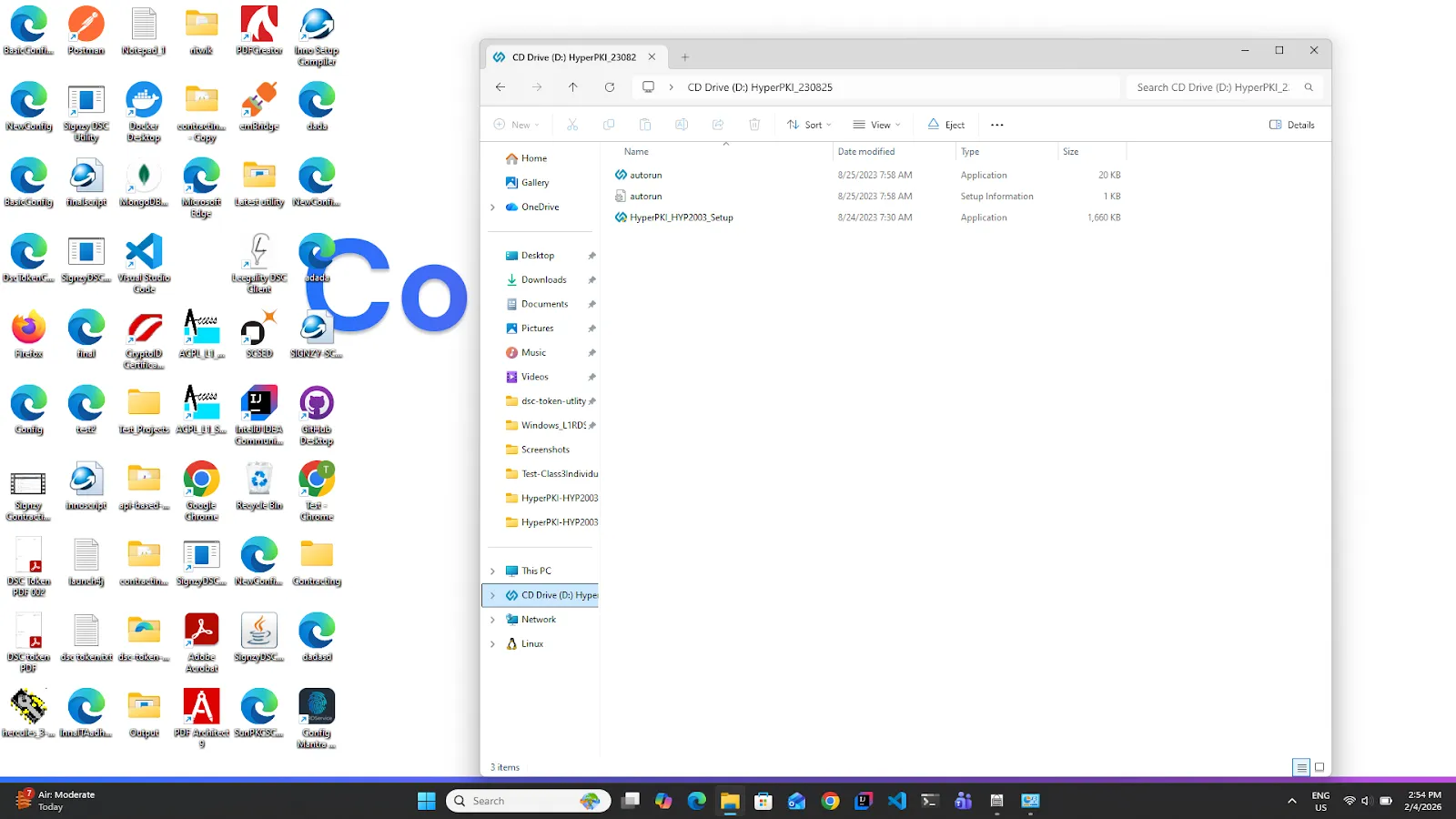
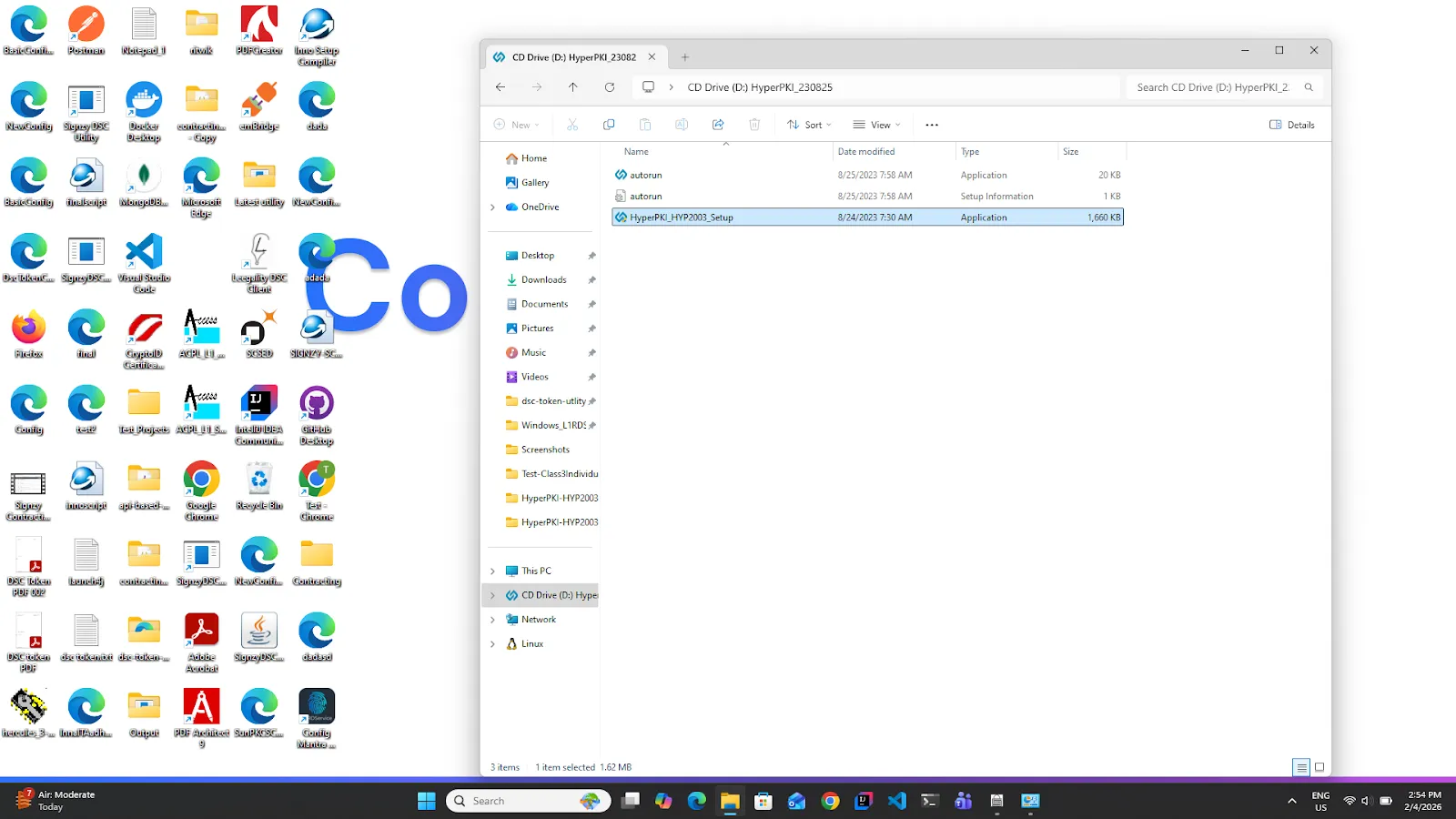
4.Double-click on the HyperPKI_HYP2003_Setup file.
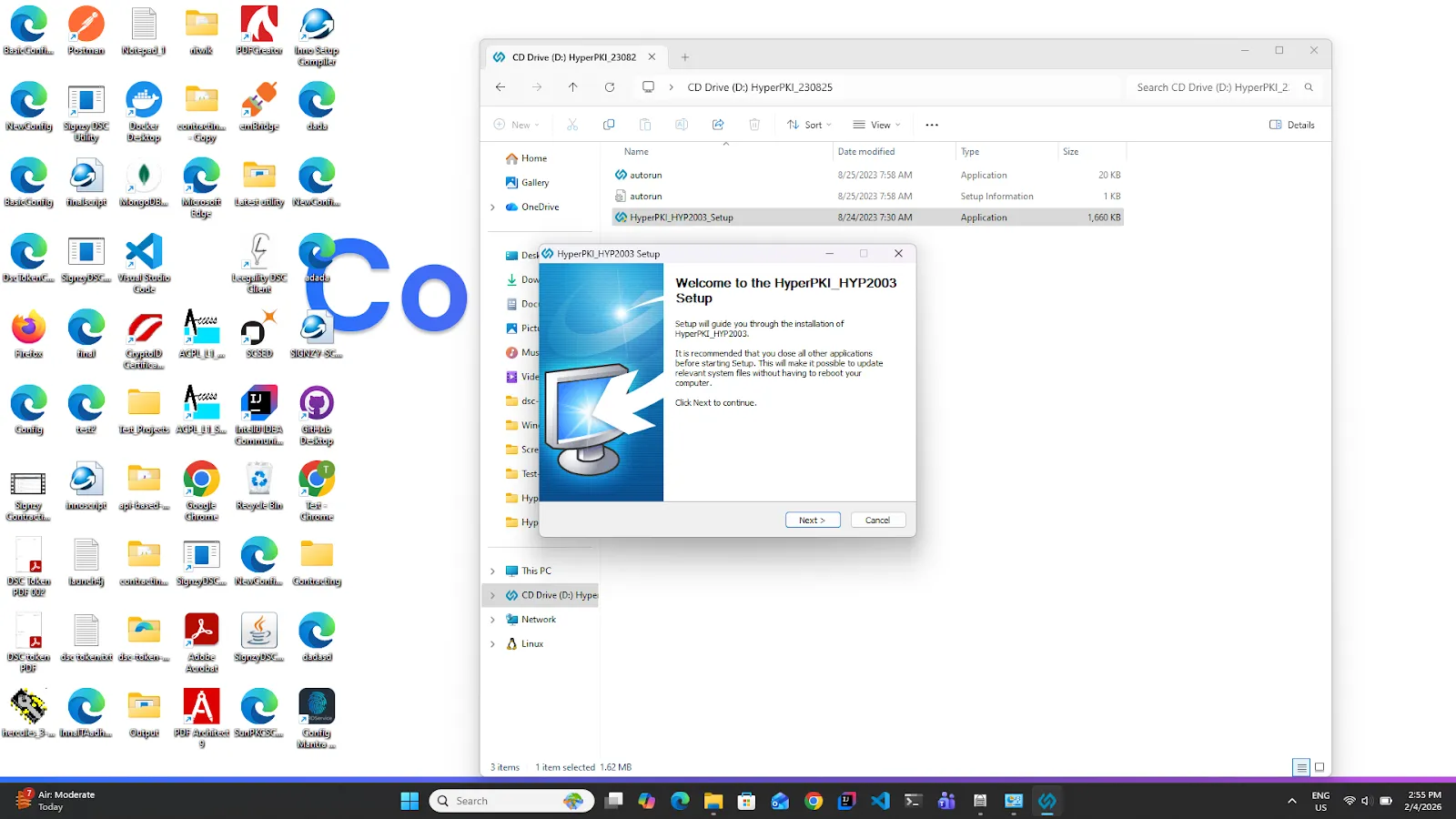
5.The installation modal will appear. Click on the next button.
6.Keep the path as the default and click on the next button.
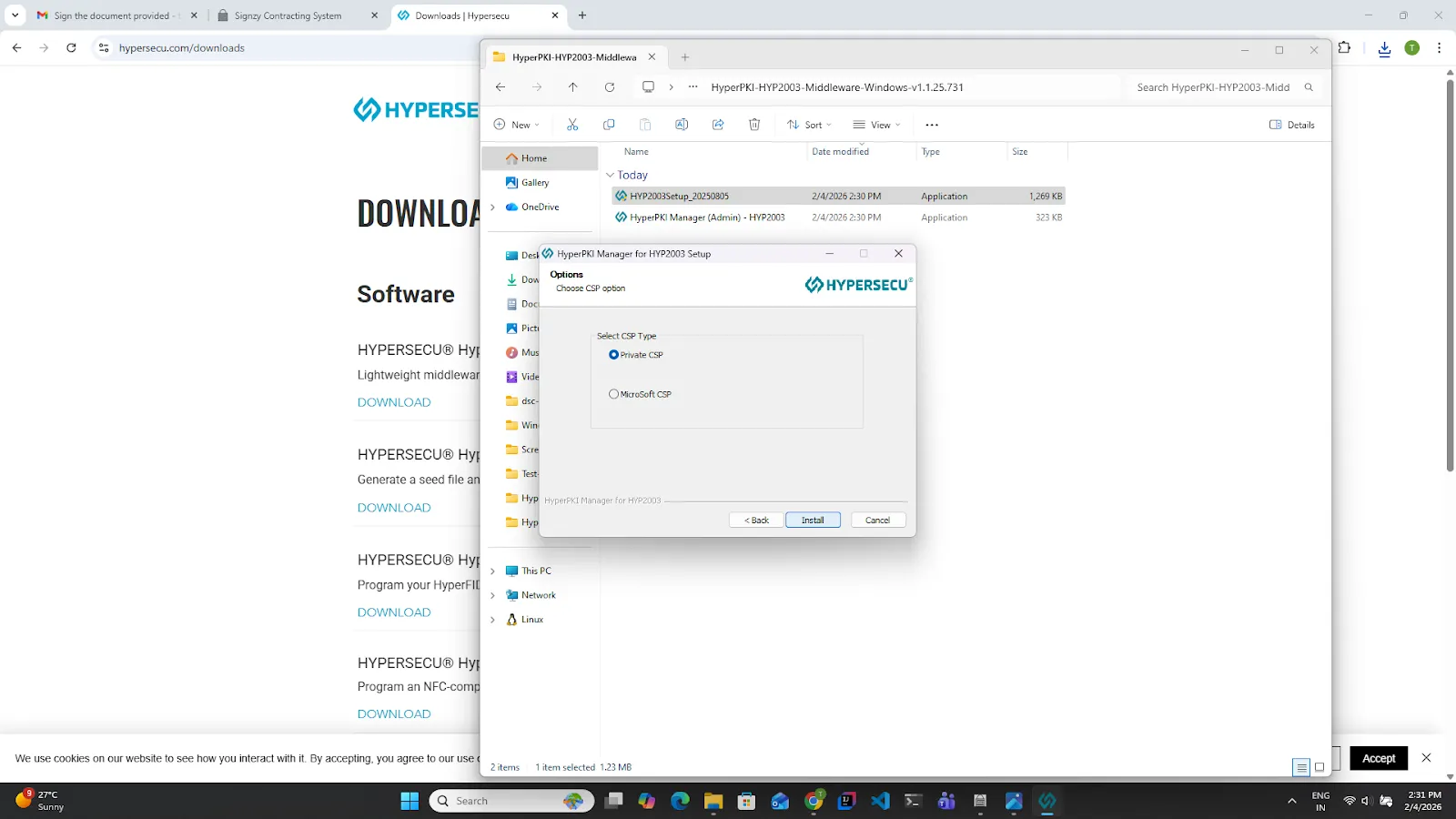
7.Keep the CSP Type as private key; this is set by default. Click on the next button.
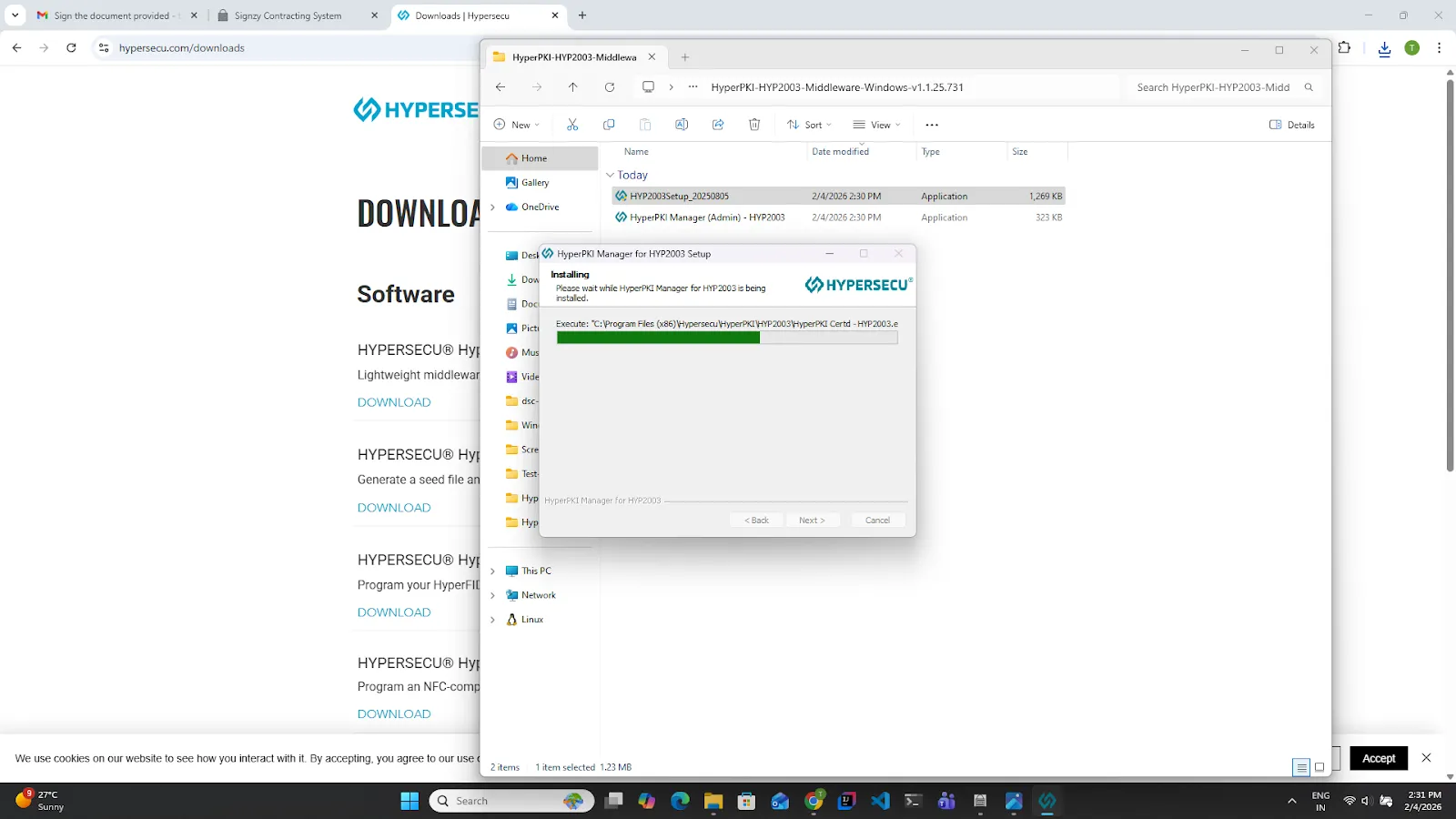
8.Please wait for a couple of seconds while the installation process in progress.
9.Once the installation is completed. Click on the Finish button.