Help Section Signzy Utility
Signzy DSC Utility - Help Section
This section covers commonly asked questions and troubleshooting guidance related to the Signzy DSC Utility.
It is designed to help users quickly understand the utility’s functionality, resolve frequent issues, and ensure a smooth digital signing experience.
1. Signzy DSC Utility is not restarting automatically after a system restart or shutdown.
1.Press Windows + R on your keyboard.
2.A Run popup will appear at the bottom-left of the screen.
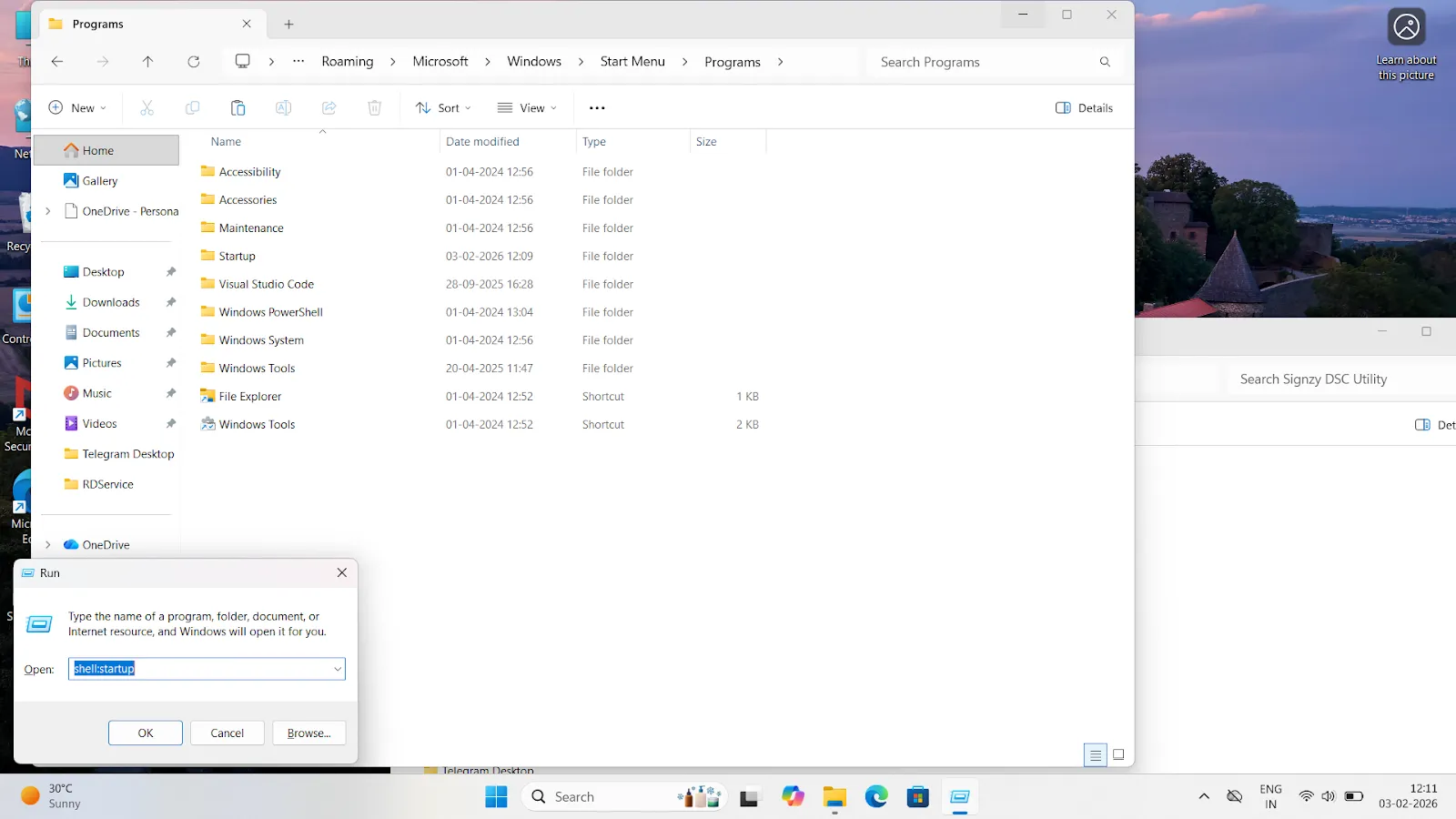
3.Enter shell:startup and click OK.
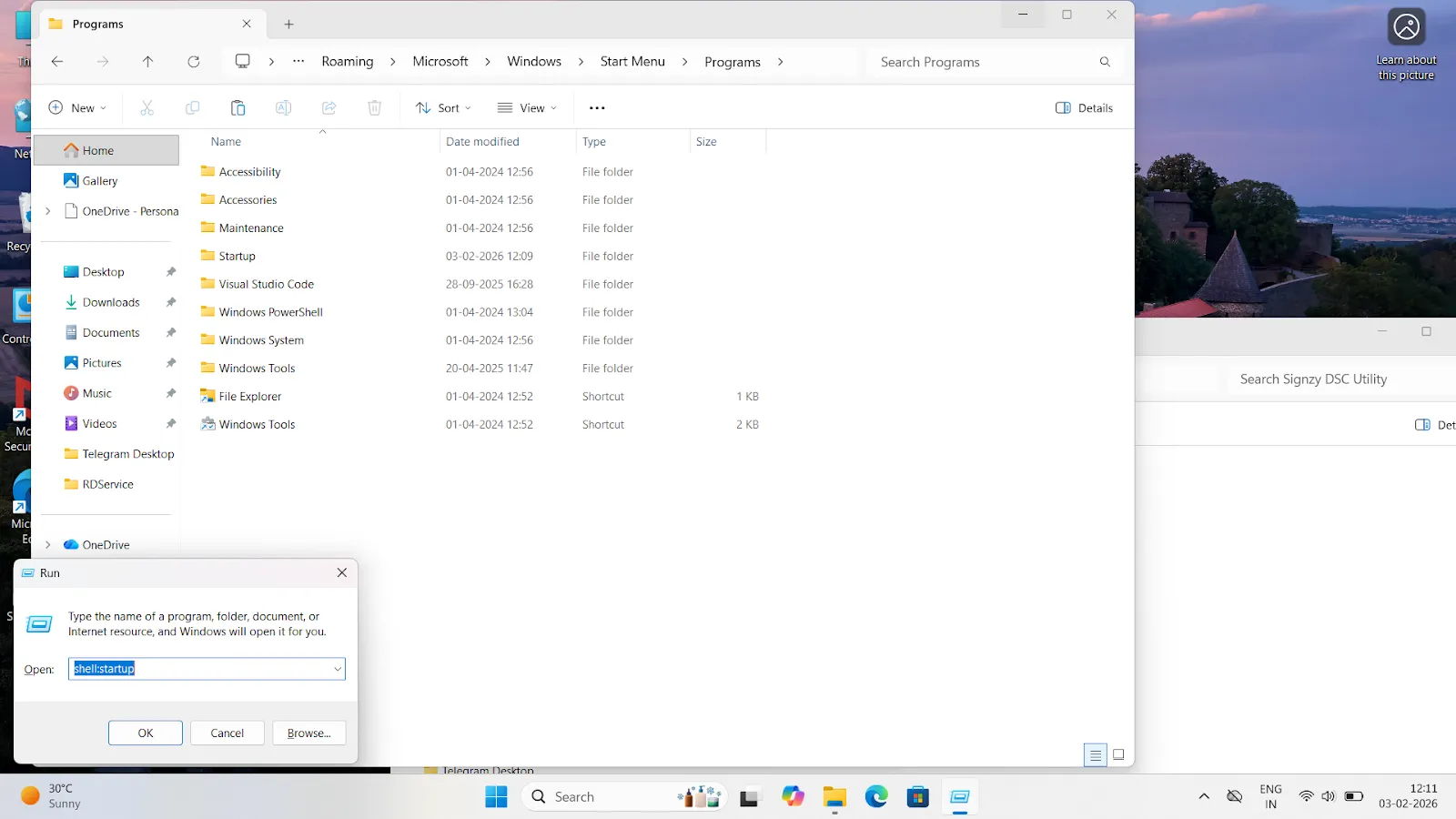
4.The Startup folder will open.
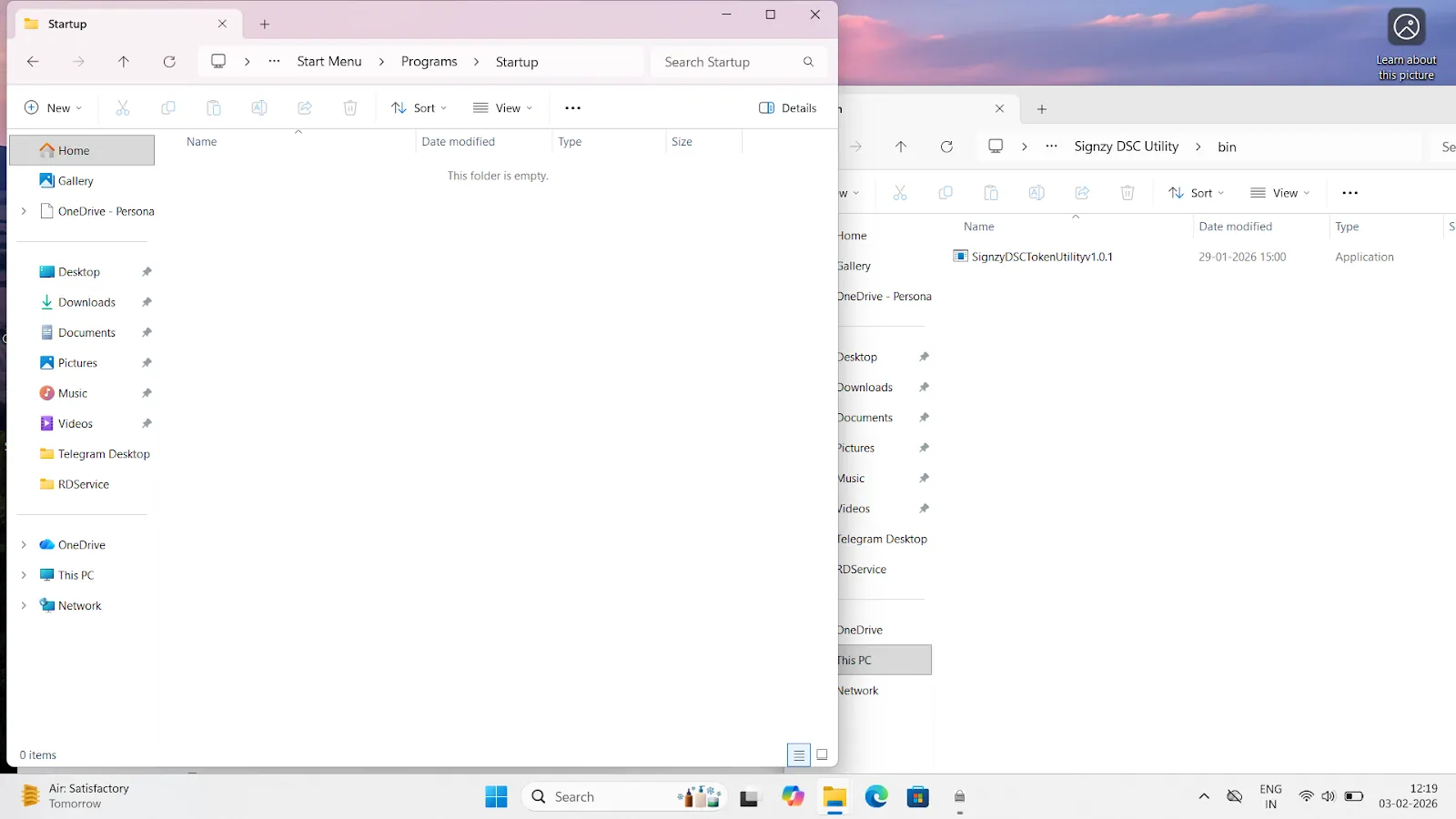
5.Navigate one level back and open the Programs folder (the folder just before Startup).
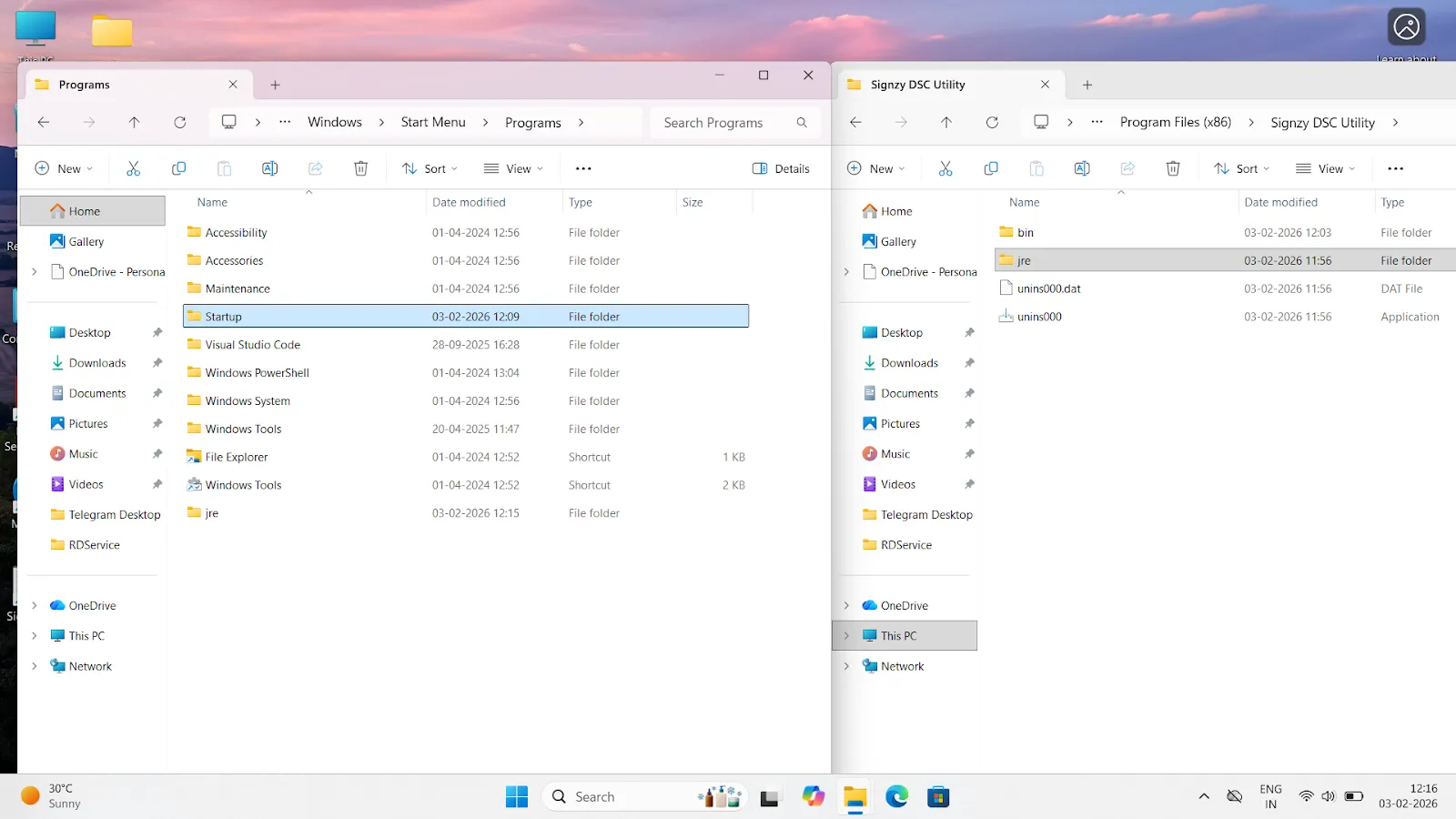
Copy JRE Folder
6.Open a new File Explorer window and go to Local Disk (C:).
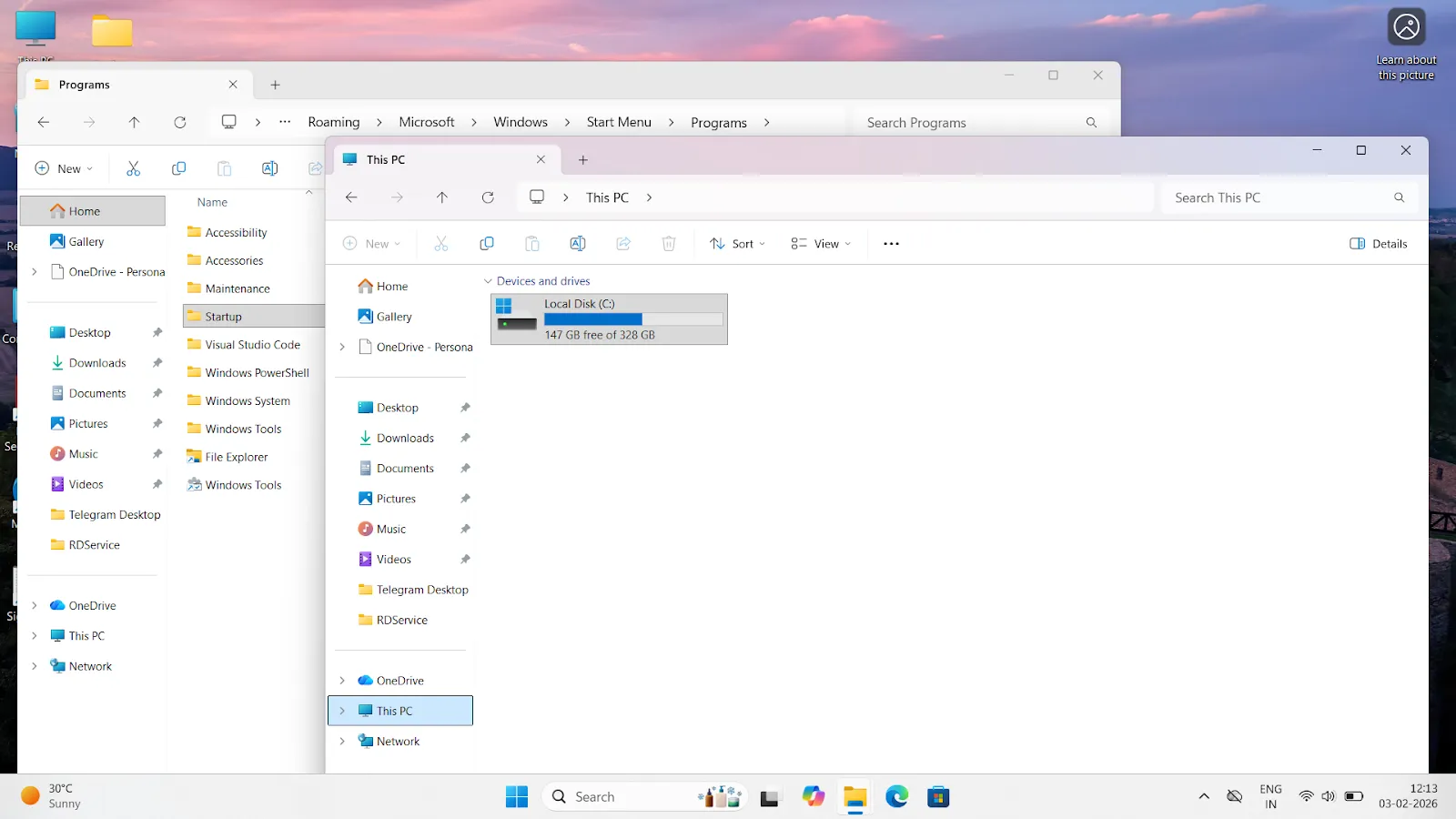
7.Open Program Files (x86).
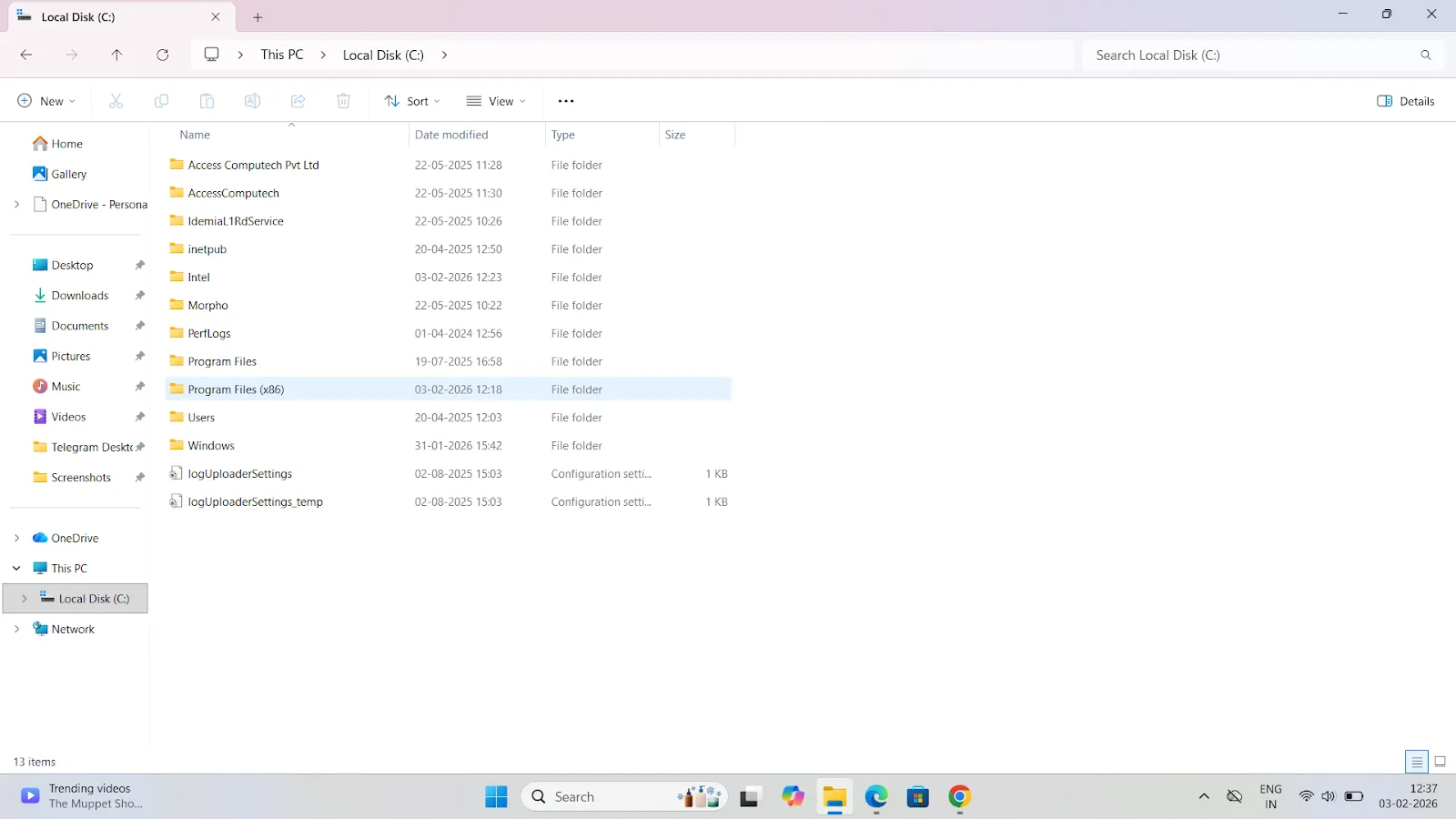
8.Navigate to Signzy DSC Utility.
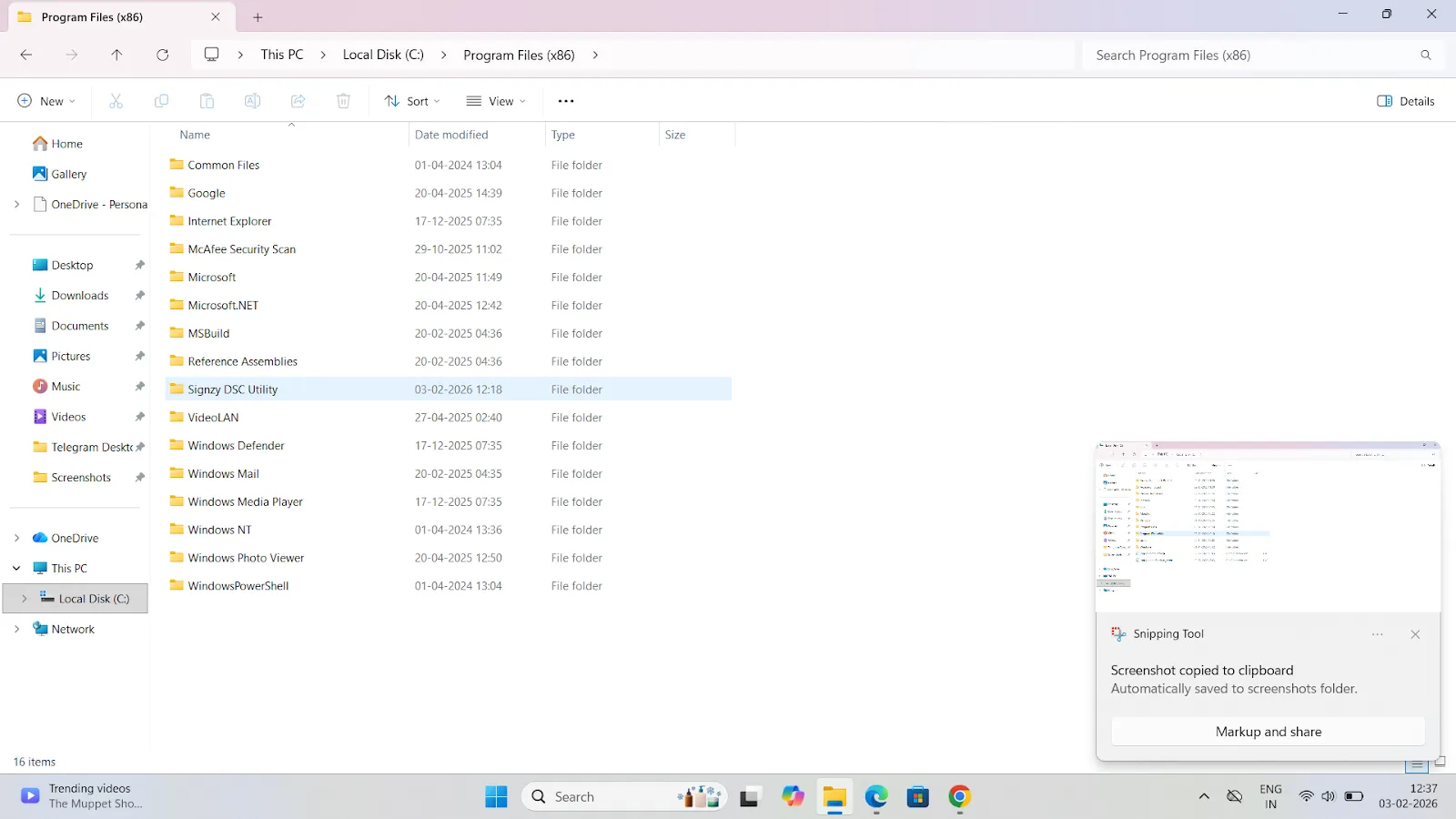
9.Locate the JRE folder.
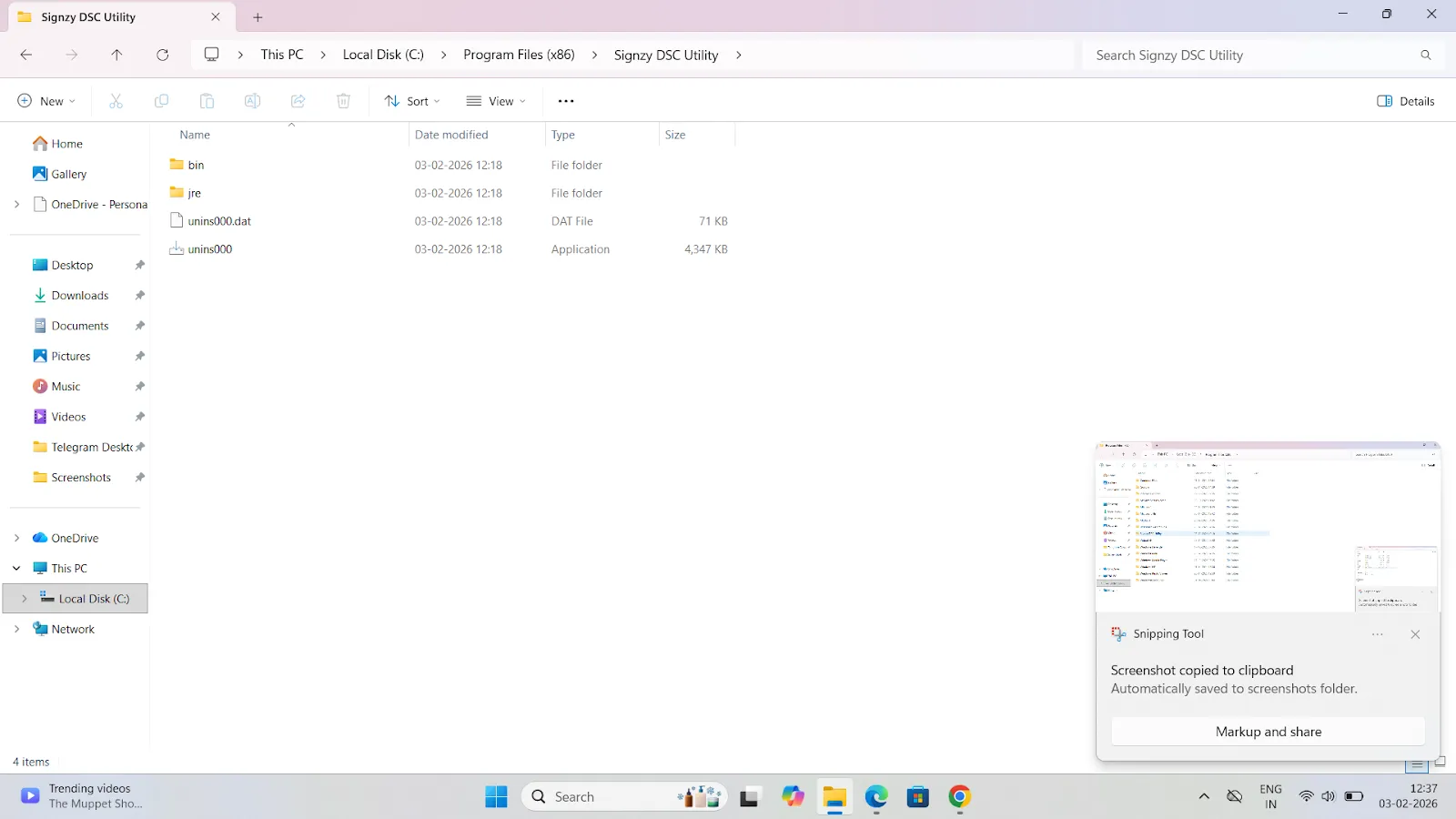
10.Copy the JRE folder (Ctrl + C).
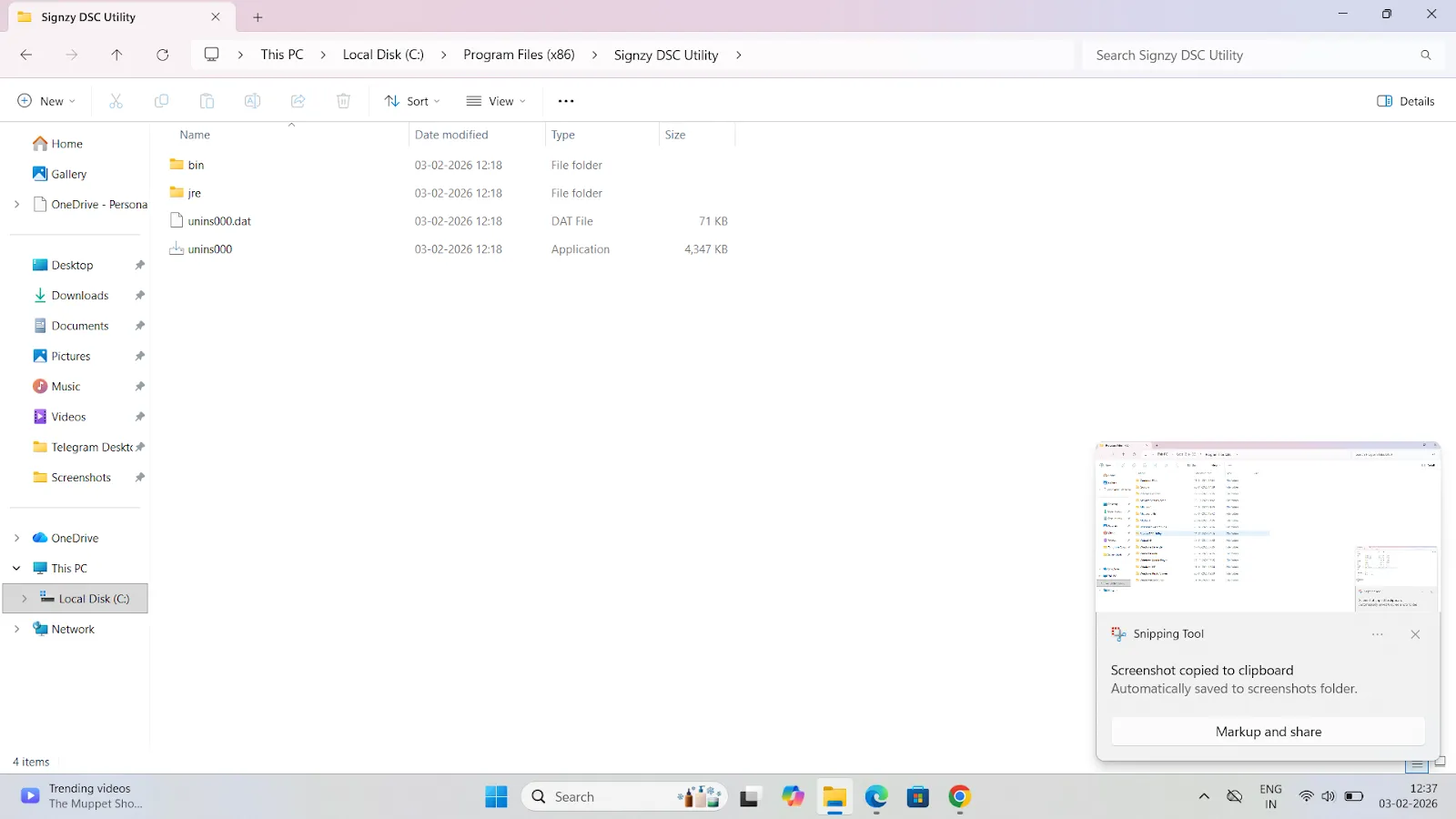
11.Paste it into the Programs folder (Ctrl + V).
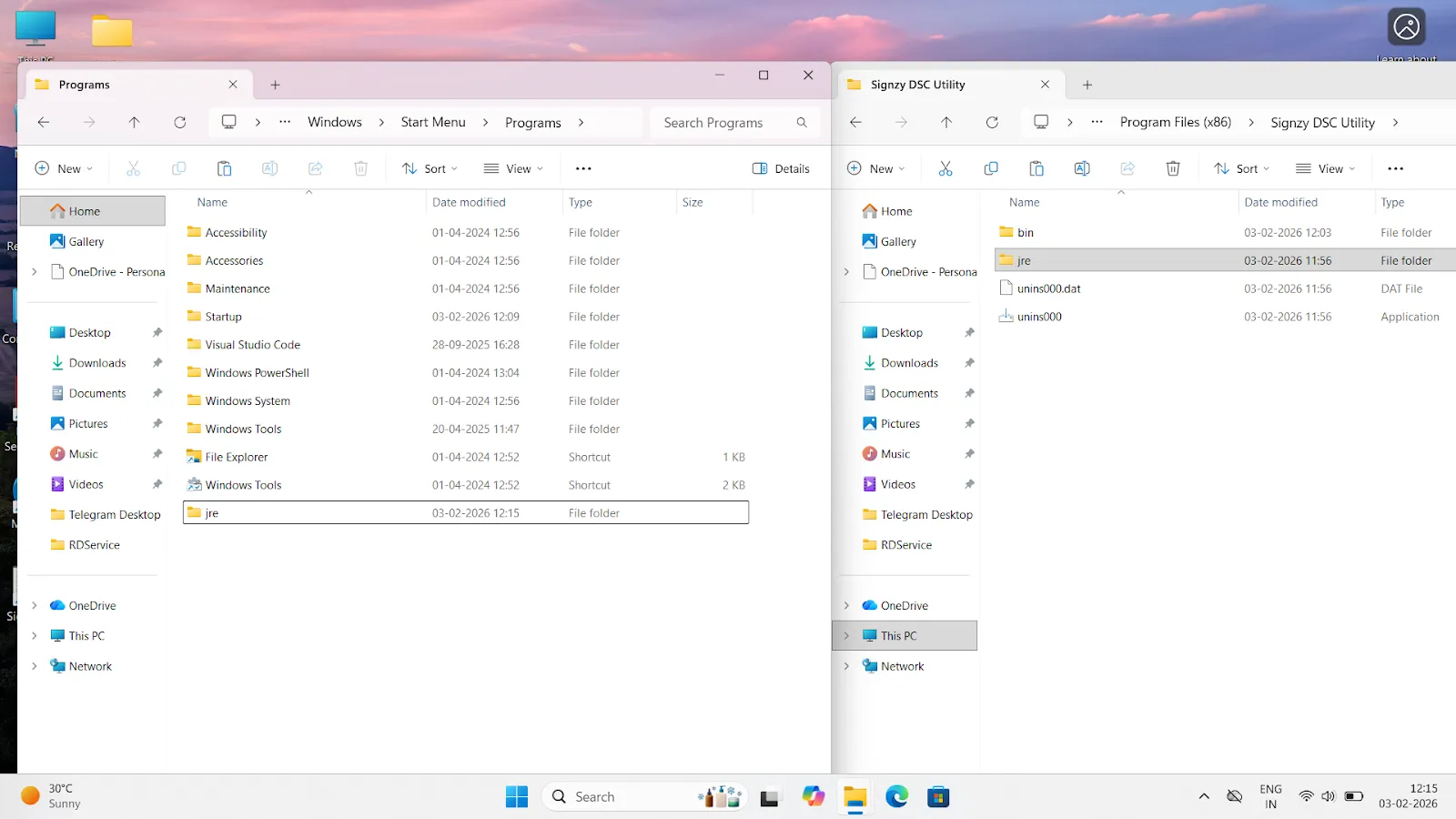
12.Confirm that the JRE folder now appears inside the Programs folder.
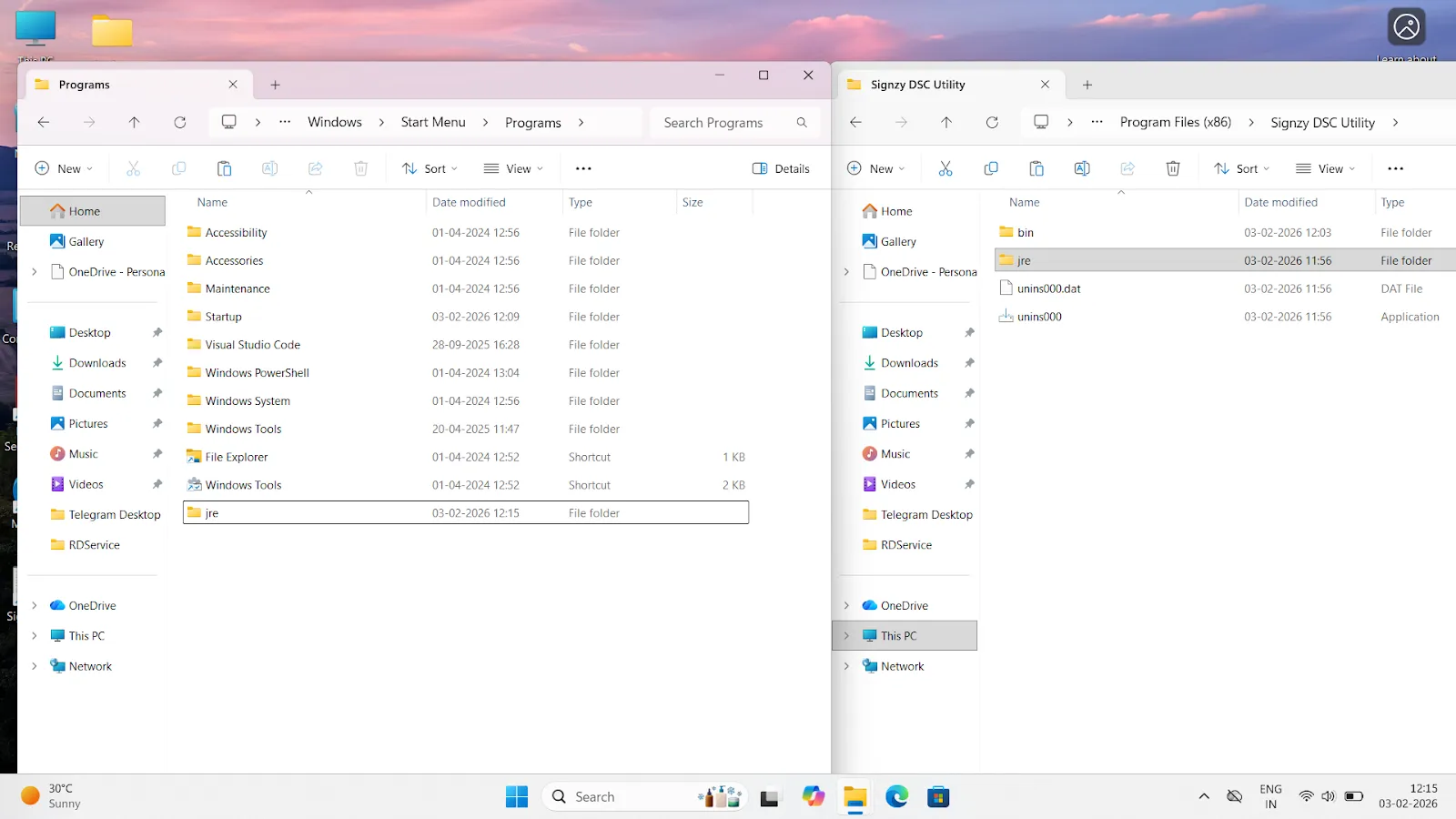
Add Signzy DSC Utility to Startup
13.Go back to the Startup folder.
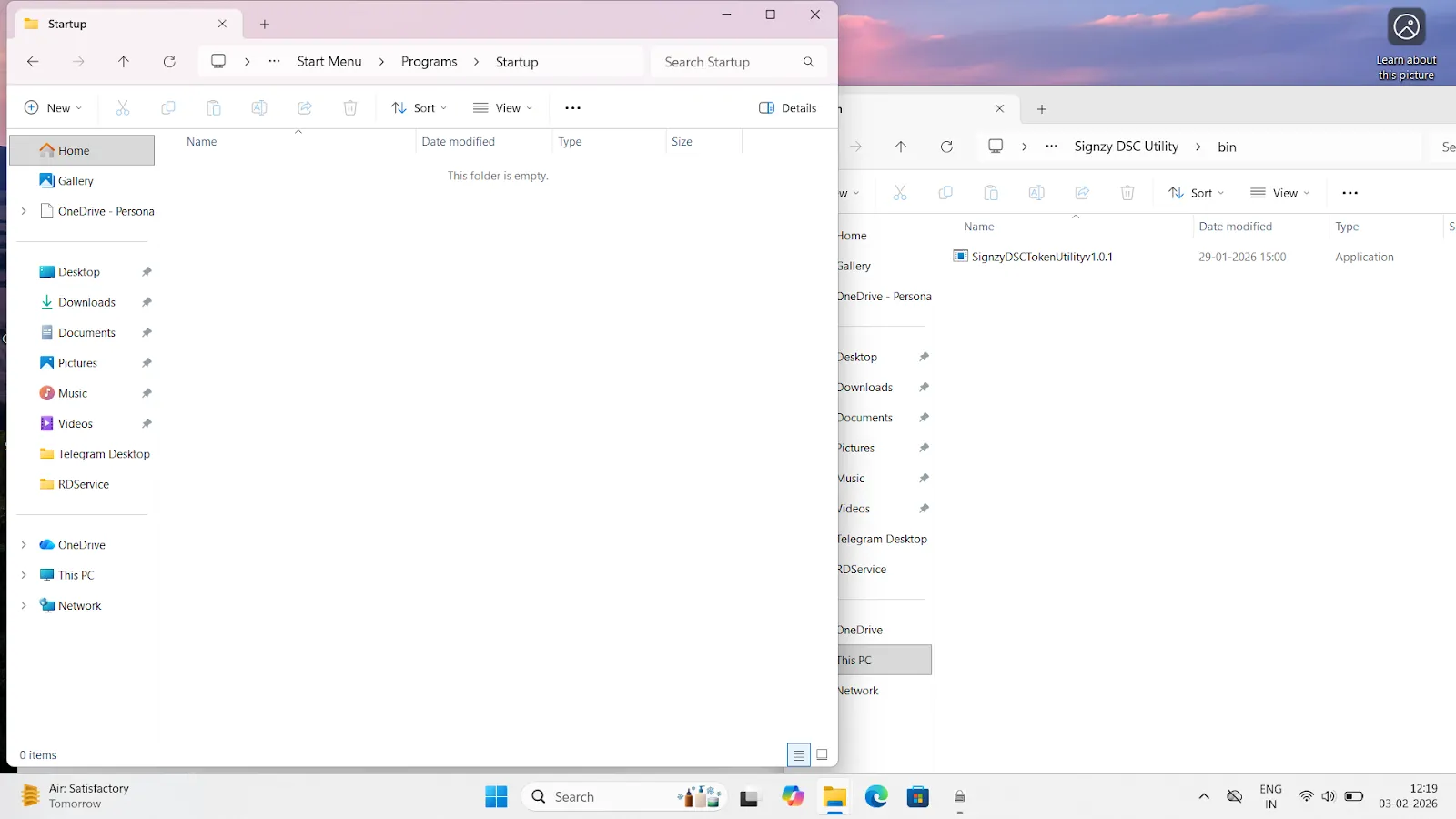
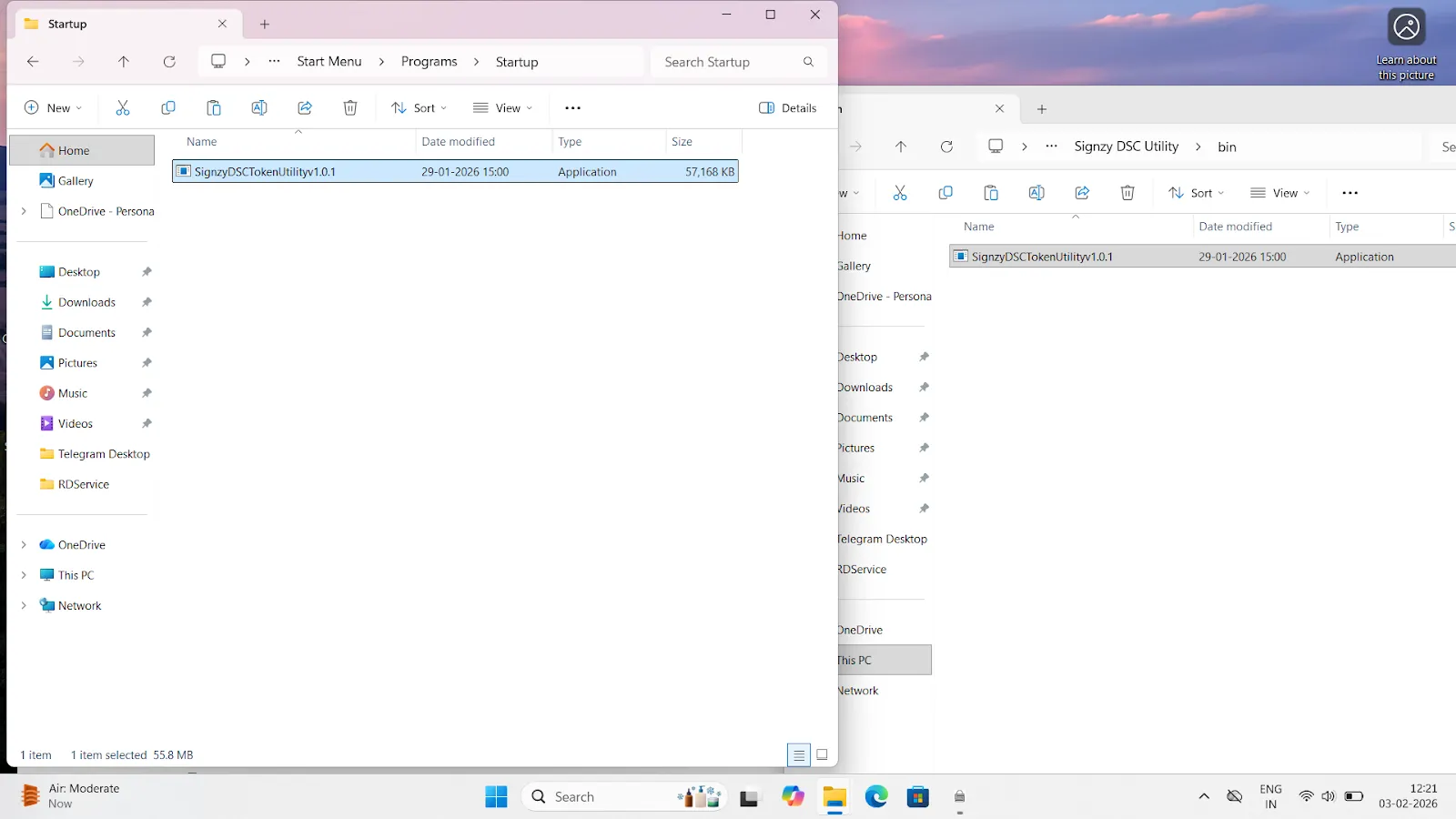
14.Inside Signzy DSC Utility, open the bin folder.
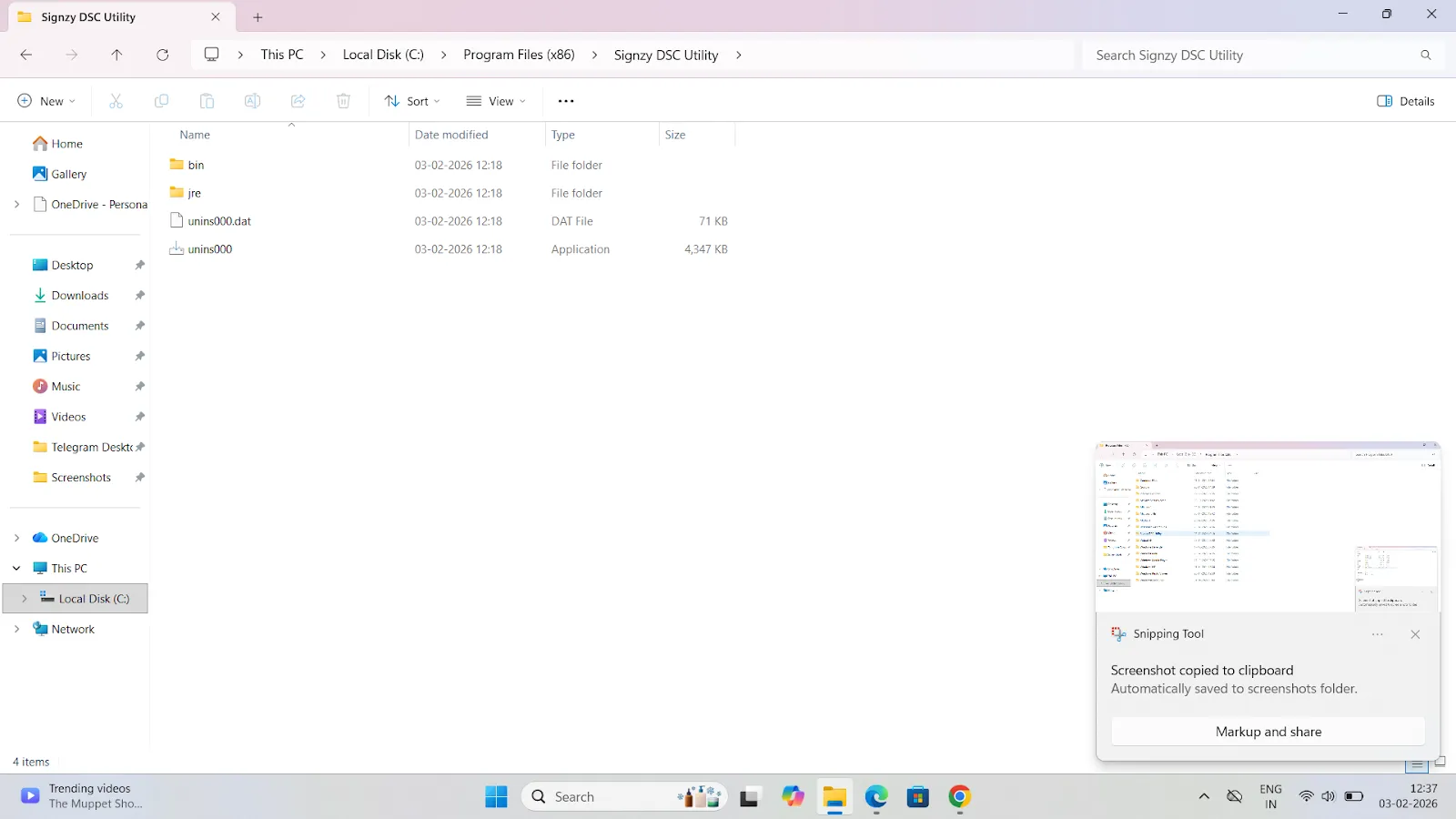
15.Locate the SignzyDSCUtility application file.
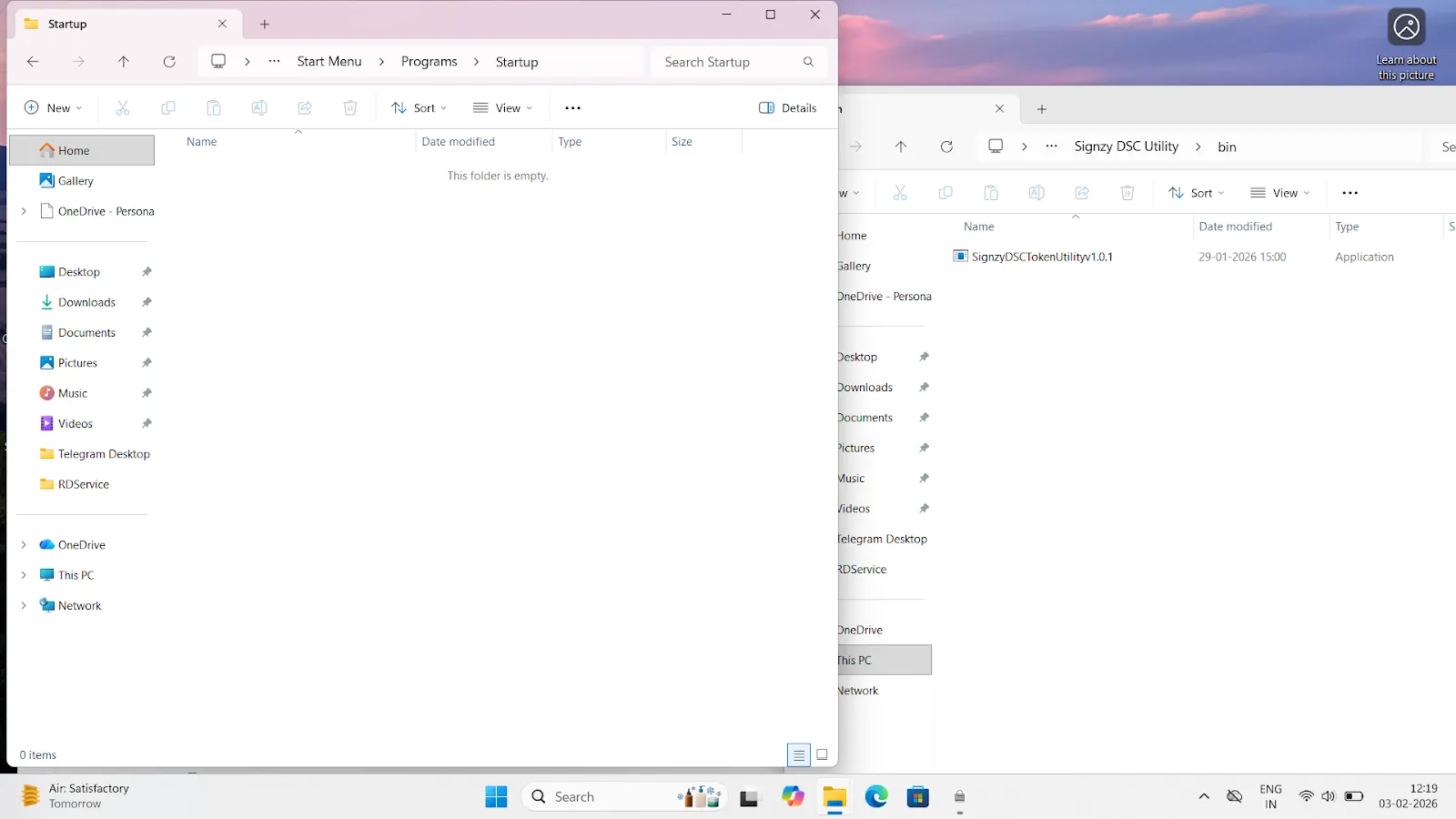
16.Copy this file (Ctrl + C).
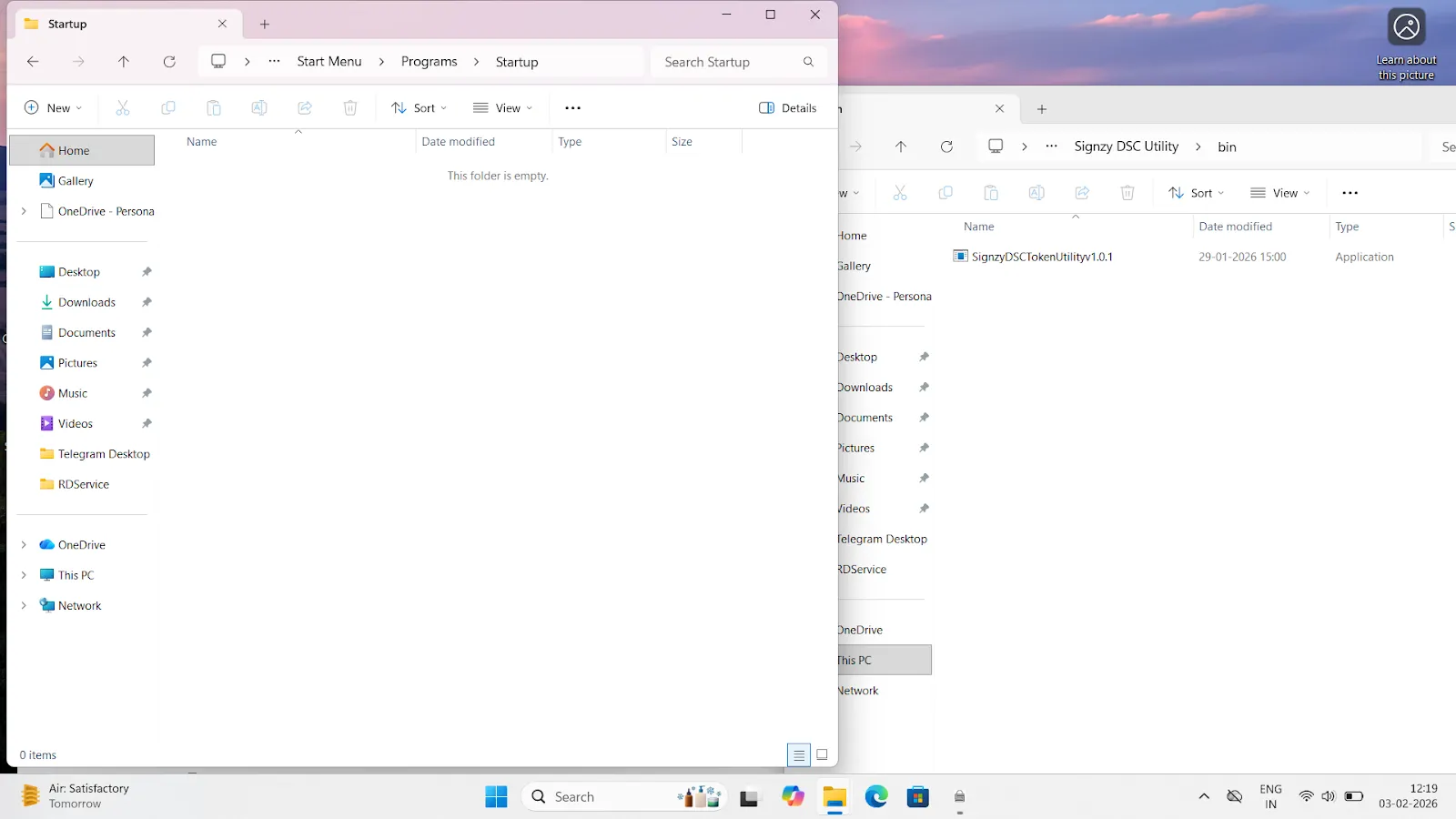
17.Paste it directly into the Startup folder (Ctrl + V).
18.Allow all permissions or security prompts that appear on the screen.
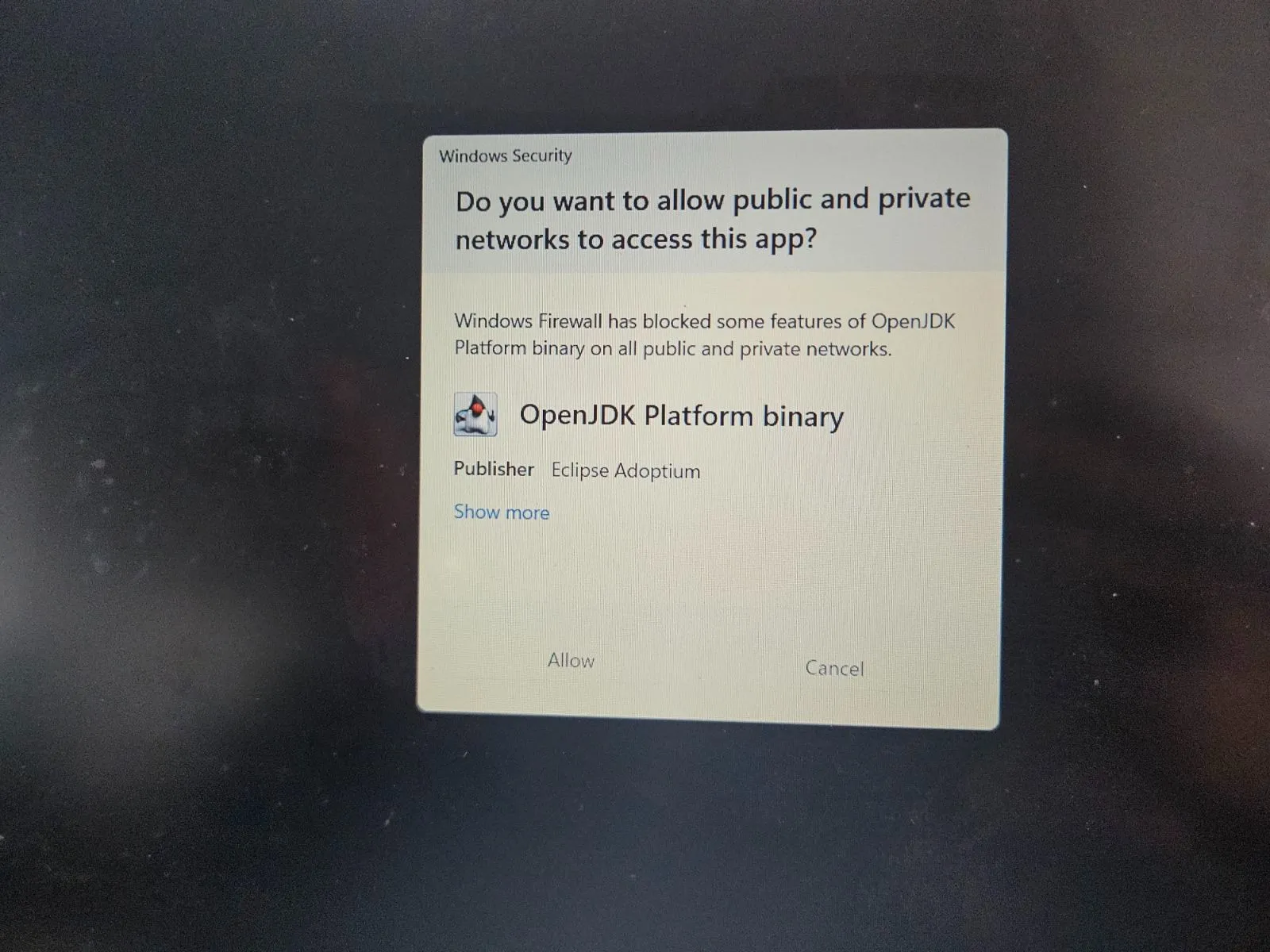
Once these steps are completed, the Signzy DSC Utility will automatically start whenever the system is restarted or powered on.
2. After installation, the Singzy Utility is not running.
Follow these steps to start the utility
A.Open File Explorer.
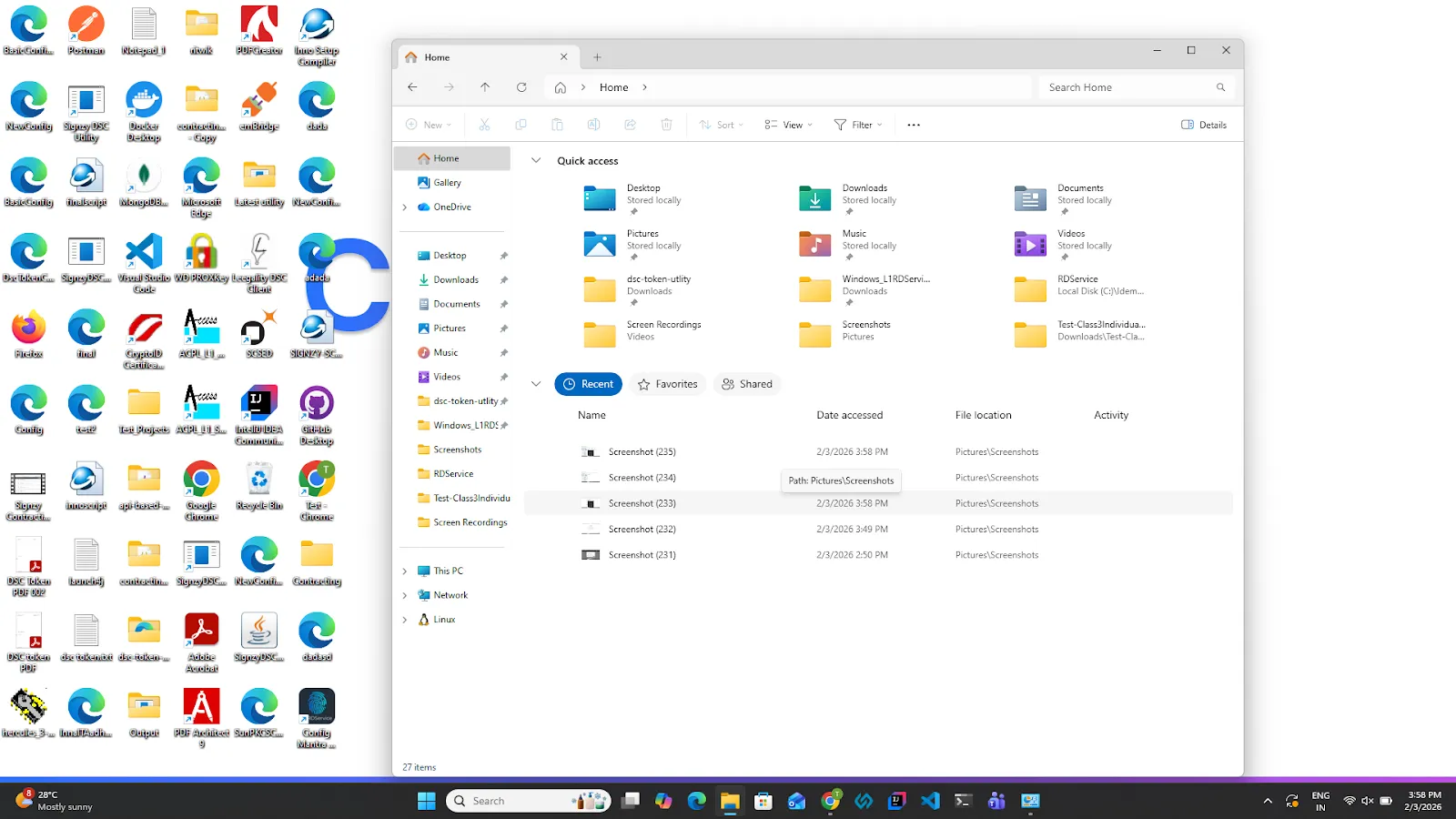
B. Click on This PC.
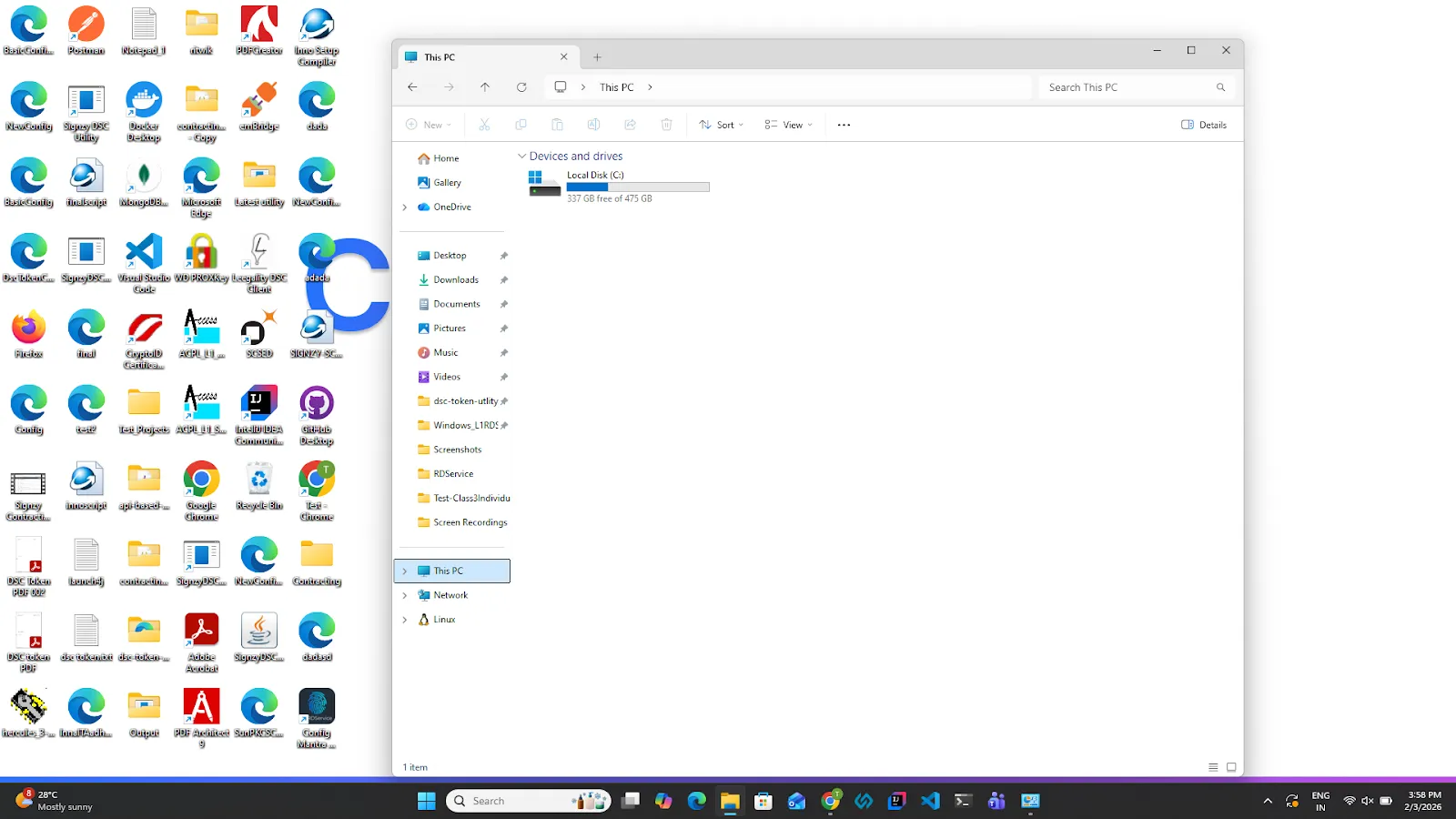
C. Open Local Disk (C:)
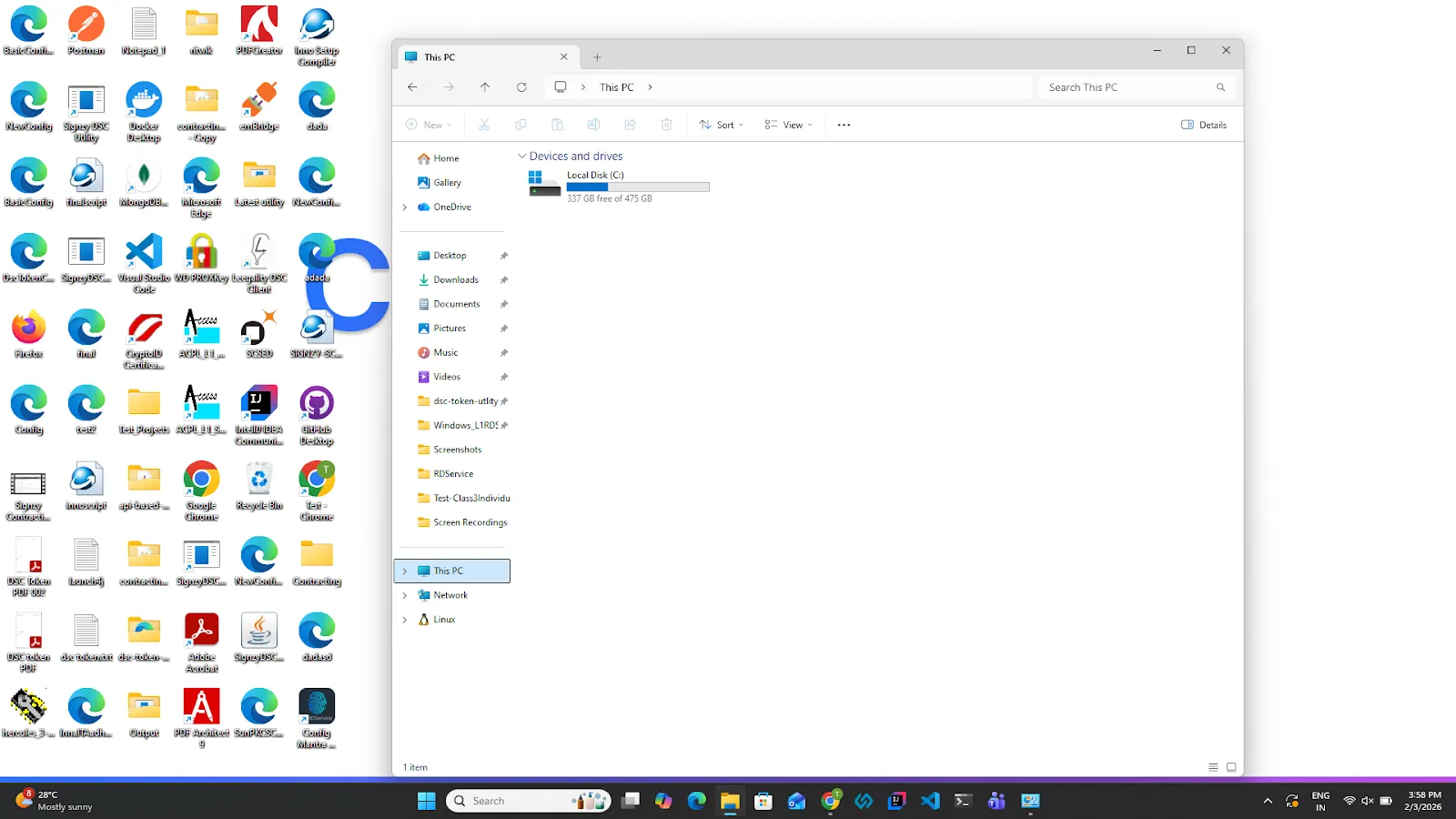
D. Navigate to Program Files (x86)
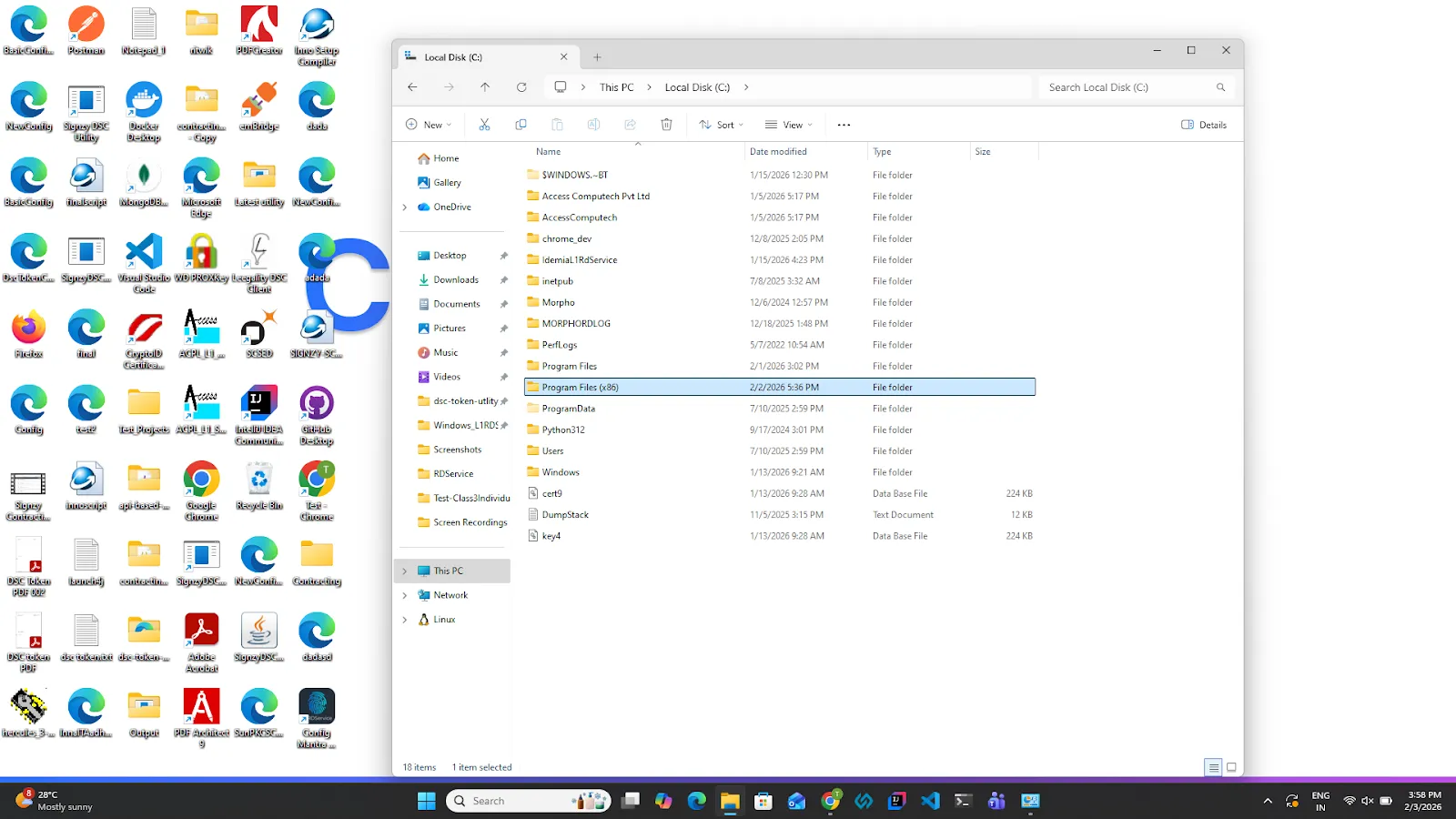
E. Locate and open the Signzy DSC Utilityfolder.
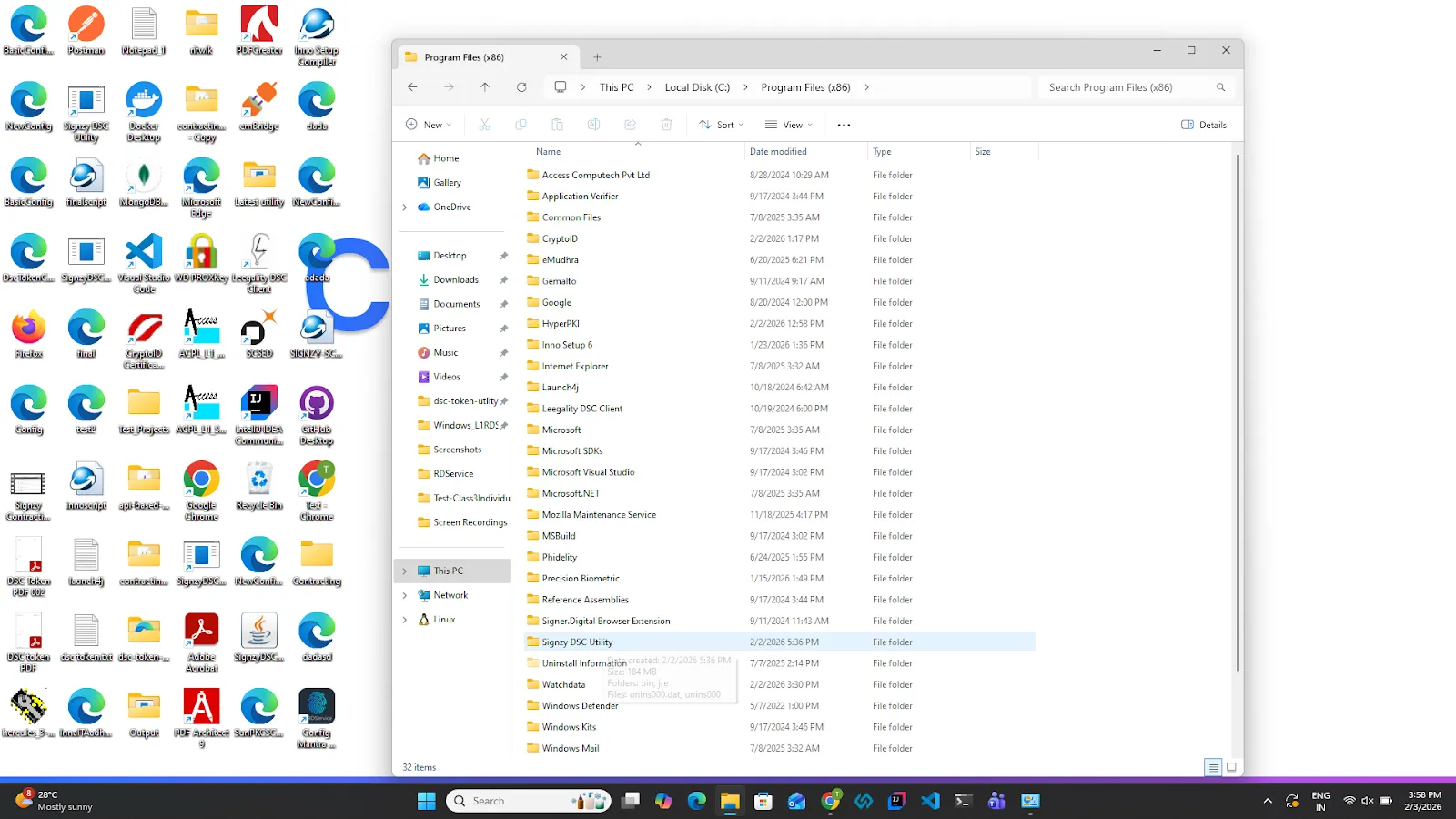
F. Open the bin folder.
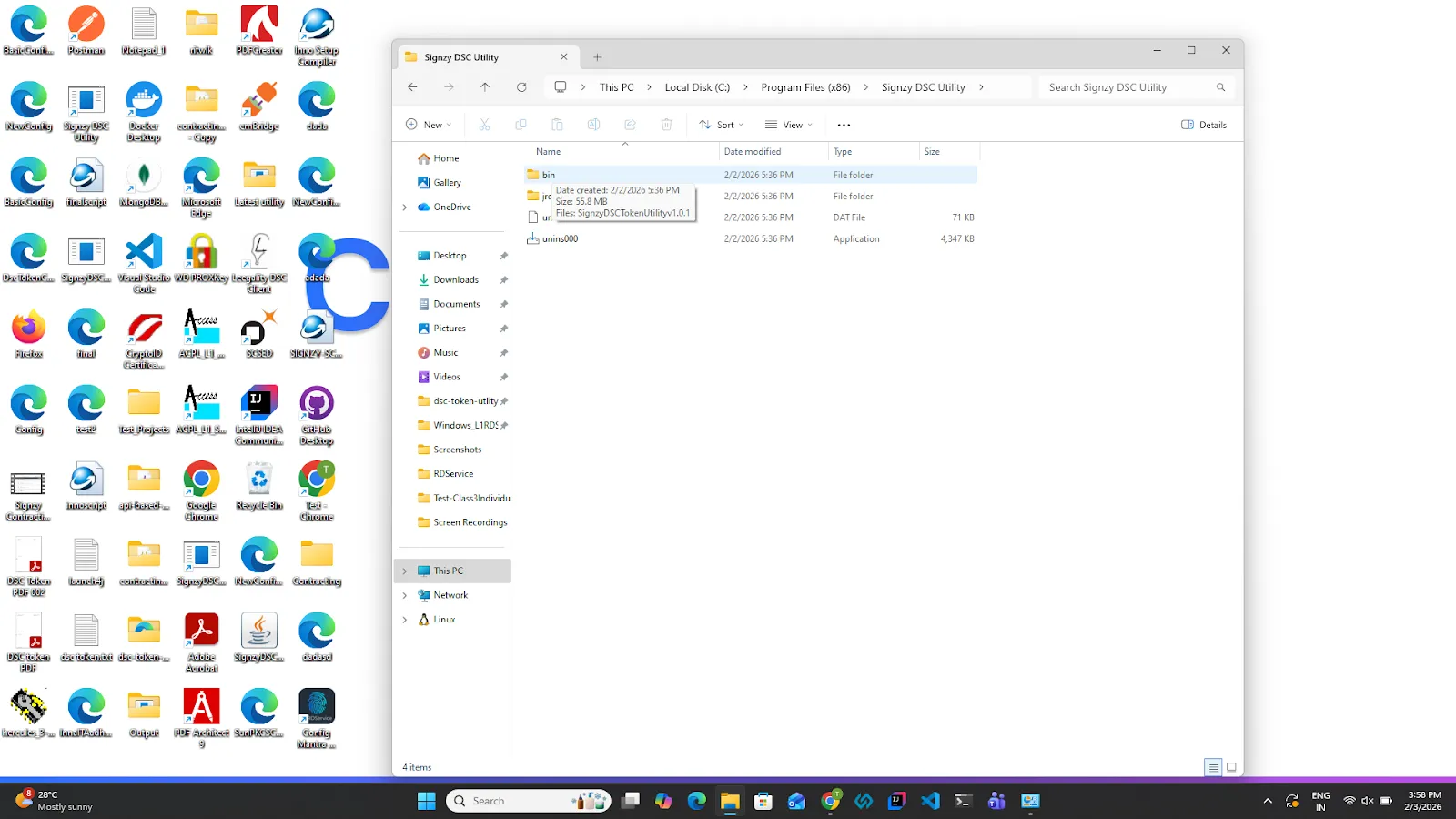
G. Double-click on the SignzyDSCUtility application.
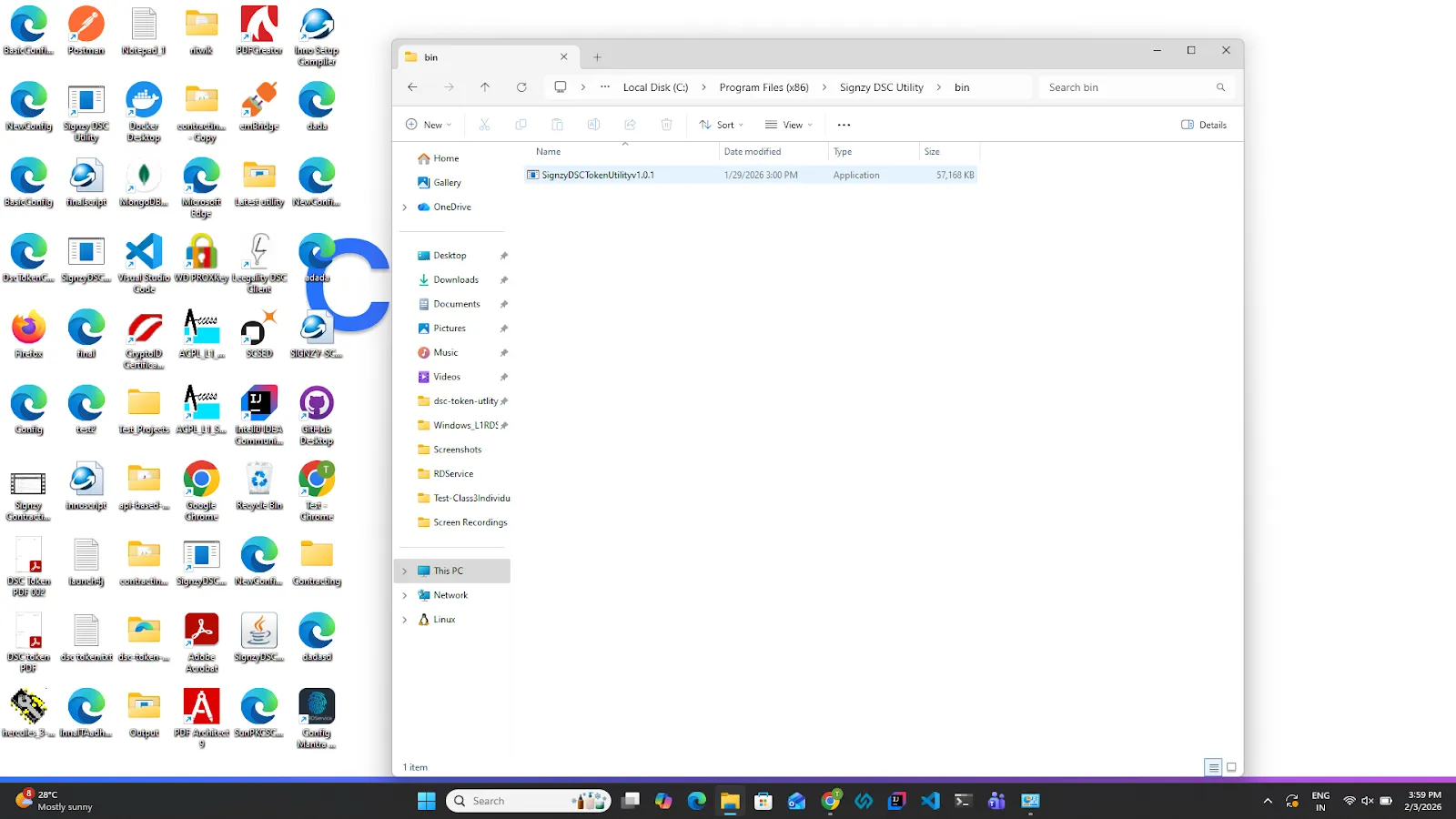
H.The Signzy DSC Utility will start, and a popup message will appear.
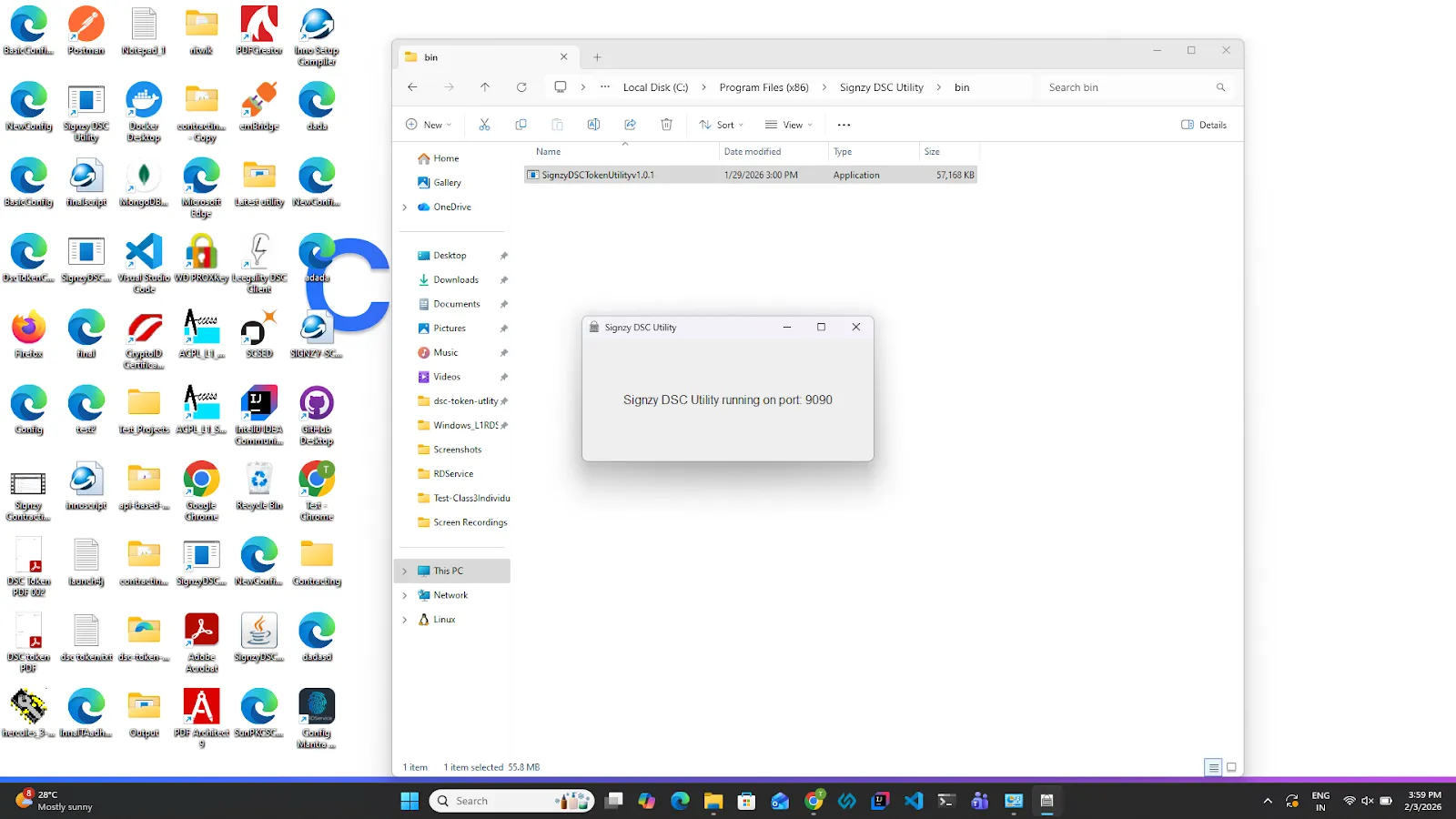
I.Click the Minimize button on the popup window.
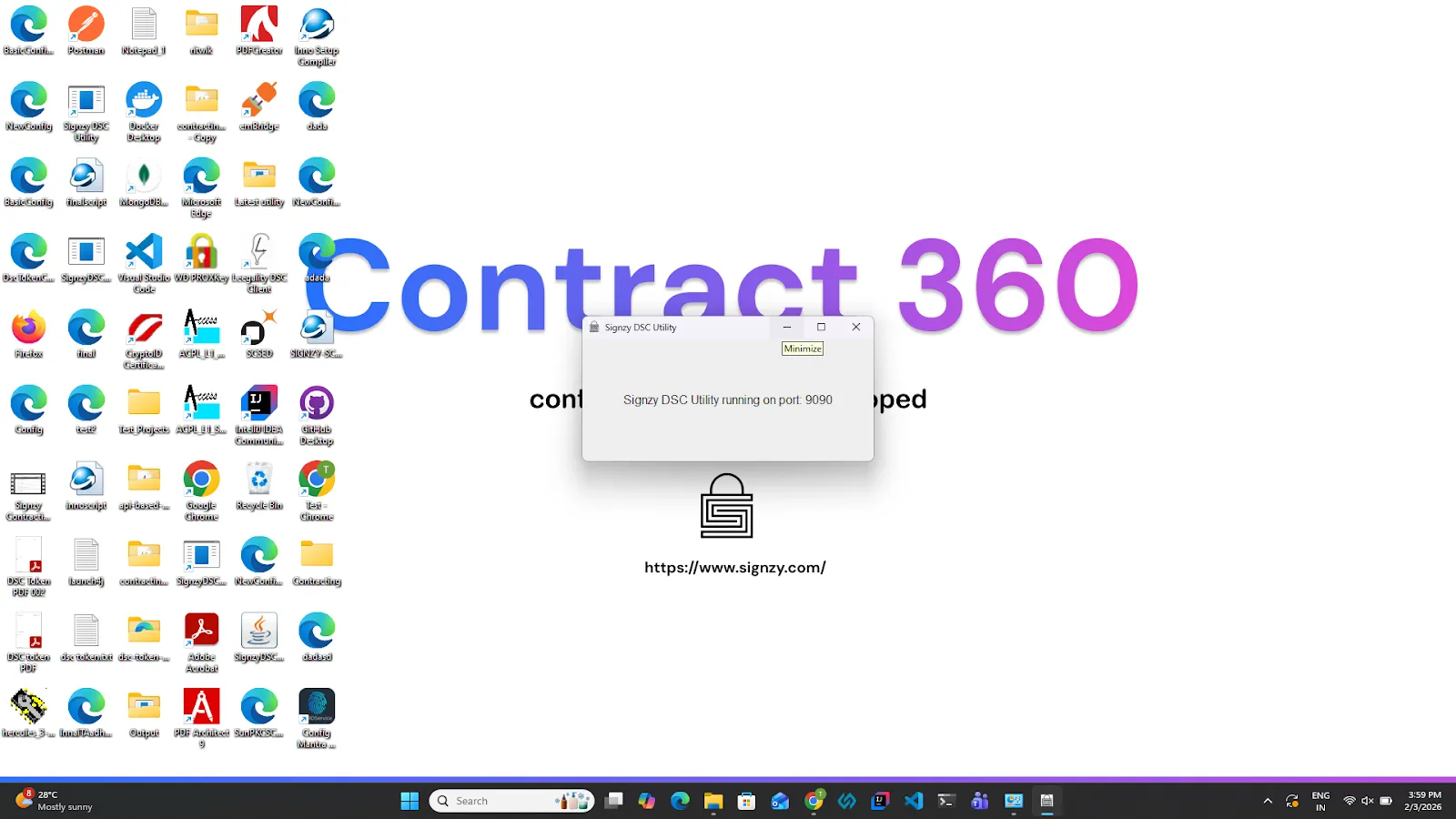
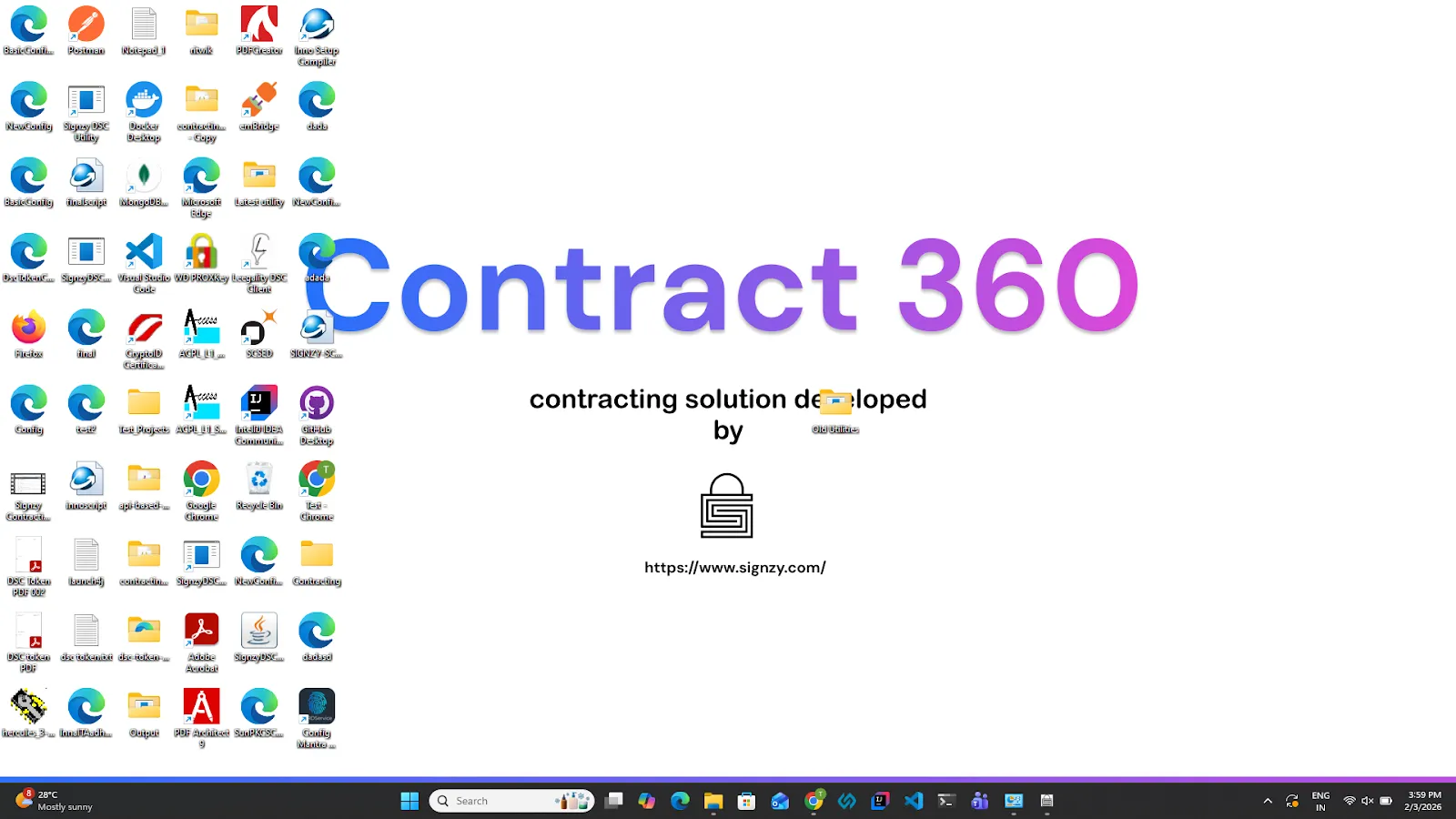
J.The utility will continue running in the background. You can verify this by checking the Windows taskbar (bottom navigation bar)
The Utility requires the following ports to be available and free to run successfully:
- 9090
- 9093
- 9094
- 8009
If any one of these ports is already in use, the Signzy Utility will fail to start and cannot be started.
1.Check Port Availability
- To verify whether the required ports are free.
- Open the command prompt(As an administrator) and run the following command
- netstat -ano | findstr :9090 Replace 9090 with 9093, 9094, or 8009 to check each port individually.
- If the command returns an output, it means the port is currently occupied.
2.Free the Occupied Port
- Identify the PID (Process ID) from the output of the netstat command.
- Terminate the process using the following command:
taskkill /PID 1234 /F
Replace 1234 with the actual PID using the port.
⚠️ Note: Ensure the process being terminated is not a critical system process before killing it.
3.Restart the Signzy Utility
- Once all required ports are free, restart the Signzy Utility driver.
After the utility starts successfully, click the refresh utility button on the UI.
3. Token is not detecting?
1.Ensure that the relevant driver for the token is installed.
- MToken/CryptoID Driver Installation Guide
- Inaat Key Driver Installation Guide
- Watchdata Proxkey Driver Installation Guide
- HYP2003 Driver Installation Guide
2.Unplug the token from the system and plug it into the same/another USB slot.
3.Click on the refresh token button.
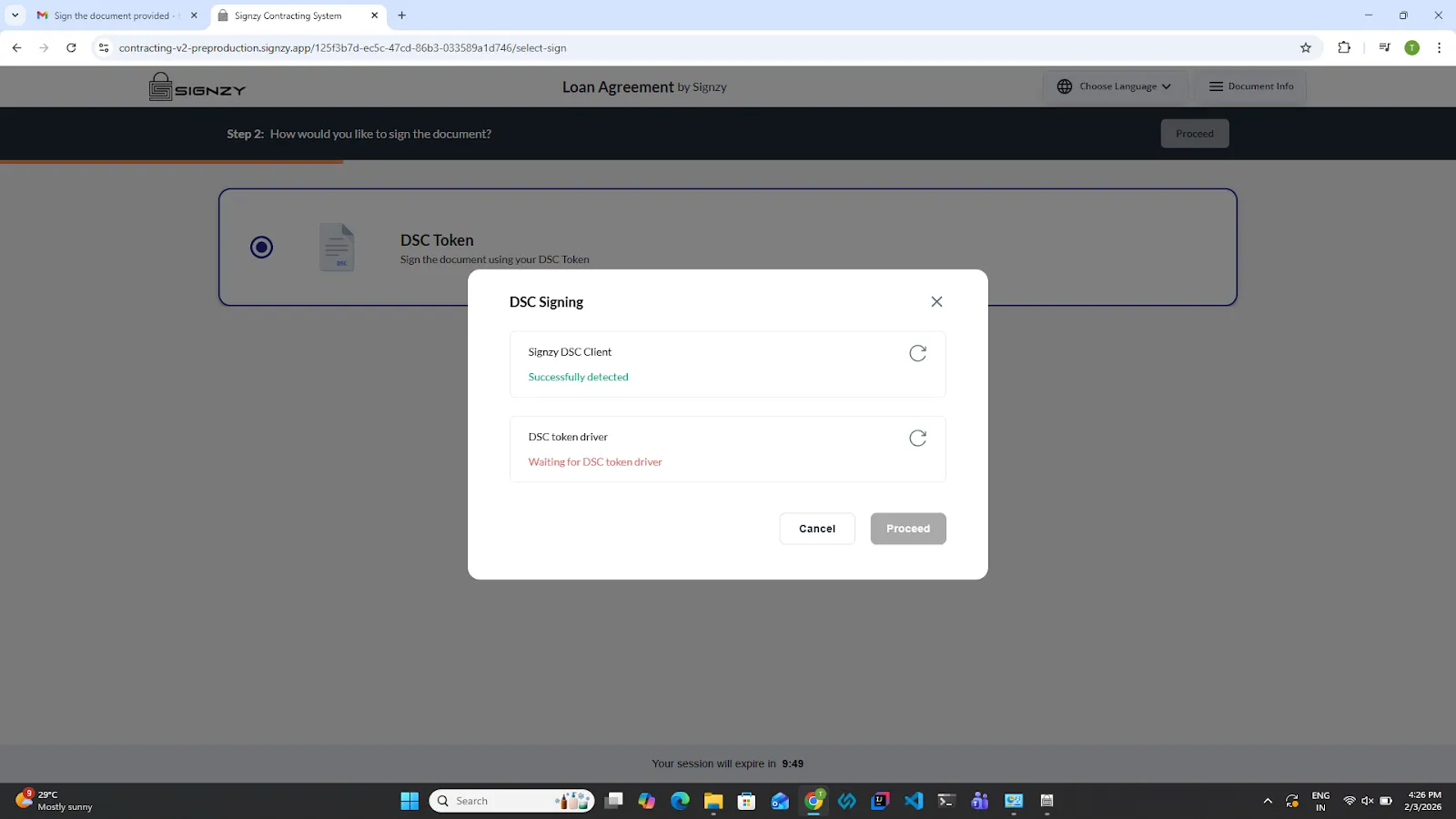
If it still is not working, then click on the Close Utility restart the utility.
4. How to restart the Utility?
A.Open File Explorer.
B. Click on This PC.
C. Open Local Disk (C:)
D. Navigate to Program Files (x86)
E. Locate and open the Signzy DSC Utilityfolder.
F. Open the bin folder.
G. Double-click on the SignzyDSCUtility application.
H.The Signzy DSC Utility will start, and a popup message will appear.
I.Click the Minimize button on the popup window.
J.The utility will continue running in the background. You can verify this by checking the Windows taskbar (bottom navigation bar)
5. How to Uninstall the Signzy Utility?
1.Ensure that the Signzy Utility is not running.
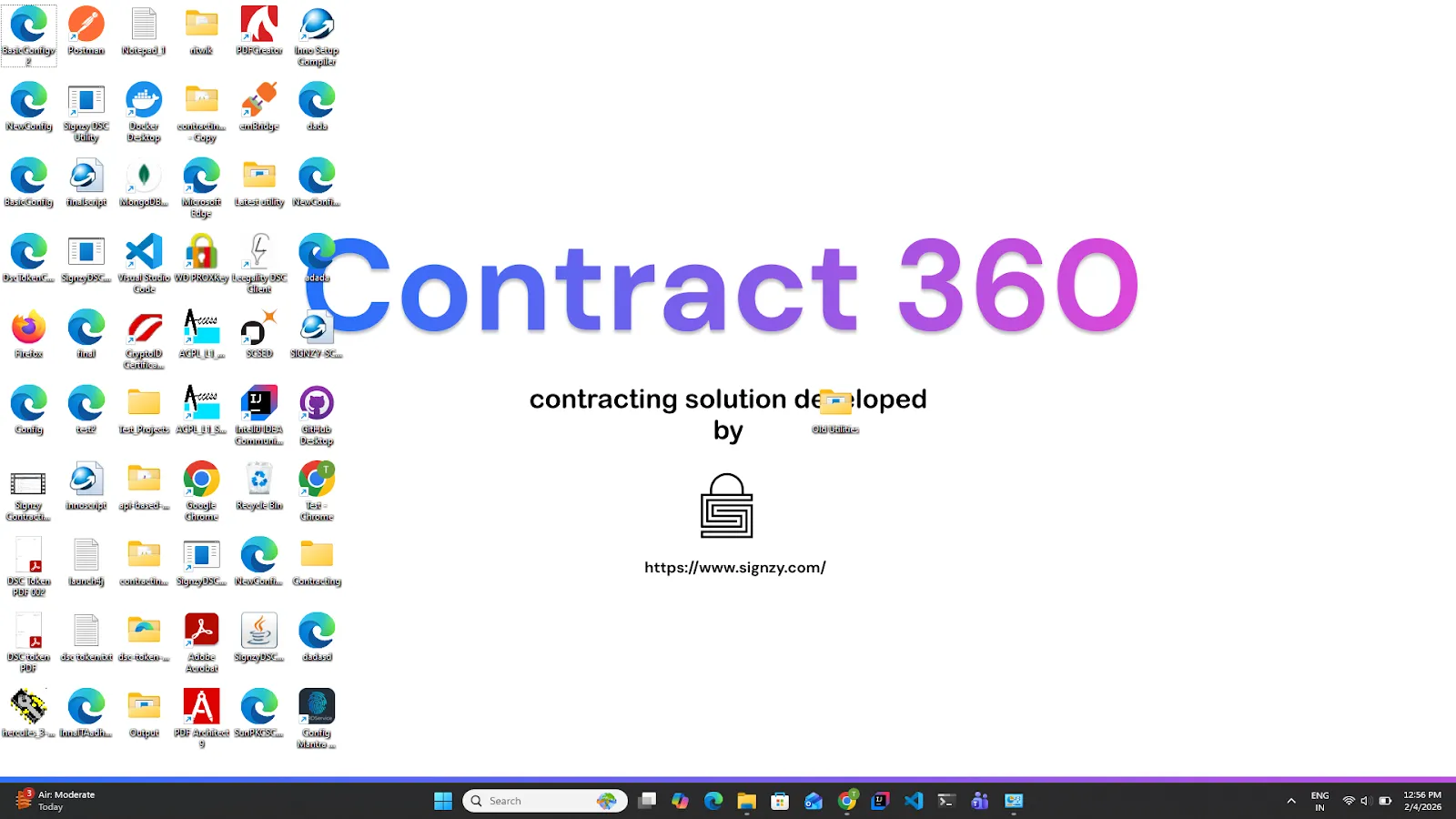
b. If the Utility is running, you will see a Signzy utility icon at the bottom of the Windows navigation bar
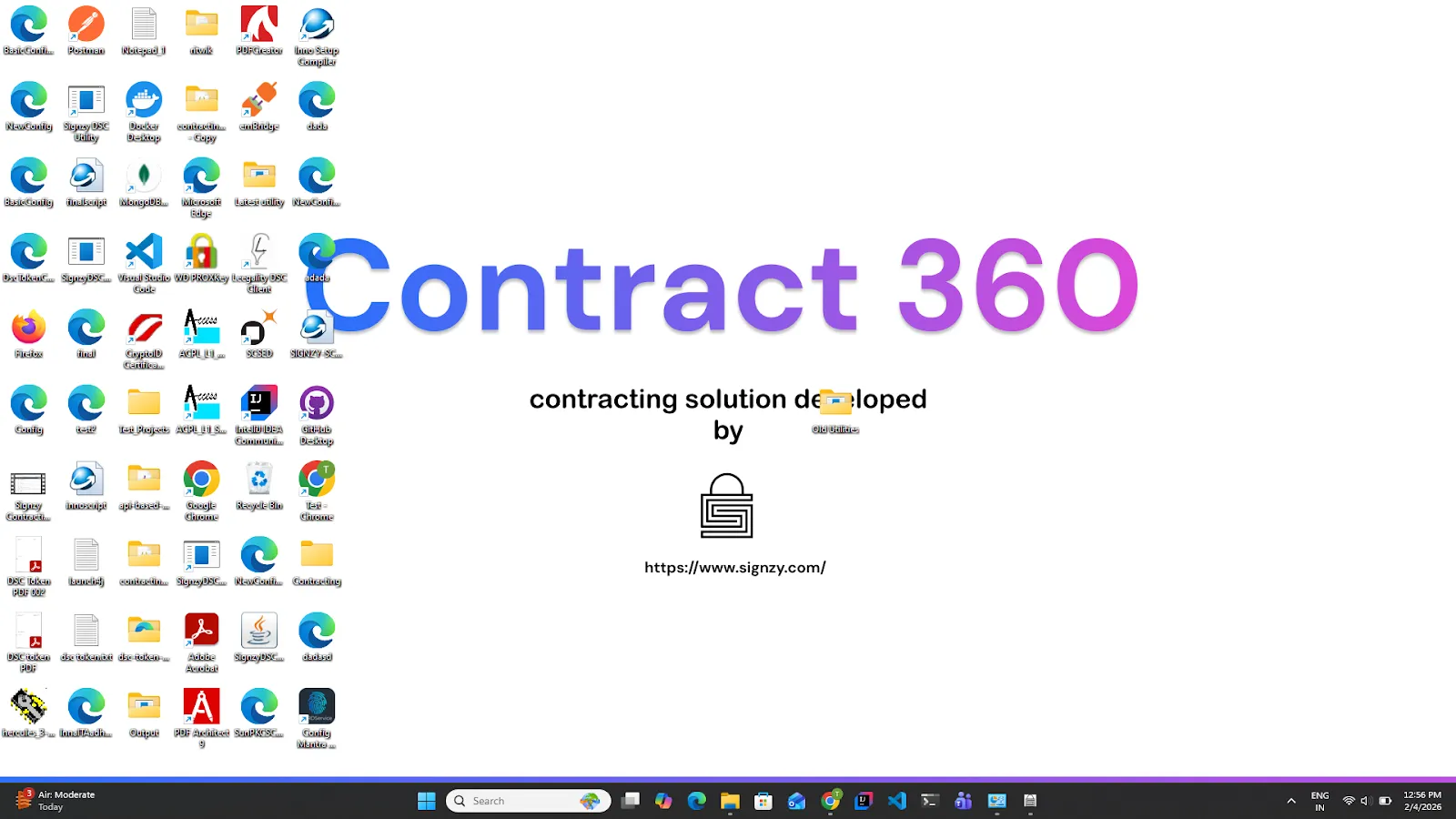
c. If the Utility is running, click on the utility and click on the cross icon. The utility will stop running.
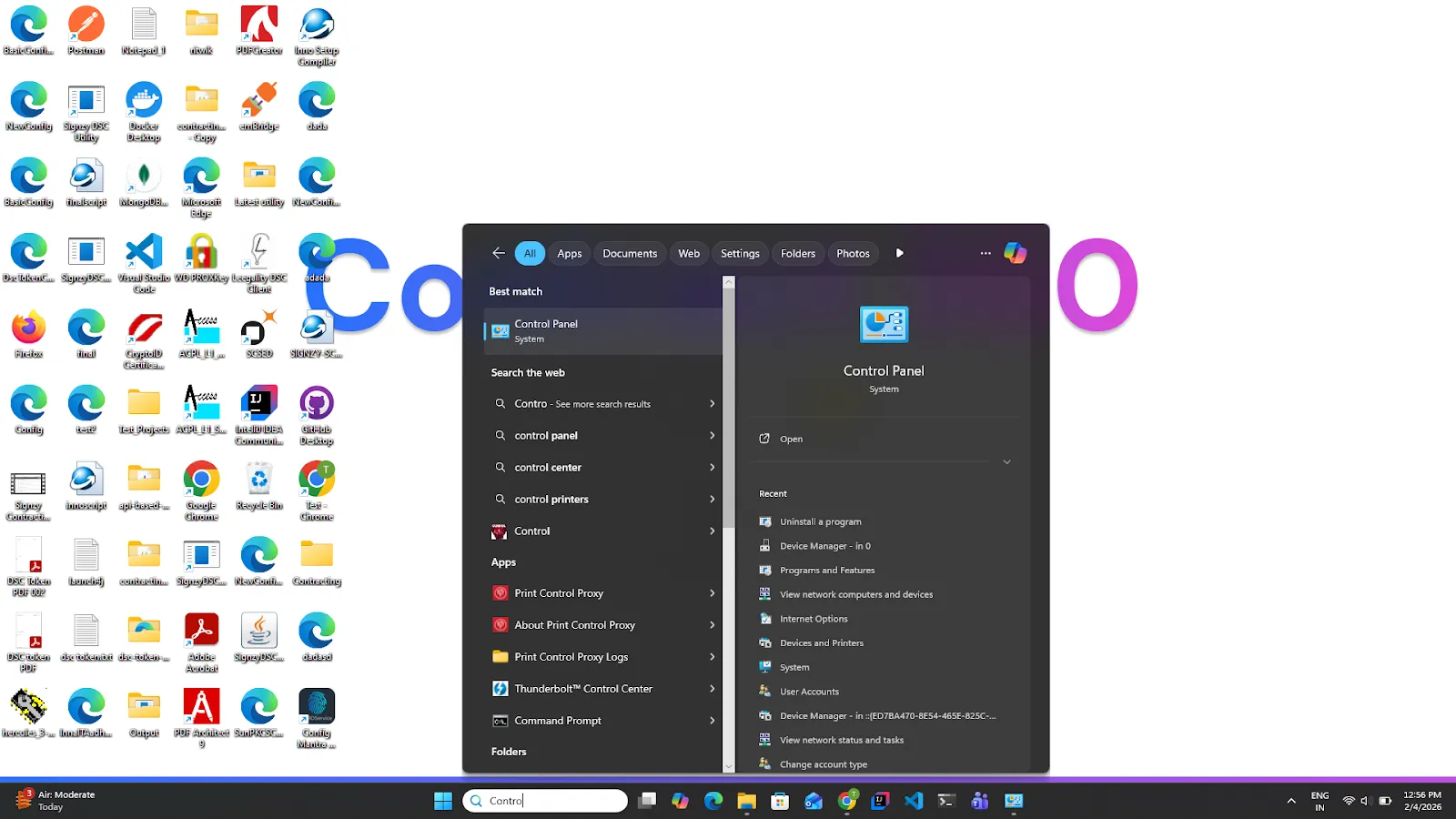
2.In the Windows bottom navigation bar, click on the search bar and search for Control Panel. Click on the Control Panel.
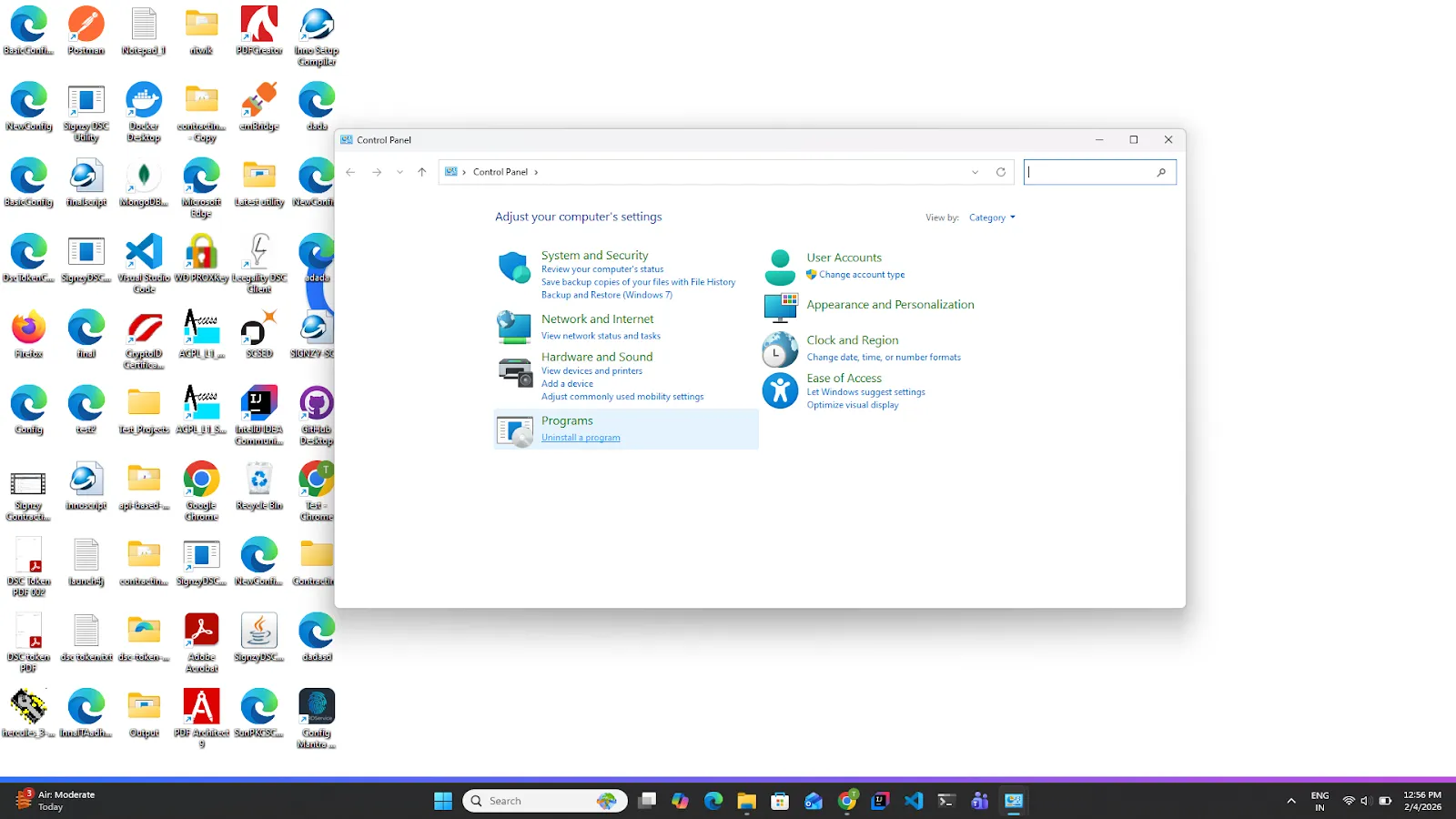
3.In the Control Panel, look for Programs and click on the uninstall a Program.
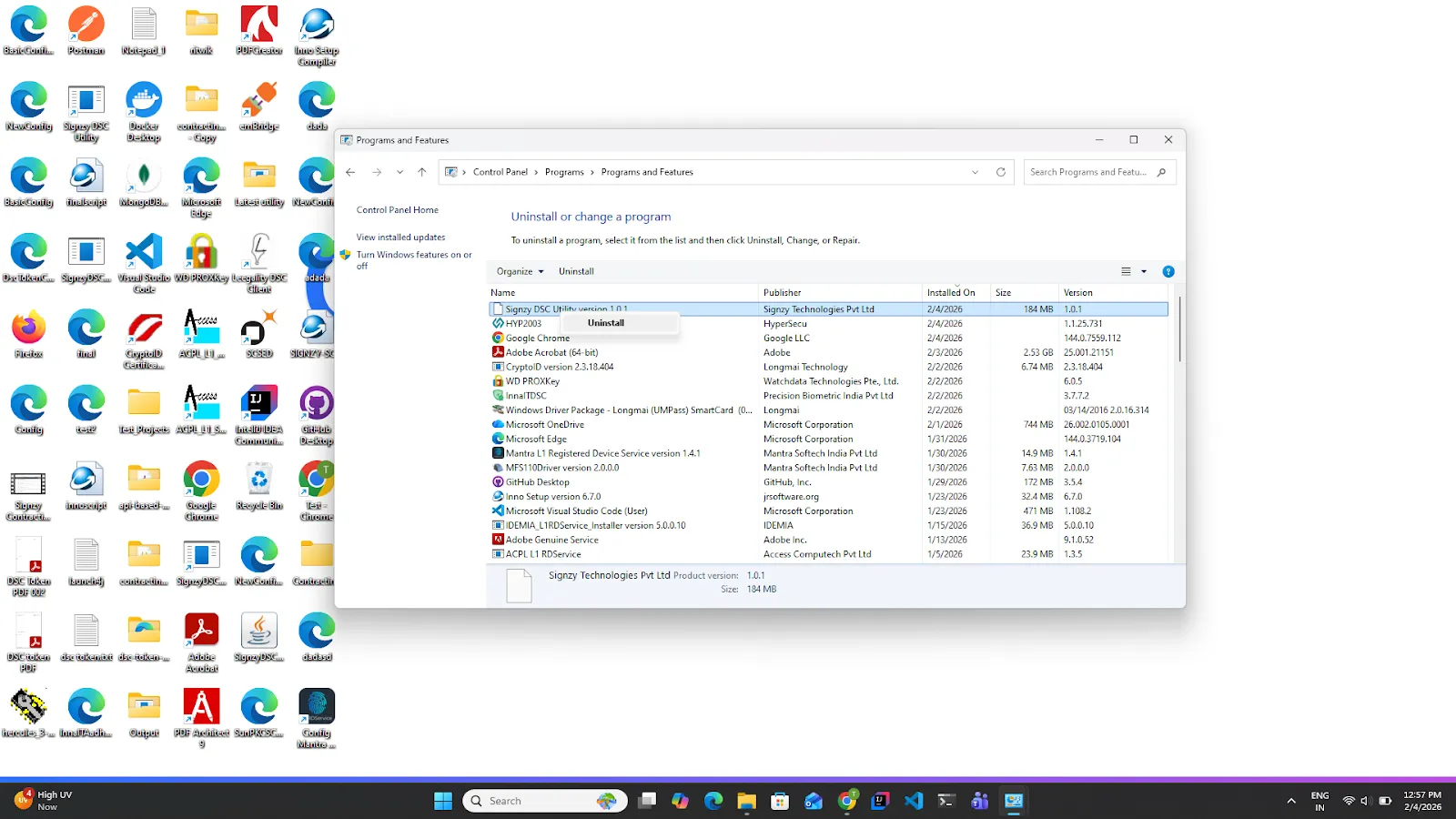
4.Look for Signzy DSC Utility and right click on it and click on the uninstall option, and enter the admin password it required. Please wait til the uninstallation process is completed.
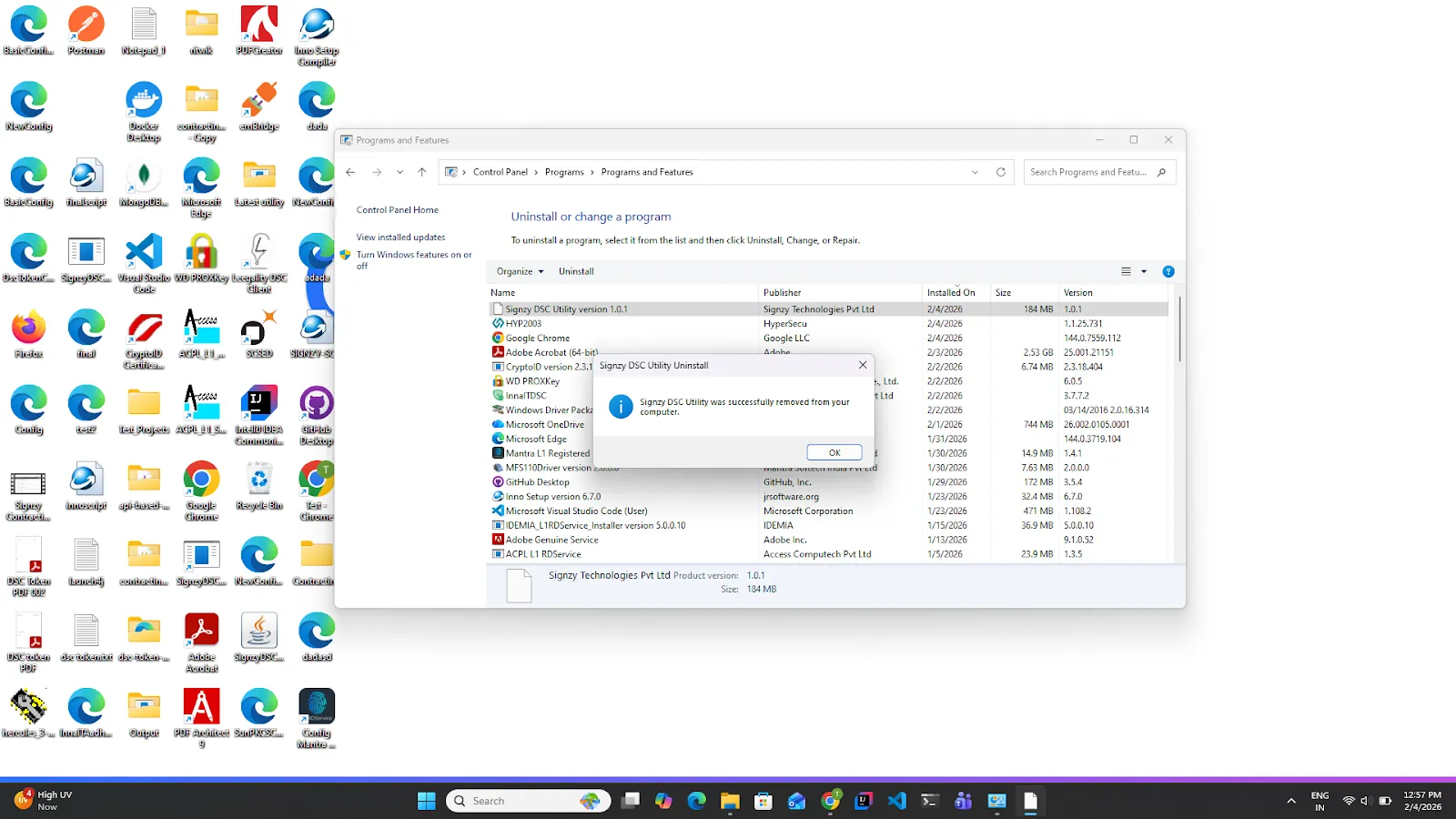
5.Once the Signzy Utility is uninstalled, a confirmation pop-up will appear on the screen. Click on the OK button. Once done, the Utility is successfully uninstalled from the system.
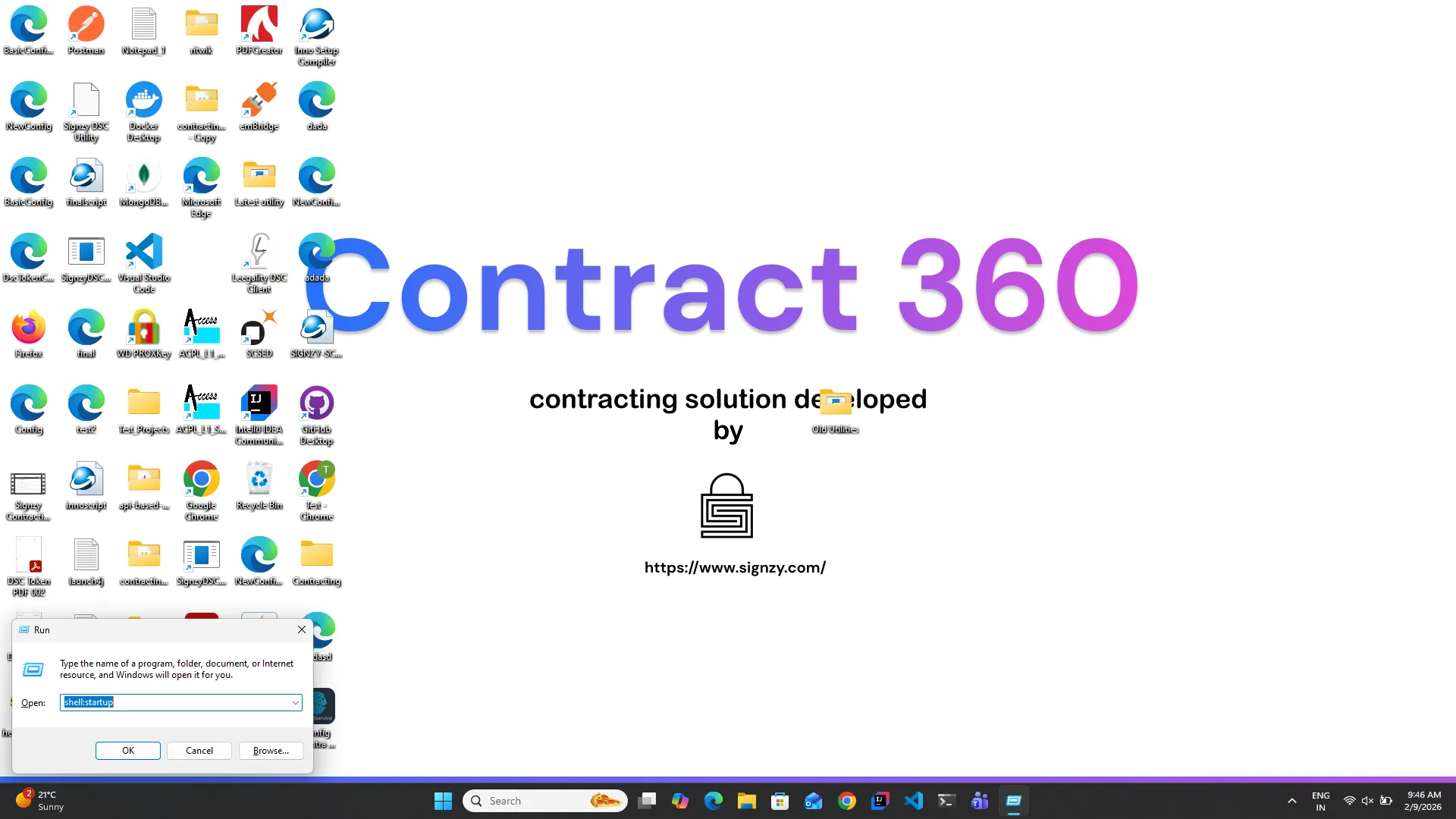
6.Once the above steps are completed, Press Windows + R from the keyboard. A pop will appear at the bottom right side of the screen. Enter this command shell:startup and click the Ok button.
7.The startup folder will appear with the utility.
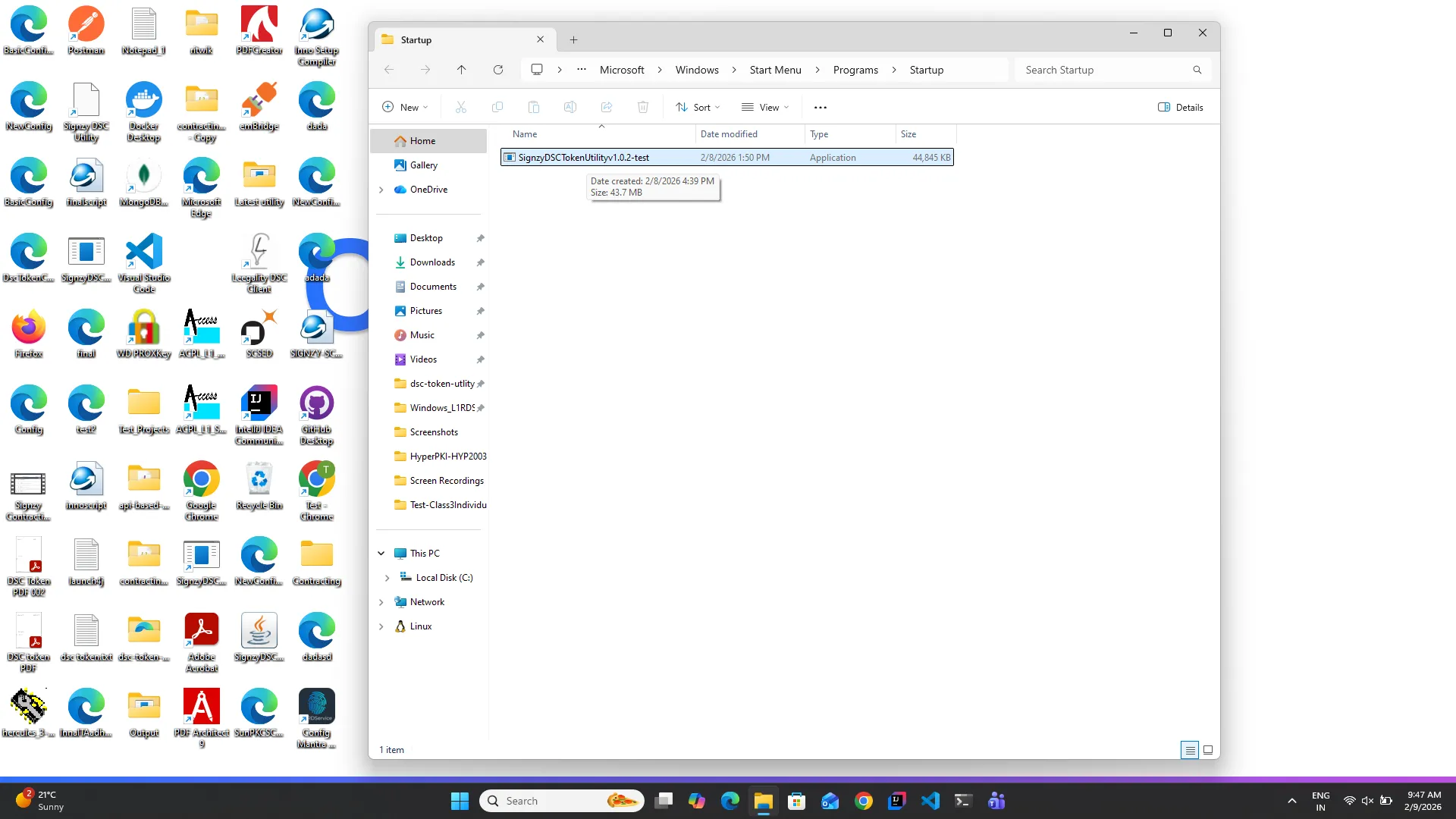
Note: If no Uitlity is present you can directly proceed with reinstalling the Uitlity.
8. Right-click on the Uitlity and click on the delete button.
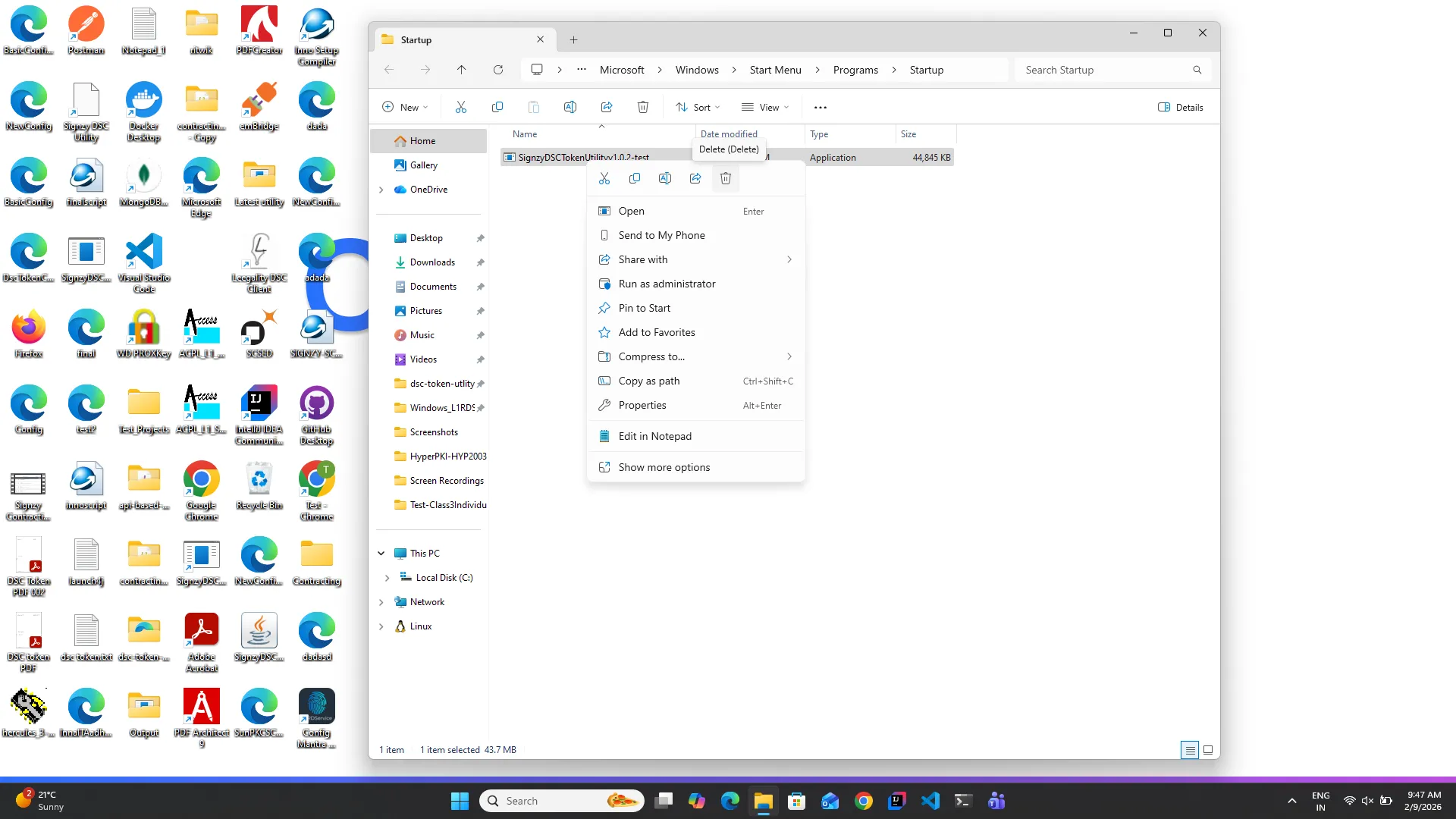
9. Once this is done, the utility will be removed from the start-up folder. You can now reinstall the utility.
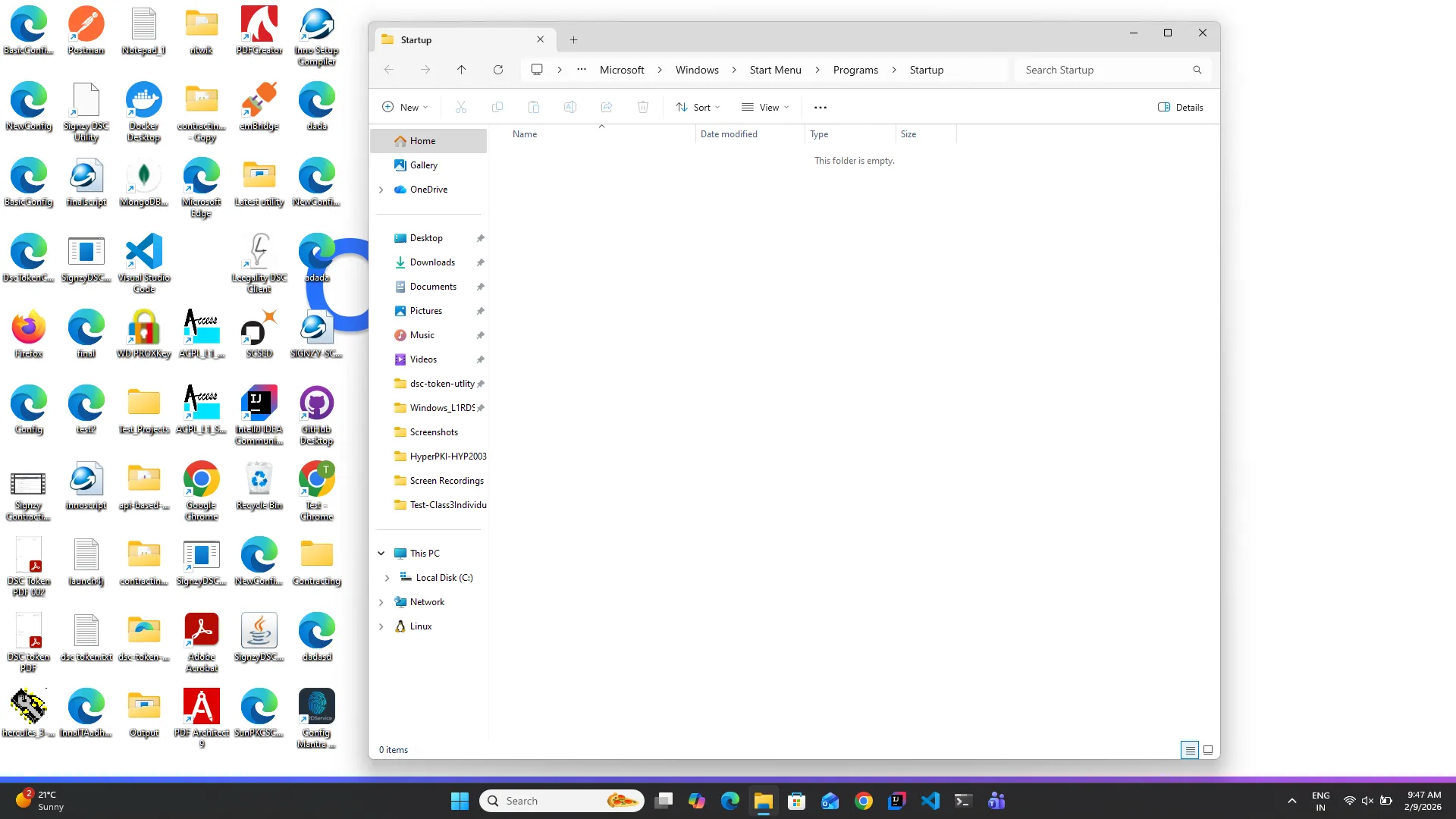
Follow these steps to install the Utility
6.Was the token removed between signing?
1.Once the token is removed during the signing
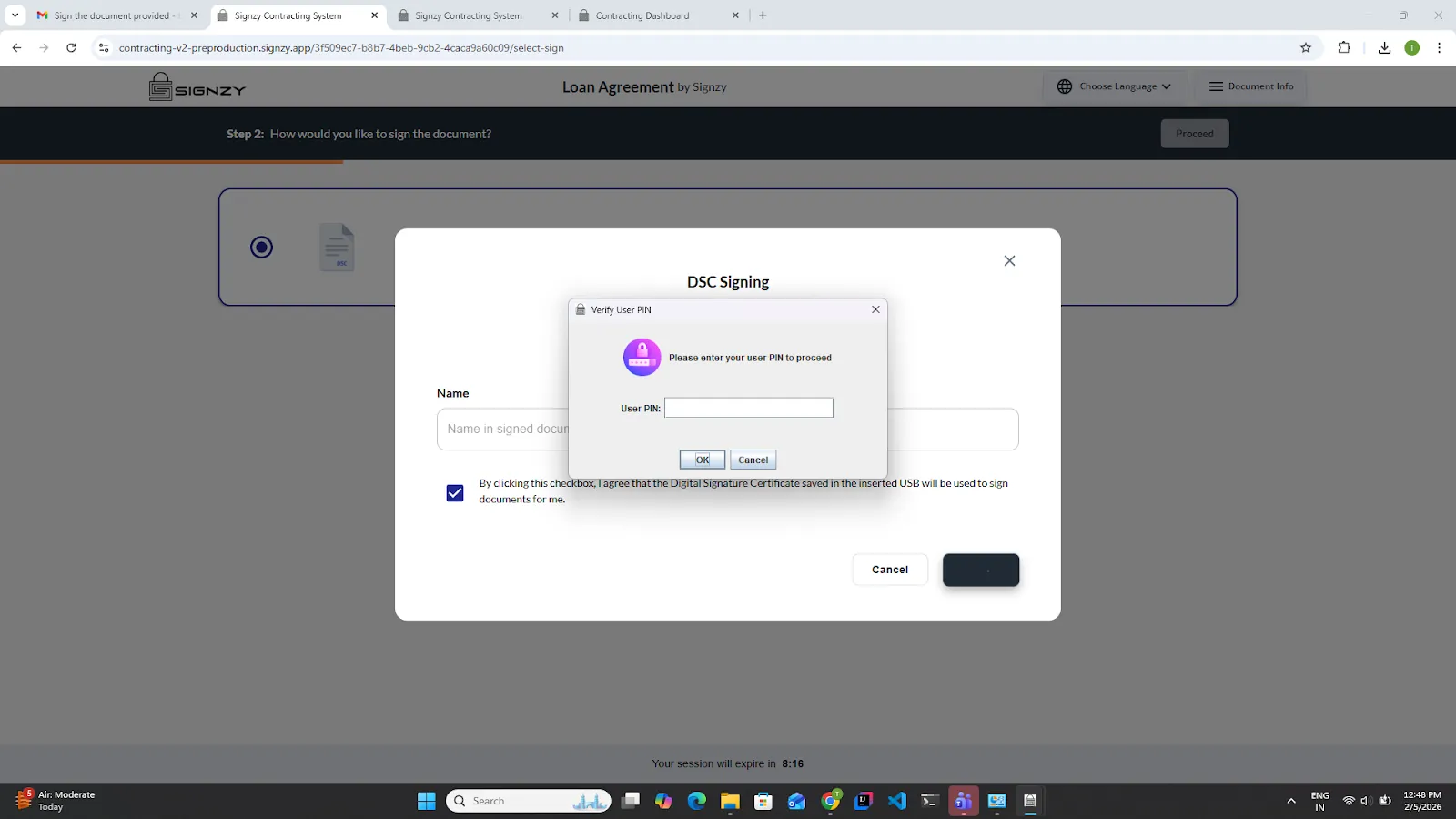
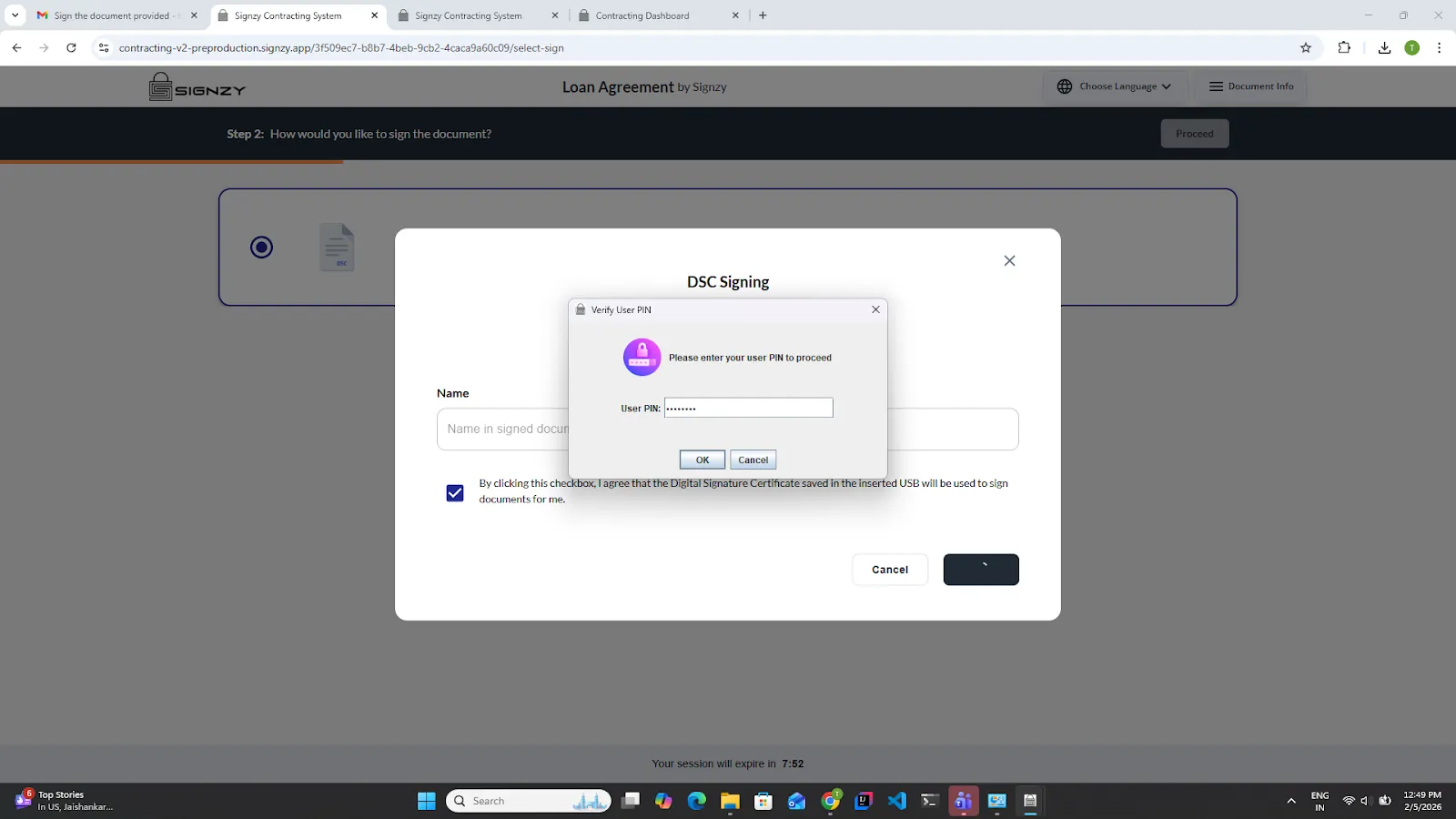
2.Continue the journey, enter the password, and click on the OK button.
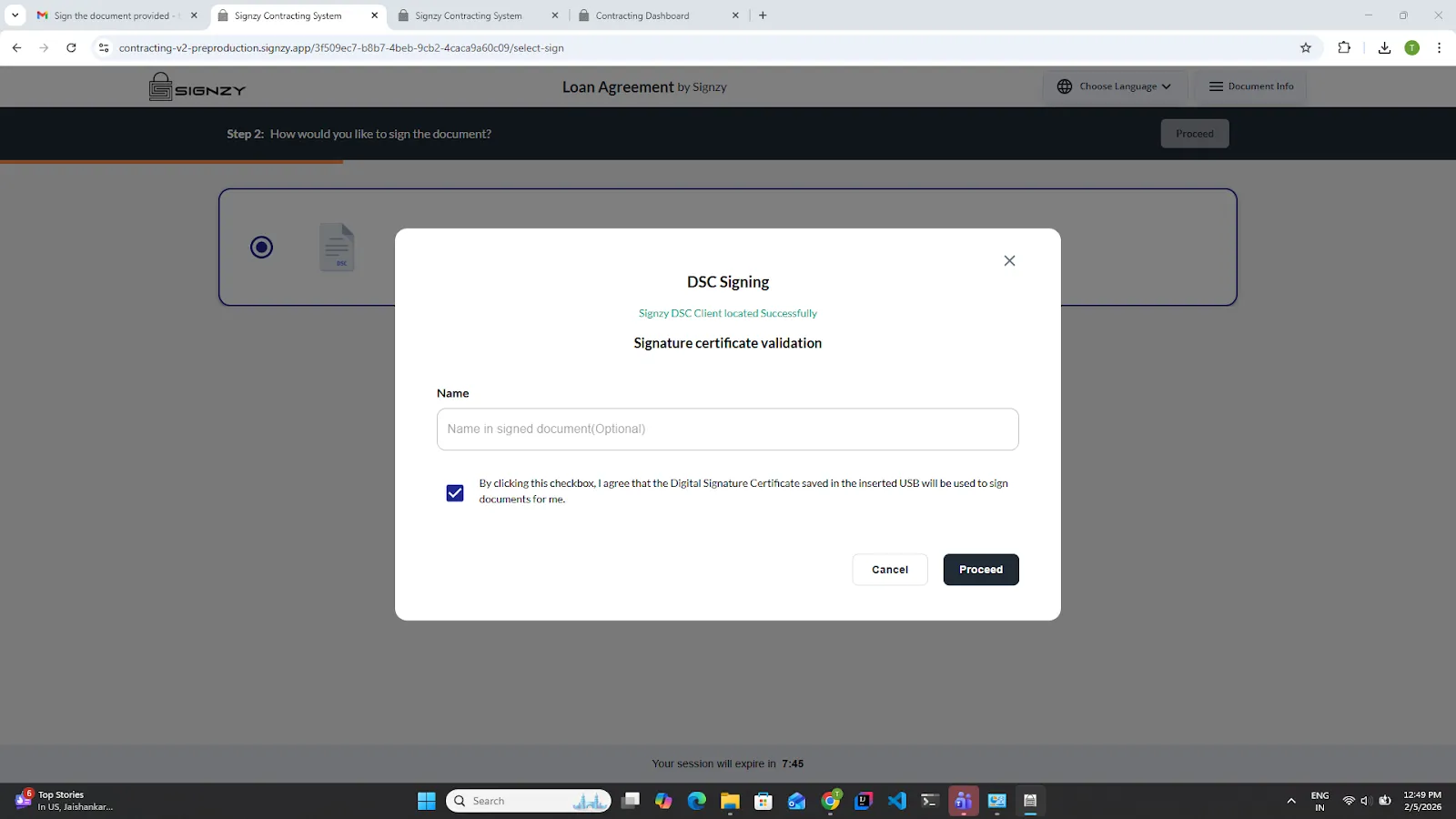
3.The modal will be closed, and the proceed button will appear again.
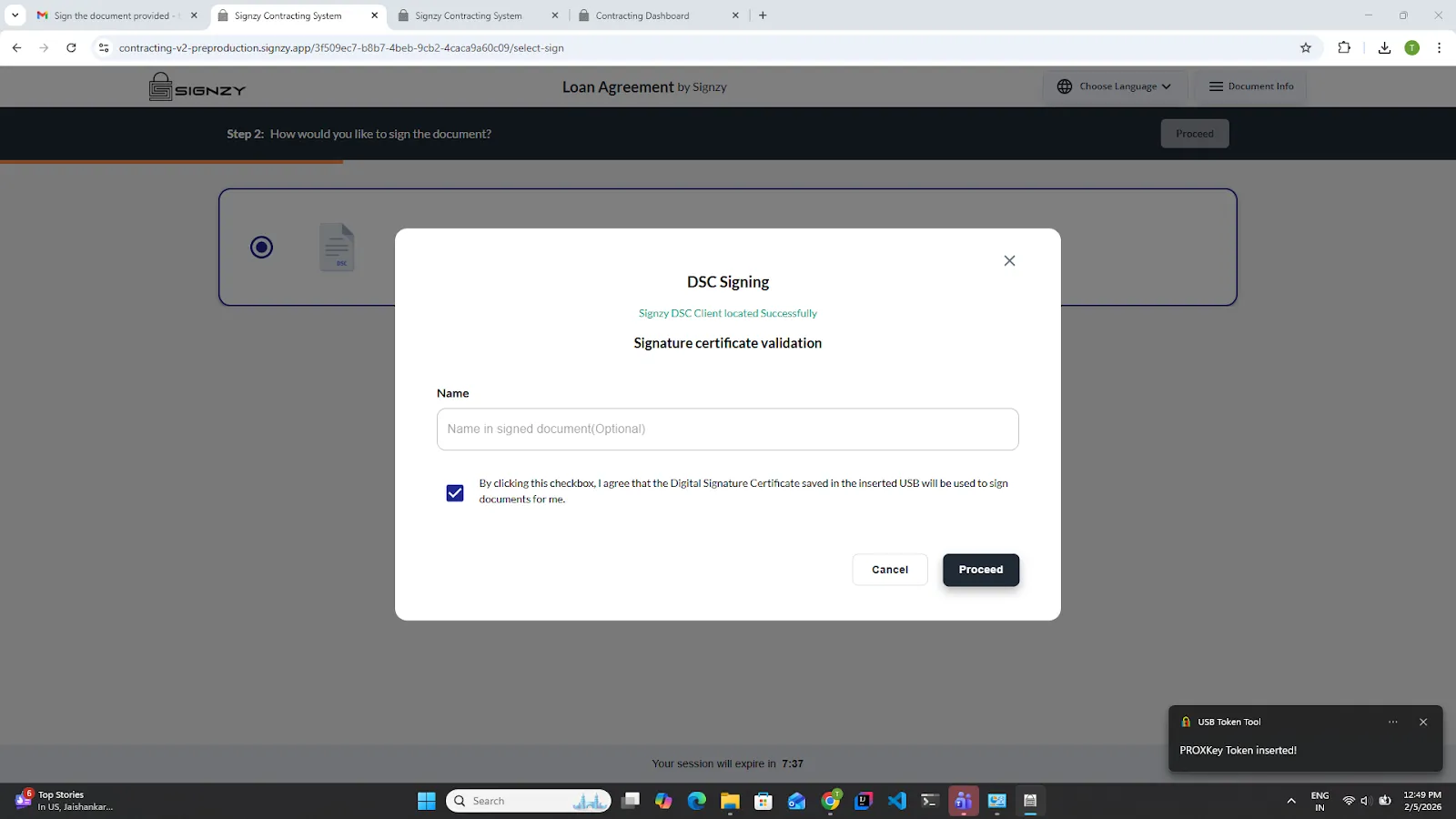
4.Insert the token again and click on the proceed button.
5.Enter the password and click on the Ok button.
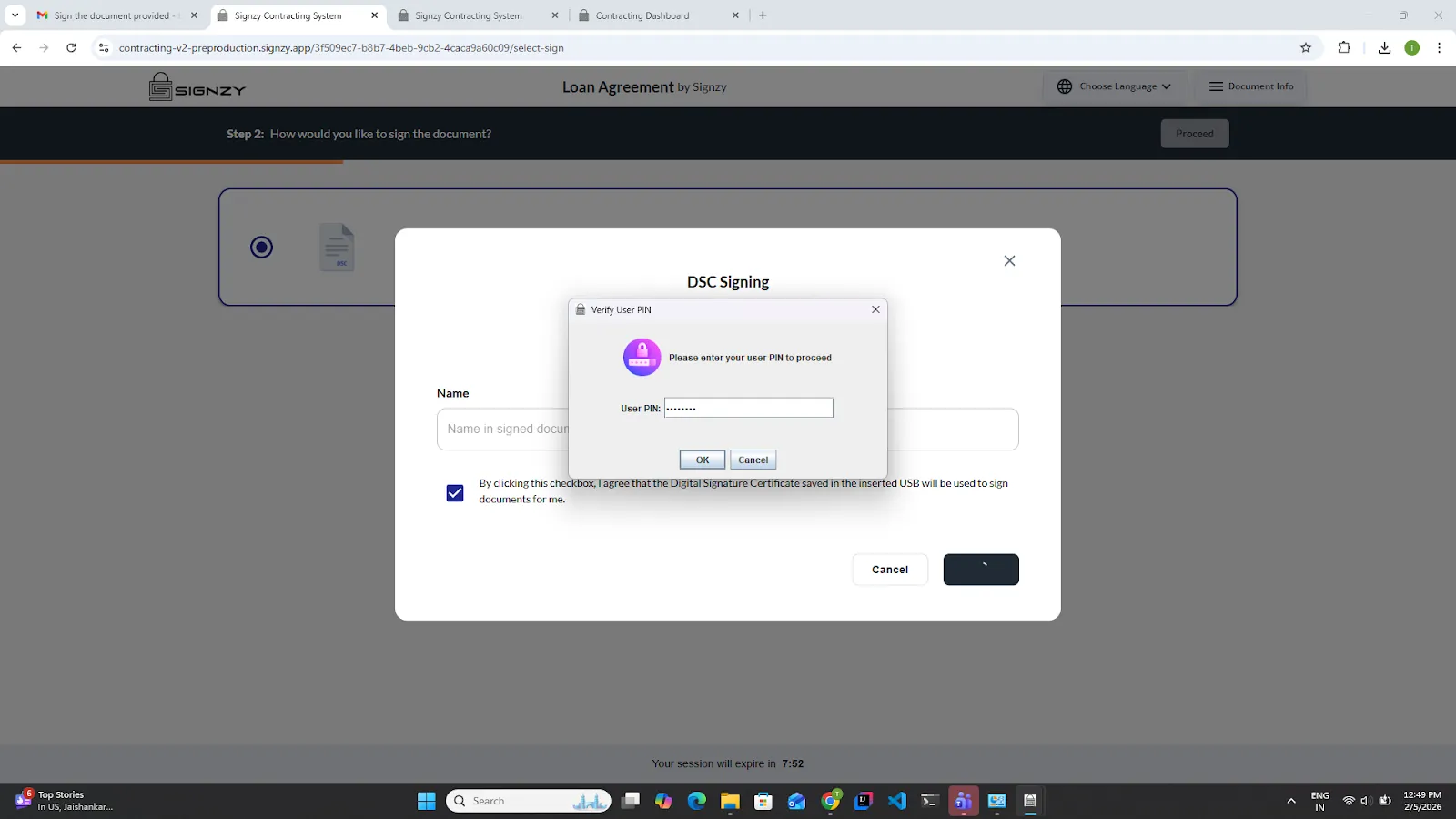
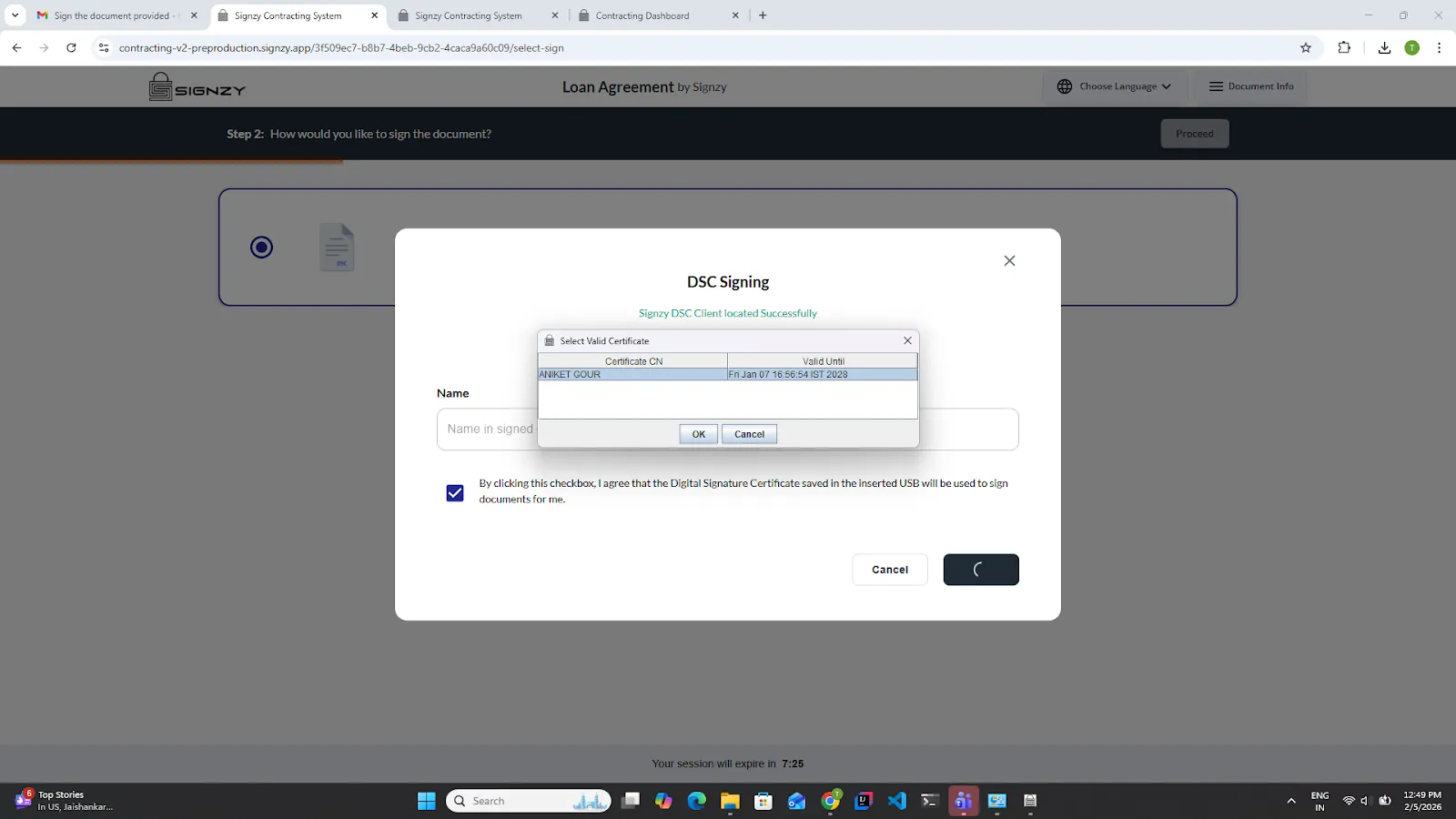
6.Select the certificate and click on the OK button.
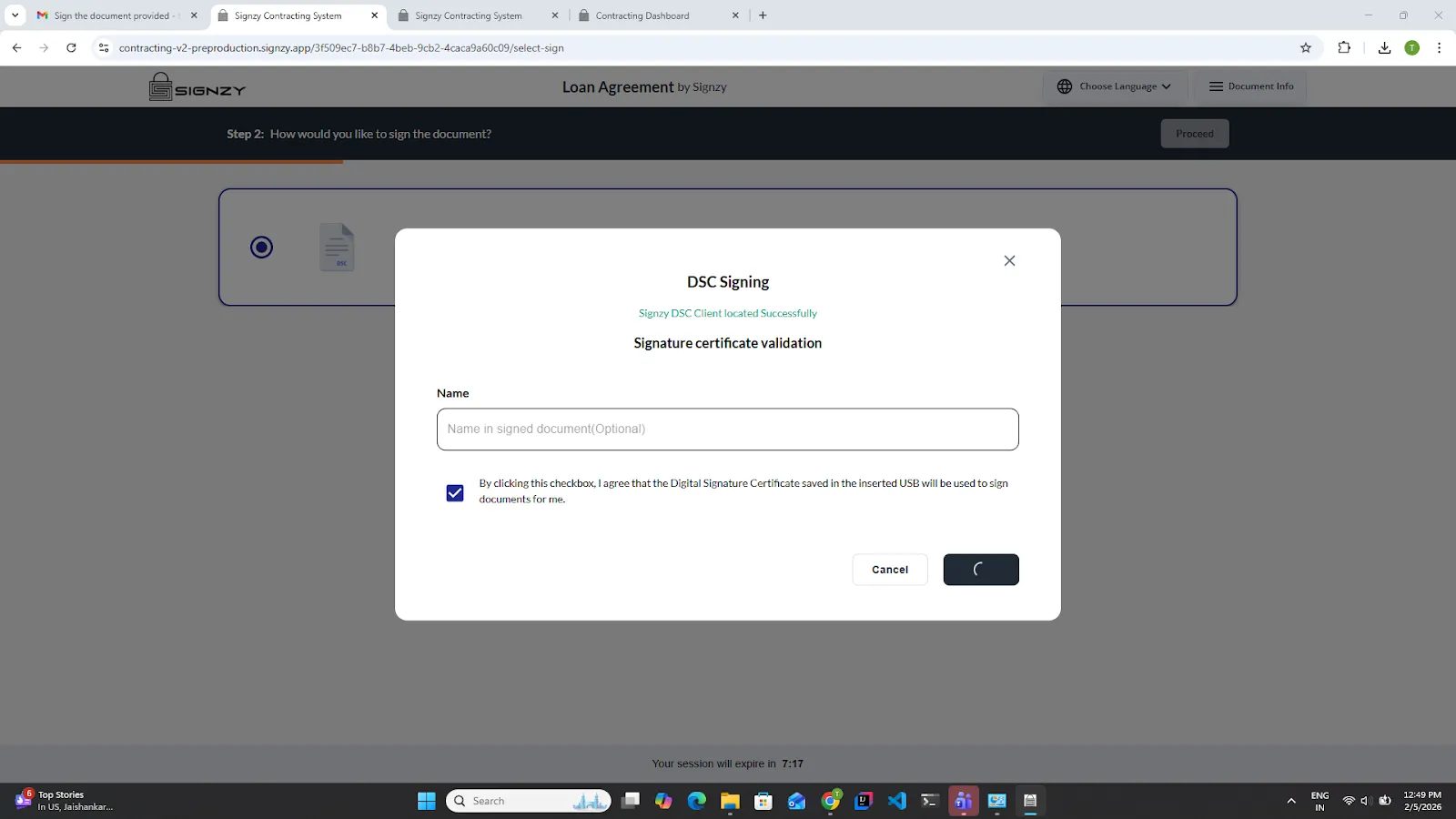
7.Please wait while the singing is in progress.
8.Once the signing is completed, the signed pdf will appear, and click on the Done button.